

How to Migrate Website to SiteGround: A Beginner’s Guide
Last Updated on December 24, 2025
Moving your website to a new host can feel like a big task, but it doesn’t have to be. If you’re considering SiteGround, you’re in the right place.
This guide will walk you through the entire website migration process, from start to finish.
We’ll cover everything from using SiteGround’s automated tools to handling a manual transfer.
You will also learn how to update your domain registrar settings to finalize the move, ensuring a smooth and stress-free transition for your website.

Related: SiteGround discount
Key Highlights
Ready to move your website? This guide makes it simple. Here is what you can expect when migrating your site to SiteGround.
- The first step is creating your SiteGround account and choosing a hosting plan that fits your needs.
- SiteGround offers a free WordPress Migrator plugin that automates the migration process, making it incredibly easy.
- For those who prefer a hands-on approach, a manual transfer of files and databases is also straightforward.
- After the transfer, you will need to update your domain name’s DNS settings to point to SiteGround’s servers.
- You can verify your new site’s functionality using a temporary URL and other powerful site tools before going live.
Understanding Website Migration to SiteGround
So, what exactly does website migration to SiteGround involve? It’s the process of moving all your website’s files and databases from your current web host to your new SiteGround account.
This ensures your site looks and functions exactly the same on its new server.
For many, this is the first time they are changing hosts. SiteGround simplifies this with its Website Setup Wizard, which guides you through the initial steps.
Whether you’re transferring your domain name or just changing hosts, the goal is to make the migration process as seamless as possible.
Why Consider Moving Your Website to SiteGround
You might be wondering if switching your web host is worth the effort. Moving to a new server with SiteGround often leads to significant improvements in your website’s performance.
SiteGround is known for its excellent custom technologies that boost loading speed and overall site responsiveness, which is a big win for both you and your visitors.
Related: SiteGround CDN Review
Another compelling reason is the level of support. If you’ve ever felt stuck with a technical issue, SiteGround’s expert support team is a major advantage.
They are trained to handle any complication, ensuring your site runs smoothly. This is especially helpful if this is your first time navigating a migration process.
Ultimately, whether you need better security, faster hosting, or more reliable support, changing your web host to SiteGround can provide great value.
It’s a strategic move to enhance your online presence, regardless of whether you’re rebranding with a new domain name or simply seeking a better service.
Key Benefits of SiteGround Site Migration for Beginners
If you’re a beginner, the thought of website migration can be intimidating. However, SiteGround makes it remarkably easy.
The platform is designed to be user-friendly, and you don’t need to be a tech expert to move your new site successfully.
The first step is often the hardest, but SiteGround’s tools make it simple.
One of the biggest advantages is the free SiteGround Migrator plugin for WordPress sites.
This tool automates most of the work, transferring your files and databases with just a few clicks. It saves you time and reduces the chance of errors, giving you peace of mind.
For those who need extra help, SiteGround also offers a professional migration service.
Key benefits for beginners include:
- Ease of Use: The migrator tool handles the technical heavy lifting for you.
- Time-Saving: Automated transfers are completed quickly, often in under 20 minutes.
- Peace of Mind: With guided processes and available support, you can feel confident your migration will go smoothly.
Preparing for a Successful SiteGround Site Transfer
Before you begin the migration, a little preparation goes a long way. Taking a few key steps beforehand ensures that your website data is safe and that the transfer to your new host is as smooth as possible.
This preparation is a critical part of the website creation process on SiteGround.
The most important task is to create a complete backup of your website. This includes all your website files and your MySQL database, which is typically saved as an SQL file.
Having a full backup gives you a safety net, so you can restore your site if anything goes wrong during the transfer.
What You’ll Need Before Starting the Migration
To ensure a seamless migration, it’s best to gather a few essential items before you start. Having everything ready will prevent delays and help you stay organized.
This includes login details for your current hosting account and domain registrar.
You will need access to your site’s backend, which is often managed through a control panel like cPanel. From there, you can access your files and databases.
Also, make sure you have a valid email address handy for notifications during the migration process.
Here’s a quick checklist of what you’ll need:
- Current Host Credentials: Your username and password for cPanel or your host’s control panel.
- FTP/File Manager Access: The ability to access and download your website’s files.
- Database Access: Credentials to access phpMyAdmin to export your database settings.
- A Full Backup: A downloaded copy of your website files and your database SQL file.
Backing Up Your Website Files and Databases
Creating a complete backup is the most crucial step before any migration. A backup is a full copy of your site that you can fall back on if anything gets corrupted or lost during the transfer. It’s your ultimate safety net.
To back up your files, log in to your current host’s file manager, navigate to your site’s root folder (usually public_html), and compress all the files into a single ZIP archive.
Once the ZIP file is created, download it to your computer. This archive contains all the content, themes, and plugins that make your site work.
Next, you need to back up your database. Use a tool like phpMyAdmin to export your database as an SQL file. This file contains all your posts, pages, user information, and other database settings.
For large databases, you may need to use SSH, but for most sites, phpMyAdmin is sufficient.
Exploring SiteGround Migration Options
When you’re ready to start the migration to your new SiteGround hosting, you have a few different paths you can take.
SiteGround offers flexible options to suit your comfort level and technical skills, ensuring there’s a method that works for you.
You can choose between an automated tool, a manual transfer, or professional assistance. The SiteGround Migrator tool is perfect for WordPress users who want a quick and easy solution.
Alternatively, a manual migration gives you full control over the process. We’ll explore these options in more detail.
Related: how to install WordPress on SiteGround
Using the SiteGround Migration Tool vs Manual Transfer
Deciding how to move your new site to SiteGround comes down to choosing between an automated tool and a manual process.
The SiteGround Migrator, also known as the WordPress Migrator plugin, is a free tool that automates the transfer of WordPress sites. It’s designed for simplicity and speed.
On the other hand, manual website transfers require you to download your site’s files and databases and then upload them to your new SiteGround account.
This method offers more control but requires more technical confidence and attention to detail.
Here’s a simple comparison to help you decide:
| Feature | SiteGround Migrator | Manual Transfer |
|---|---|---|
| Ease of Use | Very easy; guided, automated process. | Requires technical knowledge (FTP, phpMyAdmin). |
| Time Required | Fast; setup takes less than 10 minutes. | Can be time-consuming, depending on site size. |
| Best For | WordPress beginners and users wanting a quick transfer. | Non-WordPress sites or users who want full control. |
| Risk of Error | Low; the tool handles everything. | Higher; potential for human error. |
When to Use SiteGround Support for Site Transfers
Sometimes, it’s best to let the experts handle it. SiteGround offers a professional migration service where their support team will transfer your website for you.
This is a fantastic option if you’re not confident in doing it yourself or if your time is better spent elsewhere.
This service is especially valuable for larger or more complex websites. E-commerce stores or sites with intricate setups can be tricky to migrate, and having an expert manage the process ensures nothing is missed.
It provides complete peace of mind, knowing your site is in capable hands.
Consider using SiteGround’s professional migration service if:
- It’s your first time: If you’re new to website transfers and want to avoid any stress.
- Your site is complex: For sites with custom configurations, large databases, or e-commerce functionality.
- You encounter technical issues: If you run into problems with a DIY migration, the support team can take over and fix them.
Step-by-Step Guide: How to Migrate Your Website to SiteGround
Now, let’s get into the practical steps. This tutorial will serve as your guide through the entire migration process, from creating your new account to pointing your domain to SiteGround.
We’ll cover both the automated WordPress site migration and the manual transfer method.
Following these instructions will help you move your website with confidence.
Whether you choose the automated SiteGround Migrator or decide to transfer files manually, each step is broken down to be clear and easy to follow, ensuring a successful move to your new host.
Step 1: Setting Up Your SiteGround Hosting Account
Your migration journey begins with setting up your new home at SiteGround. The first thing you need to do is purchase a hosting plan that suits your website’s needs.

SiteGround offers various options, from shared hosting for smaller sites to more powerful solutions for larger projects.

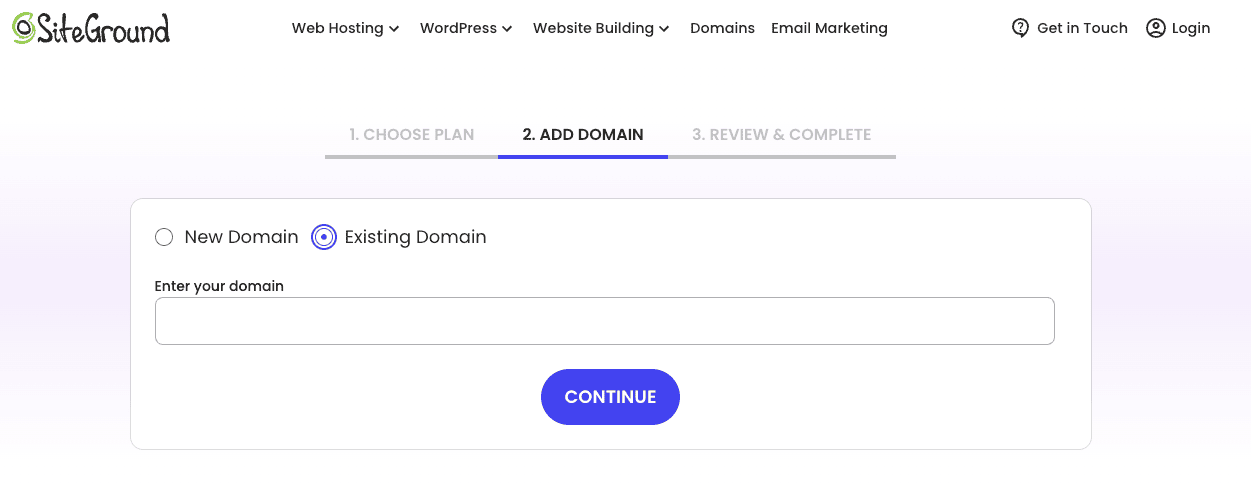
Once you’ve chosen a plan, you’ll proceed to the domain page. Here, you will select the option “Existing Domain” and enter your existing domain name.
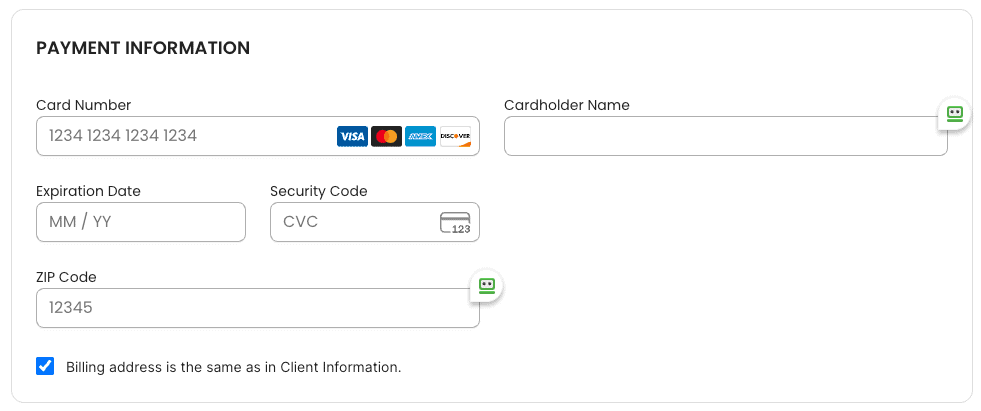
Then, you’ll fill in your account and payment information to complete the purchase.
After payment, your SiteGround account is ready. You can log in to the Client Area, which is your main dashboard for managing your hosting services.

From here, you can start the migration process and begin setting up your website on your new host.
Related: SiteGround Website Builder tutorial
Step 2: Initiating SiteGround Migration Tool or Plugin
If you have a WordPress site, using the SiteGround Migrator plugin is the easiest way to transfer it. To start, log in to your new SiteGround account and navigate to the Website Setup Wizard.
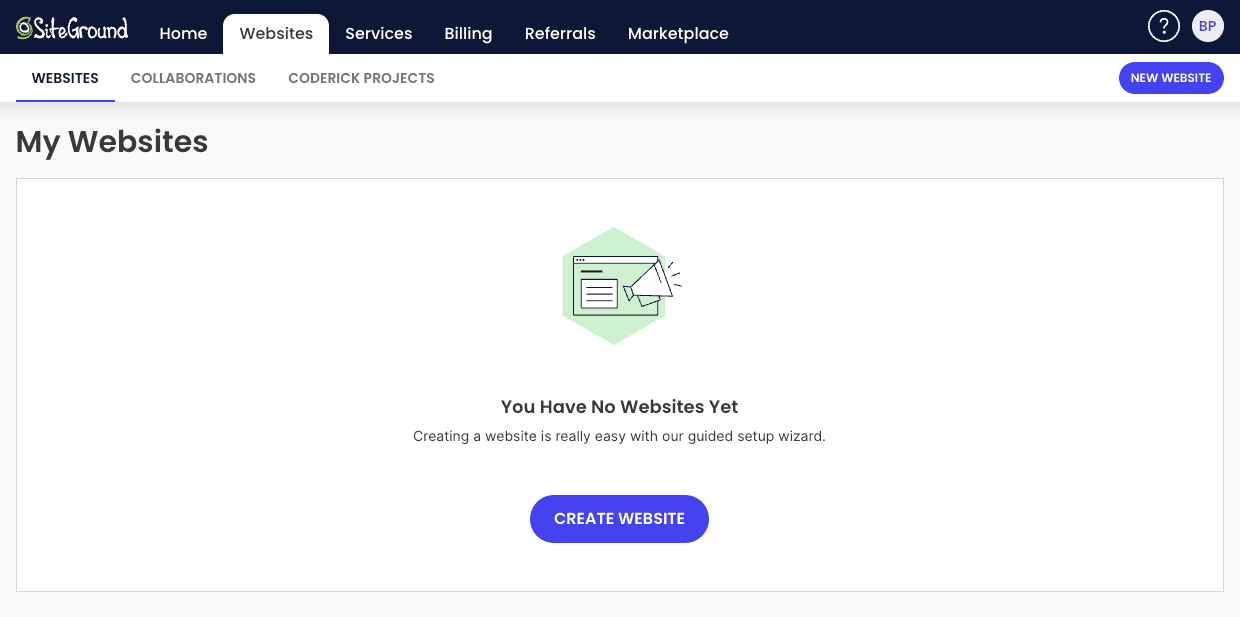
Select the option to migrate an existing website.
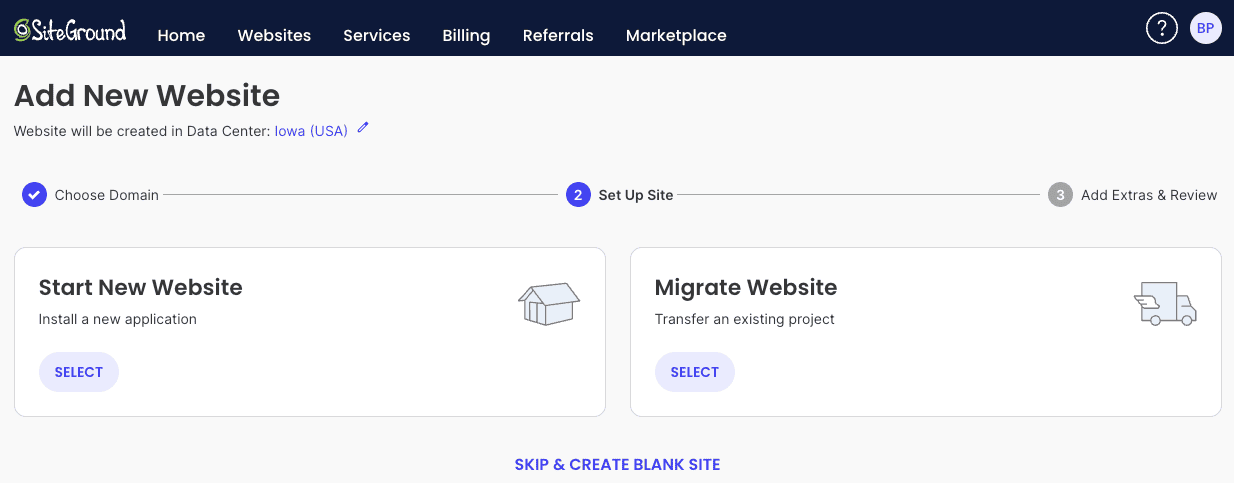
Next, choose the “Superfast WordPress Automigration” method.
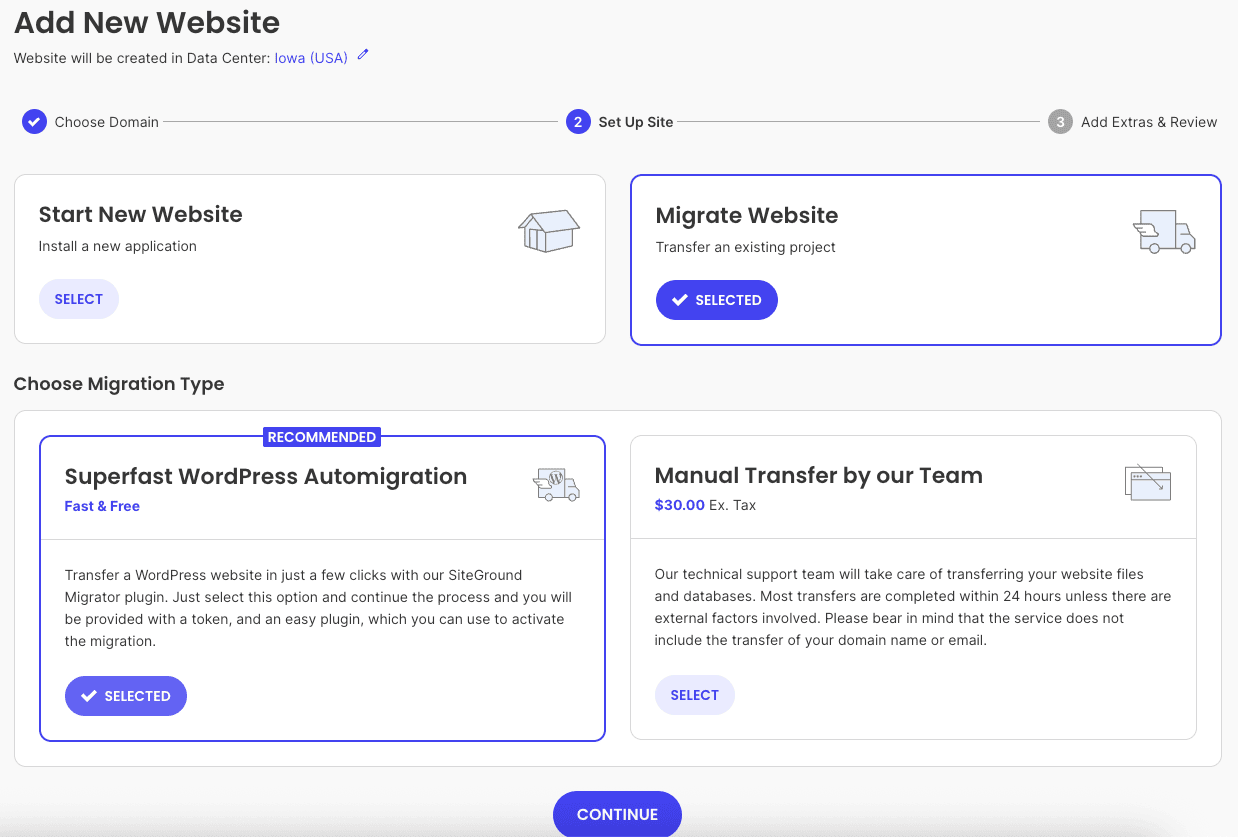
The setup wizard will then generate a unique migration token and provide a download link for the WordPress Migrator plugin.
You need to copy this token and download the plugin to your computer.
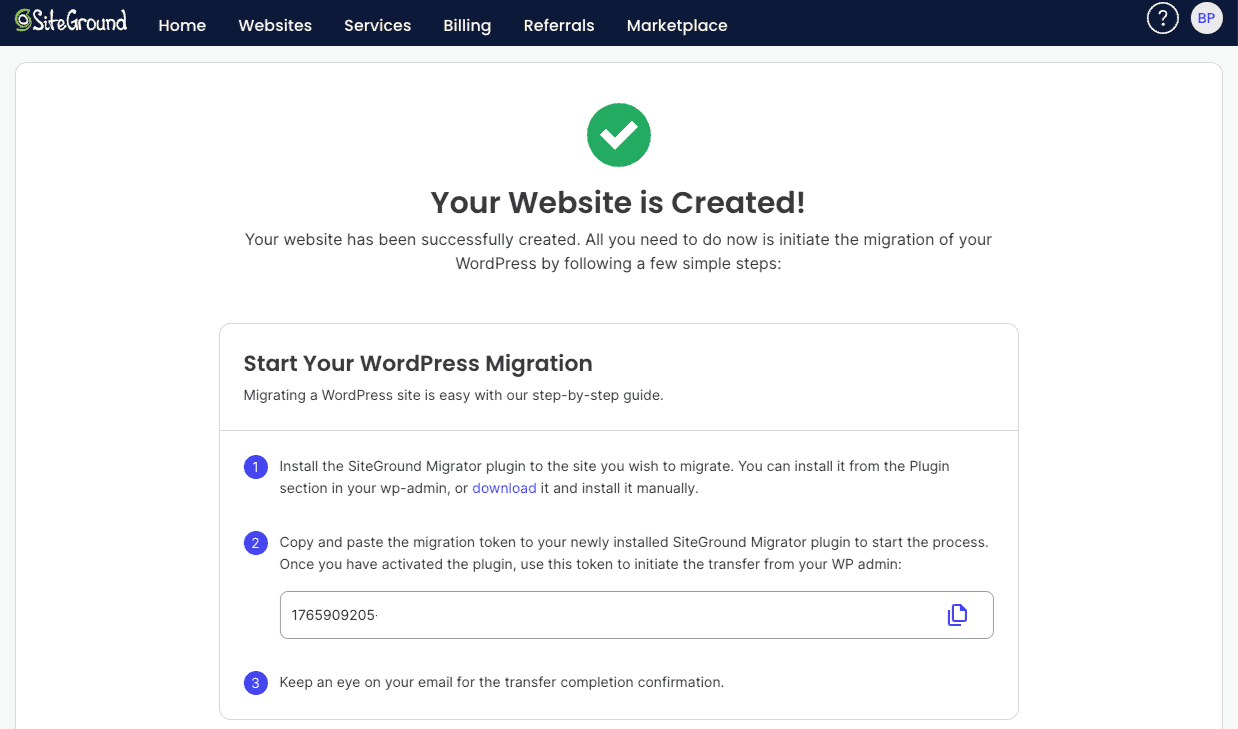
Next, log in to your current WordPress site’s admin dashboard, go to “Plugins,” and upload the plugin you just downloaded.

After activating it, you’ll see a new “SG Migrator” menu item.
Click it, paste the migration token into the provided field, add your email for notifications, and click the “Start Migration” site button. The plugin will handle the rest.
Step 3: Transferring Website Files and Databases Manually
For manual website transfers, you’ll be moving the backup you created earlier. The first part of this process is uploading your website files.
You can do this using an FTP client or SiteGround’s File Manager, which you can access in Site Tools. Navigate to the public_html folder and upload the contents of your website’s backup file.
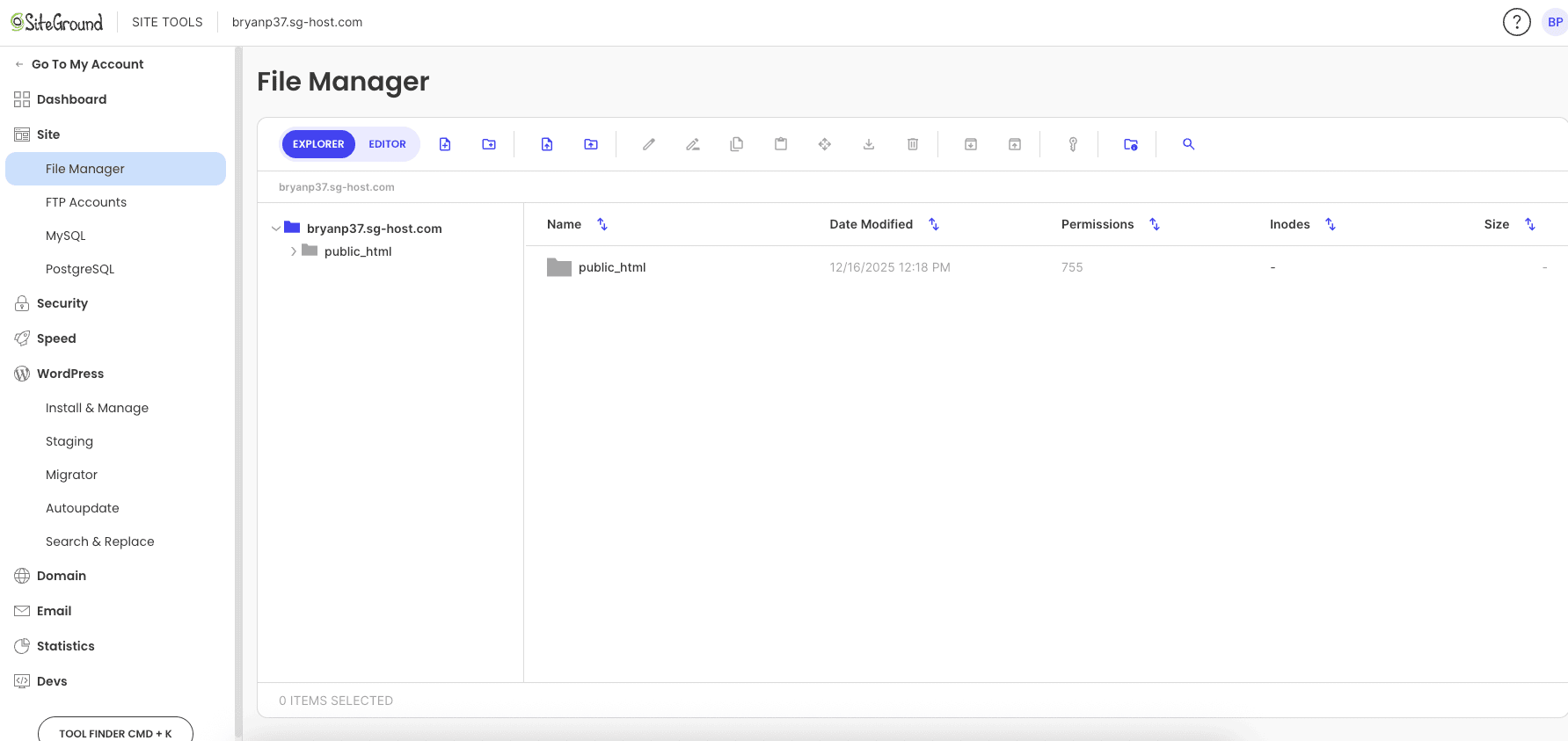
After your files are uploaded, the next step is to import your database. In Site Tools, go to “Site > MySQL” to create a new database and a new user.
Make note of the database name, username, and password. Then, use phpMyAdmin to import the SQL file you exported from your old host into the new database.
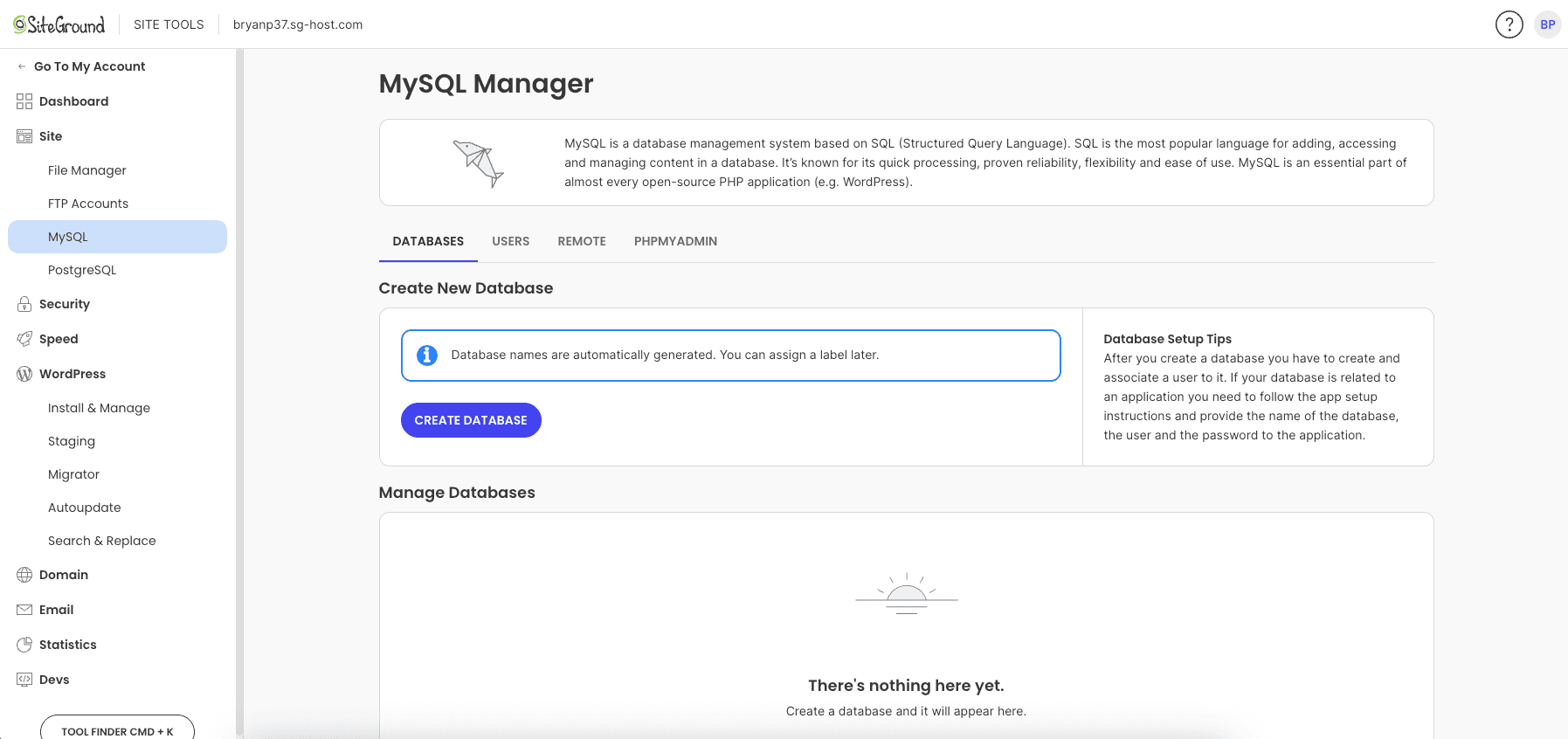
Finally, you need to connect your website to the new database.
Open the wp-config.php file (for WordPress sites) in the File Manager and update the database settings with the new database name, username, and password you just created.
Step 4: Updating Domain DNS Settings for SiteGround
This is the final step to make your website live on SiteGround.
After your files and database have been transferred, you need to tell your domain name to point to your new hosting server. This is done by changing your domain’s DNS settings.
You’ll need to log in to the account where your domain is registered (your domain registrar). Look for the section that manages your domain’s nameservers.
Here, you will replace the existing nameservers with SiteGround’s nameservers: ns1.siteground.net and ns2.siteground.net.
Once you save these changes, the update begins. It can take up to 48 hours for the new DNS settings to propagate across the internet, though it’s often much faster.
During this time, some visitors may see your old site while others see the new one, but soon everyone will be directed to your new SiteGround server.
Step 5: Verifying Your Site After Migration
After the migration is complete but before you update your DNS, it’s a good idea to verify that everything is working correctly on your new site.
SiteGround provides a temporary URL that allows you to preview your website on the new server without affecting your live site.
Use this temporary URL to browse your site thoroughly. Check that all pages load, links work, images appear, and forms submit correctly.
This is also a great time to check your website’s performance and see the speed improvements on the new server. SiteGround’s Site Tools can provide valuable statistics.
Here’s what to check to confirm a successful migration:
- Functionality: Test all interactive elements, like contact forms and shopping carts.
- Content and Layout: Ensure all text, images, and design elements look as they should.
- Admin Area: Log in to your WordPress dashboard to confirm you can access and manage your site.
Related: SiteGround website builder tutorial
Post-Migration Checklist for Your SiteGround Website
Your website has been successfully moved to SiteGround, but the work isn’t quite finished.
There are a few important post-migration tasks to complete to ensure your site is secure, functional, and optimized for the best performance.
This final setup is easily managed through your SiteGround control panel, Site Tools.
These checks include testing all site functionality, activating your SSL certificate for secure connections, and fine-tuning your settings.
Taking care of these details now will prevent future headaches and help you get the most out of your new hosting environment.
Testing Site Functionality and Performance
Once your domain’s DNS has fully propagated, it’s time to conduct a final, thorough test of your live site.
Click through your navigation menus, test internal and external links, and make sure there are no broken pages or missing images. This ensures a seamless experience for your visitors.
A crucial step is to ensure your SSL certificate is active. SiteGround offers free Let’s Encrypt SSL certificates that you can install with one click in Site Tools.
Verify that your site loads with HTTPS in the address bar and that there are no “mixed content” warnings, which occur when some resources load over an insecure connection.
Finally, monitor your website’s performance. Use tools like Google PageSpeed Insights to measure your site’s speed and identify any areas for improvement.
You should notice a significant boost in performance now that your site is hosted on SiteGround’s optimized servers.
Securing Your Site and Optimizing Settings
With your site live on its new server, your final priority is to secure and optimize it. SiteGround’s Site Tools offer a suite of features to help you with this.
Taking a few moments to configure these settings will enhance your site’s security and performance.
Start by ensuring your SSL is properly installed and that all traffic is forced to use HTTPS. This encrypts the data exchanged between your visitors and your site, which is essential for security and trust.
You can manage this easily within Site Tools. If you run into any issues, the SiteGround support team is always available to help.
For a fully optimized and secure site, follow these steps:
- Enable HTTPS: Use the SSL manager in Site Tools to install your certificate and enforce HTTPS across your entire site.
- Check for Errors: Use Google Search Console to find and fix any 404 errors or broken links that may have occurred during migration.
- Review Optimization Settings: Explore SiteGround’s caching and performance optimization tools to ensure your site is running as fast as possible.
Final Thoughts
In conclusion, migrating your website to SiteGround can be a smooth and rewarding process when you follow the right steps.
By understanding the benefits of SiteGround, preparing adequately, and utilizing their migration tools, you can ensure a successful transfer with minimal downtime and optimal performance.
Remember to conduct thorough testing post-migration to secure your site and fine-tune its settings. With the right approach, even beginners can manage the transition confidently.
If you’re ready to take the plunge and enhance your online presence, consider booking a free consultation to get personalized guidance tailored to your needs. Happy migrating!
Frequently Asked Questions
Can beginners handle a SiteGround site migration on their own?
Yes, absolutely. Beginners can easily manage a migration, especially with the SiteGround Migrator. The Superfast WordPress Automigration feature automates the process, making it simple and stress-free. This WordPress Migrator plugin is designed to provide peace of mind, even if it’s your first time transferring a website.
Will my website experience downtime during SiteGround site transfer?
Your website should experience minimal to no downtime. The migration process happens in the background, and you can verify your site using a temporary URL before making it live. Downtime only occurs briefly, if at all, during the DNS settings propagation after you point your domain name to the new server.
What are common issues during SiteGround migration, and how can I fix them?
Common issues include incorrect database settings in the configuration file or incomplete file transfers. Double-check that your SQL file was imported correctly and that all folders were uploaded to the File Manager. If you encounter persistent problems during the migration process, don’t hesitate to contact SiteGround’s support team for assistance.
How do I migrate a website from another hosting provider like Hostinger to SiteGround?
The process is the same regardless of your old host, including Hostinger. If you have a WordPress site, you can use the SiteGround Migrator. Otherwise, you’ll perform a manual migration by downloading your files and MySQL database from your Hostinger cPanel and uploading them to your new host, SiteGround.
Here are related SiteGround posts you might find helpful:
- who owns SiteGround?
- SiteGround Black Friday deal
- does SiteGround offer a free trial
- SiteGround Reseller hosting review
- is SiteGround domain privacy worth it?
- SiteGround monthly payments
- SiteGround GrowBig plan review
- SiteGround GoGeek plan review
- what is SiteGround?
- SiteGround Cloud hosting review
- SiteGround Scanner Review
- is SiteGround good for eCommerce?
- SiteGround refund policy

- Shopify vs WordPress (2026): Which Is Better for Your Website? - September 15, 2026
- Shopify SEO for Beginners: Complete Guide (2026) - September 17, 2026
- Shopify vs WooCommerce (2026): Which Is Better? - September 17, 2026

Leave a Reply
Want to join the discussion?Feel free to contribute!