

How To Sign Up For SiteGround: A Step-by-Step Guide
Last Updated on December 24, 2025
SiteGround is one of the top web hosts today and is an excellent web hosting company to go with.
In this post, I’m going to show you step by step how to sign up with SiteGround hosting. Signing up with SiteGround will only take you a few minutes with our quick and easy SiteGround sign up tutorial.
Let’s get started.

Key Takeaways
- Signing up for SiteGround only takes a few minutes, and this guide walks you step-by-step through the entire process — from choosing a plan to completing checkout.
- SiteGround offers multiple hosting plans and a free domain on annual terms, with pricing starting as low as $2.99/month with up to 83% off.
- You’ll get high-value features included, such as free SSL, daily backups, fast performance, domain privacy options, and a 30-day money-back guarantee.
Related: SiteGround coupon code
About SiteGround
SiteGround is one of the top web hosting providers today, and they are the largest independently owned hosting company. They power over 2,800,000 domains around the world.
They provide 24/7 customer and technical support, and they offer a 30-day money-back guarantee. Not only is SiteGround affordable, but they are also known for their site speed, excellent technical support, and high performance powered by Google, compared to other web hosts.

With SiteGround, you will get lots of features with your hosting plan, including SSD storage, free website migration, free website backups, a free Let’s Encrypt SSL certificate, CDN, SuperCacher plugin, and intuitive site tools, including much more!
Related: what is SiteGround used for?
SiteGround is also recommended by one of the most popular website and blogging platforms, WordPress.org.

Now, let’s get started with our SiteGround sign up tutorial on how to sign up with SiteGround hosting.
Video Tutorial: How To Sign Up WIth SiteGround Hosting

How To Sign Up With SiteGround Hosting
The first step is to visit SiteGround to get started with signing up with SiteGround. Click here to visit SiteGround and get up to 83% off web hosting.
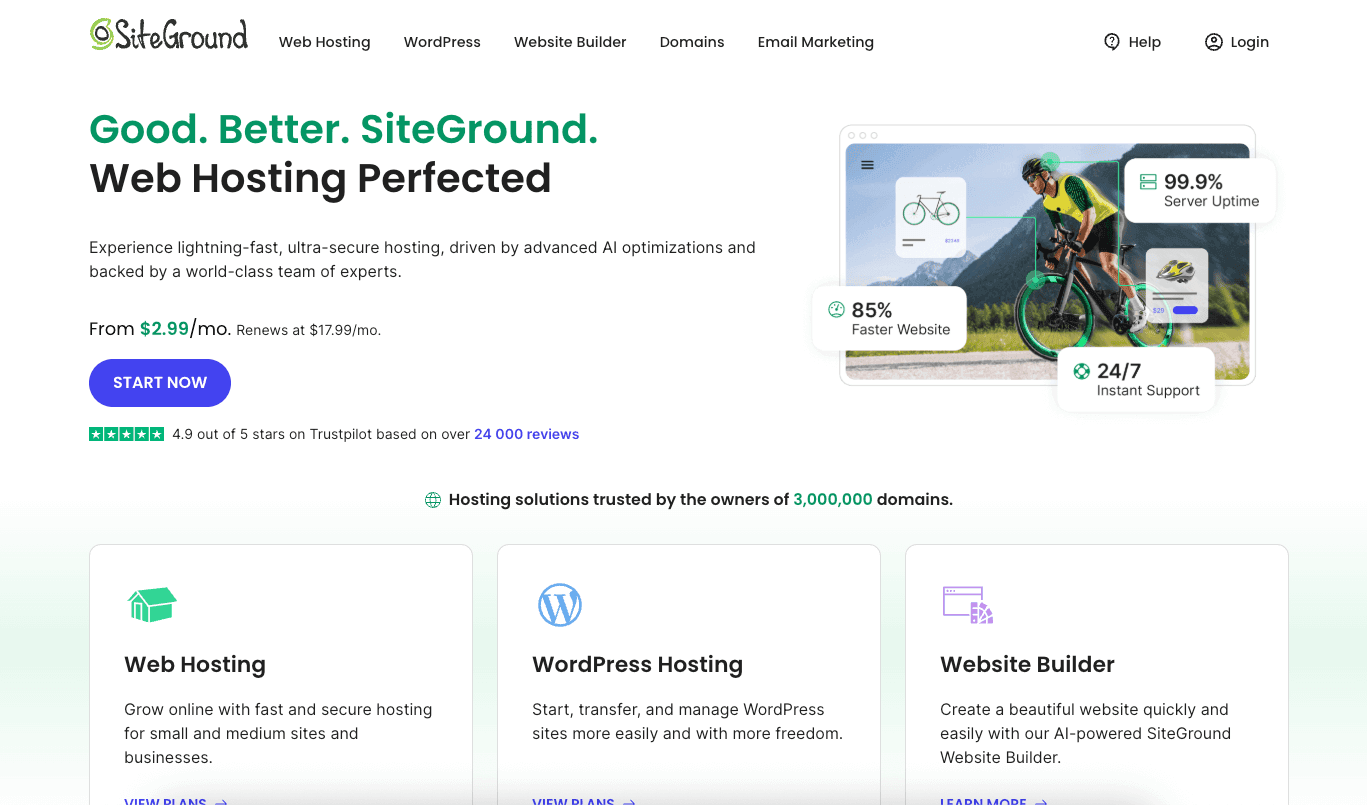
You will now be on the SiteGround plans page. You will see three different plans that you can choose from: the StartUp, GrowBig, and GoGeek plans.
You’ll see that you’ll get up to 82% to 83% off each of the three SiteGround plans.
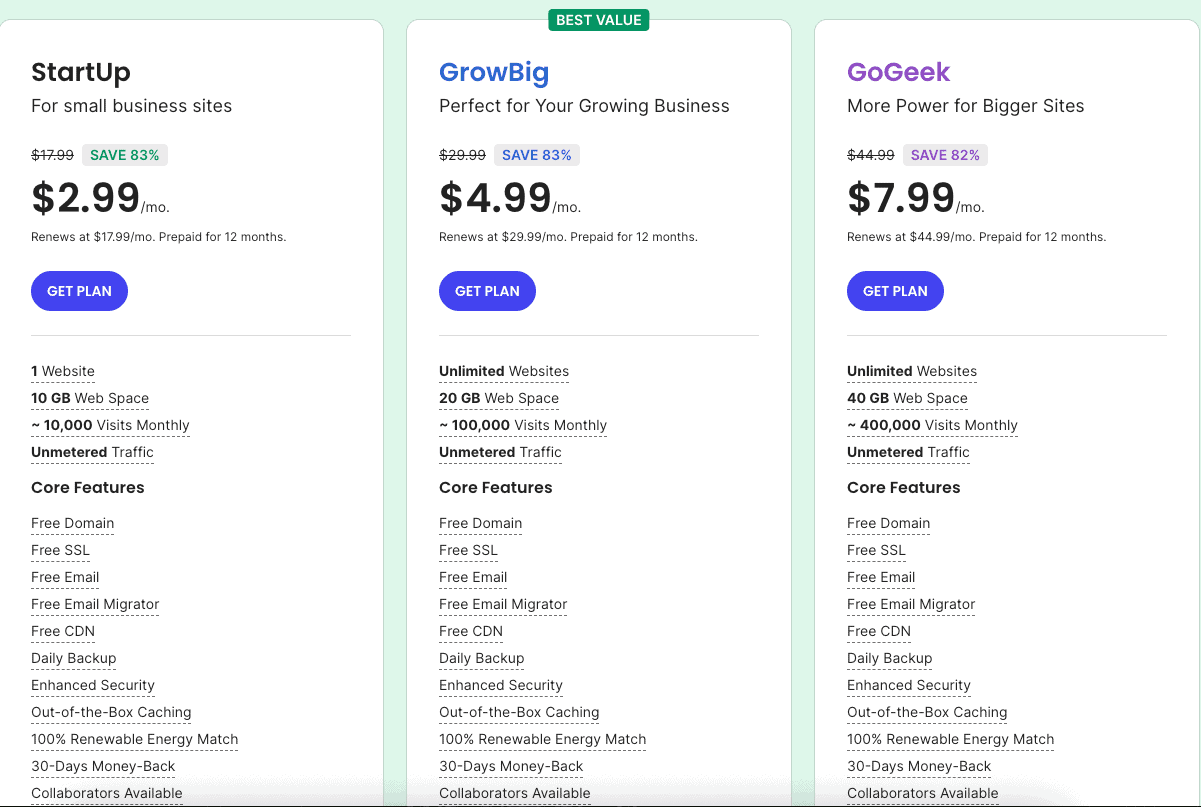
All the plans come with features such as free website builders, 24/7 support, free SSL and HTTPS, 30-day money-back guarantee, free email accounts, unmetered traffic, free Cloudflare CDN, unlimited MySQL, a free daily backup, cPanel, and SSH.
The StartUp plan is a good plan if you are just starting out. With the StartUp plan, you can have one website, 10GB of web space storage, and 10,000 monthly visitors.
You’ll get SiteGround hosting for as low as $2.99 a month.
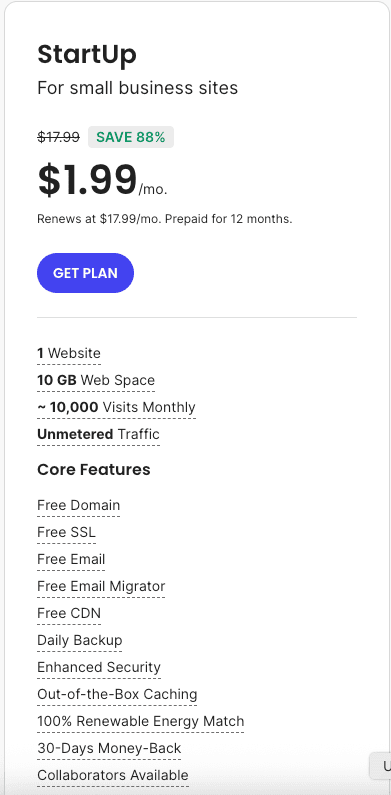
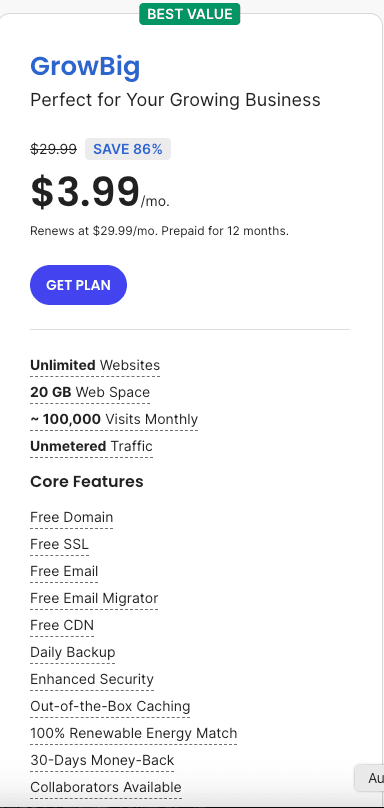
With the GrowBig plan, you can have unlimited websites, 20GB of web space storage, and 100,000 monthly visitors. One of the great things about the GrowBig plan is that you get some extra features, such as 30% faster PHP, advanced on-demand backups, and site staging.
You’ll get SiteGround web hosting for as low as $3.99 a month.
With the GoGeek plan, you can have unlimited websites, 40GB of web space storage, and 400,000 monthly visitors. You get all the features of the StartUp and GrowBig plan, plus features such as white-label hosting and client management, free private DNS, pre-installed GIT, and advanced priority support.
You’ll get SiteGround for as low as $5.99 a month.
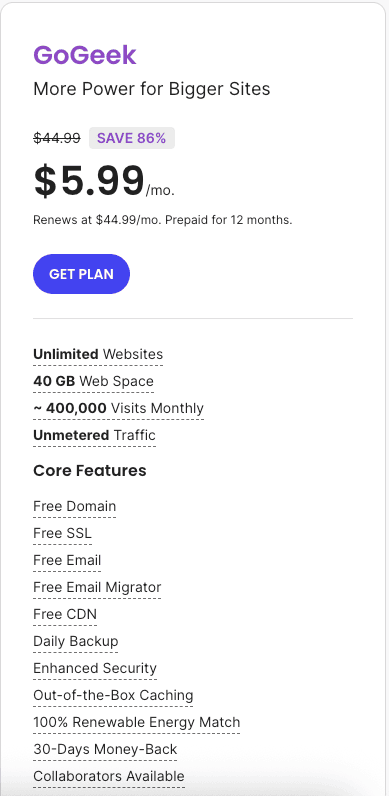
Once you find the plan that you want, click on the get plan button.
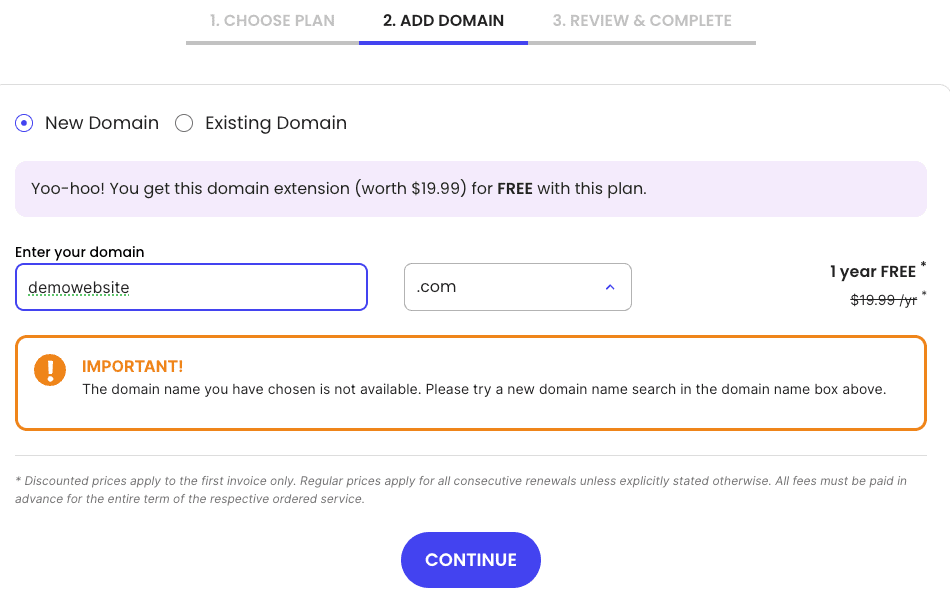
Next, in our SiteGround sign up tutorial, you want to choose a domain name for your site. A domain name comes free with SiteGround on any of the annual terms.
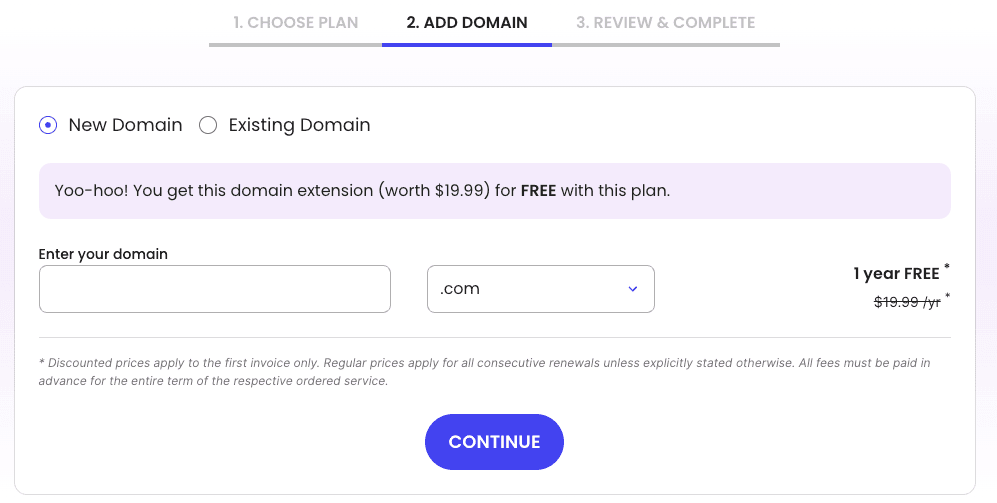
If you already have a domain name, you’d select the existing domain selection. You’d just enter the domain name that you already own and click the continue button.
Related: how to buy domain name from Namecheap.
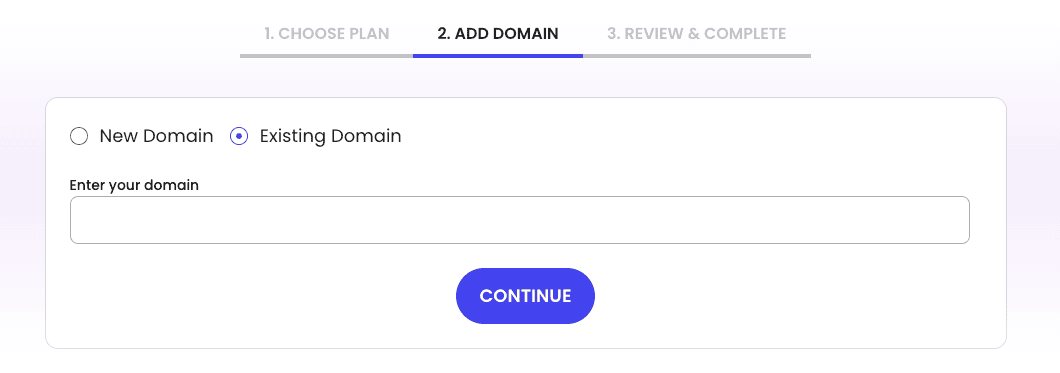
If you need to choose your domain name, you can easily type in the domain name that you want to see if it is available.
Related: does SiteGround offer a free domain?
Over to the right, you can choose the domain extension that you wish to use, such as .com, .net, .org, etc. I recommend going with a .com if you can, because a .com is the most popular domain extension.
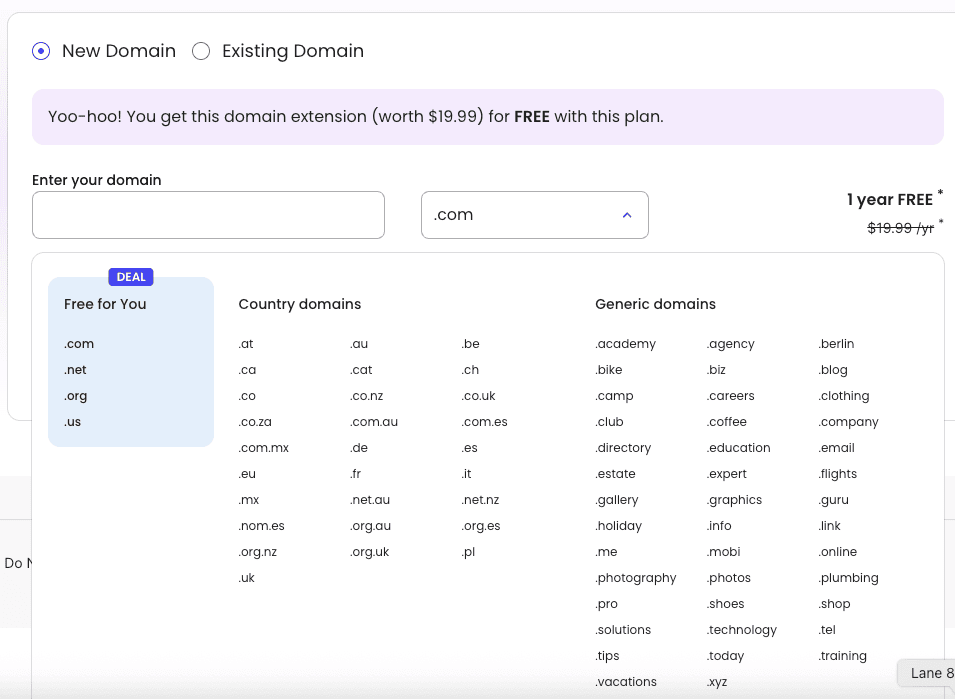
Once you have your domain name entered and the domain extension you want, click the continue button.
SiteGround will now let you know if your domain name is available or not. If it isn’t, it’ll let you know some other domain extensions you could use.
You could also add another word, like the or a hyphen, if you definitely want that domain.
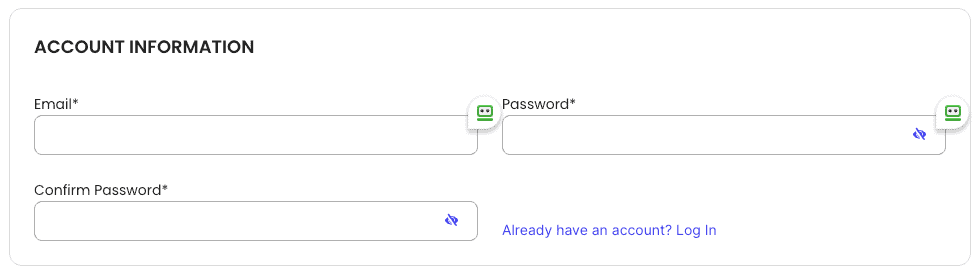
If your domain name is available, it’ll now take you to the account information page, where you need to enter your information. Start by entering your email address and a password to be used with your SiteGround account.
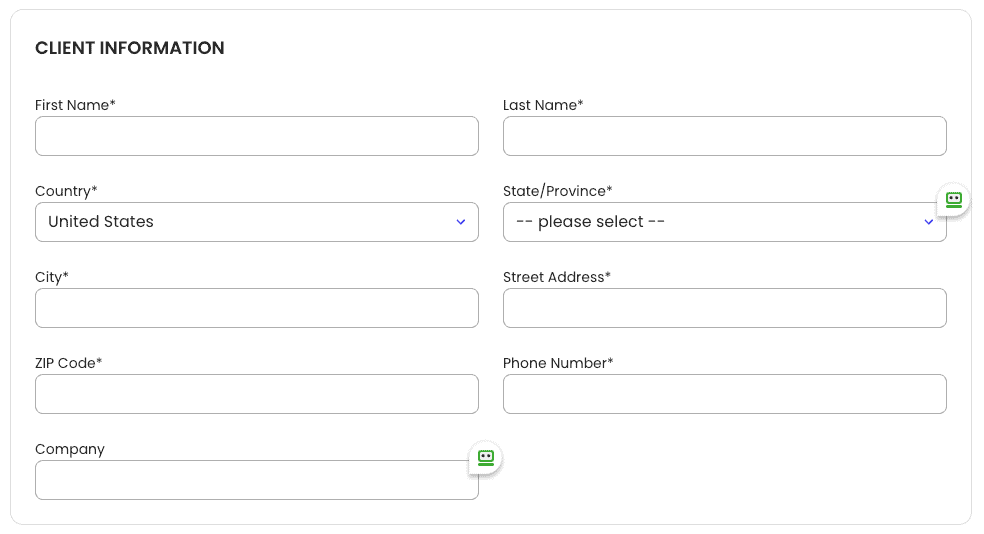
Next, in our SiteGround sign up tutorial, is the client information section. Enter all the information it is asking for.
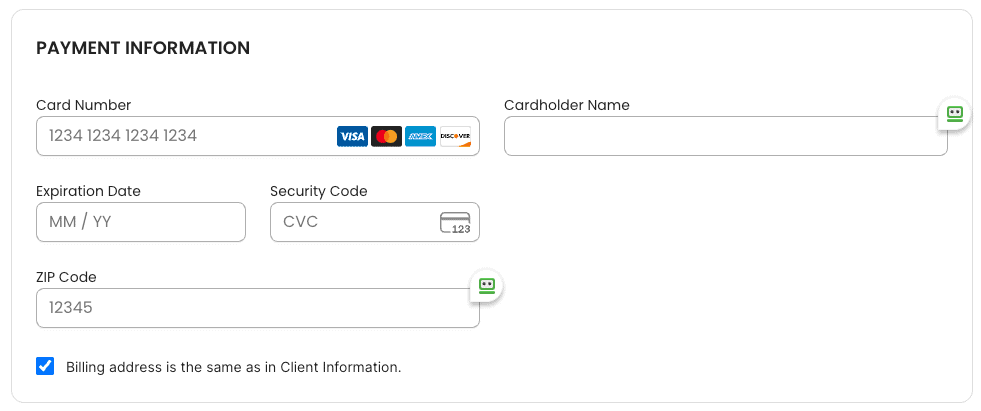
Next, you want to enter your payment information under the payment information section.
Related: SiteGround payment methods
Next is the purchase information section.
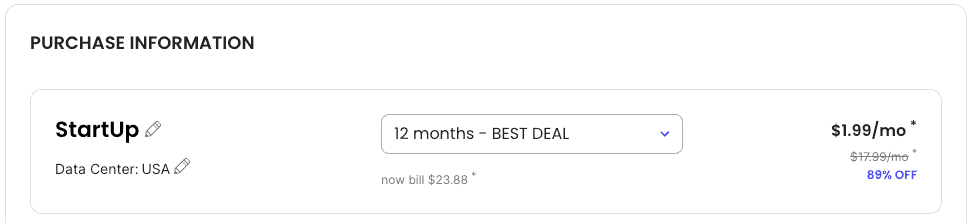
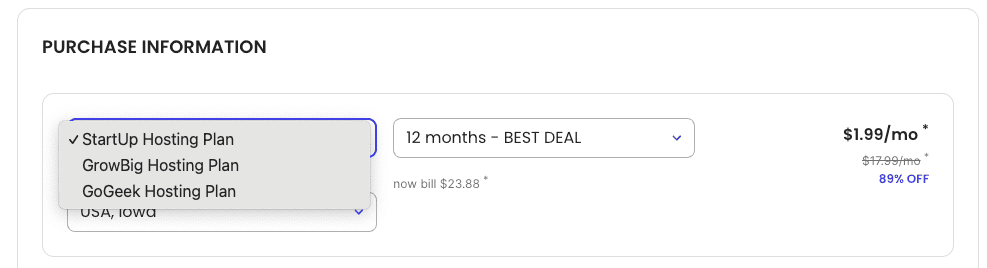
It will list out your plan. You can click the pencil icon if you need to change your plan.
Next, the data center to be used with your site will be listed. You can click the pencil icon to change your data center preference. SiteGround currently offers data centers in the USA, Asia, Australia, France, Spain, the United Kingdom, Germany, and Europe.
Related: SiteGround data center locations

You will now see the period for your hosting term. You can easily change this by clicking the dropdown.
You’ll get the best deal of 83% off by going with the 12-month term. You’ll pay more for the 1-month, 24-month, and 36-month terms.
If you go with the SiteGround monthly plan, the price will cost you $24.99 for the StartUp plan, $34.99 for the GrowBig plan, and $49.99 for the GoGeek plan.
If you go with the 12-month term, it’ll cost you $2.99 for the StartUp plan, $3.99 for the GrowBig plan, and $5.99 for the GoGeek plan.
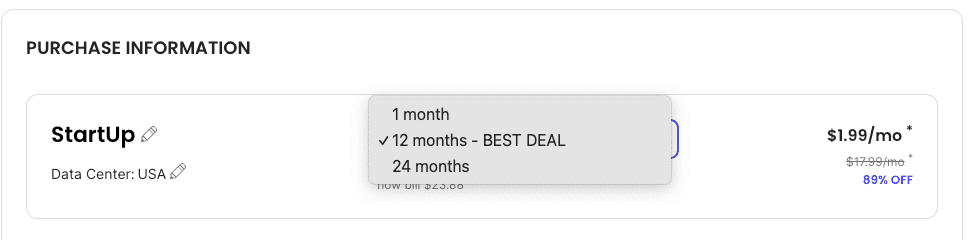
Lastly, you’ll see the SiteGround hosting price.
Next, in our how to sign up with SiteGround hosting tutorial, you will see the Extra Services section. You will see the domain registration show up unless you own your domain name with another provider.
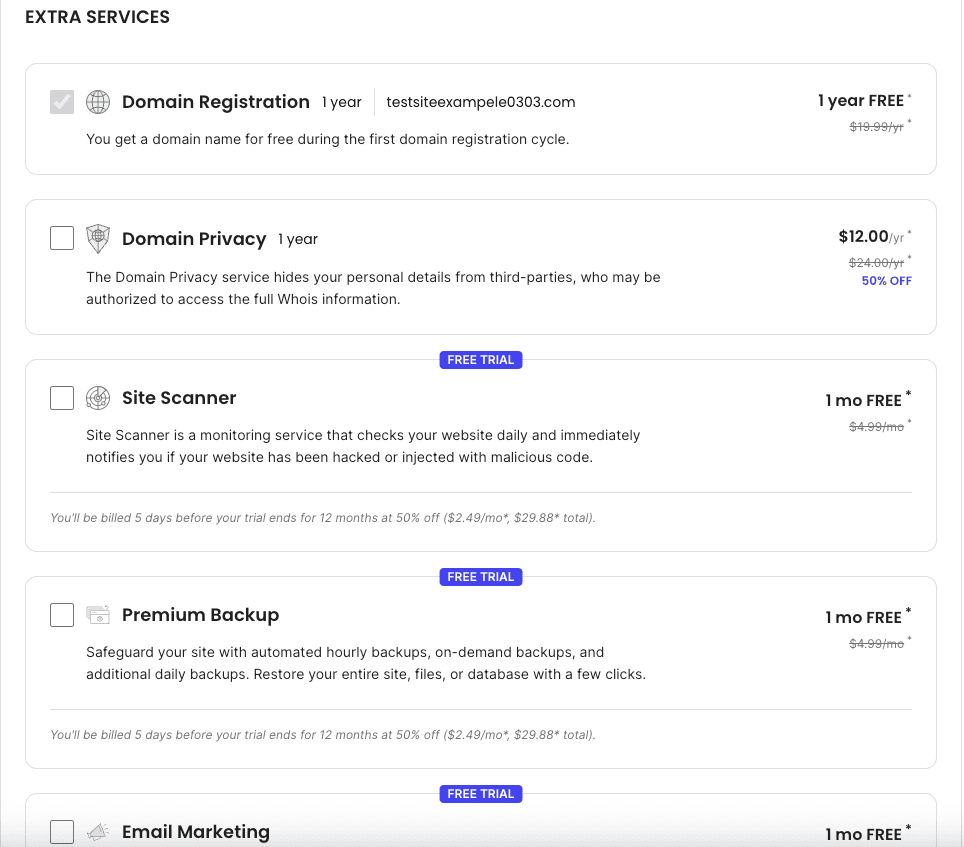
You will see domain privacy.
I highly recommend selecting the domain privacy option. Domain privacy protects your personal information from spammers and telemarketers who want to sell you stuff.
With the domain privacy, it will keep your personal information safe and prevent it from appearing on the web. It will show SiteGround’s default contact information instead of yours.
It is very common to get a ton of calls and emails from spammers and marketers trying to sell you stuff all day, without this being selected. This is entirely up to you, though.
SiteGround domain privacy will cost just $12.00 for an entire year. You’ll see the regular price is $24.00 for a year.

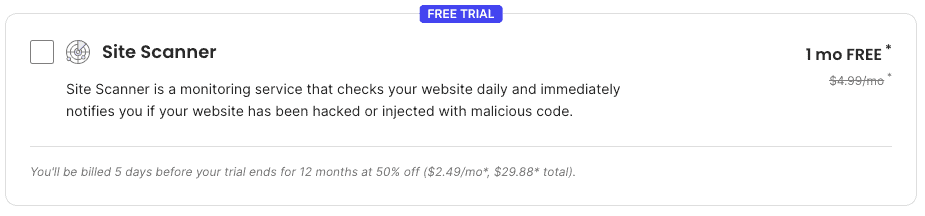
Next, you will see the SG site scanner. This add-on will scan your site daily to make sure your site hasn’t been hacked into or has malware.
It will let you know if your site has been hacked or has malware injected in the code of the site. This is entirely optional to get.
SiteGround SG Site Scanner will cost $4.99 a month. You’ll get the first month completely free.
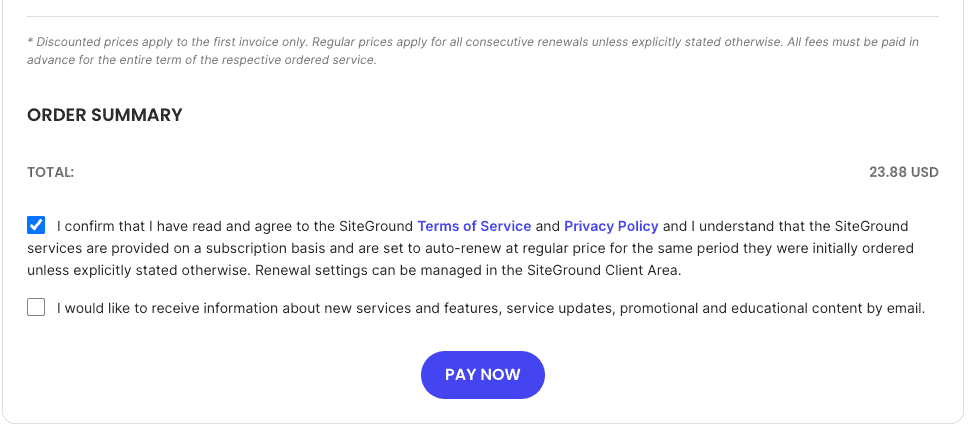
Lastly, in our SiteGround sign up tutorial, you want to check that you have read and agreed to SiteGround’s terms and conditions and select if you want to receive SiteGround news and offers to your email.
Click the pay now button to finish in signing up with SiteGround hosting.
You will now receive an email confirming your SiteGround order and another email with your login credentials to SiteGround.
In case you haven’t signed up with SiteGround already, click here to be taken to SiteGround and sign up.
I now want to go over a quick introduction in this SiteGround sign up tutorial of what the SiteGround account looks like when logged in and what the SiteGround cPanel looks like so you can get familiar with it.
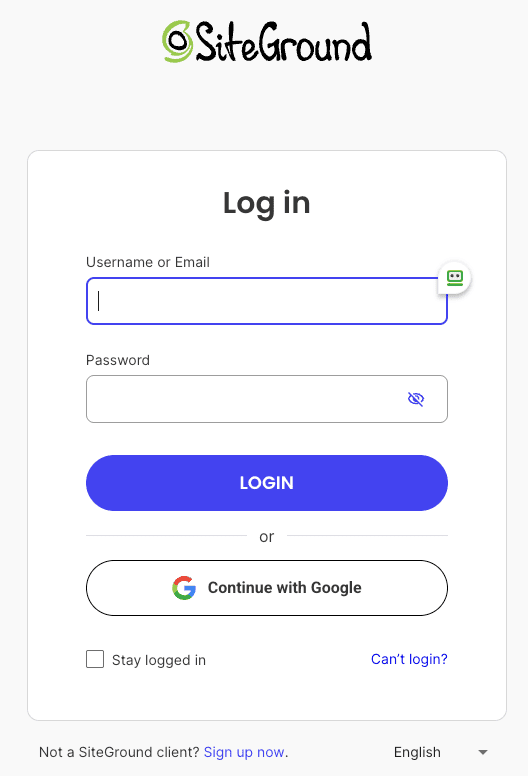
From the SiteGround login page, just enter your username and password and click the sign-in button.
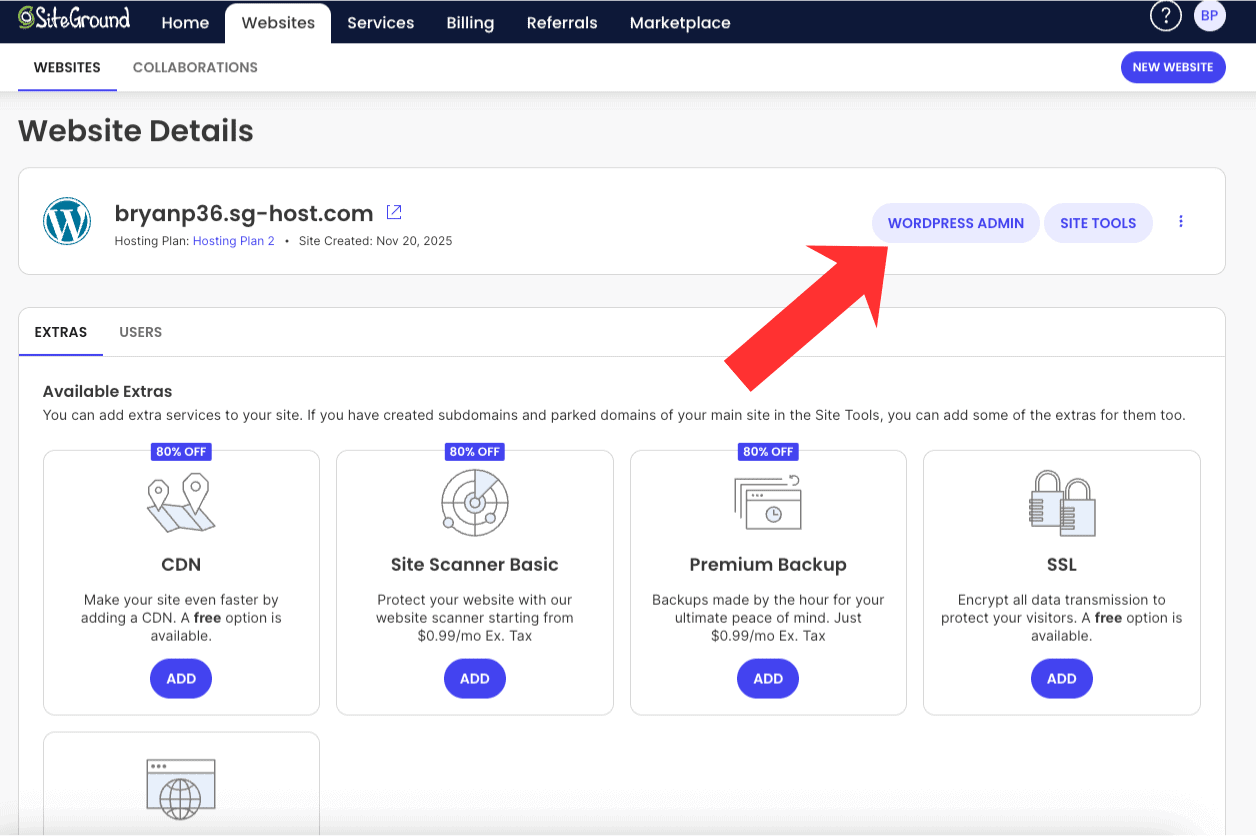
You will now be in your SiteGround account.

Click the Manage Button under Websites so you can start setting up and creating your site.

Click the WordPress Admin button to be taken to your WordPress dashboard, where you can start creating your website with SiteGround.
Related: how to set up WordPress on SiteGround
That is my SiteGround sign up tutorial on how to sign up with SiteGround hosting.
If you haven’t signed up with SiteGround yet, click here and get up to 83% off hosting.
How to create an account with SiteGround
Creating an account with SiteGround is a straightforward process. First, visit the SiteGround website and click on the “Get Started” button.
You will be presented with various hosting plans to choose from. Select the plan that best fits your needs.
After selecting a plan, you will need to choose your free domain name to register or choose an existing domain you already own.
Next, fill out your account information, including your email address and a password.
Input your client information.
Next, provide your payment details.
Select the term you’d like to have with your web hosting purchase.
You can change the Data Center if needed.
Select any Extra Services you’d like to have.
Lastly, complete your purchase. Once your payment is processed, you will receive a confirmation email with instructions on how to access your new account. Follow these steps, and you’ll be ready to set up your website in no time!
Final Thoughts
We hope this article SiteGround sign up tutorial helped you in signing up with SiteGround hosting.
Let us know in the comments below if you signed up with SiteGround and what plan you ended up going with. We would love to hear from you.
Frequently Asked Questions
Can you guide me through the steps to sign up for a SiteGround account?
Sure! Here’s a quick guide to signing up for a SiteGround account for WordPress hosting:
- Visit the SiteGround Website: Go to SiteGround.com.
- Choose a Hosting Plan: Click on “Get Started” or “Hosting” in the menu, and select the plan that suits your needs (e.g., StartUp, GrowBig, or GoGeek).
- Select Your Domain: If you already have a domain, enter it in the provided field. If not, you can register a new domain through SiteGround during this process.
- Fill Out Your Details: Complete the registration form with your personal information, such as name, email address, and password.
- Configure Your Account: Choose any additional options you might want (like daily backups or enhanced security) and review the hosting plan configuration details.
- Payment Information: Enter your payment details to complete your purchase.
- Confirmation Email: After finishing the payment process, check your email for a confirmation message from SiteGround with details about your new account.
- Access Your Account: Follow the link in the confirmation email to log into your new SiteGround account and start setting up your website!
And that’s it! You’re all set to begin using SiteGround for your hosting needs!
What information do I need to provide during the SiteGround sign-up process?
During the SiteGround sign-up process, you typically need to provide the following information:
- Account Information: This includes your email address and a password for your account.
- Domain Details: You can either register a new domain, transfer an existing domain, or use an existing one that you already own.
- Personal Information: This may include your name, address, phone number, and country.
- Payment Information: You will need to provide credit card details or other payment methods to complete the purchase of your hosting plan.
Make sure to review all entered information before finalizing your sign-up!
Is there a free trial available when signing up for SiteGround?
SiteGround does not offer a free trial in the traditional sense, but they do provide a 30-day money-back guarantee. This allows you to try their services for website creation risk-free; if you’re not satisfied within the first 30 days, you can request a full refund. It’s a great way to test out SiteGround’s features and support without any long-term commitment!
How do I choose the best SiteGround hosting plan while signing up?
Choosing the best SiteGround hosting plan involves a few key considerations:
- Type of Website: Determine what type of website you are creating (e.g., personal blog, business site, e-commerce). Different plans cater to different needs.
- Traffic Expectations: Estimate your expected traffic. If you anticipate high visitor numbers, consider a plan that can handle more resources.
- Features Needed: Look at the features each plan offers, such as storage space, database limits, and email accounts. Choose a plan that provides the necessary tools for your website.
- Budget: Consider your budget and look for plans that fit within it while still meeting your needs.
- Scalability: Think about future growth. If you expect your website to grow over time, choose a plan that allows easy upgrades as needed.
- Customer Support: Check if the hosting plan includes support options like live chat or phone support, especially if you’re new to web hosting.
By evaluating these factors, you’ll be well-equipped to choose the SiteGround hosting plan that best suits your needs!
Are there any important things to know before creating a SiteGround account?
Before creating a SiteGround account, here are some important things to consider:
- Plan Options: SiteGround offers various hosting plans (web hosting, WordPress, WooCommerce, Cloud, Agency, and Reseller) with different features like free SSL certificates and pricing. Make sure to choose a plan that fits your needs.
- Performance Features: SiteGround is known for its speed and reliability. Look into their performance features like SSD storage, caching options, and CDN integration.
- Customer Support: They offer 24/7 customer support via chat, phone, and tickets. If you need assistance, you can chat with a team member and familiarize yourself with how to reach them.
- Money-Back Guarantee: SiteGround typically provides a 30-day money-back guarantee, so you can try their services risk-free.
- Domain Registration: If you don’t already have a domain name, you can register one through SiteGround during the signup process.
- Migration Services: If you’re moving from another host, check if they offer free migration services or tools to help with the transition.
- Renewal Prices: Be aware that renewal prices may be higher than the initial promotional rates. Check the pricing details carefully.
By keeping these points in mind, you’ll be better prepared to set up your SiteGround account effectively!
Can I sign up for SiteGround without registering a domain name?
Yes, you can sign up for SiteGround without registering a domain name. During the signup process, you’ll have the option to either register a new domain or choose to skip that step and use an existing domain later. This flexibility allows you to set up your hosting account first and manage your domain separately if that’s what you prefer.
Do I need to verify my email during the SiteGround registration?
Yes, verifying your email during the SiteGround registration process is typically required. This step ensures that you have provided a valid email address and allows SiteGround to send you important information regarding your account, including confirmation of your registration and any necessary setup instructions. It’s a simple but essential part of securing your account!
Is payment required immediately when signing up for SiteGround?
When signing up for SiteGround, payment is typically required immediately to activate your hosting plan. This means you’ll need to provide payment information during the signup process to secure your account and start using their services right away. So, be prepared to take out your wallet when you’re ready to get started!
How long does it take to complete the SiteGround sign-up process?
The SiteGround sign-up process is typically quick and straightforward, usually taking about 5 to 10 minutes to complete. You just need to choose your hosting plan, fill in your account details, and make the payment. Once you’ve done that, you’ll be ready to set up your WordPress website or create your site with the SiteGround website builder!
Can I use SiteGround’s website builder after signing up?
Yes, once you sign up for SiteGround, you can use their website builder designed for beginners to create and customize your website. The builder is user-friendly and offers various templates and tools to help you design your site without needing extensive technical skills. Just log in to your SiteGround account, and you’ll find WordPress or the website builder available for use!
How to create an account in SiteGround?
Creating an account in SiteGround is a straightforward process. Here’s how you can do it:
- Visit the SiteGround Website: Go to the SiteGround homepage, and log in to your client area.
- Choose a Hosting Plan: Click on “Get Started” or “Hosting” to view the various hosting plans available. Select the plan that best suits your needs.
- Select Your Domain: You will be prompted to choose a domain name. If you already have one, you can enter it; if not, you can register a new domain through SiteGround during this process.
- Fill in Your Information: Enter the required details, such as your email address, and create a password for your account.
- Payment Details: Enter your payment information to complete the purchase of your chosen hosting plan.
- Finalize Your Account Setup: Once payment is processed, follow any additional prompts to finalize setting up your account.
- Access Your Account: After setup, you’ll receive an email with your account details, and you can log into your SiteGround account anytime to manage your hosting services, including webmail access.
Here are related posts:
- SiteGround Black Friday sale
- SiteGround free trial?
- who owns SiteGround?
- Exploring SiteGround Site Tools
- SiteGround Cloud Hosting review
- SiteGround Email Marketing Guide
- SiteGround Reseller Hosting review

- Shopify vs WordPress (2026): Which Is Better for Your Website? - September 15, 2026
- Shopify SEO for Beginners: Complete Guide (2026) - September 17, 2026
- Shopify vs WooCommerce (2026): Which Is Better? - September 17, 2026

Leave a Reply
Want to join the discussion?Feel free to contribute!