
How to Install WordPress on SiteGround: A Complete Guide
Last Updated on December 24, 2025
Are you ready to launch your very own WordPress website? Using SiteGround hosting makes the entire setup incredibly simple.
As one of the top hosting providers recommended by WordPress.org, SiteGround offers a smooth and user-friendly experience.
This guide will walk you through every step of the installation process, from creating your account to getting your new site live.
Let’s get your online presence started without any stress or confusion.
Related: SiteGround coupons
Key Highlights
Here’s a quick look at what you’ll learn in this guide:
- Choosing the right SiteGround hosting plan is the first crucial step.
- You can easily register a new domain name or use an existing one.
- The installation process is simple using the App Installer in SiteGround’s Site Tools.
- Setting up your credentials gets you ready to access the WordPress dashboard.
- The WordPress Starter plugin simplifies adding themes and essential features.
- After installation, you can immediately start customizing your new website.
Understanding WordPress and SiteGround Hosting
Before we jump into the installation steps, it’s helpful to understand the two key components you’ll be working with: WordPress and SiteGround.
WordPress is the software you’ll use to build and manage your website, while SiteGround provides the hosting that makes your site accessible on the internet.
Related: what is SiteGround?
Think of SiteGround as the land your house is built on, and WordPress as the house itself. You need both to create a functional and beautiful online space.
The SiteGround server stores all your website files, and the WordPress dashboard is where you’ll do all your creative work.
Related: WordPress hosting coupon codes
What Is WordPress and Why Choose It for Your Website?
WordPress is the world’s most popular platform for building websites, powering over 43% of all sites on the internet.
It’s an open-source content management system (CMS), which means you can use it to create anything from a simple personal blog to a complex online store.
Its widespread use is a testament to its flexibility and power.
One of the biggest advantages of WordPress is its user-friendly dashboard. You don’t need any technical skills to get started.
The platform is designed for beginners, allowing you to manage content, customize your site’s appearance, and add new features without writing a single line of code.
The intuitive interface makes creating and updating your WordPress website a straightforward task.
Furthermore, the extensive library of themes and plugins allows for endless customization.
A plugin can add specific functionality, like a contact form or enhanced security, while a theme controls your site’s overall look.
This vast ecosystem lets you tailor your site to your exact needs and optimize it with relevant keywords for better visibility.
Benefits of Using SiteGround as Your Hosting Provider
Choosing the right hosting is just as important as choosing the right website platform. SiteGround is officially recommended by WordPress.org, which speaks volumes about its reliability and performance.
When you select a SiteGround hosting plan, you’re getting a service optimized for WordPress, ensuring your site runs quickly and securely.
SiteGround’s hosting is known for its excellent customer support and robust server infrastructure.
They offer several ways to install WordPress, but their automated installer is by far the easiest way for beginners.
This one-click process removes all the technical hurdles, allowing you to get your site online in just a few minutes without any prior experience.
Beyond the easy installation, SiteGround provides features that help your site grow.
From automatic updates to daily backups, they handle the technical side of managing a server, so you can focus on creating great content.
This supportive environment makes SiteGround an ideal partner for your hosting needs.
Features That Make SiteGround Ideal for WordPress Users
SiteGround is packed with features specifically designed to enhance the WordPress experience.
Their custom control panel, called Site Tools, is a modern and intuitive replacement for traditional panels like cPanel.
It gives you full permissions to manage every aspect of your website efficiently. You can find the WordPress installer right within Site Tools under the “App Installer” section.
The platform also includes a helpful website setup wizard that guides you through the initial steps of creating your site. This is perfect for beginners who might feel overwhelmed.
The wizard helps with everything from the initial WordPress installation to recommending essential plugins.
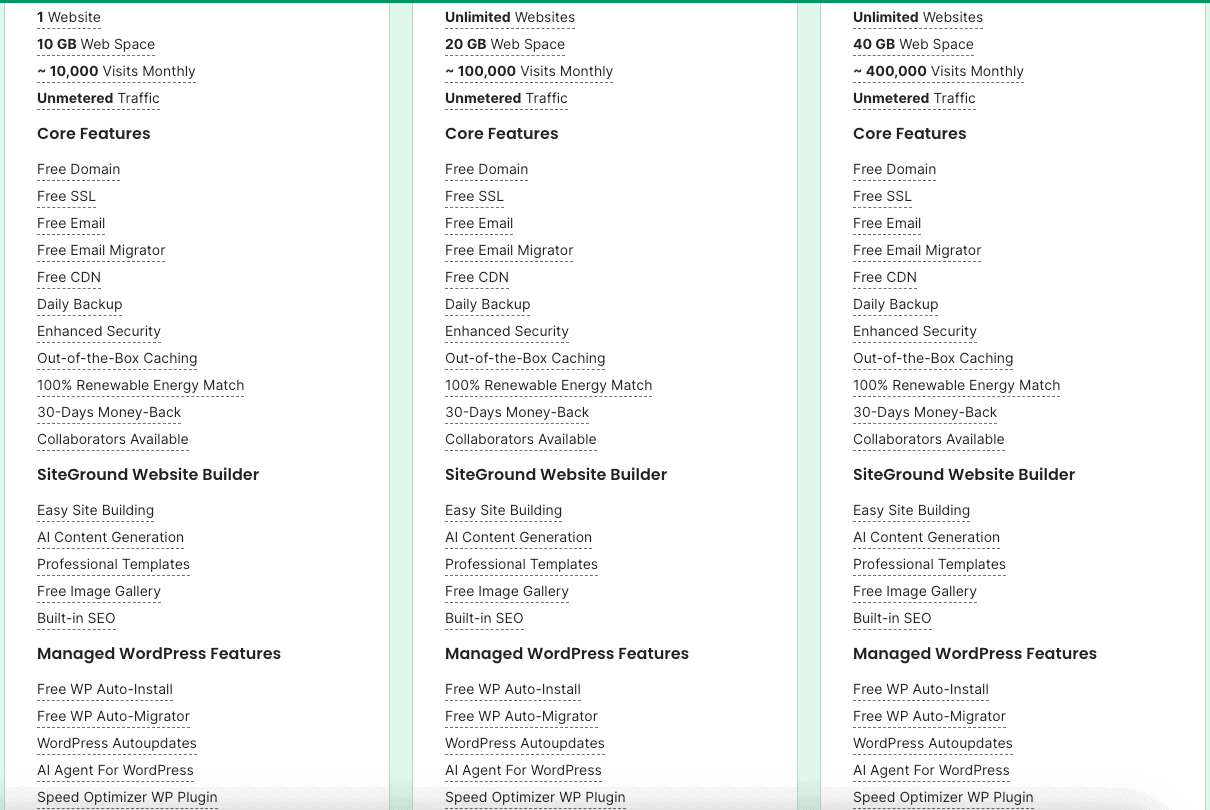
Here are a few standout features:
- SuperCacher: A powerful, in-house caching solution that dramatically speeds up your site.
- WordPress Starter Plugin: Simplifies the setup process by helping you choose a theme and install key plugins.
- Daily Backups: Your site is backed up daily, giving you peace of mind. The combination of a powerful SiteGround server and these user-centric tools makes it a top choice for any WordPress user.
Related: SiteGround Site Scanner worth it?
What You Need Before Installing WordPress on SiteGround
Before you can start the installation, there are a couple of things you’ll need to have in place. The first is a SiteGround account with an active hosting plan.
The second is a domain name, which will be your website’s address on the internet.
Once you have signed up and logged into the SiteGround client area, you will have access to everything you need to begin.
This initial preparation is quick and sets the stage for a smooth installation process.
Choosing the Right SiteGround Plan for Your Needs
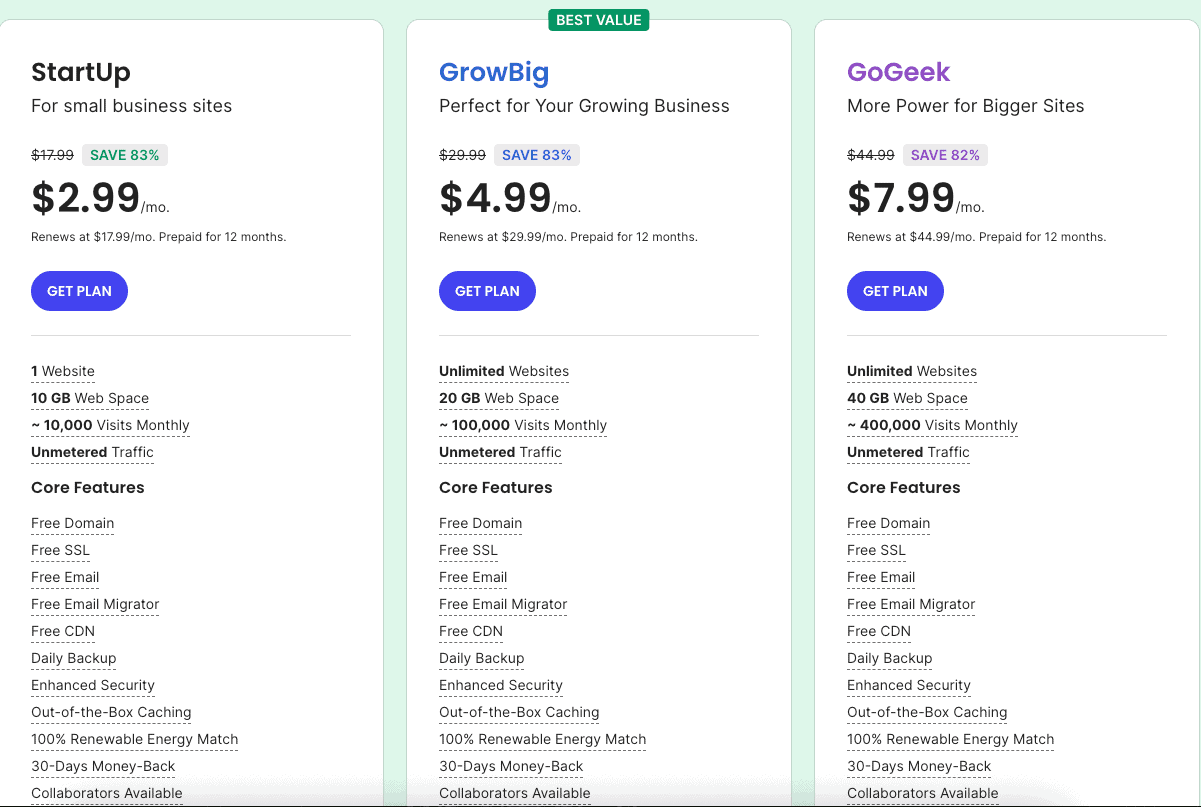
SiteGround offers several hosting plans, each tailored to different needs. The main options are the StartUp, GrowBig, and GoGeek plans.
For most new WordPress websites, the choice comes down to the StartUp plan or the GrowBig plan. How do you decide which is best for you?
The StartUp plan is an excellent entry-level option if you only plan to run a single website.
It includes all the essential features you need to get online, like 10 GB of web space and free daily backups. It’s a cost-effective way to launch your first site on a reliable SiteGround server.
However, the GrowBig plan is often recommended as the best value for a WordPress website.
It allows you to host unlimited websites and includes premium features like on-demand backups, a staging environment to test changes, and faster PHP for better performance.
If you anticipate growing your online presence or want more advanced tools, the GrowBig plan is a fantastic investment.
Registering a Domain Name on SiteGround
Your domain name is your unique address on the web, so choosing a good one is important.
SiteGround makes this process easy by allowing you to register a new domain name directly when you sign up for a hosting plan.
This keeps your hosting and domain management all in one place.
You’ll even get a free domain name with any of its annual terms.
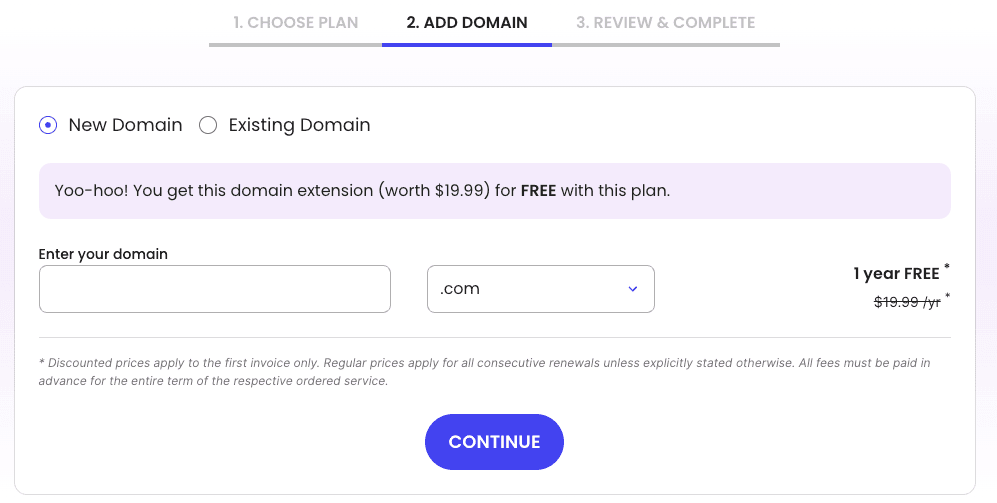
If you already own a domain from another registrar, you can use that too. During the setup process, you’ll have the option to specify that you have an existing domain.
SiteGround will then provide you with the details needed to point your domain to their web server.
When you install WordPress, you’ll be able to select which domain in your account you want to use.
Here’s how you can handle your domain name:
- Register a brand new domain during signup.
- Transfer an existing domain to SiteGround.
- Keep your domain with your current registrar and point it to the SiteGround server. Either way, you can manage your selection from the SiteGround client area.
Related: SiteGround Domain Privacy worth it?
Preparing Your Account and Accessing the SiteGround Dashboard
Once your hosting plan and domain are sorted, the first step is to familiarize yourself with your account.
Log in to the SiteGround client area using the credentials you created during signup. This is your main hub for managing your hosting account, billing, and support.
From the main SiteGround dashboard, you’ll want to navigate to the “Websites” tab. Here, you will see a list of the websites you have set up.
For the site you want to work on, find the “Site Tools” button and click it. This takes you to the powerful control panel where all the magic happens.
Inside Site Tools, you’ll find everything you need to manage your site, from file management to email accounts.
The WordPress installer is located here as well, typically under the “App Installer” or a dedicated “WordPress” menu. Getting comfortable with this dashboard is key to managing your site effectively.
Step-by-Step Guide: How to Install WordPress on SiteGround
Now that you have everything prepared, it’s time for the main event: the WordPress installation process. Thanks to SiteGround’s user-friendly tools, this will only take a few minutes.
You don’t need to be a tech expert to follow along.
We will walk you through each step, from logging in to your account and navigating Site Tools to configuring your new WordPress dashboard.
Follow these simple instructions, and your website will be up and running in no time.
Step 1: Logging Into Your SiteGround Account
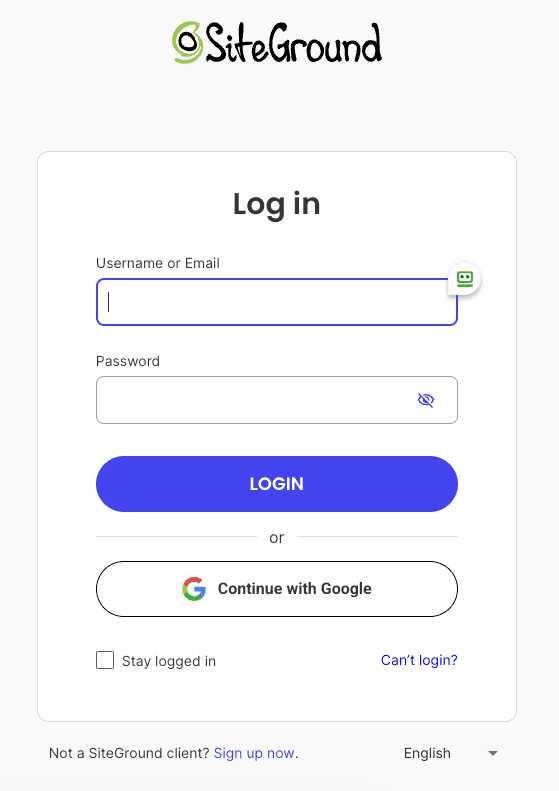
The very first action in our step-by-step guide is to log in to your SiteGround account.
Head over to the SiteGround website and find the login button. You will need the email address and password you used when you first signed up.
Once you enter your credentials, you will be taken to the SiteGround client area.
This is your main control center for all your products and services.
If you’ve just signed up, SiteGround may even launch a setup wizard to guide you through creating your first website, making the process even easier.
Here’s a quick summary of this initial step:
- Go to the SiteGround homepage.
- Click the “Login” button.
- Enter your username and password to access the client area. This simple login process is the gateway to installing and managing your new WordPress site.
Step 2: Navigating to the Site Tools Panel
After logging in, your main dashboard will appear.
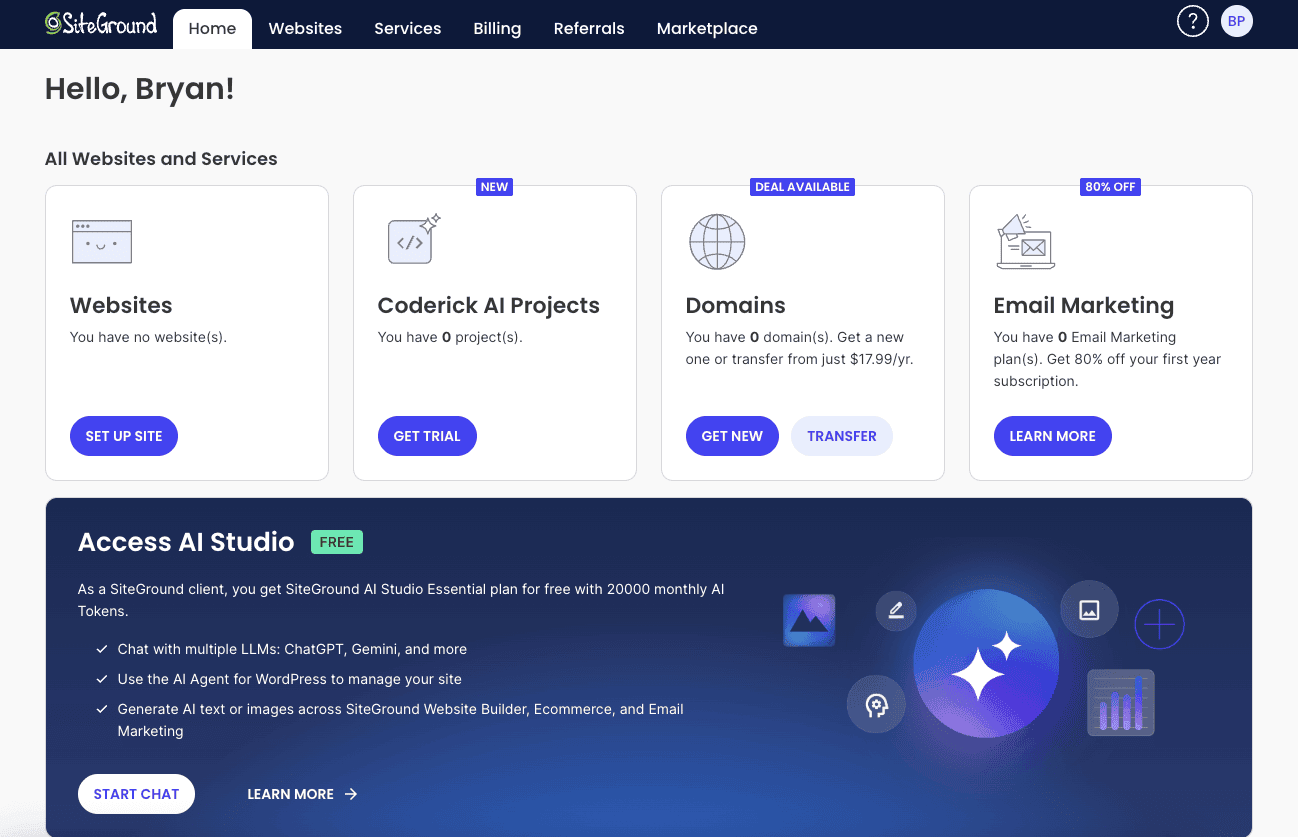
From here, you need to access the specific control panel for your website.
Look for a menu or tab at the top of the page labeled “Websites.”
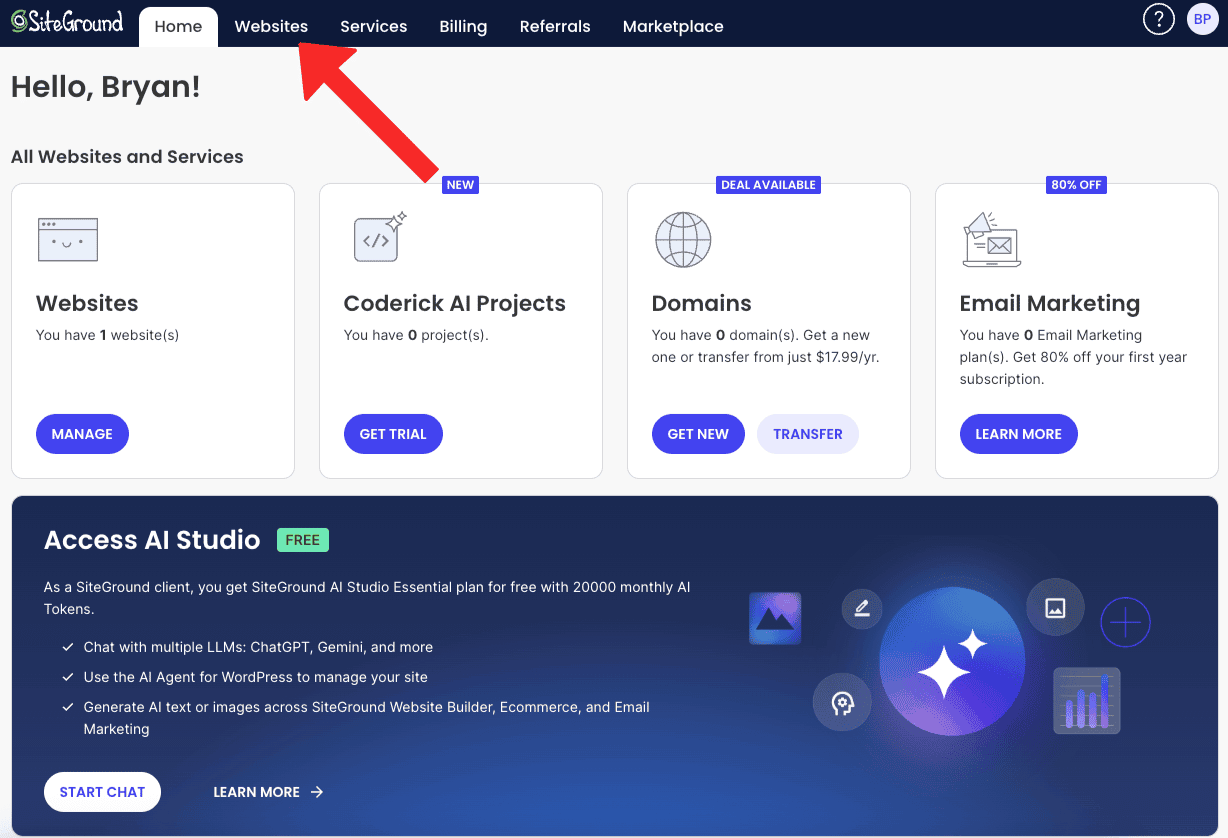
Clicking on this will show you a list of all the domain names associated with your hosting plan.
Find the website you want to install WordPress on and look for the corresponding “Site Tools” button next to it.
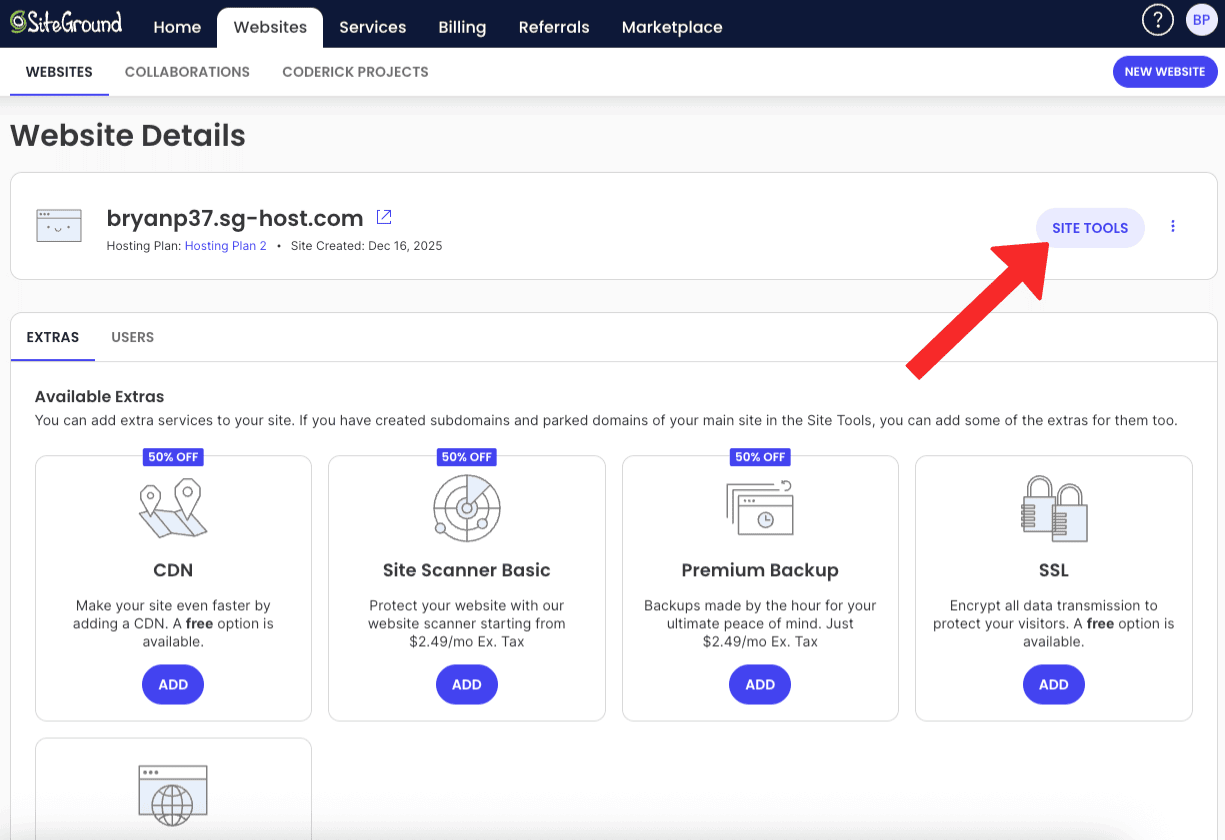
Clicking this button will transport you from the main client dashboard to the dedicated Site Tools panel for that specific site.
This is where you’ll find all the advanced controls, including the WordPress installer.
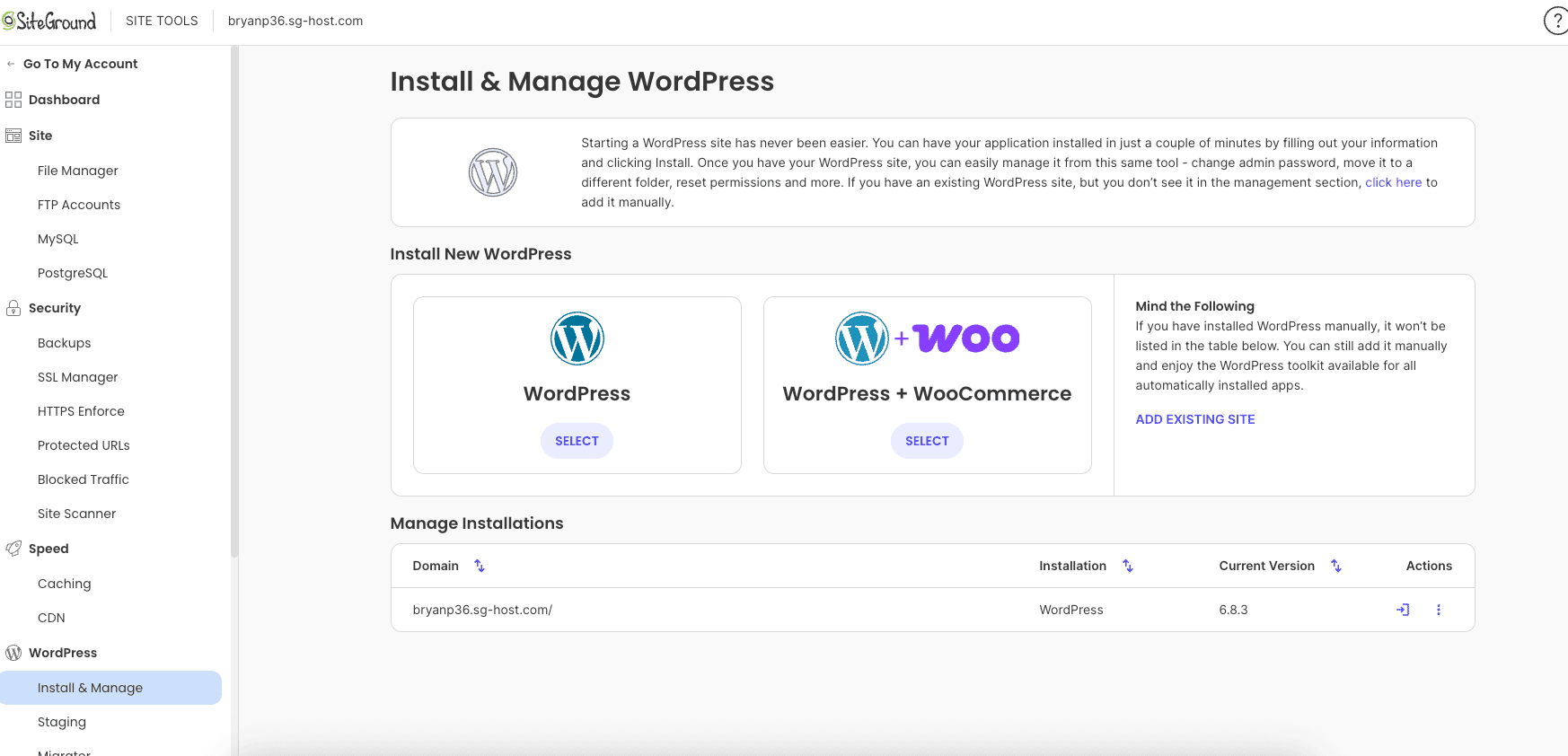
The Site Tools panel is designed to be very intuitive. On the left side, you’ll see a menu with various categories like “Site,” “Security,” and “WordPress.”
This organized layout makes it easy to find what you’re looking for without getting lost.
Step 3: Locating and Launching the WordPress Installer
Inside the Site Tools panel, your next task is to find the WordPress installer. Look at the menu on the left-hand side and find the “WordPress” section.
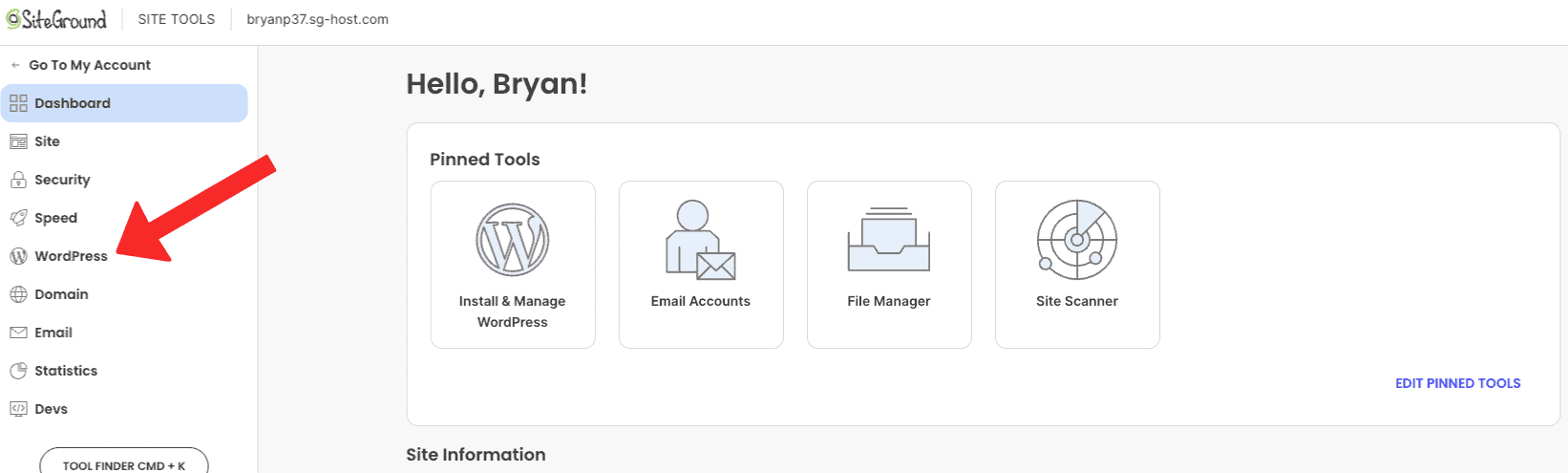
Click on it, and a submenu will appear with an option called “Install & Manage.” This is what you’re looking for.
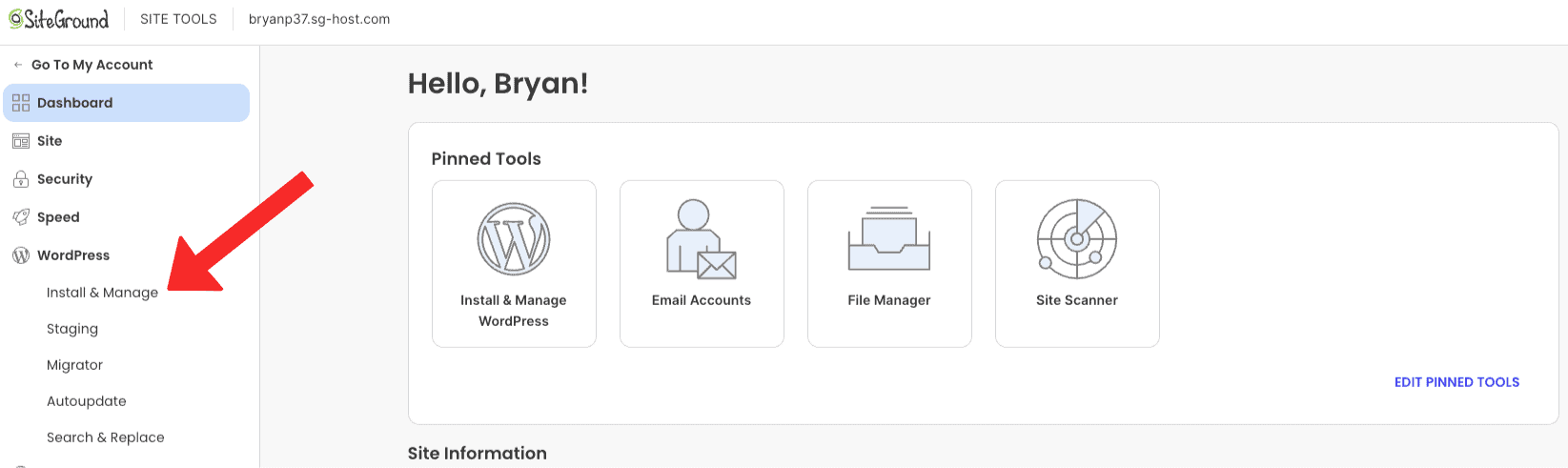
Alternatively, some Site Tools dashboards may feature an “App Installer” section. If you see this, you can click on it and then select WordPress from the list of available applications.
Both paths lead to the same destination: the WordPress installation screen.
Once you reach the installation page, you’re just a few clicks away from having a live WordPress site.
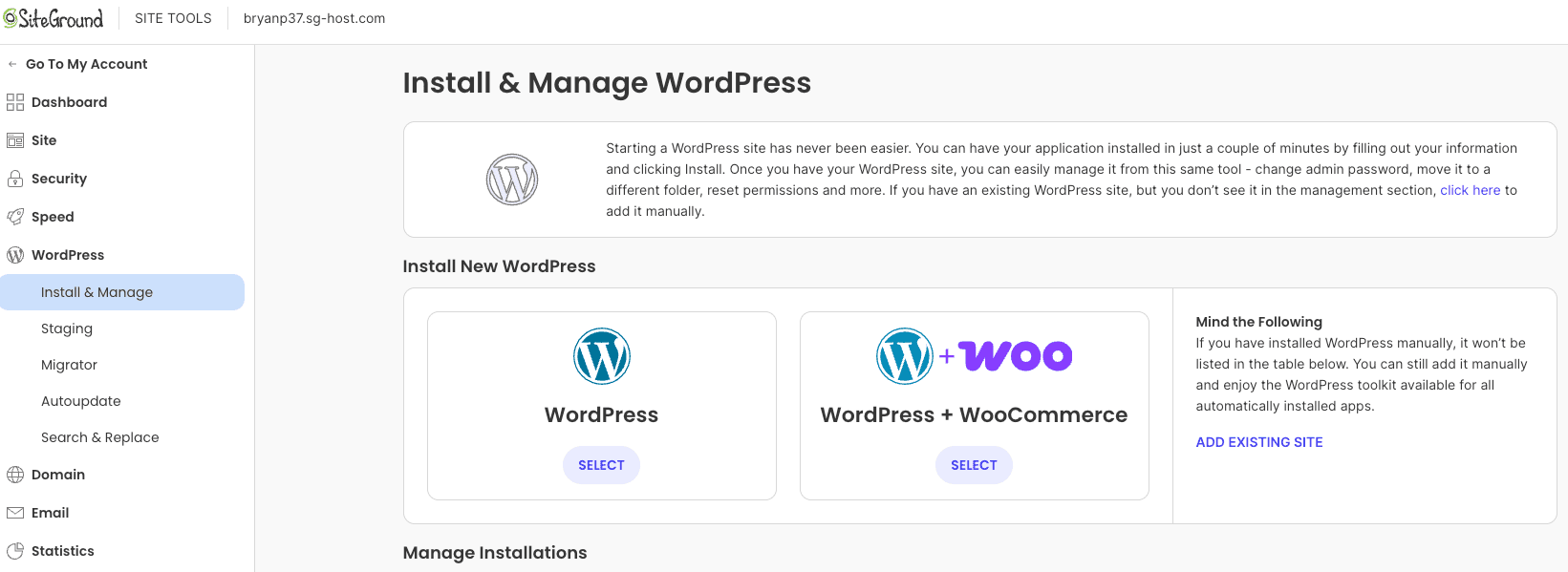
Here’s a quick recap on locating the installer:
- Navigate to Site Tools for your chosen domain.
- Click on “WordPress” in the left-hand menu.
- Select “Install & Manage” from the dropdown.
- Choose to install a new WordPress application. This will launch the setup screen where you’ll configure your new WordPress dashboard.
Step 4: Setting Up Your Site and Admin Credentials
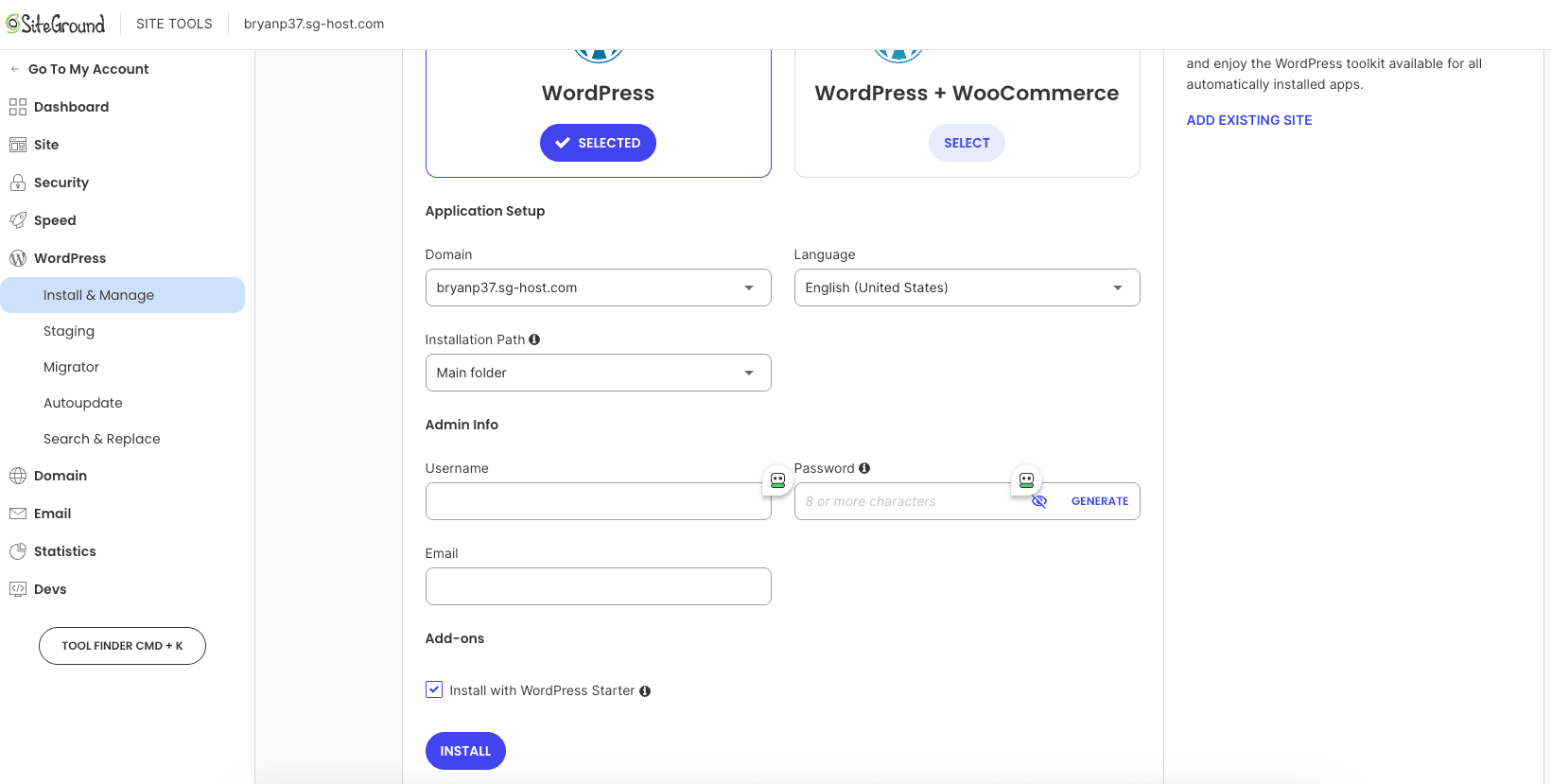
On the installation screen, you will be prompted to fill in some important details. The first part confirms the domain you’re installing WordPress on.
Below that, you’ll find the section for your admin info details. This is where you’ll create the username and password for your WordPress dashboard.
It’s crucial to choose a strong password and a unique username. Avoid using “admin” as your username, as this is a common target for hackers.
SiteGround provides a handy password generator to help you create a secure password. Make sure to save these credentials in a safe place, as you’ll need them to log in to your site later.
You will also need to provide an email address. This email will be used for notifications and password recovery. Once you’ve filled out all the fields, you’re almost ready to install.
This step requires no technical skills at all; you’re simply filling out a form.
Step 5: Selecting Installation Options (Automatic vs Manual)
SiteGround offers different ways to handle the WordPress installation, but for most users, the automatic install is the best choice.
On the setup screen, you’ll see an option to add the “WordPress Starter” plugin. We highly recommend leaving this checked, as it makes the initial application setup much easier.
While a manual install option exists for advanced users who want more control, the automatic process is the easiest way for beginners.
It handles all the technical details behind the scenes, such as creating databases and configuring files. For a hassle-free experience, the automated installer is the clear winner.
Here is a simple comparison to help you decide:
| Feature | Automatic Install | Manual Install |
|---|---|---|
| Ease of Use | Very easy, just fill out a form | Requires technical knowledge (FTP, database creation) |
| Speed | A few minutes | Can take 30 minutes or more |
| Beginner Friendly | Yes, highly recommended | No, intended for advanced users |
| Control | Standard, sufficient for most users | Full control over every file and setting |
Unless you have a specific reason to do it manually, stick with the automatic install.
Step 6: Installing WordPress on Your Chosen Domain
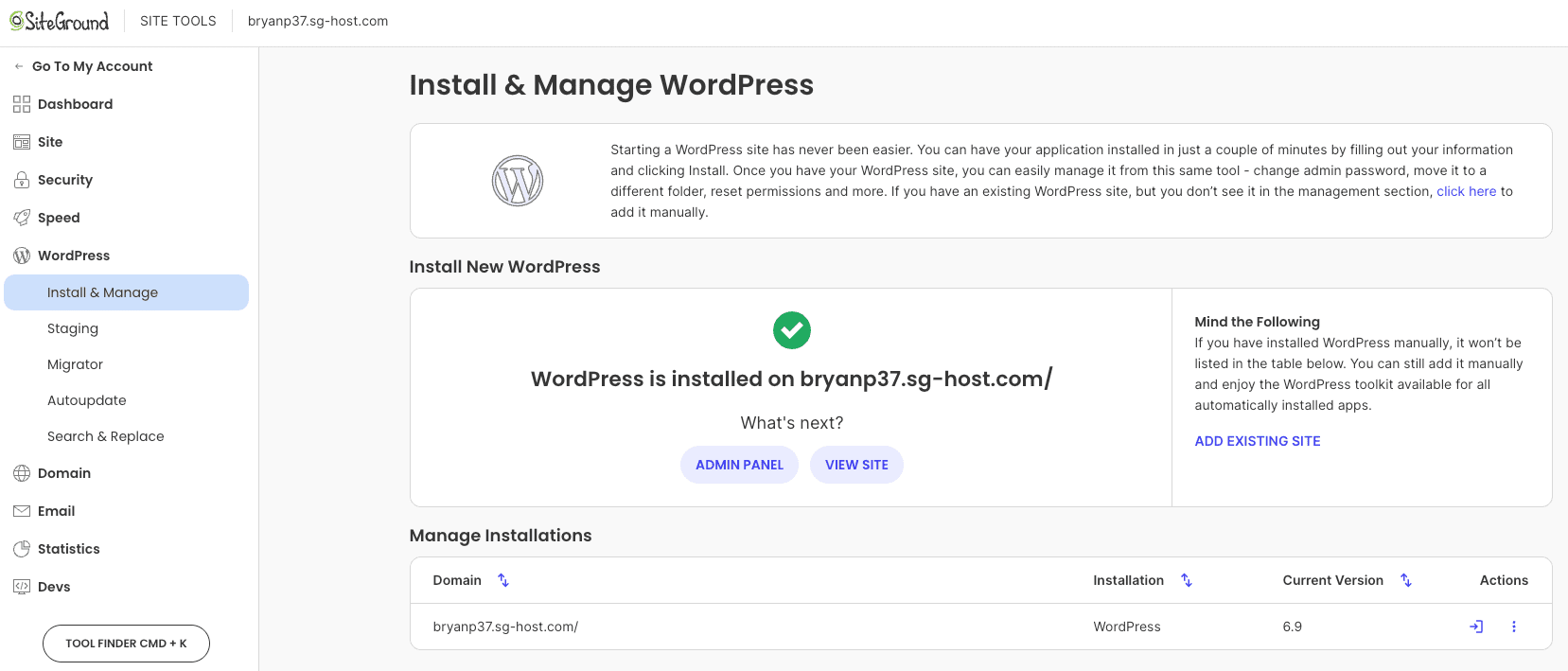
You’ve reached the final step of the installation! After configuring your admin credentials and choosing your installation options, all that’s left is to click the “Install” button.
The SiteGround server will now work its magic, and in a minute or two, your new WordPress website will be ready.
The installer will automatically create your site on the domain name you selected at the beginning of the process.
If you have multiple domains in your account, this ensures WordPress is installed on the correct one.
Once the installation is complete, you’ll see a confirmation message with links to view your site or go directly to the WordPress admin area.
Here’s what happens when you click “Install”:
- The system creates a database for your site.
- It copies the latest WordPress files to your server space.
- Your admin account is created.
- Your WordPress website is now live on your domain. Congratulations, you have successfully installed WordPress on SiteGround!
Alternative WordPress Installation Methods on SiteGround
While the automatic App Installer is the most common and recommended route, it’s good to know that there are different ways to get WordPress running on SiteGround.
These alternative methods offer varying levels of control and complexity, catering to different user needs.
Whether you prefer a guided setup with pre-selected plugins or the total control of a manual installation process, SiteGround has an option for you.
Let’s explore some of these other methods to see how they compare.
Using the WordPress Starter Plugin for Quick Setup
If you choose to use the WordPress Starter plugin during installation, you’ll be greeted with a helpful setup wizard the first time you log in to your site.
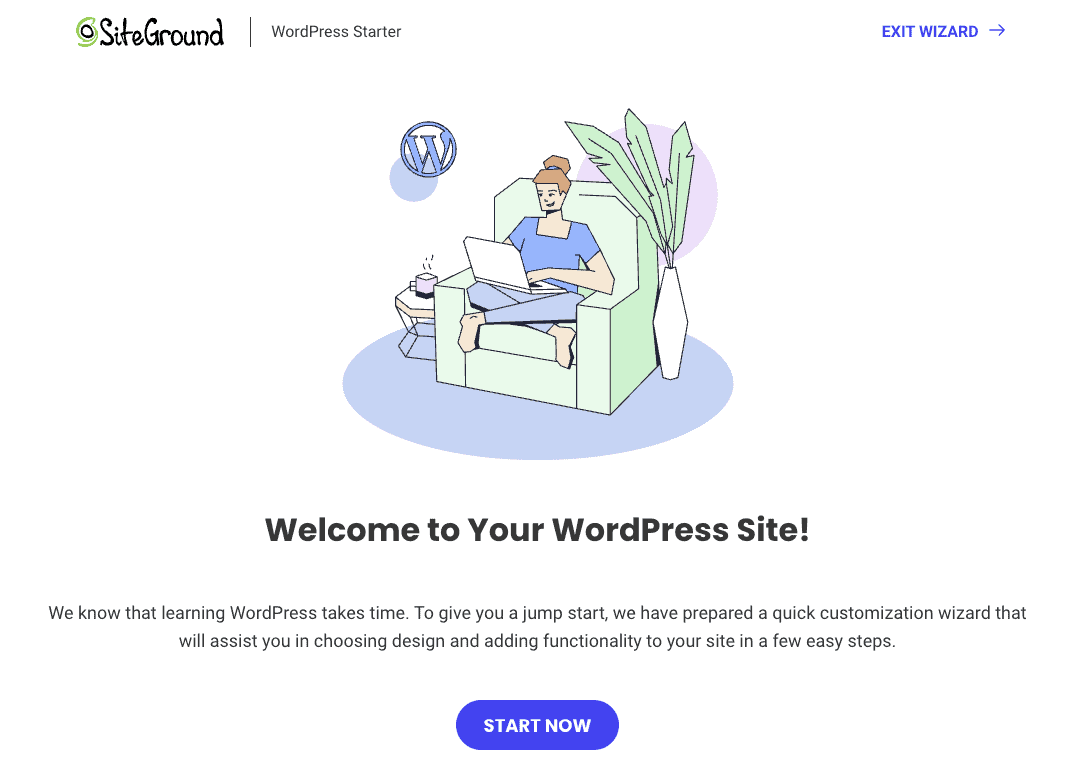
This tool is designed to make the post-installation process as simple as possible by guiding you through key decisions.
The wizard first prompts you to choose a WordPress theme from a curated collection of professional designs.
After selecting a look for your site, it suggests a few useful free plugins for things like contact forms and SEO. You can choose which ones you want to add.
Of course, you can install a bare version of WordPress without any added plugins or themes by deselecting this option during the initial installation process.
The WordPress Starter plugin helps you:
- Choose a professional WordPress theme.
- Install recommended free plugins.
- Select the type of site you’re building (e.g., blog, store).
- Get a head start on building your content. This guided approach is fantastic for beginners who aren’t sure where to start after the main installation is complete.
Manual Installation: Uploading WordPress via FTP
For those who crave complete control, a manual installation is possible on SiteGround.
This method involves downloading the WordPress software yourself and uploading it to your server using an FTP (File Transfer Protocol) client.
It is a much more technical process and not recommended for beginners.
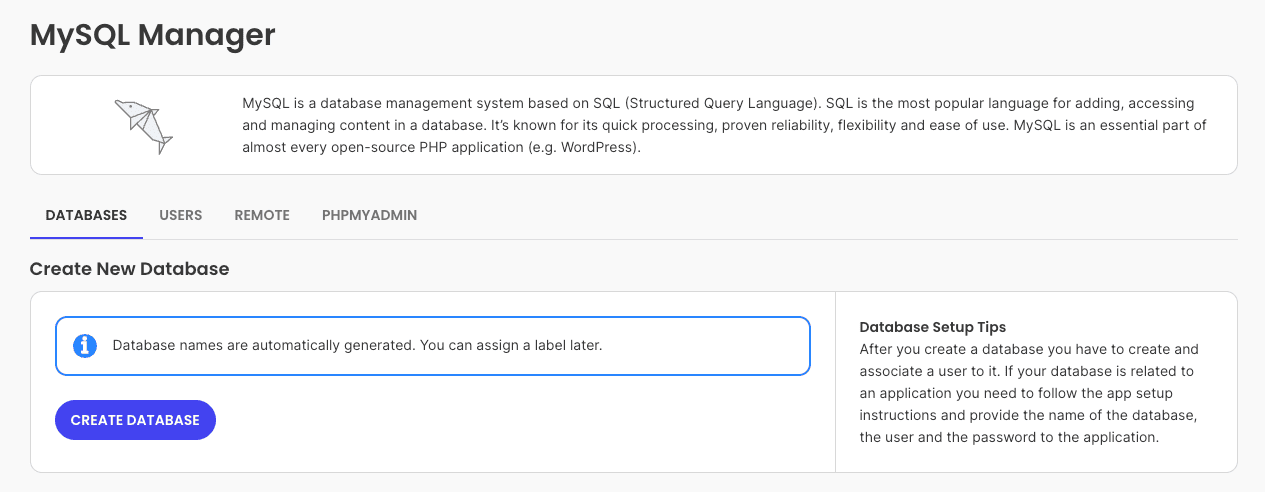
To do this, you first need to create a MySQL database and a user within your SiteGround Site Tools.
Then, you download the latest WordPress zip file from WordPress.org, unzip it, and upload the contents to the correct folders on your server.
Finally, you’ll need to edit the wp-config.php file with your database details to connect everything.
The manual process involves these key steps:
- Create a MySQL database and user.
- Download WordPress from WordPress.org.
- Upload the files via FTP.
- Configure the
wp-config.phpfile and run the installation script. This method gives you ultimate control but comes with a much steeper learning curve.
One-Click Install vs Manual Install: Pros and Cons
Deciding between SiteGround’s one-click install and a manual install depends on your comfort level with technology.
The one-click install is by far the easiest way for anyone, especially beginners, to get started.
It automates the entire process, reducing the chance of errors and getting your site online quickly.
A manual install offers more granular control over the setup, which can be beneficial for developers who have very specific requirements.
However, it also opens the door to potential mistakes, such as incorrect file permissions or database configurations, which could create a vulnerability if not done properly.
Here’s a breakdown of the pros and cons:
| Method | Pros | Cons |
|---|---|---|
| One-Click Install | Fast, simple, and error-free. The easiest way for all users. | Less control over initial file structure and database naming. |
| Manual Install | Full control over every aspect of the installation. | Complex, time-consuming, and higher risk of errors or security issues. |
For the vast majority of users, the convenience and safety of the one-click install make it the superior choice.
Common Mistakes to Avoid During WordPress Installation
Even with a simple installation process, there are a few common pitfalls that can cause headaches down the road.
Being aware of these potential mistakes can help you ensure your setup is clean, secure, and ready for you to build upon.
From accidentally deleting an old site to using weak admin credentials, these errors are easy to make but also easy to avoid.
Let’s look at what to watch out for to prevent a simple mistake from turning into a major vulnerability.
Overwriting Existing Websites or Content
One of the most critical mistakes to avoid is accidentally overwriting existing websites or files.
When you use the installer in Site Tools, it will ask you where you want to install WordPress.
If you choose the main directory (root) of a domain that already has a site on it, the installer may overwrite everything.
To avoid this, always double-check the installation path.
If you are adding a blog to an existing site, you might want to install WordPress in a new folder, such as yourdomain.com/blog.
This keeps the new installation separate from your main site files.
Here’s how to prevent this mistake:
- Always verify the installation directory before proceeding.
- If you’re unsure, check the file manager in Site Tools to see what files are present.
- Consider installing it in a new folder if you want to keep the existing content.
- Make a backup of your site before installing anything new, just in case. A moment of caution here can save you from the disaster of losing your hard work.
Not Securing Your Admin Credentials Properly
Your admin credentials are the keys to your entire website. The administrator account has full permissions to change anything on the site, so protecting it is non-negotiable.
A common mistake is choosing a weak or easily guessable password, which creates a huge security vulnerability.
Always use a strong, unique password that combines uppercase and lowercase letters, numbers, and symbols. SiteGround’s password generator is a great tool for this.
Equally important is choosing a username other than “admin.”
Hackers often try to break into sites by guessing this common username, so picking something unique adds another layer of security.
Failing to secure your admin credentials properly is like leaving the front door of your house wide open.
Taking a few extra seconds to create a strong password and a unique username is one of the most effective security measures you can take to protect your new website from unauthorized access.
Skipping Essential Settings During Setup
During the application setup, it can be tempting to rush through the options to get to the finish line faster. However, skipping essential settings can lead to problems later on.
For instance, the SiteGround installer offers to add the WordPress Starter plugin, which is a valuable tool for beginners.
Unchecking it without understanding what it does could make your initial setup more difficult.
Think of the installation options as a pre-flight checklist. Each setting is there for a reason, whether it’s for security, convenience, or functionality.
Taking the time to review each option ensures your WordPress installation is configured correctly from the very beginning.
Once you are in the WordPress dashboard for the first time, there are other important settings to review, such as permalinks and site visibility.
Rushing past these initial configurations is a common mistake that can impact your site’s SEO and user experience. A methodical approach is always best.
What to Do After Installing WordPress on SiteGround
Congratulations on installing WordPress! Your site is now live, but it’s currently a blank canvas.
The next phase is all about turning that blank canvas into a functional and attractive WordPress website that will engage your future site visitors.
This involves choosing a design, adding functionality with plugins, and creating your first pieces of content.
We’ll guide you through these exciting next steps, from selecting a WordPress theme and premium plugins to publishing your first page.
Customizing Your Site with Themes and Plugins
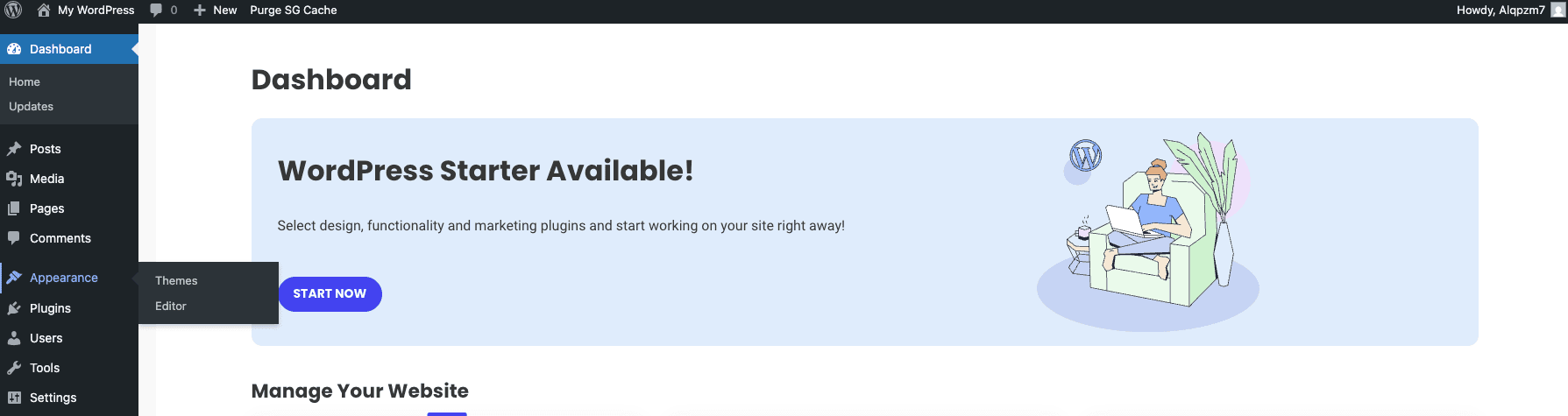
The first thing you’ll want to do is give your site a personality. This is done by choosing a WordPress theme, which controls the overall design and layout.
You can find thousands of free themes in the official WordPress repository directly from your dashboard under “Appearance” > “Themes.”
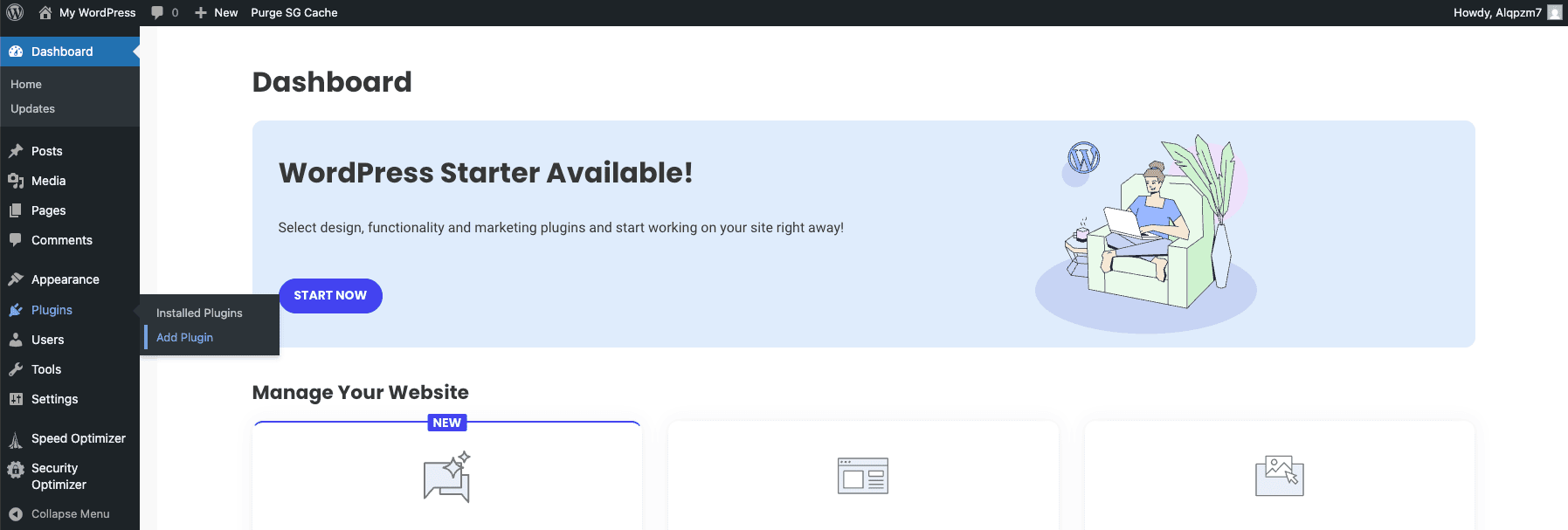
Next, you’ll want to add functionality using plugins. Plugins are like apps for your website.
There are free plugins for almost anything you can imagine, from contact forms to e-commerce. You can also purchase premium plugins for more advanced features.
You can add plugins from your dashboard under “Plugins” > “Add Plugin.”
Here are some essential post-install tasks:
- Choose and install a WordPress theme that fits your brand.
- Install essential free plugins for security and backups.
- Consider premium plugins for advanced SEO or design capabilities.
- Delete any default themes or plugins you don’t need.
- Customize your theme’s settings to match your preferences.
Creating Pages and Posts to Launch Your Website
With your site’s design and functionality in place, it’s time to add content. In WordPress, content is organized into two main types: pages and posts.
Pages are for static content that doesn’t change often, like your “About” or “Contact” page.
Posts are for dynamic content, like articles in a blog, and are typically displayed in reverse chronological order.
To start, you should create the essential pages for your WordPress website. Most sites have a homepage, an about page, and a contact page.
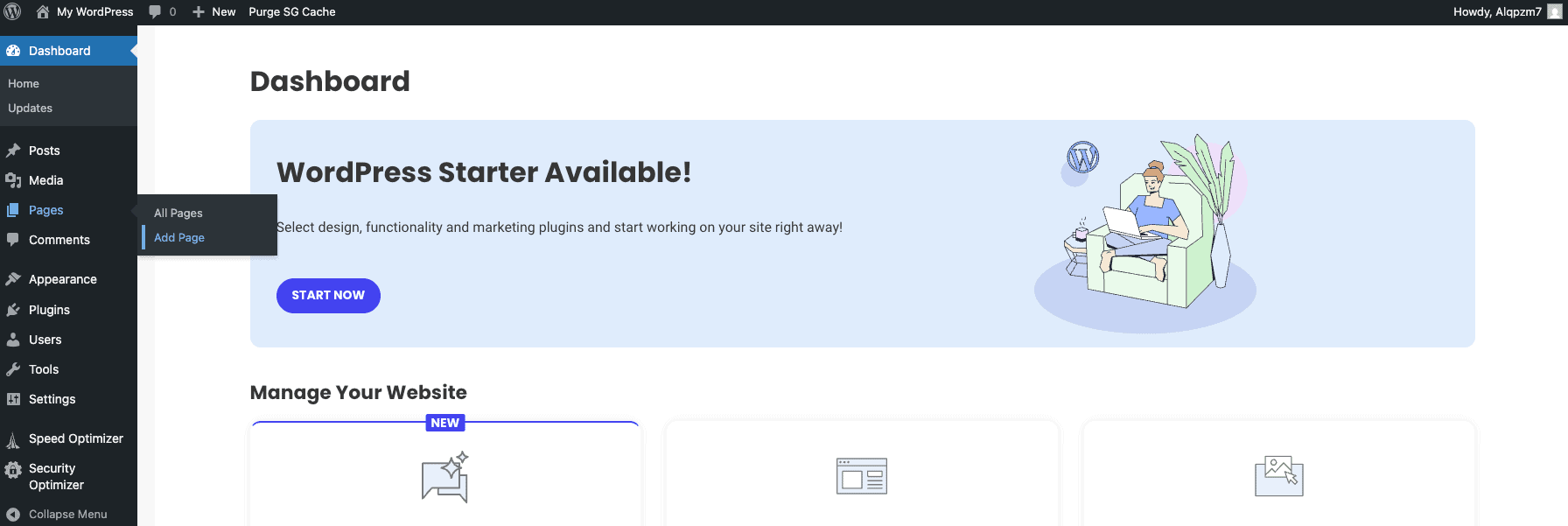
You can create these by going to “Pages” > “Add Page” in your WordPress dashboard. The website setup wizard may have even helped you create some of these already.
Once your core pages are set up, you can begin writing posts if you plan to have a blog. Posts are the lifeblood of many websites, helping to attract visitors and build an audience.
By consistently creating high-quality content, you can establish your site as a valuable resource in your niche.
Configuring SEO and Security Settings
To ensure your website can be found by search engines and is protected from threats, you need to configure some basic SEO and security settings.
Search Engine Optimization (SEO) is the practice of improving your site’s visibility in search results, and it’s crucial for driving organic traffic.
A great first step is to install an SEO plugin like Yoast SEO.
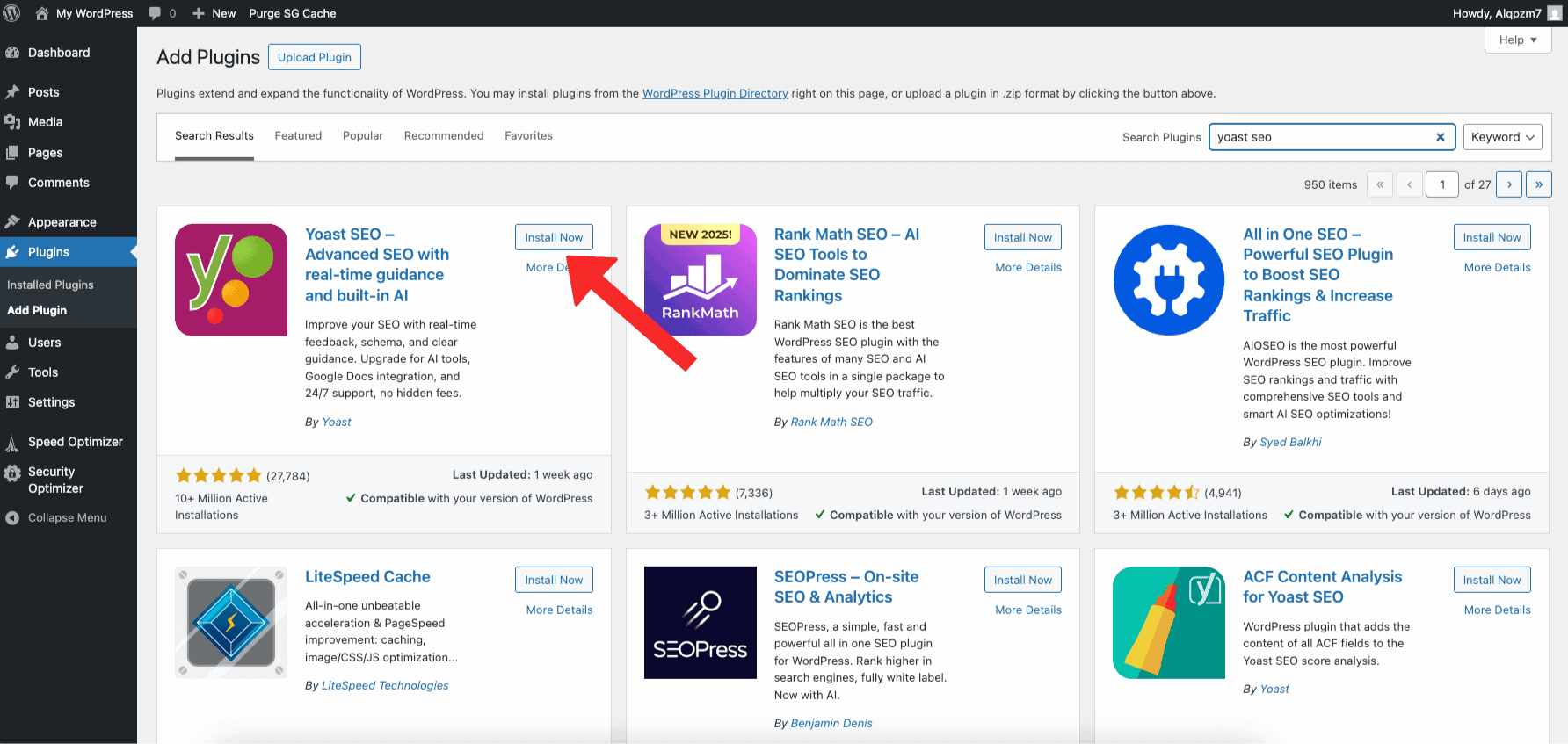
This type of plugin guides you through optimizing your content and technical settings to make your site more friendly to search engines.
It helps with things like meta descriptions, sitemaps, and keyword usage.
For security, installing a dedicated plugin like Wordfence can protect your site from malware and hacking attempts.
Here are some key settings to configure:
- Install and set up an SEO plugin like Yoast SEO.
- Install a security plugin to protect your site.
- Check your permalink structure under “Settings” > “Permalinks” to ensure it’s user-friendly.
- Ensure your site is visible to search engines under “Settings” > “Reading.” These steps will give your site a solid foundation for growth and security.
Final Thoughts
In conclusion, installing WordPress on SiteGround is a straightforward process that can be accomplished with just a few steps.
By understanding the advantages of using SiteGround as your hosting provider and following our detailed guide, you can set up your website efficiently.
Remember to avoid common pitfalls, like overwriting existing content or neglecting security settings, to ensure a smooth installation.
Once your WordPress site is live, take full advantage of its features by customizing it with themes and plugins for a unique look and feel.
Ready to get started? Don’t hesitate to reach out for a free consultation, where our experts can guide you through the process!
Frequently Asked Questions (FAQ)
Navigating the installation of a WordPress website on SiteGround can raise several questions. Common inquiries include the best hosting plan to choose or how to optimize your site for search engines using plugins like Yoast SEO. Users often wonder about the application setup process and how to ensure their newly created MySQL database has the necessary permissions. Additionally, there may be concerns regarding managing domain names and utilizing the Site Tools button effectively for your WordPress dashboard. Always feel free to reach out for clarification on these topics!
Do I need technical skills to install WordPress on SiteGround?
No, you do not need technical skills. SiteGround’s automated installation process is designed for beginners. You simply fill out a form with your desired credentials, and the SiteGround server handles the rest. You can access your WordPress dashboard and start building your site minutes after the hosting setup is complete.
How do I install WordPress on a specific domain within my account?
During the installation process in Site Tools, you will be prompted to select the domain name you want to use from a dropdown menu. This menu lists all the domains associated with your hosting plan. Simply choose the correct one, and SiteGround will install your WordPress website on that specific web server address.
Can I install WordPress without any added plugins or themes?
Yes, you can. During the installation process, you’ll see an option to include the WordPress Starter plugin. If you deselect this option, SiteGround will install a “vanilla” version of WordPress with no extra free plugins or themes. You can then add everything manually from the WordPress dashboard.
How long does it take to install WordPress on SiteGround?
The actual WordPress installation process on SiteGround is incredibly fast, typically taking only a few minutes. From starting the setup wizard to having a live WordPress website is often a five-minute job. The next step, customizing your site, is what will take more time, depending on your vision.
Here are related SiteGround posts you might find helpful:
- who owns SiteGround?
- SiteGround Black Friday deal
- does SiteGround offer a free trial
- SiteGround Reseller hosting review
- SiteGround Cloud hosting review
- SiteGround monthly payments
- is SiteGround good for eCommerce?
- SiteGround refund policy
- SiteGround Email Marketing Guide
- how to migrate website to SiteGround
- SiteGround CDN review
- SiteGround free SSL Certificate
- SiteGround payment methods

- How to Install WordPress on SiteGround: A Complete Guide - December 24, 2025
- How to Migrate Website to SiteGround: A Beginner’s Guide - December 24, 2025
- SiteGround Website Builder: Your Guide to Easy Creation - December 24, 2025
Leave a Reply
Want to join the discussion?Feel free to contribute!