
Get SiteGround Free SSL for Your Website Easily
Last Updated on December 24, 2025
Securing your website is no longer optional—it’s essential for protecting your data and building trust with your visitors.
A Secure Sockets Layer, or SSL certificate, is the standard for creating a safe online environment.
The great news is that you don’t need a big budget to get one. With SiteGround, you can obtain a free SSL certificate and add that crucial layer of security to your site.
This guide will walk you through everything you need to know about getting and managing your free SiteGround SSL.
Click here to create an account with SiteGround and get a SiteGround discount of up to 83% off, plus a free domain!
Key Highlights
- SiteGround provides a free SSL certificate from Let’s Encrypt with all hosting plans.
- You can easily activate your certificate through the SSL Manager in your Site Tools dashboard.
- The entire installation process is designed to be quick, helping you establish a secure connection in minutes.
- For WordPress sites, using the Speed Optimizer plugin is the best way to enforce HTTPS.
- SiteGround automatically renews your free SSL certificate, so you don’t have to worry about expiration.
- Enforcing HTTPS secures your website, builds visitor trust, and can improve your search engine rankings.
Understanding SSL Certificates and Their Importance for Websites
Before you install your new certificate, it’s helpful to understand what an SSL certificate does and why it’s so important. Think of it as your website’s digital passport.
It verifies your site’s identity and enables an encrypted, secure connection between your web server and your visitors’ browsers. This encryption protects sensitive data from being intercepted by hackers.
Without a valid SSL certificate from a trusted certificate authority, browsers may flag your site as “not secure,” driving potential visitors away. Let’s explore how these certificates work and the specific benefits they bring to your website.
What Is an SSL Certificate and How Does It Work?
An SSL certificate is a digital file that enables encryption using the Secure Sockets Layer (SSL) protocol, though most modern certificates use its successor, Transport Layer Security (TLS).
When a user visits your HTTPS-enabled website, their browser requests verification from your web server. In response, your server presents its SSL certificate, which contains a public key.
The browser then checks the certificate’s validity with the trusted certificate authority that issued it. If everything checks out, the browser and server perform what is known as an “SSL handshake.”
During this process, they create a unique session key to encrypt all data transmitted between them. This entire handshake happens in milliseconds, completely behind the scenes.
This process ensures that any information shared, from login credentials to personal details, is scrambled and unreadable to anyone trying to intercept it.
The operating system and browser work together to manage this secure connection, using the certificate’s private key on the server to complete the process.
Why Every Website Needs SSL: Security, Trust, and SEO Benefits
Every website, regardless of its size or purpose, benefits immensely from having an SSL certificate. The most critical reason is security.
An SSL uses encryption to protect sensitive information that your visitors share, such as credit card numbers and passwords, from hackers. Without it, data is sent as plain text (HTTP), making it vulnerable.
Beyond security, an SSL certificate is a powerful trust signal. When visitors see the padlock icon and “HTTPS” in their browser, they know your site is legitimate and that their connection is secure.
This confidence is crucial for e-commerce sites and any business that collects user data. A certificate from a trusted certificate authority verifies your website’s identity, protecting visitors from phishing attacks.
Finally, SSL certificates provide significant SEO advantages. Search engines like Google prioritize secure websites in their search results.
- Boosts Rankings: Google gives a ranking boost to sites with a valid SSL certificate.
- Builds Credibility: A secure connection improves user experience and brand reputation.
- Prevents Warnings: Browsers actively warn users away from non-secure HTTP sites.
SiteGround SSL Overview: What You Get with Free SSL
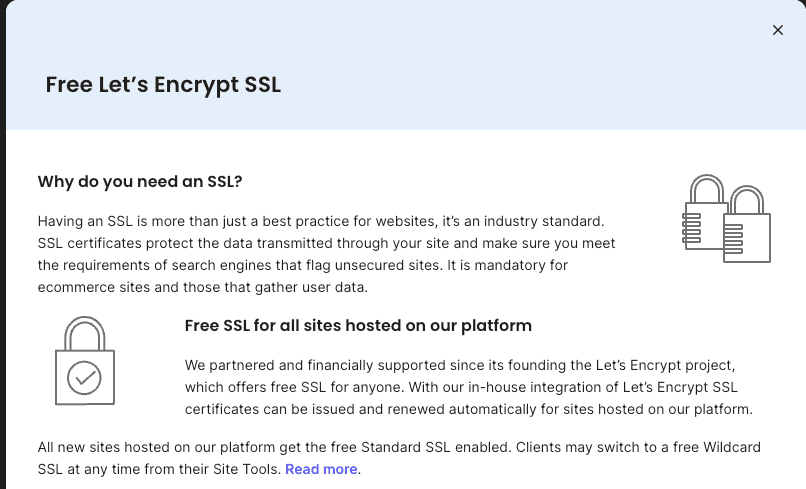
SiteGround makes website security accessible to everyone by offering a free SSL certificate with every hosting plan. This isn’t a temporary trial or a limited version; it’s a fully functional certificate from a trusted certificate authority that provides strong encryption.
Related: does SiteGround offer a free trial?
You can easily manage your SSLs directly from your client area using the intuitive Site Tools dashboard.
Whether you’re setting up a new website or securing an existing one, SiteGround simplifies the entire process. Let’s look at the specific type of free SSL certificate you receive and confirm its availability across all plans.
Related: is SiteGround Site Scanner worth it?
Types of Free SSL Certificates Available on SiteGround
When you choose SiteGround, you get access to a standard Let’s Encrypt SSL certificate at no cost. Let’s Encrypt is a globally recognized and trusted certificate authority dedicated to making the web a safer place.
This type of certificate is perfect for most websites, including blogs, portfolios, and small business sites, as it provides the same level of encryption as paid certificates.
For users with more advanced needs, SiteGround also offers a Premium Wildcard SSL certificate for purchase.
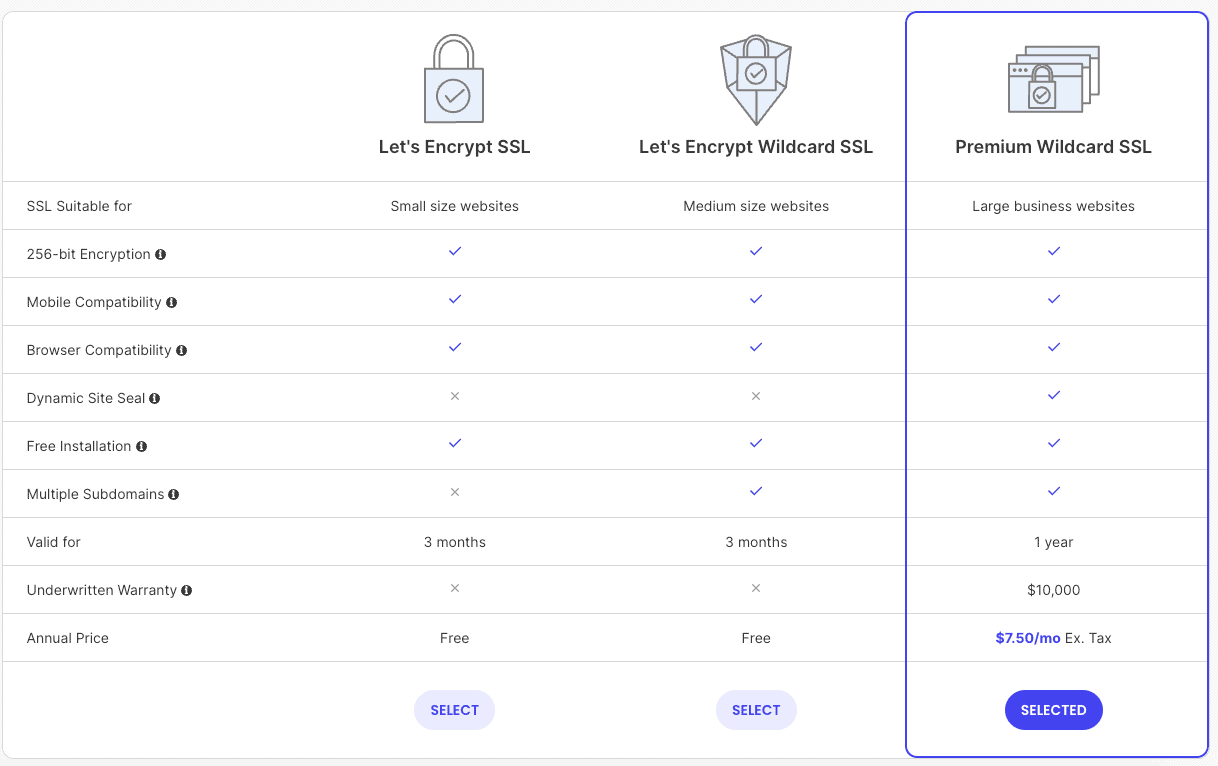
While the free certificate secures your main domain (e.g., yourdomain.com) and its www version, a Wildcard SSL certificate covers your main domain plus an unlimited number of subdomains (e.g., blog.yourdomain.com, shop.yourdomain.com).
Here’s a quick comparison of the free and premium options available:
| Feature | Let’s Encrypt (Free) | Premium Wildcard SSL (Paid) |
|---|---|---|
| Cost | Free with hosting | Annual fee — $7.50/mo (billed annually at $90) |
| Domains Covered | Single domain (and www) | Main domain + unlimited subdomains |
| Trust Seal | No | Dynamic site seal included |
| Issuing Authority | Let’s Encrypt | GlobalSign |
| Encryption Level | Standard, strong encryption | Standard, strong encryption |
| Underwritten Warranty | None | Yes — $10,000 |
Is Let’s Encrypt Included for Free with All SiteGround Plans?
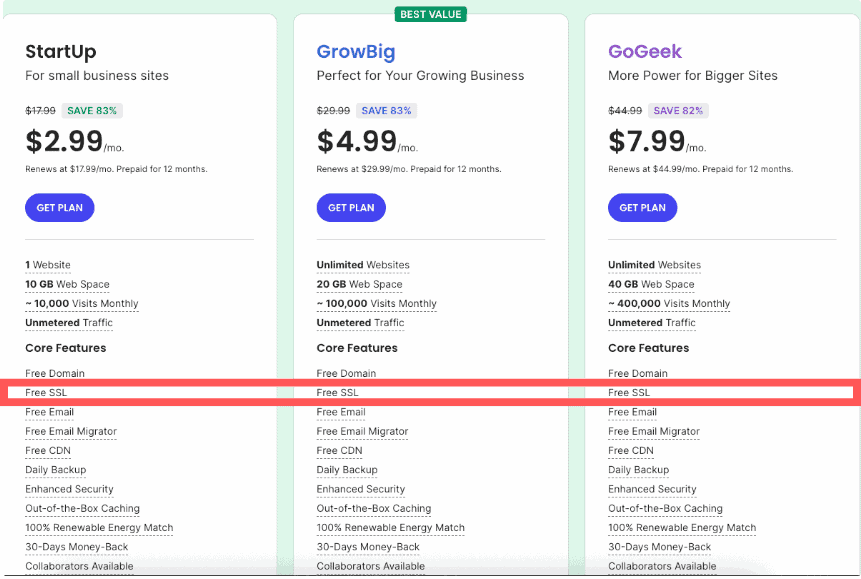
Yes, a Let’s Encrypt SSL certificate is included for free with all SiteGround hosting plans, from StartUp, GrowBig, to GoGeek.
SiteGround is committed to providing a secure hosting environment for all its customers, and offering a free SSL certificate is a core part of that commitment.
You don’t need to worry about hidden fees or opting into a special offer to get this essential security feature.
As soon as you set up your hosting account, you can proceed with installing a new SSL certificate for any domain hosted on your plan. This makes it incredibly easy and cost-effective to secure your website from day one.
Let’s Encrypt has become the standard for free SSLs because it’s an open, automated, and trusted certificate authority.
By integrating it seamlessly into their platform, SiteGround removes the technical and financial barriers that once prevented website owners from adopting HTTPS.
Related: SiteGround free site migration
Setting Up SiteGround Free SSL for Your Website
Now that you understand the benefits, it’s time to get your free SSL certificate up and running.
SiteGround has simplified the installation process so that you can secure your website in just a few clicks. You’ll use the SSL Manager tool, which is conveniently located in the Site Tools dashboard of your client area.
This powerful tool handles everything from issuing the certificate to preparing it for installation.
The following sections will guide you through the exact steps for enabling your free SSL and ensuring it’s properly configured for your website, including specific instructions for WordPress users.
How to Enable Free SSL Using SiteGround SSL Manager
Activating your free SSL certificate on SiteGround is incredibly straightforward. The entire process is managed within Site Tools, making it accessible even if you’re not a technical expert.
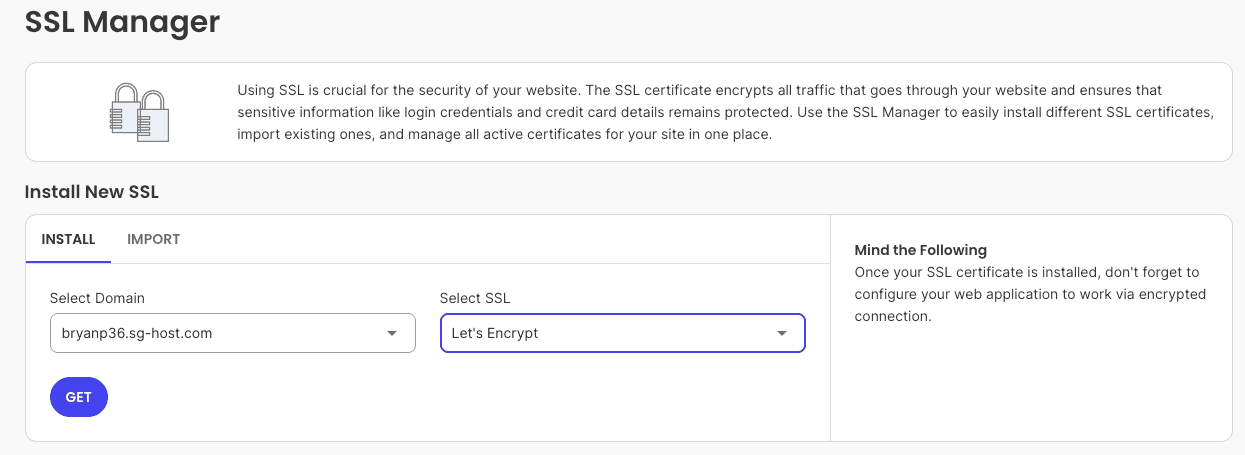
- First, log in to your SiteGround account and navigate to Websites > Site Tools.
- In the sidebar, go to Security > SSL Manager.
- In the “Install New SSL” section, select the domain you wish to secure from the dropdown menu.
After selecting your domain, choose “Let’s Encrypt” as the certificate type. Click the “GET” button. The system will automatically process the request, and your new SSL certificate will be installed on your domain within moments.
Once the certificate is active, it’s crucial to ensure your website uses it. You can do this by using the “HTTPS Enforce” tool, which has a convenient link in the kebab menu next to your newly installed SSL.
Simply toggle the HTTPS Enforce button to ON to redirect all your traffic to the secure version of your site.
Installing Free SSL on a SiteGround WordPress Website
If you have a WordPress site, the process is just as simple, but with one important extra step for the best results.
After installing your free SSL certificate through the SSL Manager, SiteGround recommends enforcing HTTPS at the application level.
This helps prevent “mixed content” errors, which occur when some resources (like images) still load over insecure HTTP.
The easiest way to do this is with the SiteGround Speed Optimizer plugin, which should be pre-installed on your WordPress site.
- Log in to your WordPress admin dashboard.
- Navigate to the SG Optimizer menu and go to Environment Optimization.
- Find the “Enable HTTPS” option and simply toggle the switch to ON.
This plugin will automatically update your site’s URLs and configure your WordPress installation to work correctly with the new SSL certificate.
This method is more reliable than a server-level rule because it directly addresses how WordPress handles your content, ensuring a fully secure connection without any insecure content warnings for your visitors.
Related: how to install WordPress on SiteGround
Managing and Renewing Your SiteGround SSL
Once your SSL certificate is installed, your work is mostly done. However, it’s good to know how to manage your certificates and understand the renewal process.
Free Let’s Encrypt certificates have a 90-day validity period, but you don’t need to mark your calendar. SiteGround handles the renewals for you automatically to prevent any lapse in security.
Related: SiteGround money-back guarantee & refund policy
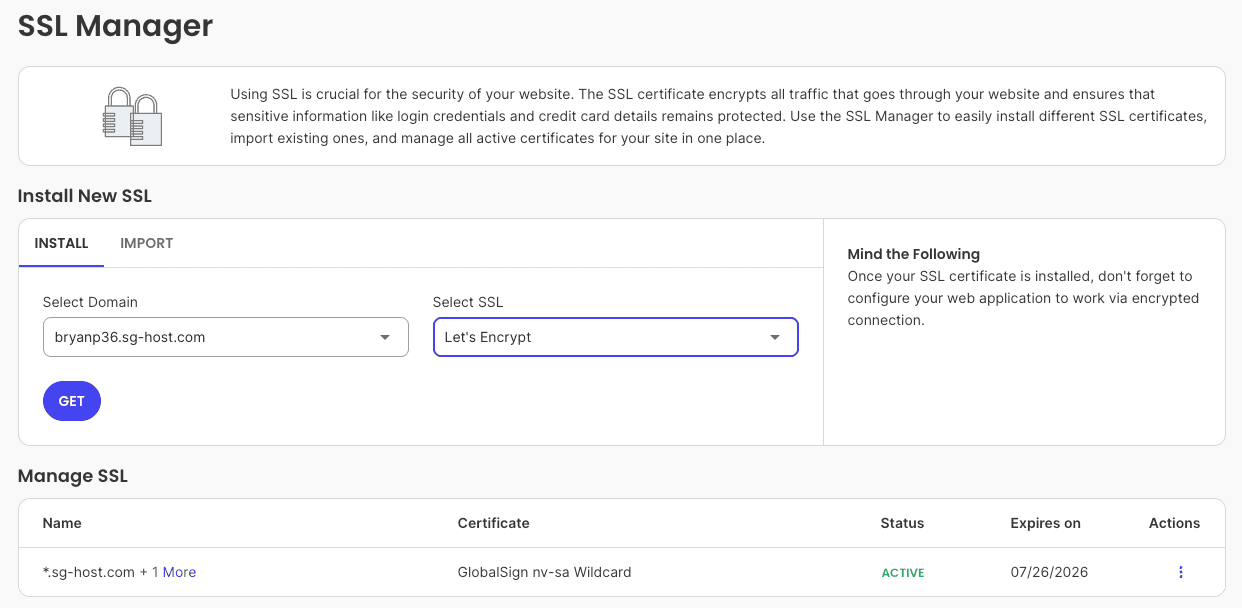
All management tasks, from viewing certificate details to upgrading, are handled in the same SSL Manager section within Site Tools.
Let’s look at how the renewal process works and what your options are if you decide to upgrade to a premium certificate.
SiteGround SSL Renewal Process: Manual vs. Automatic
One of the best features of SiteGround’s free SSL service is the completely automatic SSL renewal process.
You don’t have to do anything to keep your certificate active. Let’s Encrypt certificates are valid for 90 days, and SiteGround’s system takes care of renewing them for you well before they expire.
- Automatic Renewal: Your free Let’s Encrypt SSL certificate is automatically renewed by SiteGround 30 days before its expiration date.
- No Manual Action: You do not need to log in or click any buttons to initiate the renewal.
- Continuous Security: This automated system ensures your site’s secure connection is never interrupted.
The “Renew” option you see in the Manage SSL section of Site Tools will typically be inactive.
It only becomes active within 30 days of expiration, but because the automatic system handles it, you’ll likely never need to use it.
This hands-off approach lets you focus on your website without worrying about security certificate expiration.
How to Switch from Free to Premium SSL – SiteGround SSL Price and Options
If your needs grow and you want to secure multiple subdomains or display a dynamic trust seal, you can easily upgrade to a Premium Wildcard SSL.
This type of certificate is ideal for larger websites or e-commerce stores with different sections on various subdomains. The upgrade process is straightforward and can be initiated directly from Site Tools.
To start the upgrade, go to Security > SSL Manager > Install New SSL. Select your domain, but this time, choose “Premium Wildcard” as the type of certificate. When you click “ORDER,” you will be taken to a page to complete the payment for the certificate’s price.
- Navigate to the SSL Manager in Site Tools.
- Select your domain and choose the Premium Wildcard option.
- Follow the prompts to complete your order.
Once your order is processed, SiteGround will automatically install the new premium SSL certificate on your domain. This provides a seamless transition from the free certificate without any downtime.
Final Thoughts
In conclusion, securing your website with SiteGround’s free SSL is an essential step towards ensuring both security and trustworthiness.
By understanding the significance of SSL certificates, you not only protect sensitive information but also enhance your site’s SEO performance.
With an easy setup process and reliable management options, SiteGround makes it simple to keep your website secure.
Don’t leave your online presence vulnerable—take action today! For personalized guidance, feel free to reach out and get a free consultation on the best practices for implementing SSL on your website.
Frequently Asked Questions
Can I Fix SiteGround SSL Errors Easily?
Yes, most common SSL errors can be fixed easily. Issues with insecure content on WordPress can often be resolved by using the Speed Optimizer plugin to enforce HTTPS. For other problems, reinstalling the SSL certificate via the Manage SSL section in Site Tools is a quick and effective solution.
Are There Limitations to SiteGround’s Free SSL for WordPress Sites?
The primary limitation of the free SSL certificate is that it only secures a single domain and its ‘www’ version; it does not cover additional subdomains. For a standard WordPress site, the free option provides full, robust encryption. If you need to secure multiple subdomains, you would need a premium wildcard certificate.
Do I Need to Manually Renew the Free SSL Certificate on SiteGround?
No, you do not need to take any manual action. The renewal process for free Let’s Encrypt SSL certificates is fully automated by SiteGround. The system will renew your certificate 30 days before its expiration date, ensuring your website remains secure without any interruption or effort on your part.
Here are some related posts that you might find helpful:
- SiteGround Data Centers and Server Locations
- is SiteGround Domain Privacy worth it?
- SiteGround Black Friday deal
- SiteGround payment methods
- who owns SiteGround?
- SiteGround Cloud Hosting review
- SiteGround Reseller Hosting review
- what is SiteGround used for?
- SiteGround Email Marketing
- SiteGround free CDN

- How to Install WordPress on SiteGround: A Complete Guide - December 24, 2025
- How to Migrate Website to SiteGround: A Beginner’s Guide - December 24, 2025
- SiteGround Website Builder: Your Guide to Easy Creation - December 24, 2025
Leave a Reply
Want to join the discussion?Feel free to contribute!