

Exploring SiteGround Site Tools for Easy Website Management
Last Updated on December 24, 2025
Whether you are a seasoned developer or one of the many new website owners just starting, a streamlined hosting portal makes all the difference.
Who has time to hunt for a tool that should be easy to find? SiteGround’s Site Tools is the answer to simplified website management.
It provides a clean, user-friendly environment where you can handle everything from daily maintenance to complex tasks.
This guide will walk you through its features, helping you and your team members manage your site effortlessly.
To take advantage of a SiteGround discount, click here. You’ll save up to 83% off, plus a free domain name!
Key Highlights
Here are the main takeaways from our guide to SiteGround Site Tools:
- Site Tools is SiteGround’s custom-built control panel, replacing the traditional cPanel for a more modern feel.
- It features an intuitive interface designed for exceptional ease of use, regardless of your technical skill level.
- You can manage everything from files and databases to security and performance, all in one place.
- Accessing Site Tools is simple and secure through your primary SiteGround client area.
- The platform offers specialized tools for WordPress, including staging, migration, and auto-updates.
- Managing your hosting account is streamlined with a well-organized dashboard and quick-access features.
Understanding SiteGround Site Tools: An Overview
SiteGround moved away from the industry-standard cPanel to develop its own site tools, creating a custom control panel designed specifically for its customers.
This powerful interface is automatically included with your hosting plan and is built to provide an outstanding user experience from the ground up.
You can access Site Tools directly from your SiteGround client area.
Instead of a separate, generic platform, it’s a fully integrated part of your account, making website administration faster and more logical.
Below, we’ll explore what makes these tools unique and how they improve upon older systems.
What Makes SiteGround Tools Unique for Website Management
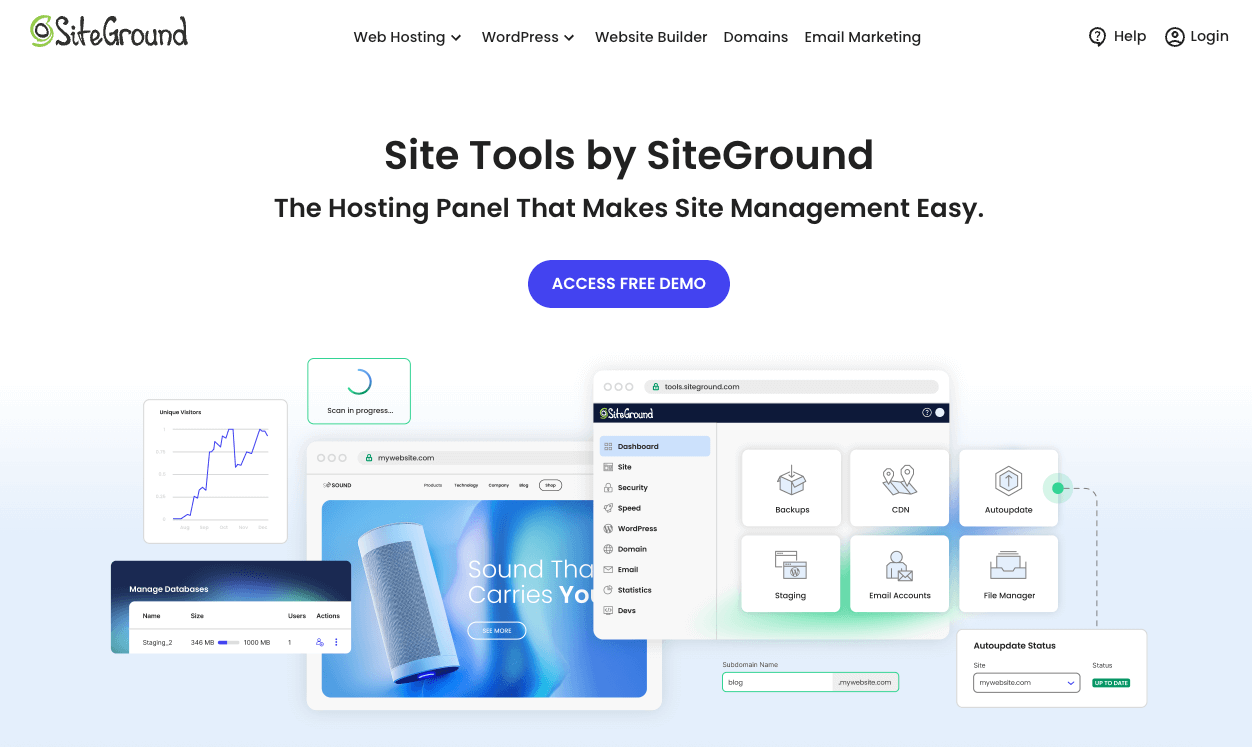
What truly sets Site Tools apart is its design philosophy. As a custom control panel, every feature was built with the user in mind, resulting in an intuitive interface that simplifies complex tasks.
This makes it the perfect solution for anyone, from a small business owner to a developer working with a team member.
The platform is packed with unique features that go beyond standard hosting management.
You can easily switch to the latest PHP version, set up collaborator access, and utilize tools that are seamlessly integrated into the dashboard.
This cohesive environment saves you time and reduces the learning curve often associated with website management.
Some of its standout benefits include:
- A unified dashboard that combines site management with your hosting account information.
- WordPress-centric tools for staging, migration, and automatic updates.
- Enhanced security and performance features are built directly into the interface.
Main Benefits of Switching to Site Tools from cPanel
For those familiar with cPanel, the switch to Site Tools is a significant upgrade. The primary benefit is its superior ease of use.
While cPanel can be cluttered and confusing, Site Tools presents a clean, organized, and mobile-friendly control panel that is much easier to navigate.
This new system streamlines your workflow by integrating everything directly into your hosting account.
Instead of logging into a separate platform, all your tools are accessible from the main client area. This creates a more cohesive and efficient management experience.
You no longer need to jump between different interfaces to handle billing, support, and site administration.
Here is a quick comparison:
| Feature | SiteGround Site Tools | cPanel |
|---|---|---|
| Interface | Modern, intuitive, and mobile-friendly | Traditional, often cluttered, and less responsive |
| Integration | Fully integrated into the SiteGround client area | A separate, third-party software installation |
| User Experience | Designed for beginners and experts alike | It can have a steep learning curve for new users |
| WordPress Tools | Advanced, built-in features like staging | Basic installers, often requiring extra plugins |
Getting Started with SiteGround Tools Login
Accessing your Site Tools dashboard is a straightforward process. It all begins with your SiteGround client area, the central hub for your entire hosting account.
From there, you can navigate to the specific website you want to manage and open its dedicated control panel.
There is no need to remember separate login credentials or navigate to a different URL. This integrated approach ensures that getting to your tools is quick, easy, and secure.
We’ll outline the exact steps to access your dashboard and what to do if you encounter any issues.
How to Access Your Site Tools Dashboard Securely
To get into your Site Tools dashboard, you just need to follow a few simple steps. The secure login process ensures that only you and any authorized team member can access your site’s backend.
This unified access point is one of the best parts of the Site Tools system.
Start by heading to the official SiteGround website and using your primary login credentials. Once you are in your main account area, you are just a couple of clicks away from the control panel for any of your websites.
Here is how to get there:
- Go to SiteGround.com and click the “Login” link in the top-right corner.
- Enter your username and password to access your client area.
- Click on the “Websites” tab, find the site you want to manage, and click the “Site Tools” button next to it.
Troubleshooting Common SiteGround Tools Login Issues
Encountering a login issue can be frustrating, but most problems are easy to solve. The most common reason for a failed login is simply entering the wrong username or password. Always double-check your credentials before trying again.
If you are certain your details are correct, the issue might be related to your network.
For security reasons, SiteGround might temporarily block an IP address if it detects suspicious activity. You can also check the error log for clues once you gain access to see if there were any recorded issues.
If you are still stuck, consider these steps:
- Clear your browser’s cache and cookies, as old data can sometimes cause login conflicts.
- Try accessing the site from a different network or device to rule out an IP address block.
- If all else fails, contact the SiteGround support team. They are available 24/7 and can quickly diagnose and resolve any login problems.
Exploring the Site Tools Dashboard
Your Site Tools dashboard is the command center for your website.
When you first arrive, you will see a welcoming overview with important announcements and quick-access links. The layout is designed to put the most critical information right at your fingertips.
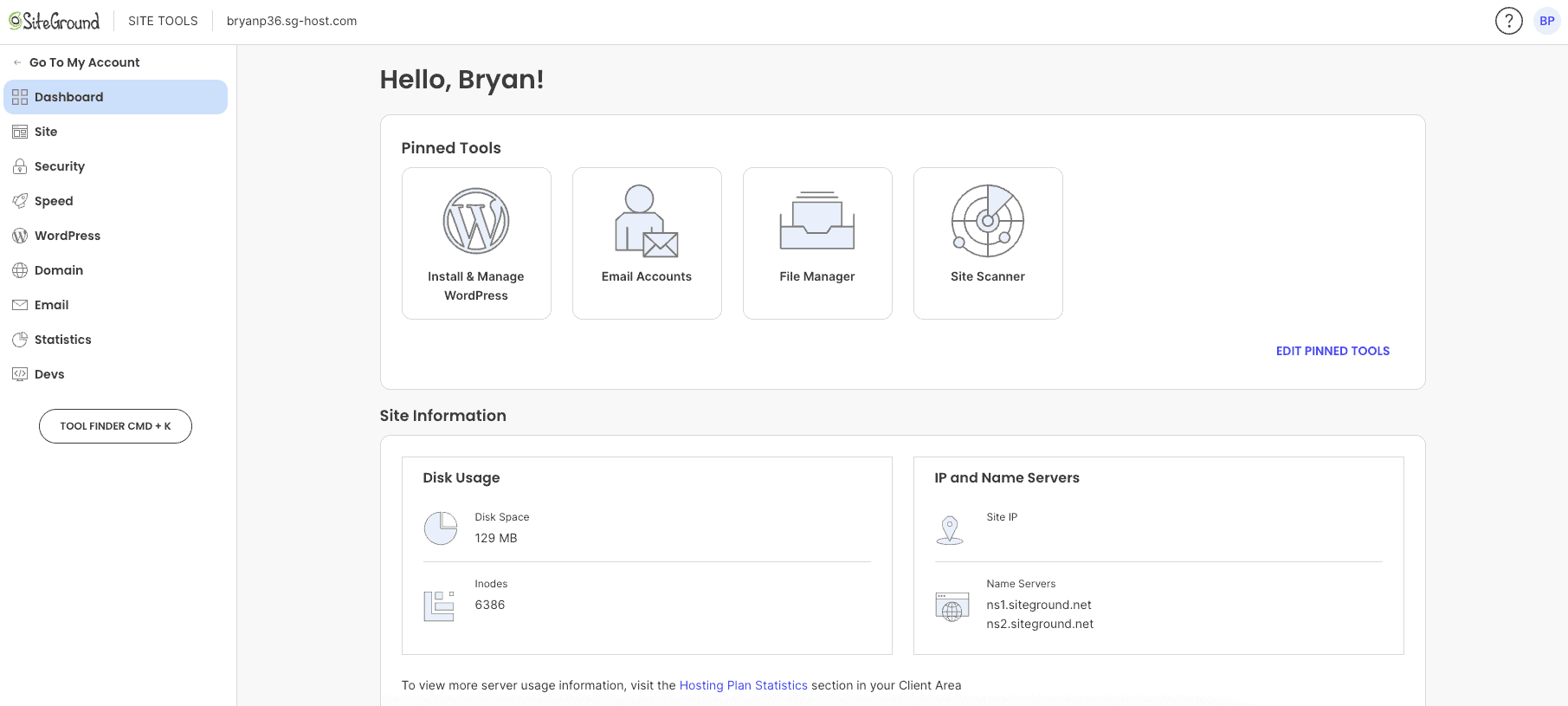
You will find pinned tools for your most frequent tasks, key site information, and a summary of your hosting plan statistics.
The left-hand sidebar neatly organizes the full list of tools into categories like the Site section, Security, and Speed, making navigation a breeze. Let’s look closer at the layout and features.
Key Sections and Layout of Site Tools Dashboard
The Site Tools dashboard is logically organized to help you find what you need quickly. At the top, you’ll see Pinned Tools, which you can customize for your workflow.
This section is perfect for placing your most-used features right on the homepage of your control panel.
Just below, the Site Information area displays essential details like your site’s IP address, name servers, and current disk usage.
You’ll also see a snapshot of your hosting plan statistics, with an option to view a more detailed traffic report. This immediate access to core data is a huge time-saver.
The main navigation menu runs down the left side of the screen, much like the WordPress dashboard.
This menu contains the complete list of tools, categorized into logical groups. This familiar layout makes it easy to locate everything from the File Manager to email settings without getting lost in a sea of icons.
Quick Access Features for Streamlined Management
One of the most powerful features for streamlining your work is the Pinned Tools section.
This area on your dashboard provides quick access to the functions you use most, allowing you to jump directly to a task with a single click. The intuitive interface makes it easy to customize this section to fit your specific needs.
You can edit the pinned tools at any time, adding or removing items to match your current projects.
Whether you’re frequently creating backups, managing email accounts, or accessing the file manager, this feature ensures your preferred tools are always front and center in your control panel.
You can pin tools like:
- File Manager: For direct access to your website’s file structure.
- WordPress Installer: To quickly launch a new WordPress site without navigating through menus.
Managing Website Files with Site Tools File Manager
At some point, you will likely need to access your website’s files directly.
Whether you’re uploading a theme, deleting a faulty plugin, or editing a configuration file, the Site Tools File Manager is the tool for the job. It provides a web-based interface for managing your entire file structure.
With the File Manager, you can handle file uploads, create new folders, and edit code without needing an external FTP client.
It gives you full control over your document root and everything within it. The following sections will show you how to use it effectively.
Uploading, Editing, and Organizing Your Website Files
The File Manager makes handling your site’s core files surprisingly simple.
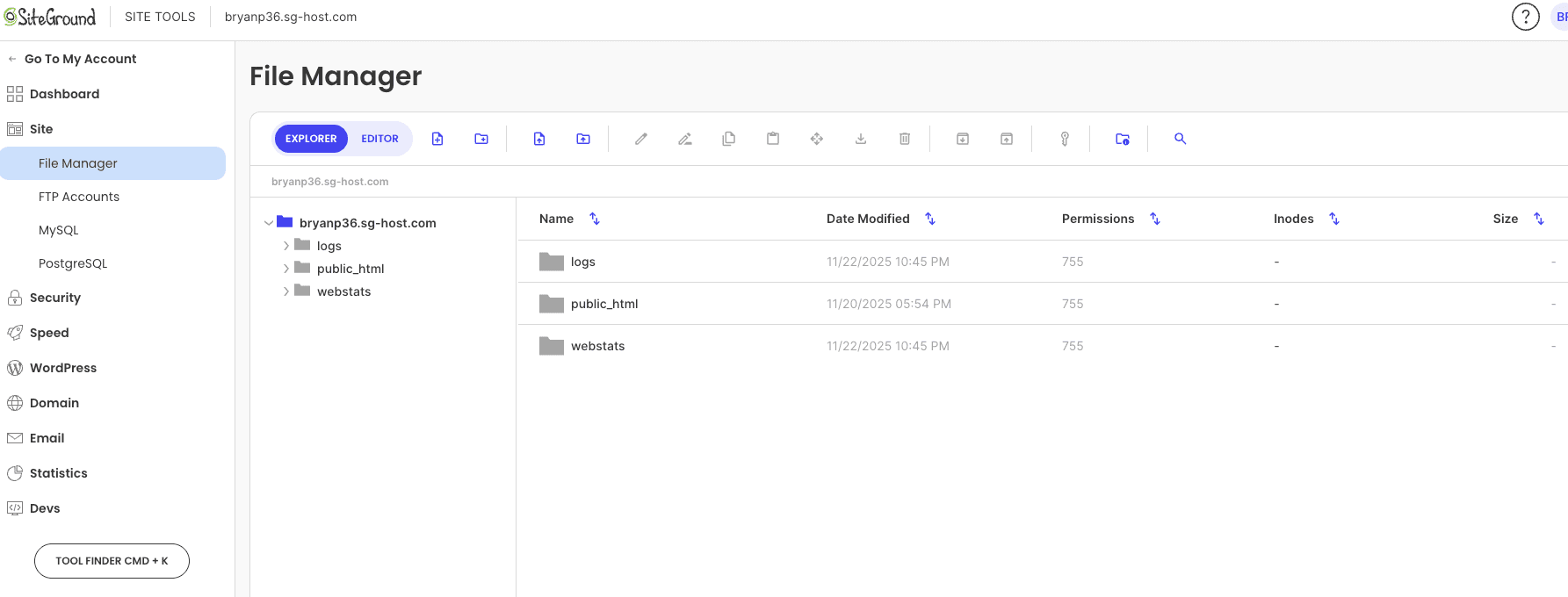
Its visual interface lets you navigate through folders, manage file uploads, and organize your content just like you would on your own computer. You can find it under the “Site” section in the main menu.
From here, you can access your public_html folder, which is the document root where your website’s main files are stored.
This is where you would go if you needed to manually delete a plugin that crashed your site or upload a verification file for a third-party service. If something goes wrong, you can also check the error log for more information.
Using the File Manager, you can:
- Upload files directly from your computer.
- Create, rename, move, and delete files and folders.
- Edit text-based files like .htaccess or wp-config.php right in your browser.
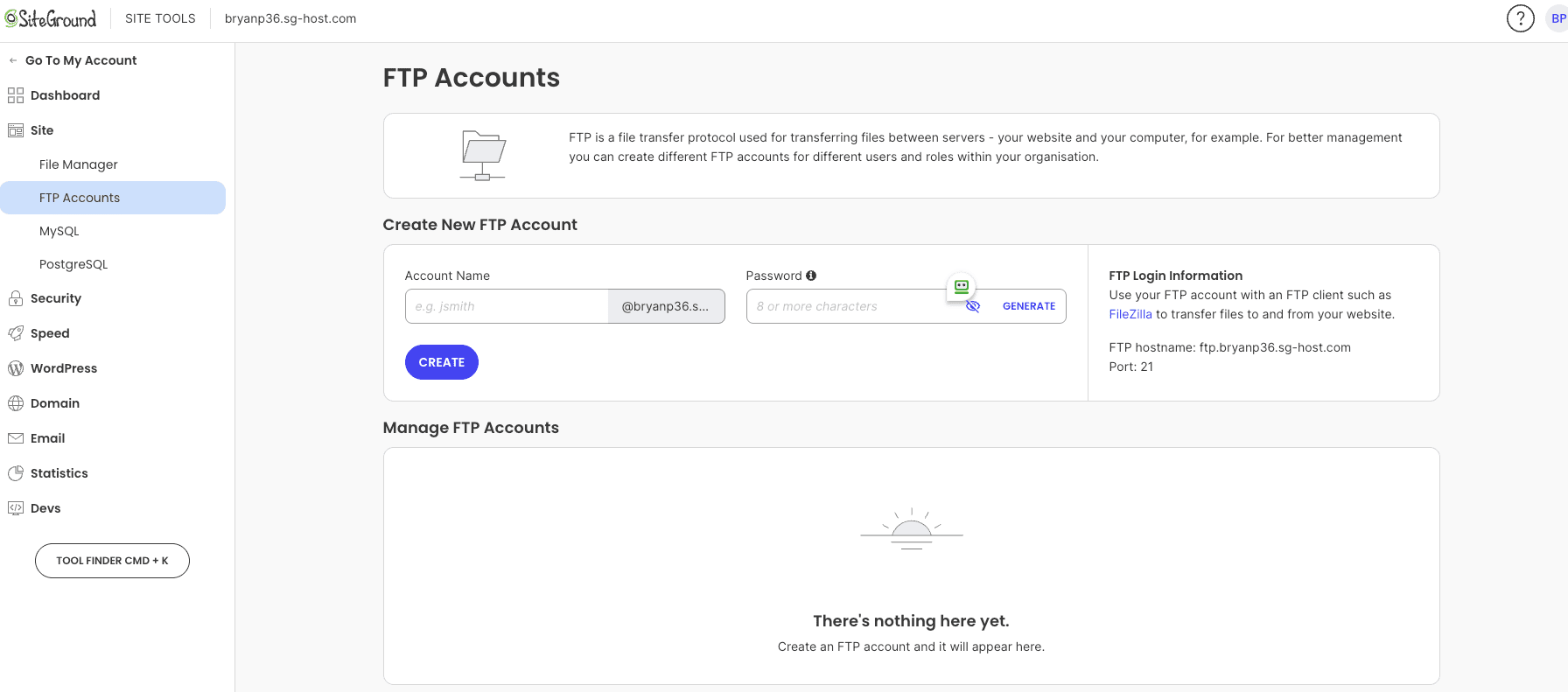
Setting Up and Managing FTP Accounts in Site Tools
While the File Manager is great, sometimes you need to provide file access to a developer or team member without giving them full control.
This is where creating a dedicated FTP account comes in handy. You can set up separate FTP users who can only access the files for a specific site.
Found in the “Site” section of the control panel, the FTP Accounts tool lets you create and manage these users easily.
You can specify which directory a user has access to, ensuring they can’t wander into other parts of your hosting account. It’s a secure way to collaborate.
Key benefits of using FTP accounts include:
- Granting a team member or contractor secure access to your site’s files.
- Restricting access to a specific folder to prevent accidental changes to other sites.
Databases Management in Site Tools SiteGround
Your website’s database stores all of your most important content, from blog posts and pages to user information and settings.
Site Tools makes it easy to manage this crucial component directly from your control panel. You can create a new database, add users, and manage existing ones without any command-line knowledge.
This is a core part of SiteGround’s managed PHP service, bringing powerful database tools into an accessible interface within your client area.
Let’s explore how to handle both MySQL and PostgreSQL databases.
Creating and Handling MySQL Databases in Site Tools
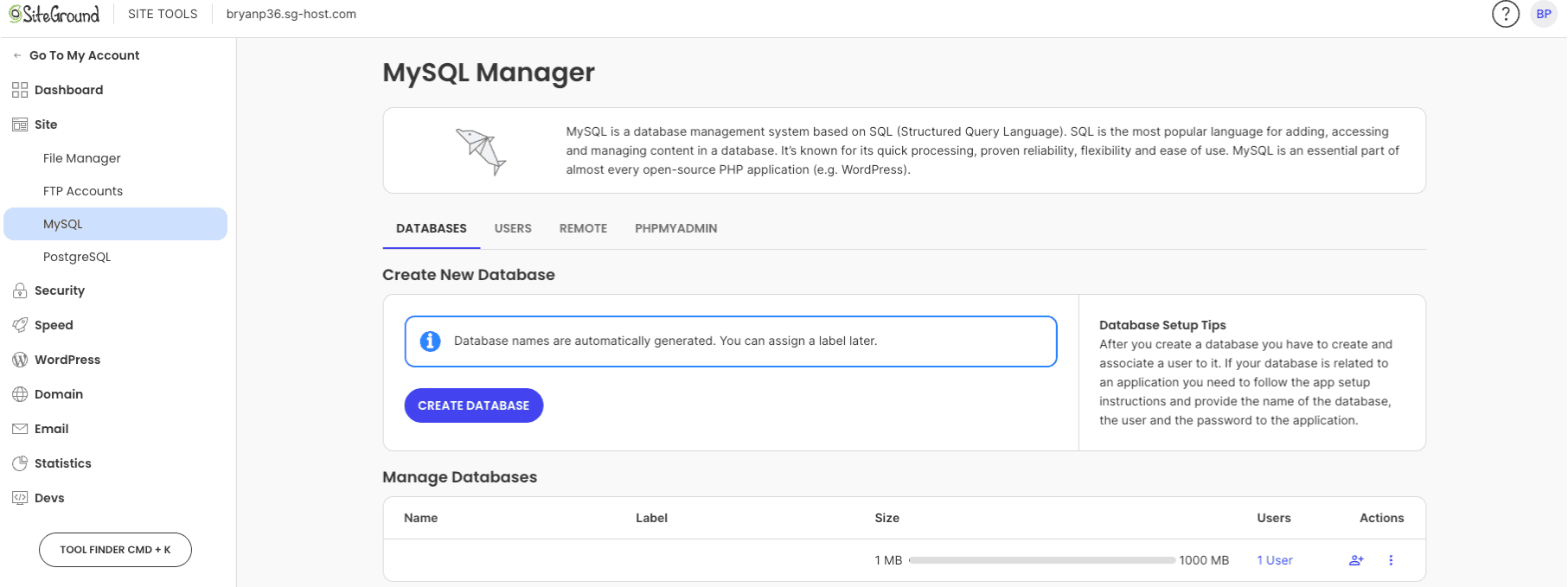
For most websites, especially those running on WordPress, MySQL is the database system you’ll be using. With Site Tools, creating a new database is a simple, form-based process. You can find the MySQL manager under the “Site” section of your control panel.
Here, you can create a new database and a new user in just a few clicks. You can then assign the user to the database with the appropriate permissions.
This is an essential step when manually installing web applications. As part of its managed PHP service, SiteGround ensures this process is as smooth as possible.
To create a new MySQL database:
- Navigate to “Site > MySQL” and give your new database a name.
- Create a new user with a secure password and add that user to the database you just created.
PostgreSQL Database Management Explained
In addition to MySQL, SiteGround also offers support for PostgreSQL, an advanced open-source database system.
While less common for typical websites, it’s a powerful option for certain applications that require complex data handling. The management process is just as simple as it is for MySQL.
You can create a new database and add users directly from the PostgreSQL tool in your control panel.
This allows you to manage everything from one central location within your hosting account, maintaining the same user-friendly experience across different database types.
With the PostgreSQL manager, you can:
- Create a new PostgreSQL database with a custom name.
- Set up new users and assign them specific access privileges to your databases.
Securing Your Website Using SiteGround Tools
Website security is not optional, and Site Tools provides a powerful suite of features to keep your site safe.
From installing a free SSL certificate with the SSL Manager to creating and restoring backups, all the essential security tools are built right into your control panel.
These features give you peace of mind, knowing your site is protected against data loss and common threats.
With robust backup solutions and easy encryption, securing your website has never been more straightforward. We’ll now look at how to use these tools.
Using SSL Manager and Enforcing HTTPS
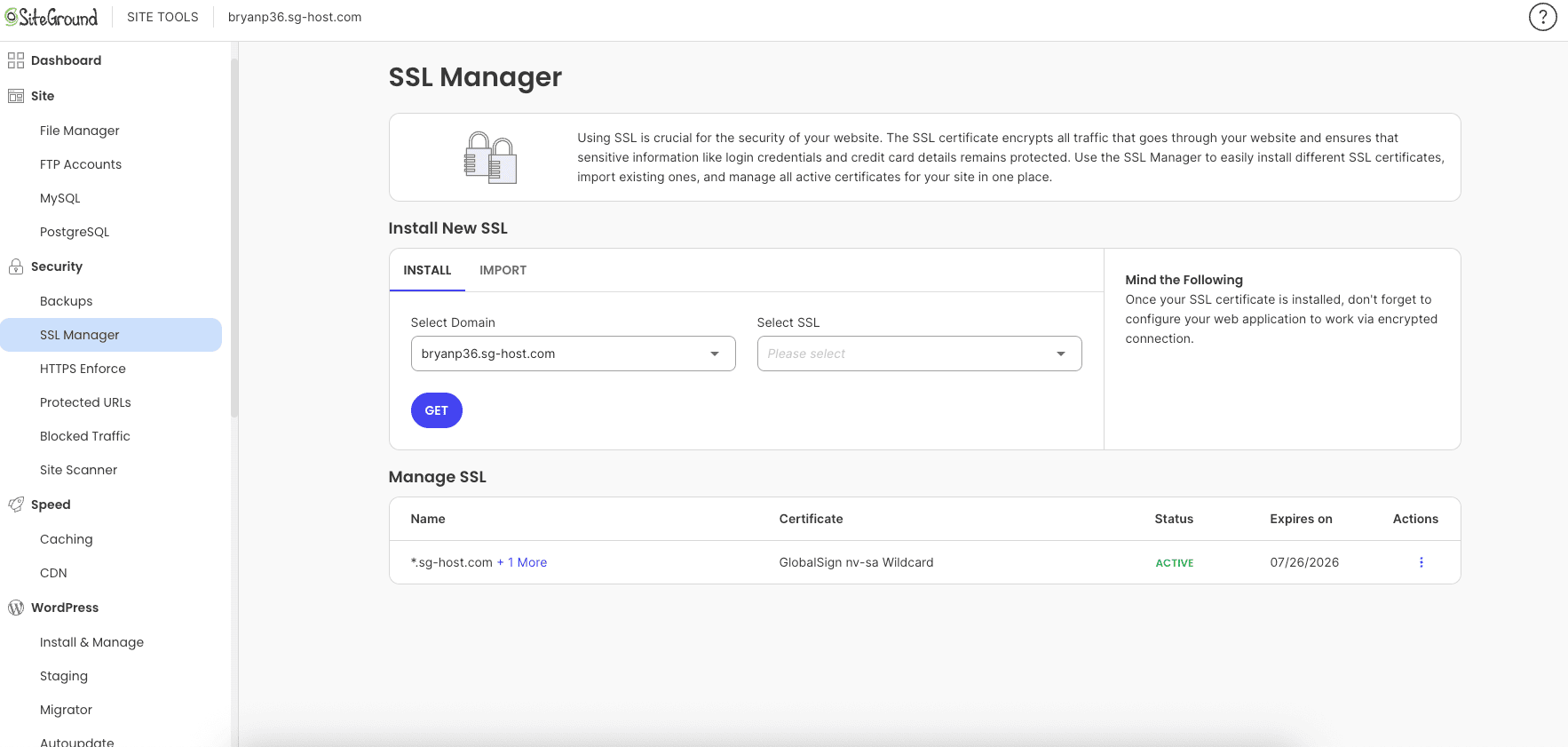
An SSL certificate is essential for encrypting the data between your website and its visitors, and it’s a must-have for modern sites.
The SSL Manager in Site Tools lets you install a free Let’s Encrypt SSL certificate on your primary domain name with just one click.
Once your SSL certificate is installed, you should force all traffic to use a secure connection. The HTTPS Enforce tool does exactly this.
By simply toggling a switch, you can ensure that all visitors are automatically redirected to the secure version of your site, which is great for both security and SEO.
To secure your site, you should:
- Use the SSL Manager to install a new SSL certificate.
- Turn on the HTTPS Enforce toggle to make your entire site run over a secure connection.
Making the Most of Built-In Backup Solutions
Accidents happen, but with SiteGround’s backup solutions, you can recover quickly.
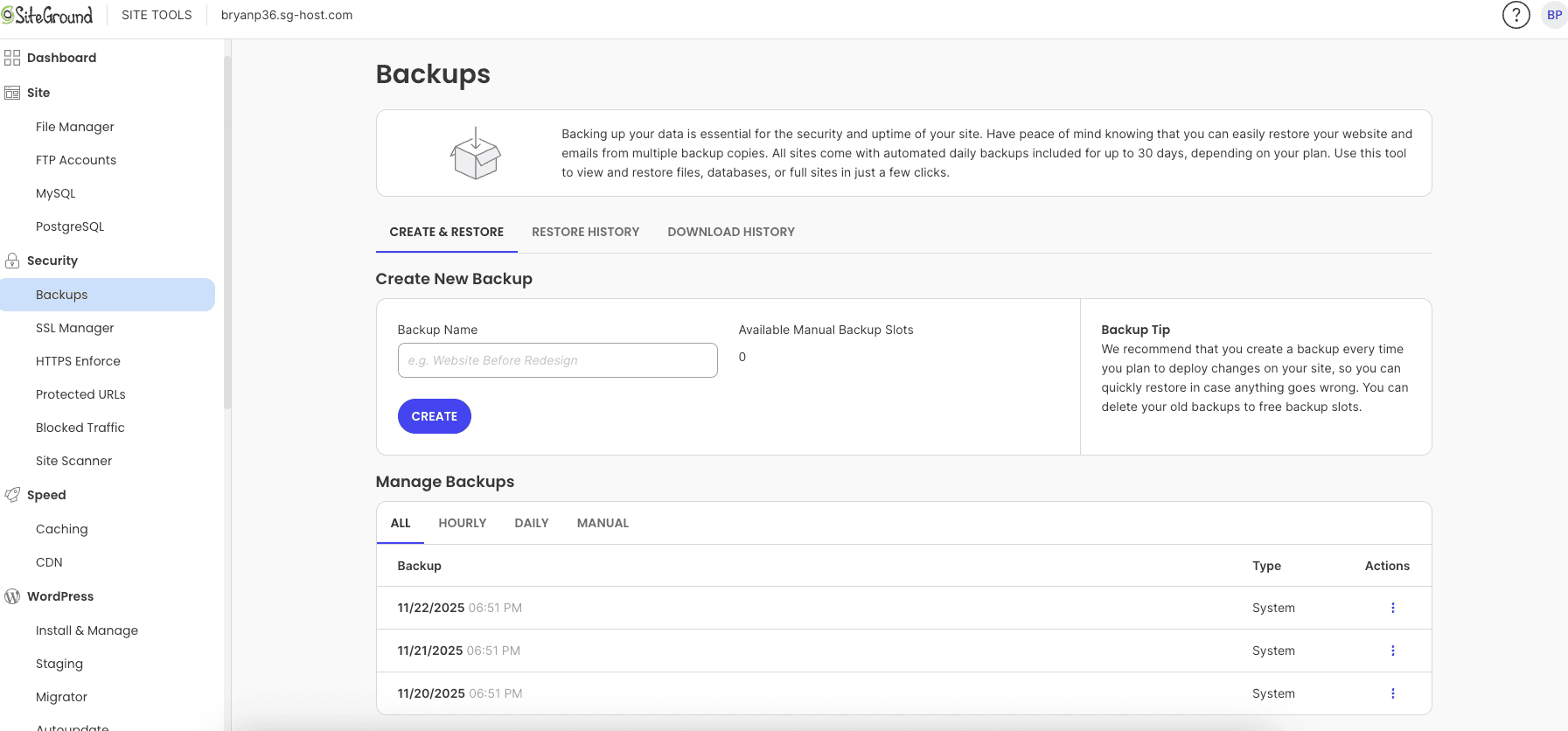
SiteGround automatically creates daily backups of your site, and depending on your plan, these are stored for up to 30 days. You can access these backups at any time through the Backup Tool.
In addition to the automatic backups, you can also create your own manual backups before making significant changes to your live site.
Should anything go wrong, you can restore your entire site—or just specific files or databases—from a chosen backup point in just a few clicks.
Key features of the backup tool include:
- Access to free daily backups created automatically by SiteGround.
- The ability to create on-demand manual backups and restore them whenever needed.
Performance Tools: Speed Enhancement with Site Tools
A slow website can drive visitors away and hurt your search engine rankings. Fortunately, the “Speed” site section in Site Tools is packed with features to make your site fly.
Built on the powerful Google Cloud infrastructure, SiteGround offers advanced tools like its proprietary SuperCacher.
These caching options are designed to dramatically improve your site’s loading times with minimal configuration.
You can also integrate a Content Delivery Network (CDN) to serve your content even faster to a global audience. Let’s explore these speed-boosting features.
Utilizing SuperCacher and Caching Options
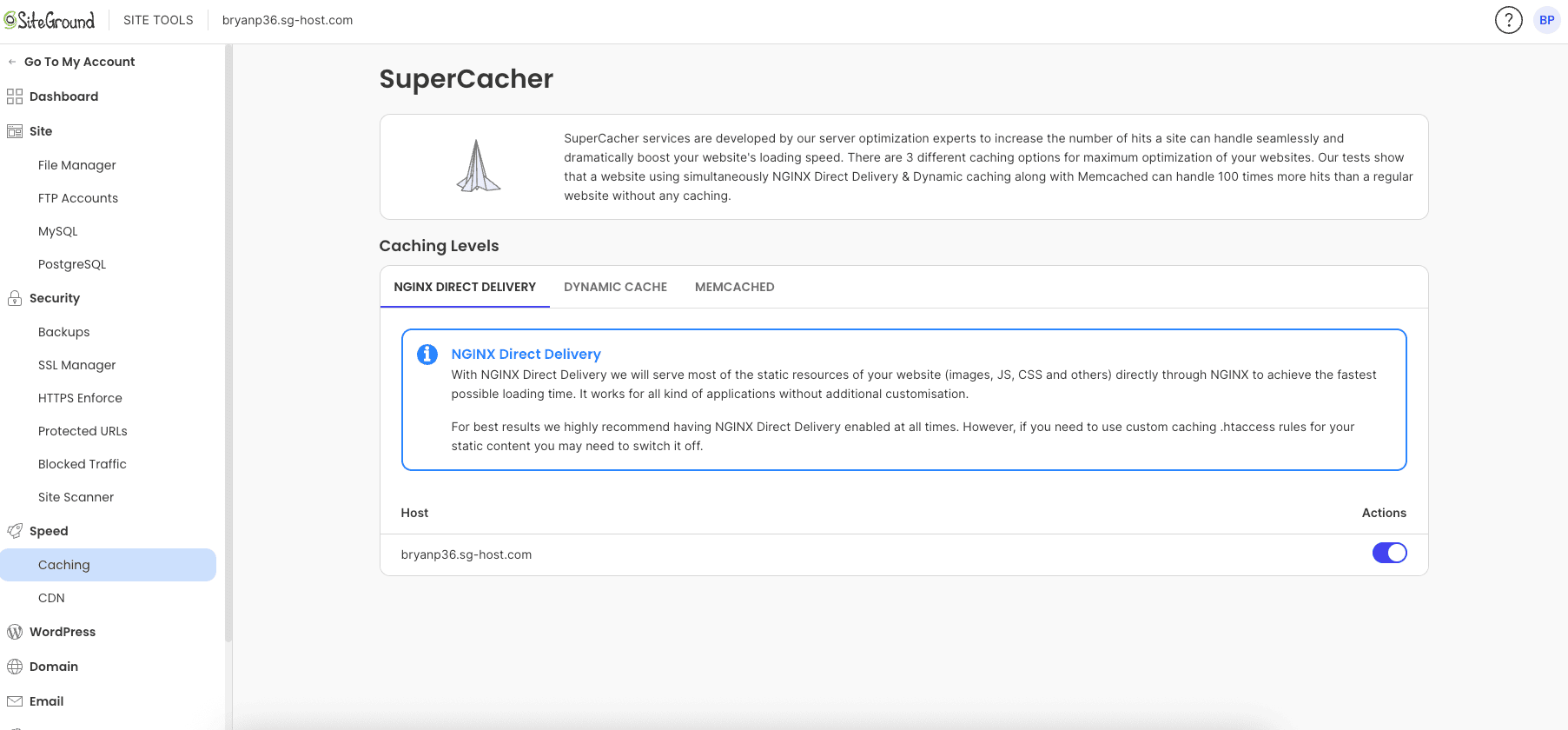
SiteGround’s SuperCacher is a powerful, multi-level caching system designed for significant speed enhancement.
Located in the “Speed” section, it offers several caching options that you can enable to optimize your site’s performance without needing to be a technical expert.
The system leverages the speed of the underlying Google Cloud infrastructure to serve your content faster.
You can choose between different levels of caching, including static file caching and dynamic caching, to best suit your website’s needs.
These caching options work alongside other performance plugins to deliver the best possible speeds.
With SuperCacher, you can:
- Enable NGINX Direct Delivery to serve static content like images and CSS files instantly.
- Turn on Dynamic Cache to speed up the delivery of your site’s HTML content.
Integrating and Optimizing CDN for Better Speed
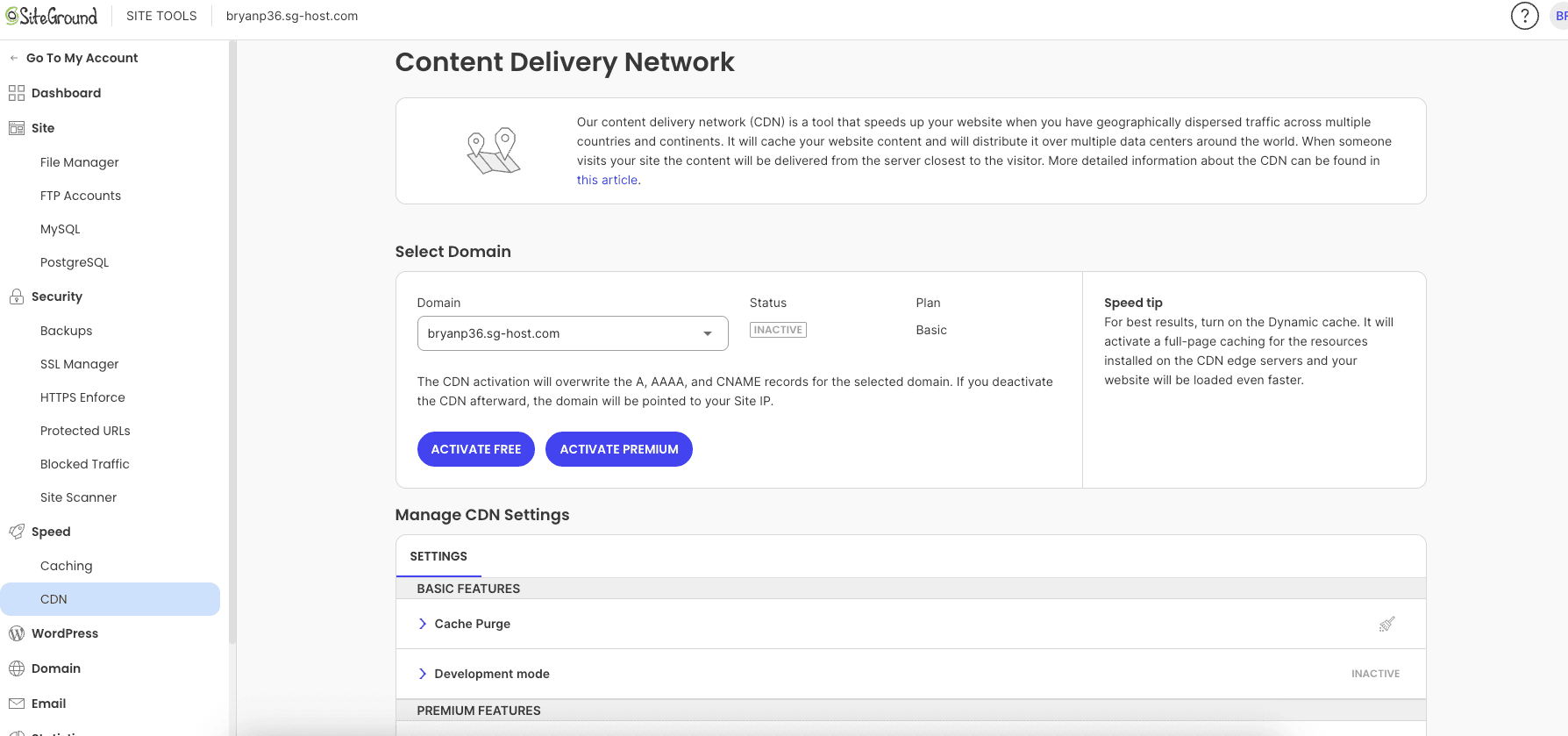
A Content Delivery Network, or CDN, is another excellent tool for speed enhancement. A CDN stores copies of your site’s static files on servers around the world.
When a visitor comes to your site, the content is delivered from the server closest to them, reducing latency and speeding up load times.
SiteGround offers its own CDN service that you can enable directly from the “Speed” site section.
You can also integrate the popular Cloudflare CDN, which is a fantastic free option. A faster site not only provides a better user experience but also gets a boost from search engines.
To optimize your site with a CDN, you can:
- Activate SiteGround’s own CDN for seamless integration.
- Configure the free Cloudflare CDN service for global content delivery.
Managing WordPress with Site Tools SiteGround
For the millions of people who use WordPress, Site Tools is a game-changer. It includes a dedicated section just for managing WordPress sites, filled with tools that simplify installation, maintenance, and development.
You can install WordPress in a click, create a staging site for testing, and use the free Migrator plugin to move an existing site.
Features like the Autoupdate tool also help keep your site secure and up-to-date with minimal effort. These specialized tools save you time and make managing WordPress a much smoother experience.
Installing and Managing WordPress with Site Tools
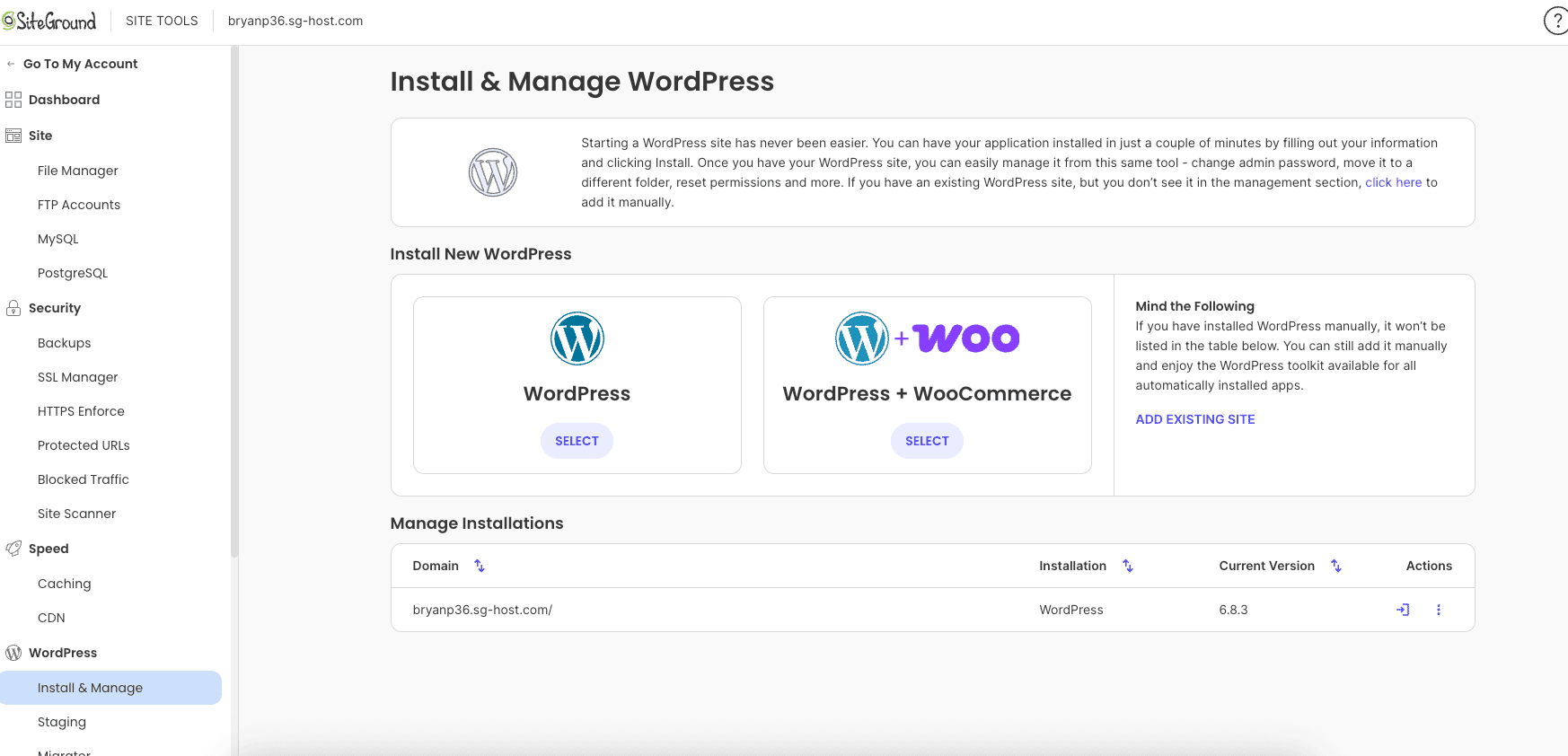
Getting a new WordPress site up and running is incredibly easy with Site Tools.
The “Install & Manage” feature, located in the “WordPress” site section of your control panel, guides you through the entire process.
You can launch a single website with a fresh WordPress installation in just a couple of minutes.
The installer even gives you the option to include WooCommerce if you’re building an online store.
Once installed, all your WordPress sites will be listed in this section, giving you a central place to manage admin passwords, delete installations, and more.
To install WordPress, you simply:
- Select the domain where you want to install the new site.
- Fill in your admin details and choose any extra plugins to install.
Using Staging, Migrator, and Autoupdate Features
Site Tools offers three powerful features that take WordPress management to the next level. The Staging tool lets you create a copy of your live site in a safe, private environment.
Here, you can test new plugins, themes, or code changes without any risk. Once you’re happy with the changes, you can push them to the live site with one click.
If you have an existing WordPress site hosted elsewhere, the Migrator tool makes moving it to SiteGround effortless.
The Autoupdate feature provides peace of mind by letting you schedule automatic updates for the WordPress core, plugins, and themes.
These tools help you:
- Test changes safely on a staging site before affecting your live site visitors.
- Automate updates to keep your site secure using the autoupdate scheduler.
Related: SiteGround website migration
Domain Management Through Site Tools
Your domain name is your website’s address on the internet, and Site Tools gives you full control over it.
The “Domain” section provides all the features you need to manage your domains, subdomains, and redirects. You can easily view your name servers or make changes to any DNS record.
Whether you need to point a new domain to your site or create a custom subdomain, the DNS Zone Editor and other domain tools are designed to be intuitive and easy to use.
Let’s look at how you can set up domains and adjust DNS settings.
Setting Up Subdomains, Parked Domains, and Redirects
Site Tools makes it simple to manage various types of domains. You can create subdomains (like blog.yourdomain.com) to better organize your site’s content.
Parked domains allow you to point multiple domain names to the same website, which is useful for capturing traffic from similar URLs.
The Redirects tool is essential for SEO and user experience. It lets you forward one URL to another, which is perfect for sending visitors from an old page to a new one.
All these tools are conveniently located in the “Domain” section, giving you full control over how traffic reaches your primary domain name.
From this section, you can manage:
- Subdomains: Create separate sections of your site under a new prefix.
- Parked Domains: Make additional domains you own load the same content as your main site.
- Redirects: Set up permanent or temporary forwards from one URL to another.
Adjusting DNS Settings Using the Site Tools Interface
For more advanced domain control, the DNS Zone Editor is your go-to tool. This interface allows you to create, edit, and delete any DNS record for your domain.
This is where you would go to add records for third-party services like email providers or to point your domain to a different IP address.
While powerful, editing your DNS records should be done with care, as incorrect settings can take your site offline.
The interface clearly lists your current records, such as A, CNAME, and MX records, making it easy to see what you need to change. Your SiteGround name servers are also displayed here for easy reference.
In the DNS Zone Editor, you can:
- Create new DNS records to connect your domain with external services.
- Edit existing records to change your site’s IP address or mail server settings.
Email Management: Site Tools Email Accounts
Having a professional email address that matches your domain (like info@yourdomain.com) builds credibility and trust.
Site Tools makes it incredibly easy to create and manage your own email accounts directly from the control panel.
You can set up forwarders, autoresponders, and manage spam options all in one place.
For those who prefer Google’s interface, there’s also an option to integrate with Google Workspace. The “Email” section contains everything you need to manage your communication effectively.
Let’s look at how to get started.
Creating and Configuring Email Accounts in Site Tools
Creating new email accounts is a breeze with Site Tools. In the “Email Accounts” section of your control panel, you can set up a new address in under a minute.
Simply choose the username, set a secure password, and you’re ready to go.
You can manage all your created accounts from this dashboard, including changing passwords and setting mailbox quotas.
This tool brings professional email management to your hosting account without any extra cost or complexity.
For those who need more advanced features, you can also find information on integrating with Google Workspace.
To create an email account:
- Navigate to the “Email > Accounts” section in Site Tools.
- Enter the desired email address and a strong password, then click “Create.”
Email Forwarders, Autoresponders, and Spam Options
Beyond creating accounts, Site Tools offers several other useful email features.
Email forwarders let you automatically send a copy of incoming messages from one address to another. This is great if you want to manage all your mail in a single inbox, like your personal Gmail account.
Autoresponders allow you to set up automatic out-of-office replies for when you’re away.
You can also fine-tune your spam options to keep your inbox clean. All these settings are easily accessible from the “Email” section of the control panel.
These tools allow you to:
- Set up email forwarders to redirect messages to another inbox.
- Create autoresponders to let people know when you are unavailable to reply.
Related: SiteGround Email Marketing Guide
Final Thoughts
In conclusion, SiteGround’s Site Tools offer a comprehensive solution for managing your website with ease and efficiency.
From file management and database handling to security enhancements and performance optimization, these tools are designed to simplify the complexities of website management.
By leveraging features like SSL management, integrated backups, and WordPress installation options, you can ensure your site remains secure and performs at its best.
Whether you are a beginner or an experienced user, SiteGround makes it easy to navigate through its user-friendly interface.
Start using Site Tools today and experience a more streamlined approach to website management!
Frequently Asked Questions
Is SiteGround Site Tools Beginner-Friendly?
Absolutely. Site Tools was designed with ease of use in mind. Its intuitive interface and clean layout make it easy for new website owners and any team member to navigate. The control panel simplifies complex tasks, making website management accessible to everyone, regardless of their technical background.
How Does Site Tools Compare to cPanel?
Site Tools is SiteGround’s modern, custom panel that replaced the traditional cPanel. This new system offers a more streamlined and integrated experience within your hosting account. Unlike the often-cluttered cPanel, Site Tools is faster, more intuitive, and designed specifically for SiteGround customers, providing a superior user experience.
Where Can I Find Tutorials or Support for Site Tools?
SiteGround offers extensive documentation right inside your client area. You can find a detailed guide and numerous tutorials in their knowledge base. If you need direct assistance with your hosting account, their expert support team is available 24/7 via chat, phone, or ticket to help with any questions.
Here are some related posts that you might find helpful:
- SiteGround Data Centers and Server Locations
- is SiteGround Domain Privacy worth it?
- is SiteGround Site Scanner worth it?
- SiteGround Black Friday deal
- SiteGround payment methods
- SiteGround free trial
- SiteGround money-back guarantee
- SiteGround GrowBig plan review
- SiteGround GoGeek plan review
- who owns SiteGround?
- SiteGround Cloud Hosting review
- SiteGround Reseller Hosting review
- SiteGround website builder

- How to Install WordPress on SiteGround: A Complete Guide - December 24, 2025
- How to Migrate Website to SiteGround: A Beginner’s Guide - December 24, 2025
- SiteGround Website Builder: Your Guide to Easy Creation - December 24, 2025
Leave a Reply
Want to join the discussion?Feel free to contribute!