Shopify vs WordPress (2026): Which Is Better for Your Website?
Shopify is better when selling products is the website’s main job and you want hosting, security, checkout, inventory, and store operations managed in one system. WordPress is better when publishing, flexibility, or complete control over the website matters more and you are prepared to choose hosting, plugins, security, maintenance, and any ecommerce tools separately.
This is not a comparison between two identical products. Shopify is a hosted commerce platform. Self-hosted WordPress is open-source content management software that can become almost any kind of website. To sell products through WordPress, you normally add WooCommerce or another ecommerce solution.
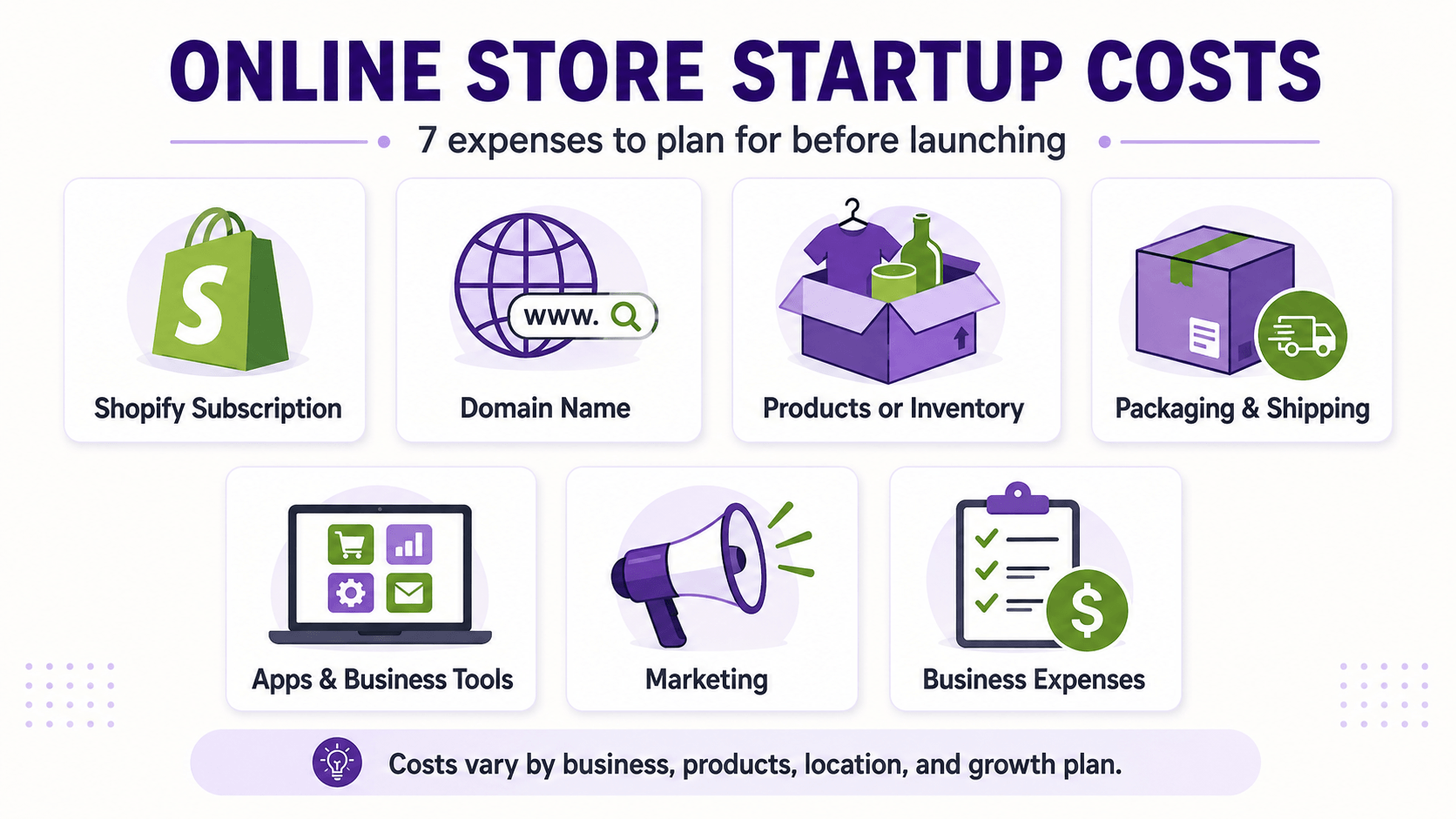
If you are still defining the business, products, budget, fulfillment, and launch plan, begin with my guide to starting an online store. Choose the platform after the business requirements are clear—not before.
Key Takeaways
- Shopify is a hosted, commerce-first platform; WordPress is a flexible, open-source publishing platform.
- Shopify is usually easier for a beginner launching a conventional online store.
- WordPress offers greater hosting, code, content, and data control but creates more maintenance responsibility.
- WordPress needs an ecommerce plugin or external service to operate a full online store.
- Shopify has a predictable base subscription; WordPress costs depend on the complete hosting, theme, plugin, security, and maintenance stack.
- Neither platform automatically provides traffic, rankings, customers, or profit.
Shopify vs WordPress at a Glance
| Factor | Shopify | WordPress.org |
|---|---|---|
| Primary purpose | Hosted commerce | Flexible website publishing |
| Hosting | Included | Chosen and paid separately |
| Ecommerce | Built into the platform | Added through WooCommerce or another solution |
| Maintenance | Shopify manages the core platform | Owner, host, or developer manages the stack |
| Customization | Themes, apps, APIs, and platform tools | Themes, plugins, code, database, and hosting |
| Content tools | Adequate blog and pages | Advanced publishing and content flexibility |
| Best for | Commerce-first businesses | Content-first and custom websites |
If Shopify looks closer to your requirements, start a Shopify free trial and build one representative product, collection, shipping rule, and test order before committing.
What Is Shopify?
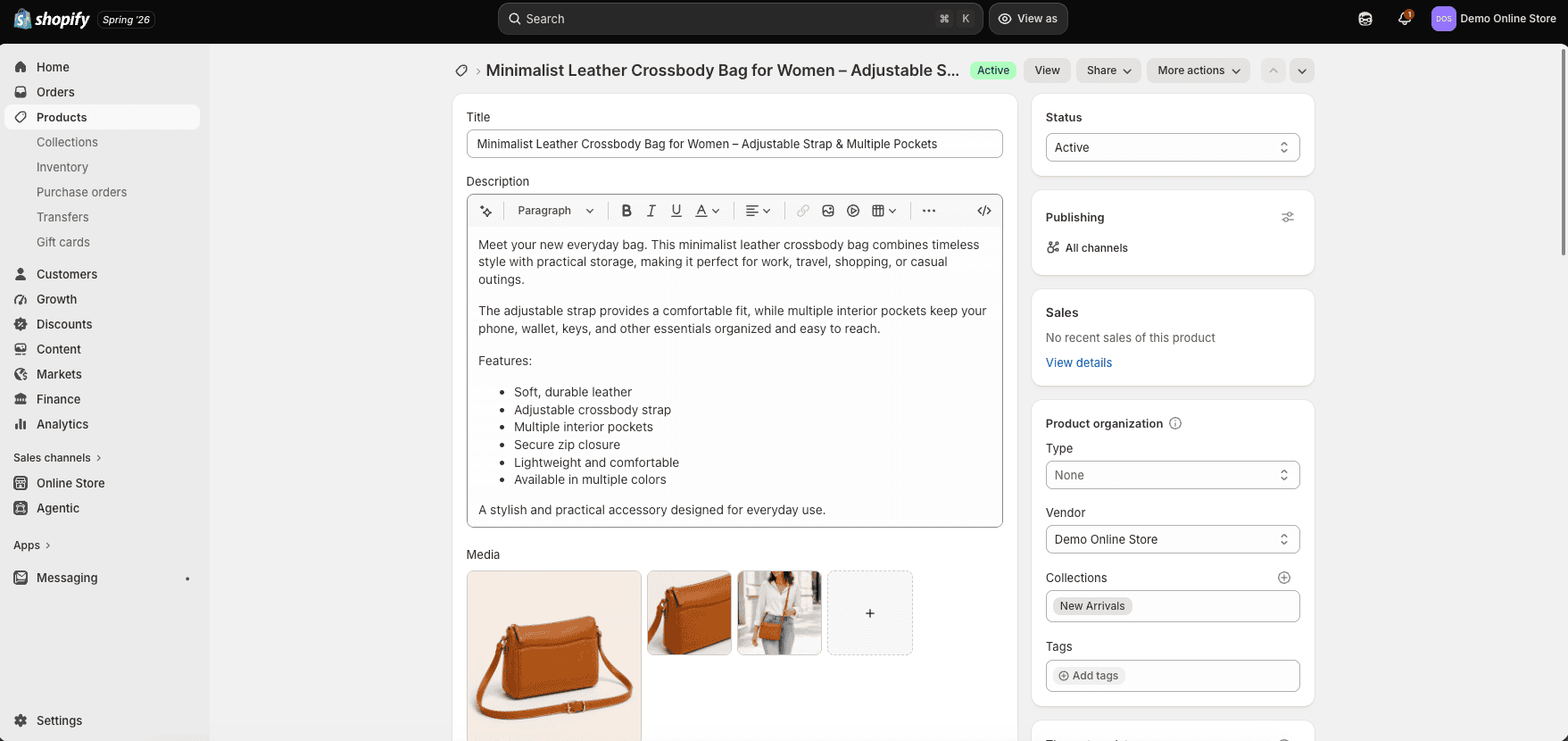
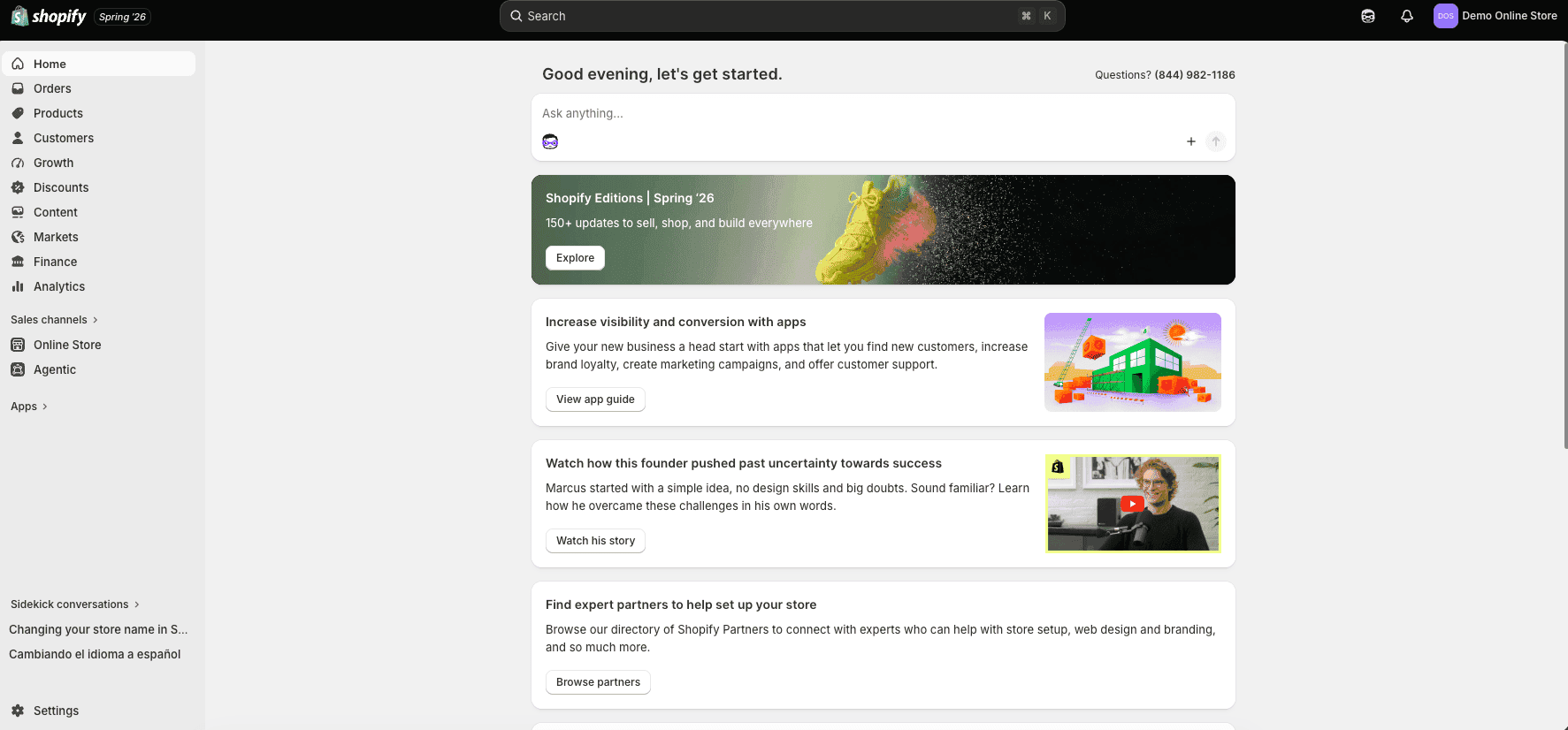
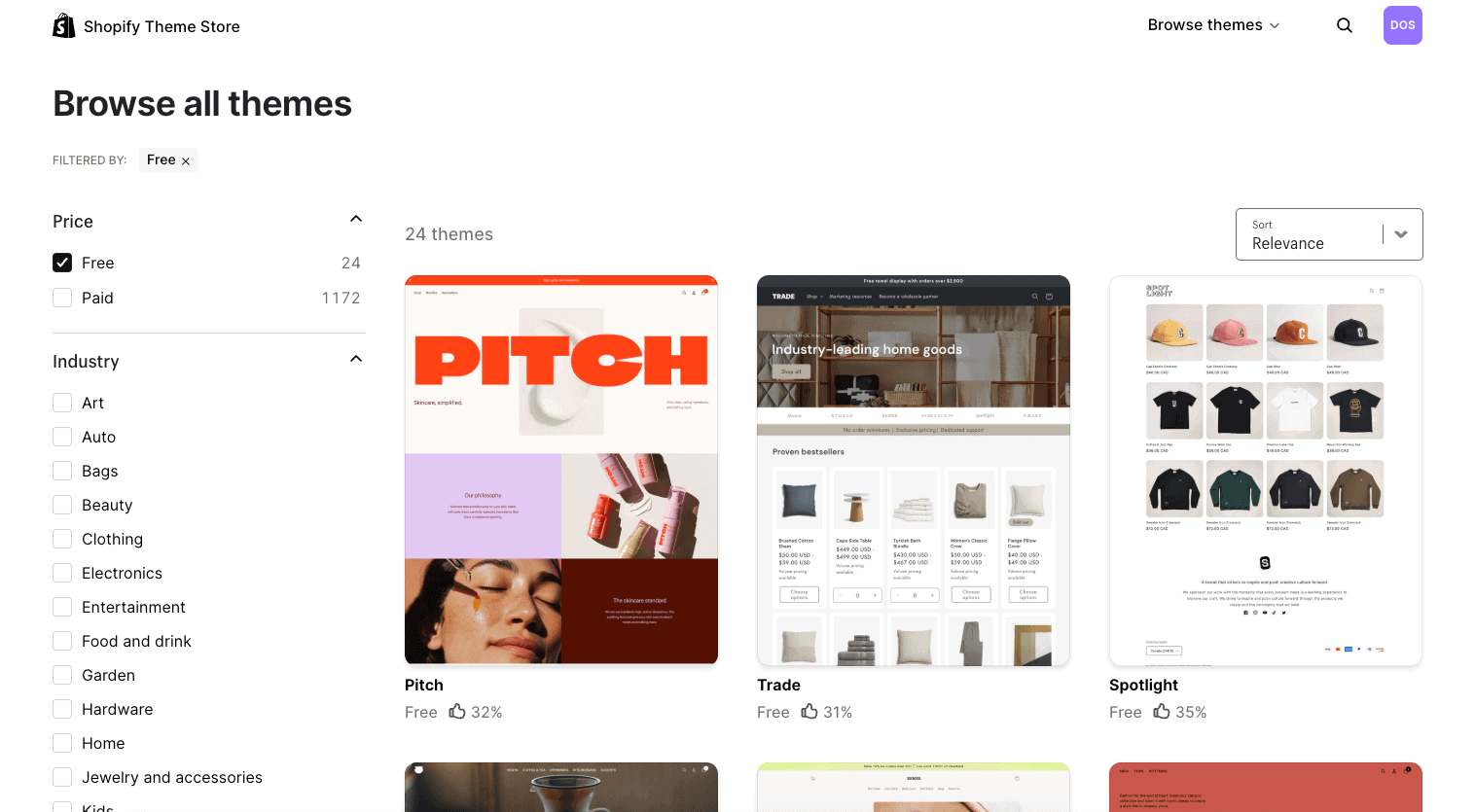
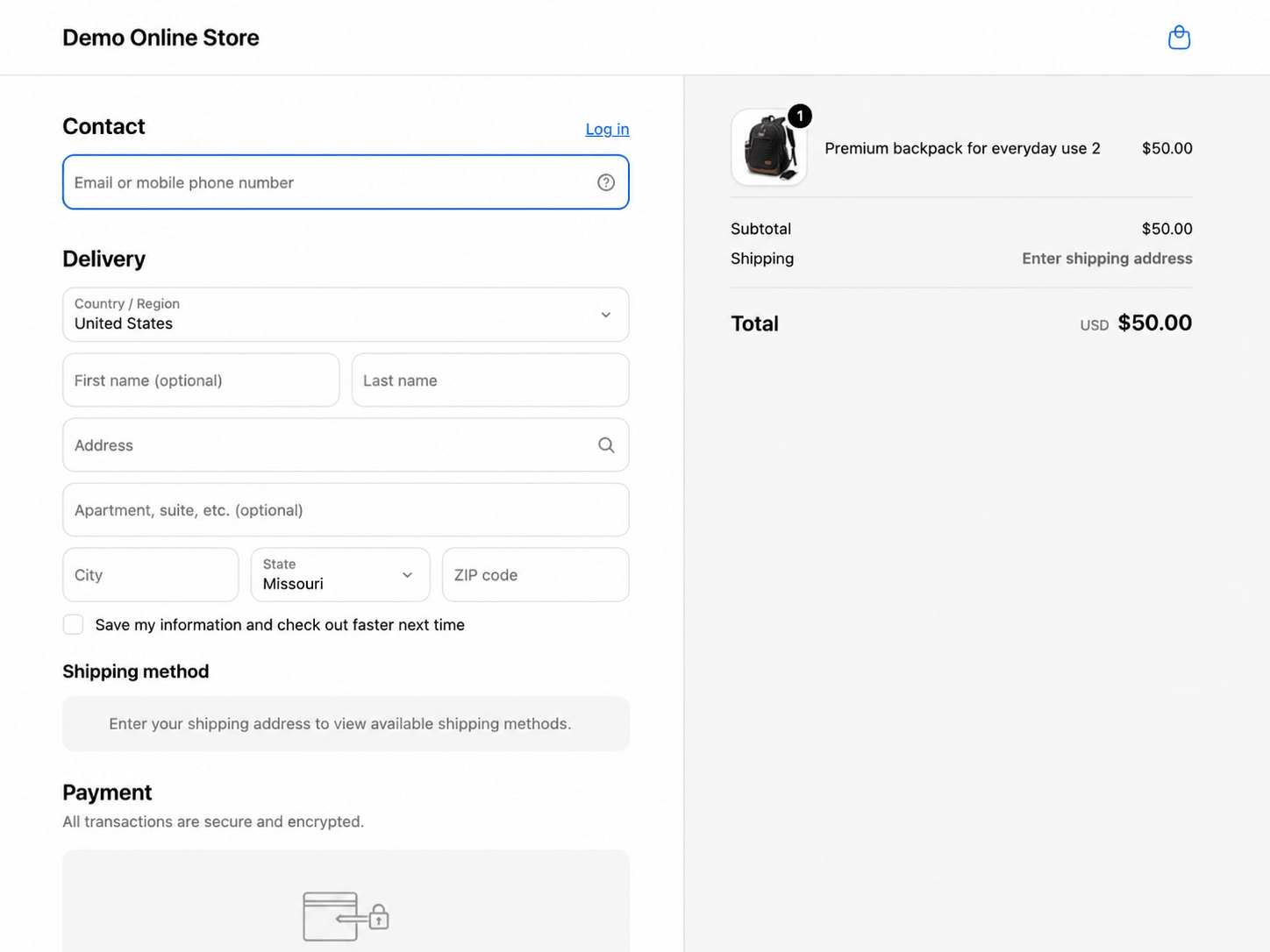
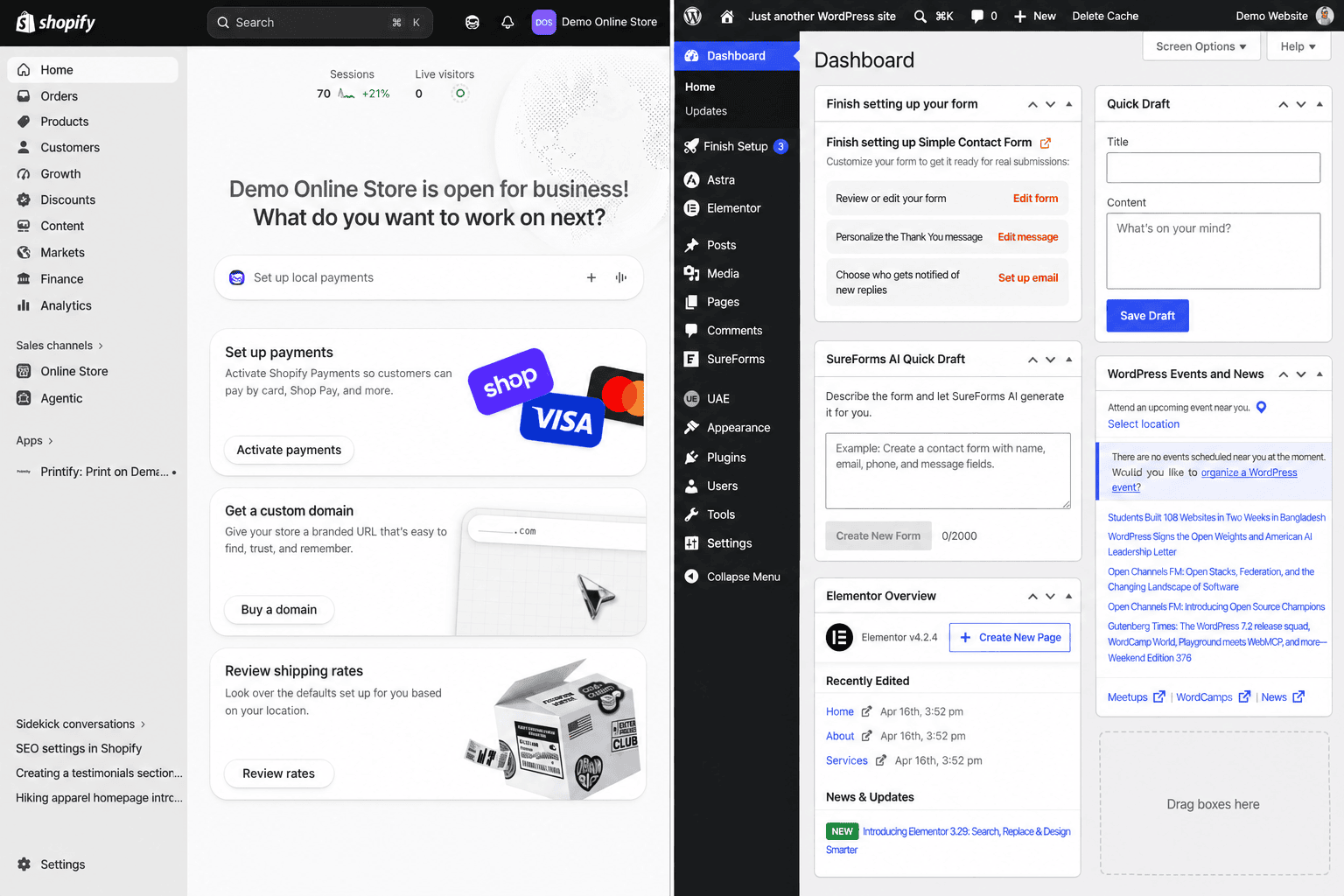
Shopify is a hosted ecommerce platform. One account provides the store admin, website hosting, themes, product catalog, inventory, secure checkout, order management, analytics, discounts, sales channels, and an app ecosystem. Shopify operates the underlying platform while the merchant manages the business, storefront, products, customers, policies, apps, and fulfillment.
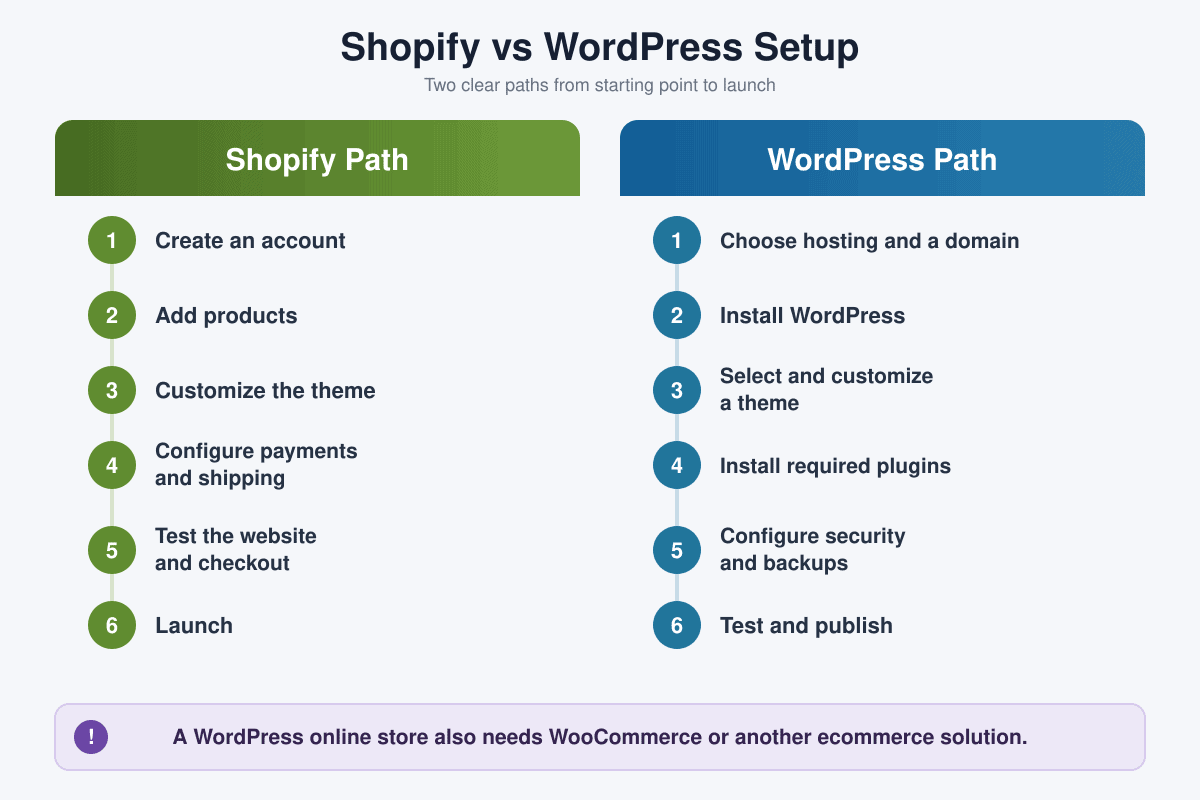
The platform is designed around selling. A new merchant can create an account, add products, customize a theme, configure payments and shipping, test checkout, and launch without separately installing a content management system or arranging a server.
Shopify is not effortless or automatic. The merchant still needs a viable product, clear positioning, original content, accurate prices, dependable fulfillment, legal policies, customer service, and marketing. My complete Shopify review examines its features, advantages, limitations, and best use cases in greater detail.
What Is WordPress?
WordPress is open-source content management software. It began as a publishing platform and can now support blogs, business websites, portfolios, publications, membership sites, courses, communities, directories, and custom applications. Themes control presentation, plugins extend functionality, and developers can work with the code and database.
Unless stated otherwise, this comparison refers to self-hosted WordPress from WordPress.org. The software can be downloaded without a software license fee, but a live website needs a domain, hosting, configuration, maintenance, security, backups, and ongoing administration.
WordPress.org vs WordPress.com
WordPress.org is the home of the open-source software installed on hosting you choose. WordPress.com is a separate hosted service with its own plans, limits, and included services. Both use WordPress, but their pricing, plugin access, support, hosting responsibility, and technical freedom are not identical. Confirm which version a comparison discusses before relying on it.
If you prefer a managed WordPress experience without finding a separate hosting provider, you can explore WordPress.com plans and compare the included features.
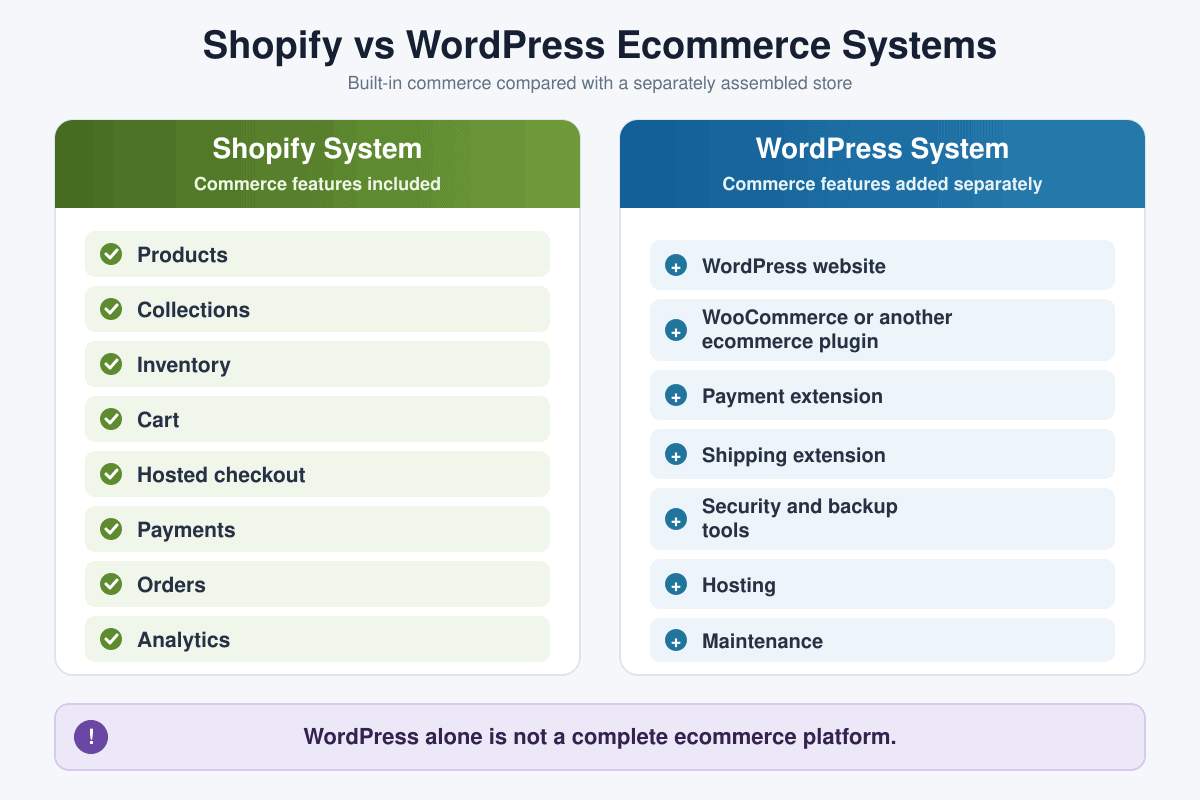
WordPress by itself is not a complete ecommerce platform. A store normally adds WooCommerce, embeds a hosted checkout, or integrates another commerce service. That distinction explains why “Shopify vs WordPress” and “Shopify vs WooCommerce” answer related but different questions.
The Most Important Difference
Shopify gives the merchant a managed commerce system. WordPress gives the owner a framework for assembling a website. That difference affects almost every category in this comparison.
- With Shopify, you work within a controlled platform and pay for convenience, integration, and platform operations.
- With WordPress, you choose more of the stack and accept responsibility for how those parts work together.
Neither model is automatically superior. A business without technical support may benefit from Shopify’s boundaries. A publisher or development team with unusual requirements may find those same boundaries restrictive and prefer WordPress.
Ease of Use and Setup
Shopify setup
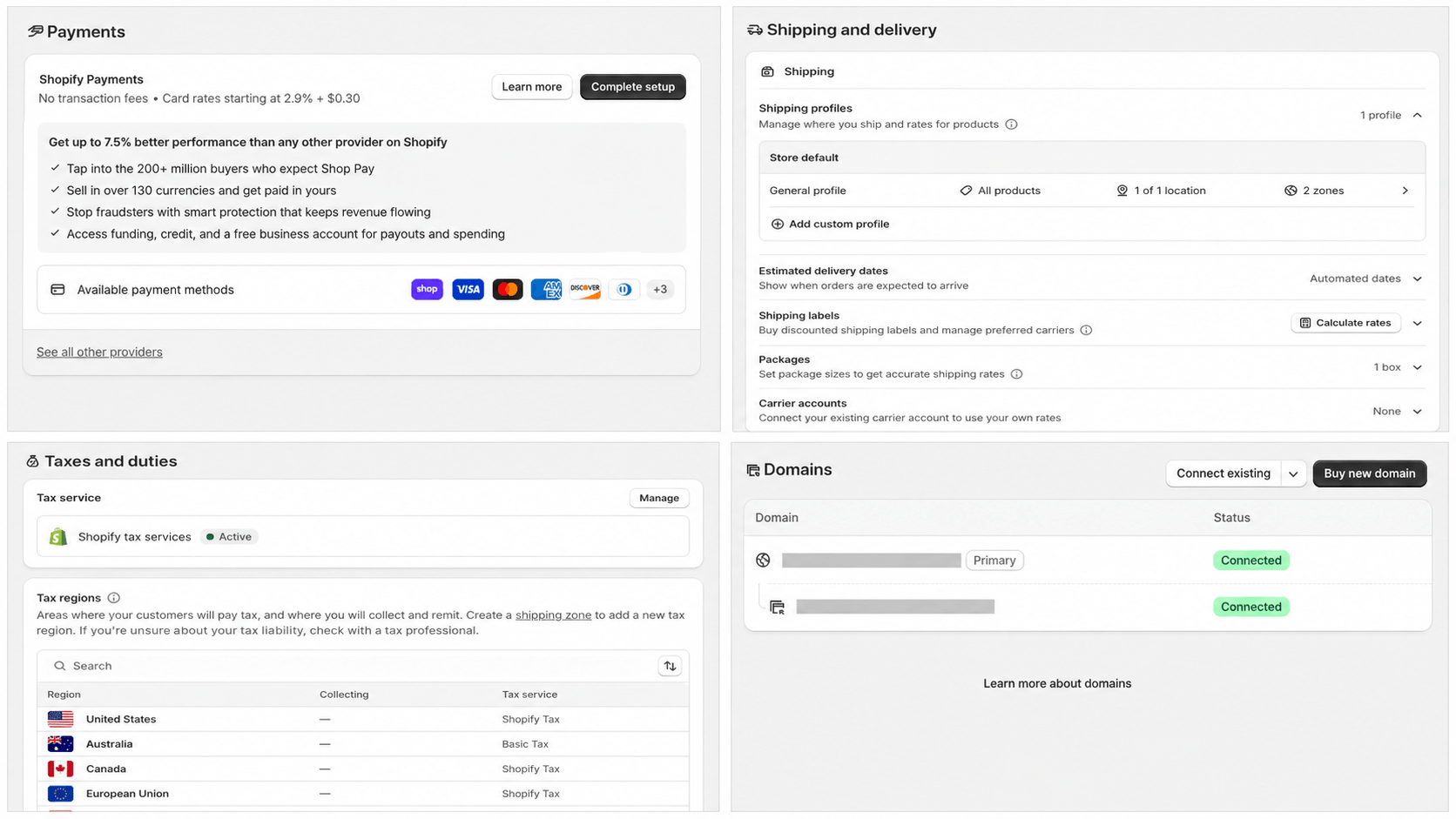
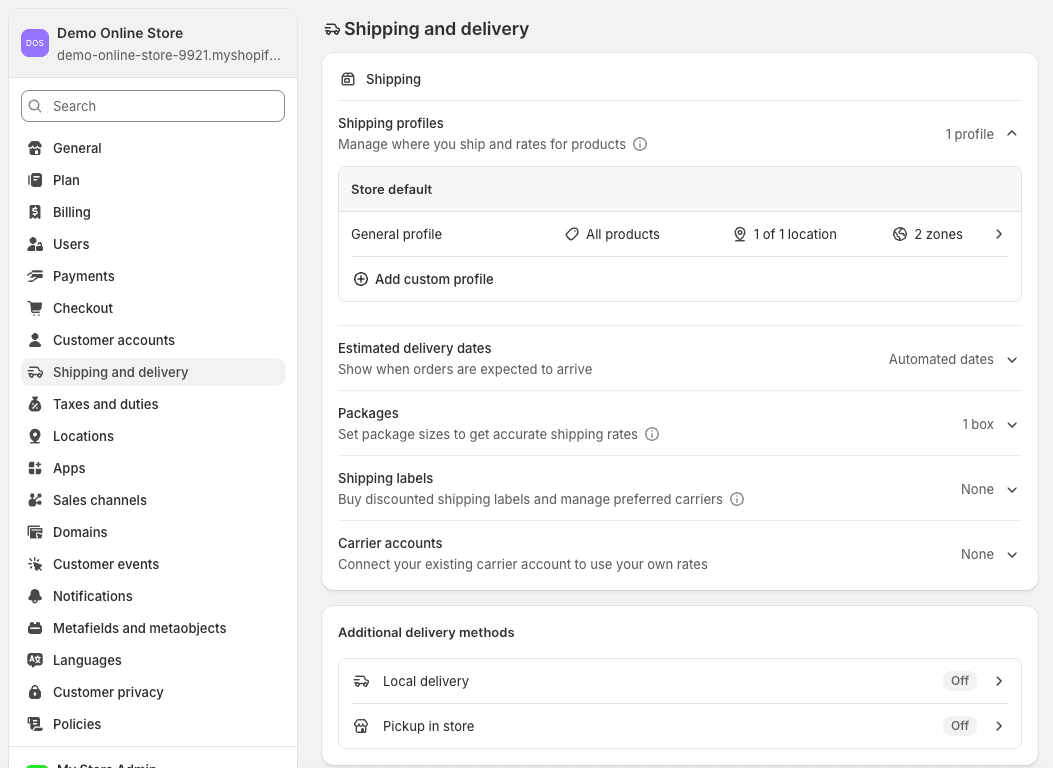
Shopify guides a beginner through account creation, products, themes, domains, payments, shipping, taxes, policies, and checkout. The tools share one admin, and Shopify handles the core hosting and platform installation. Apps can add complexity, but a conventional store can begin with the native features.
Follow my step-by-step Shopify tutorial for beginners if you want the complete process from account setup through the first test order and launch.
WordPress setup
A self-hosted WordPress site begins with a domain and hosting. You then install WordPress, select a theme, configure pages and navigation, choose plugins, establish backups and security, and test the site. Many managed hosts simplify installation, updates, staging, and backups, but the owner must still understand which provider is responsible when something fails.
Adding ecommerce creates another layer: products, payments, tax, shipping, transactional email, inventory, checkout, refunds, and extension compatibility. WordPress is approachable for publishing, but a production ecommerce stack can require more technical judgment than a basic Shopify store.
Ease-of-use winner: Shopify for a first online store. WordPress can be easy for basic content publishing, but its flexibility creates more setup decisions.
Which Types of Websites Can They Build?
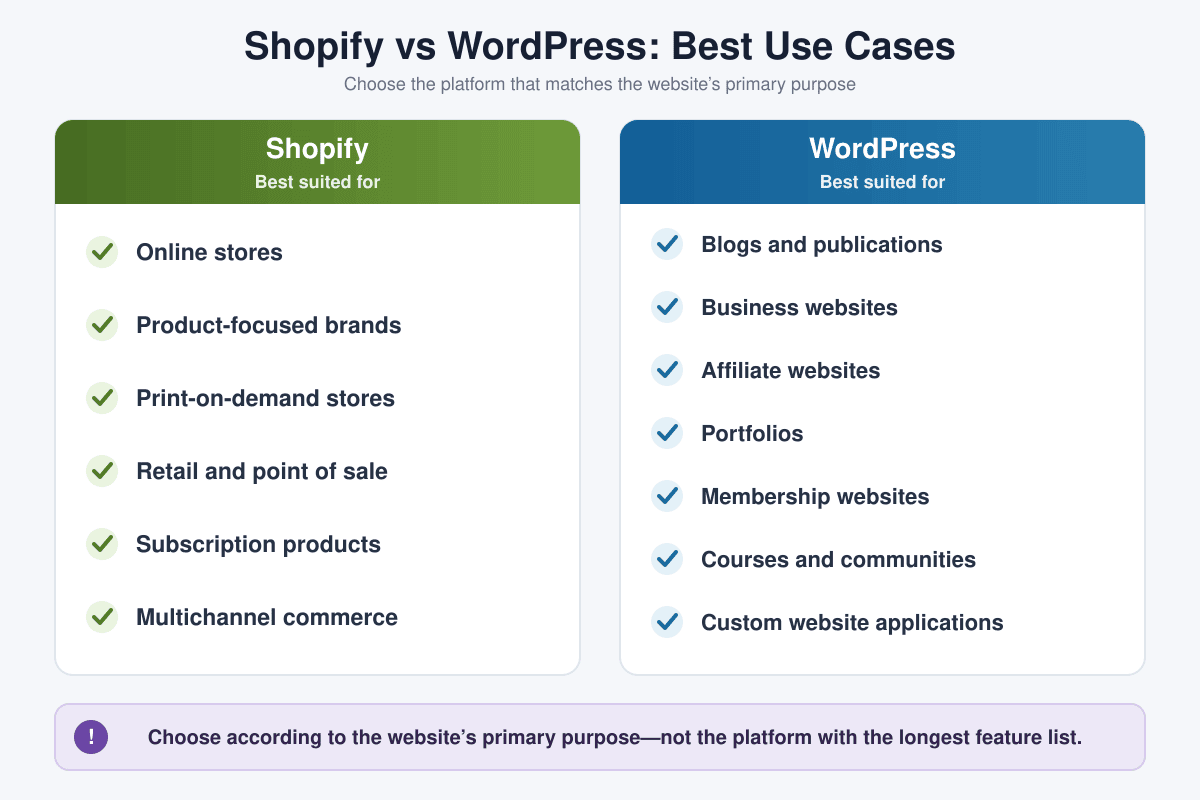
Shopify can support a full branded website, landing pages, product collections, informational pages, and a blog, but commerce remains its center. It is strongest for physical products, digital products with the appropriate app or process, subscriptions, retail, multichannel selling, and businesses whose website is expected to convert visitors into buyers.
WordPress is the broader website platform. It is a strong fit for blogs, publications, service businesses, affiliate sites, portfolios, resource libraries, directories, membership projects, courses, community sites, and custom applications. It can also operate a store after ecommerce is added.
Do not choose WordPress only because it can do more things. Choose it when the project actually needs its publishing model, application flexibility, hosting control, or data access. Unused flexibility still creates choices and maintenance.
Ecommerce and Selling Features
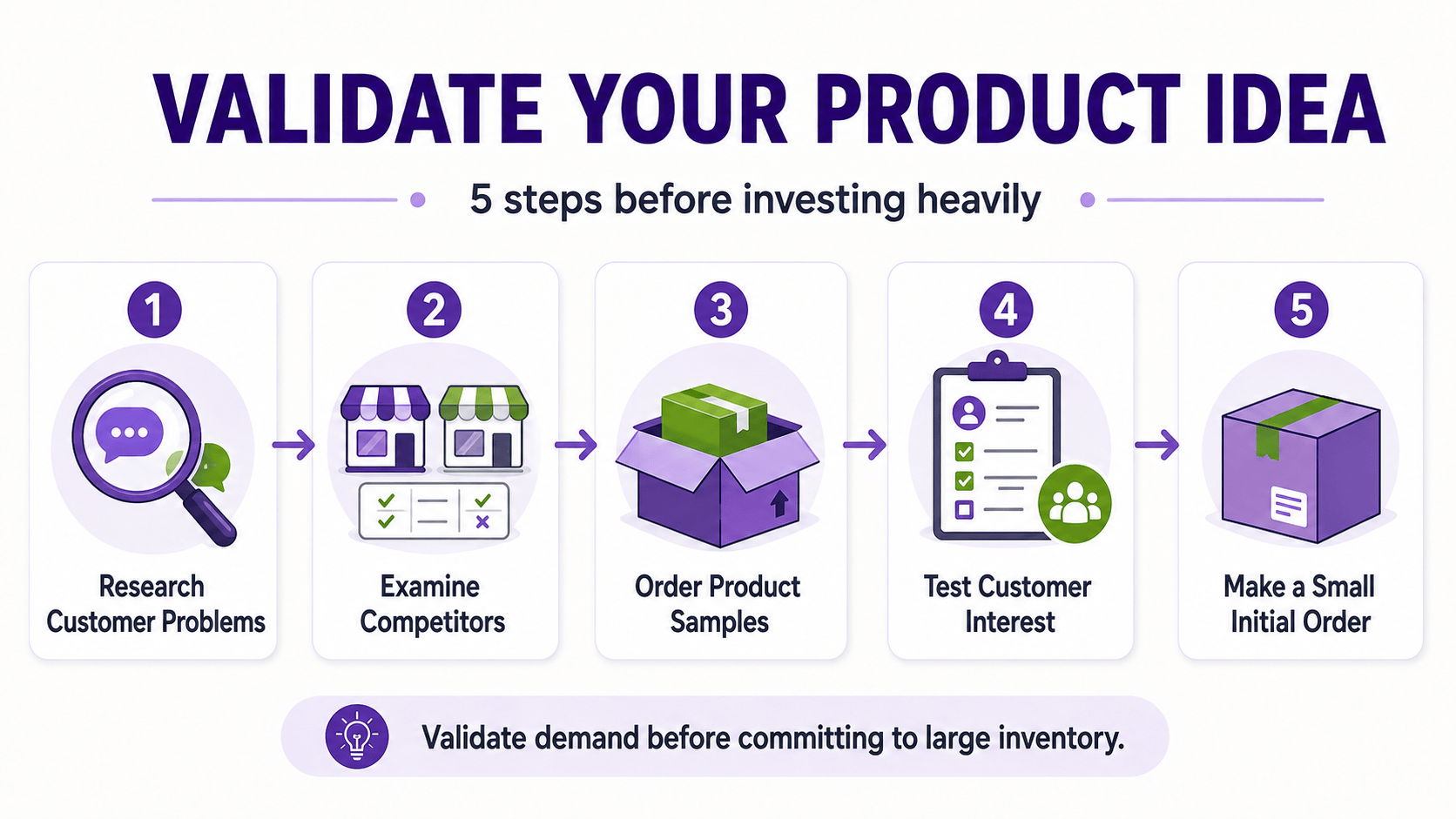
A commerce platform only becomes useful after you identify an offer people may want to buy. My 30 product ideas to sell on Shopify compares physical goods, digital products, print on demand, subscriptions, services, and validation methods for beginners.
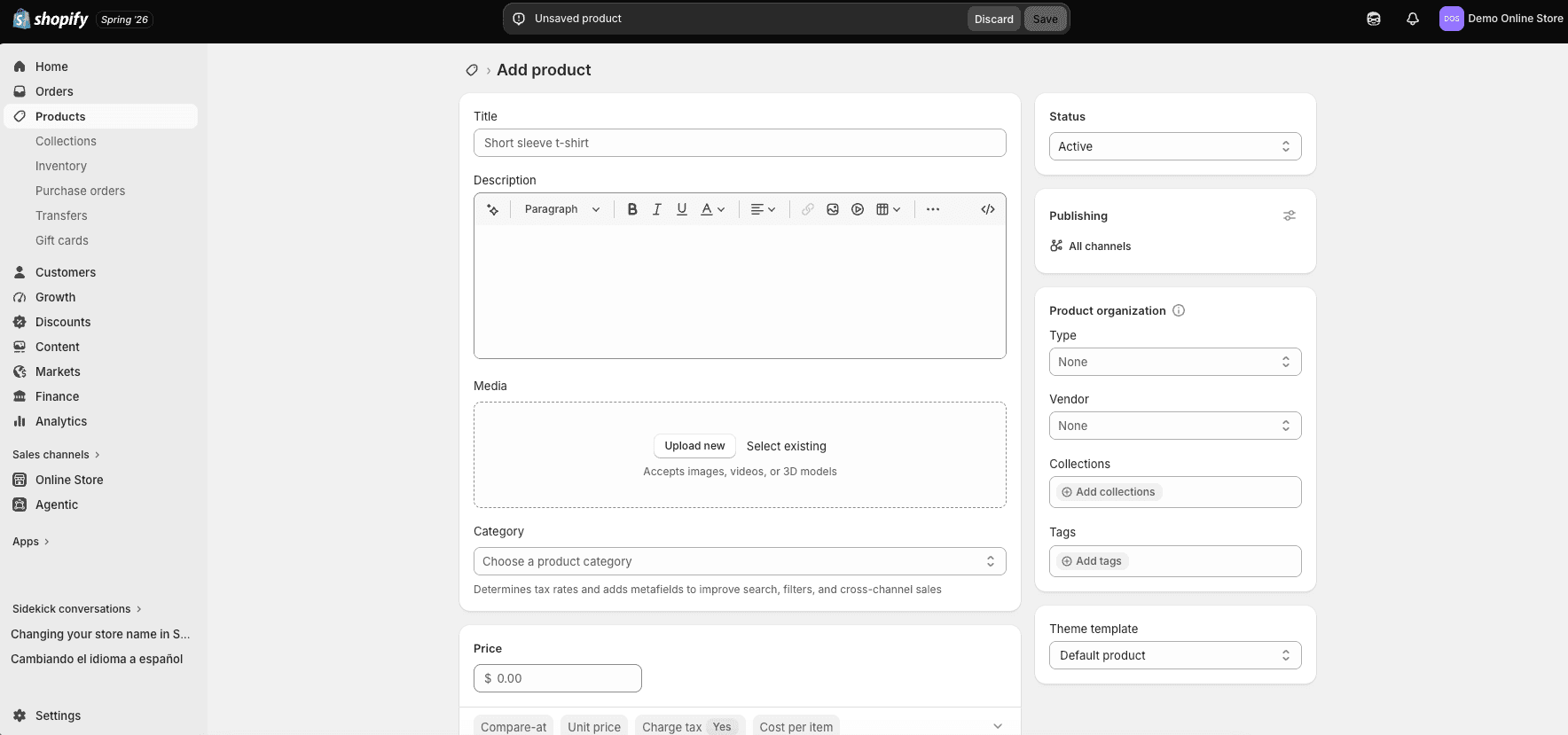
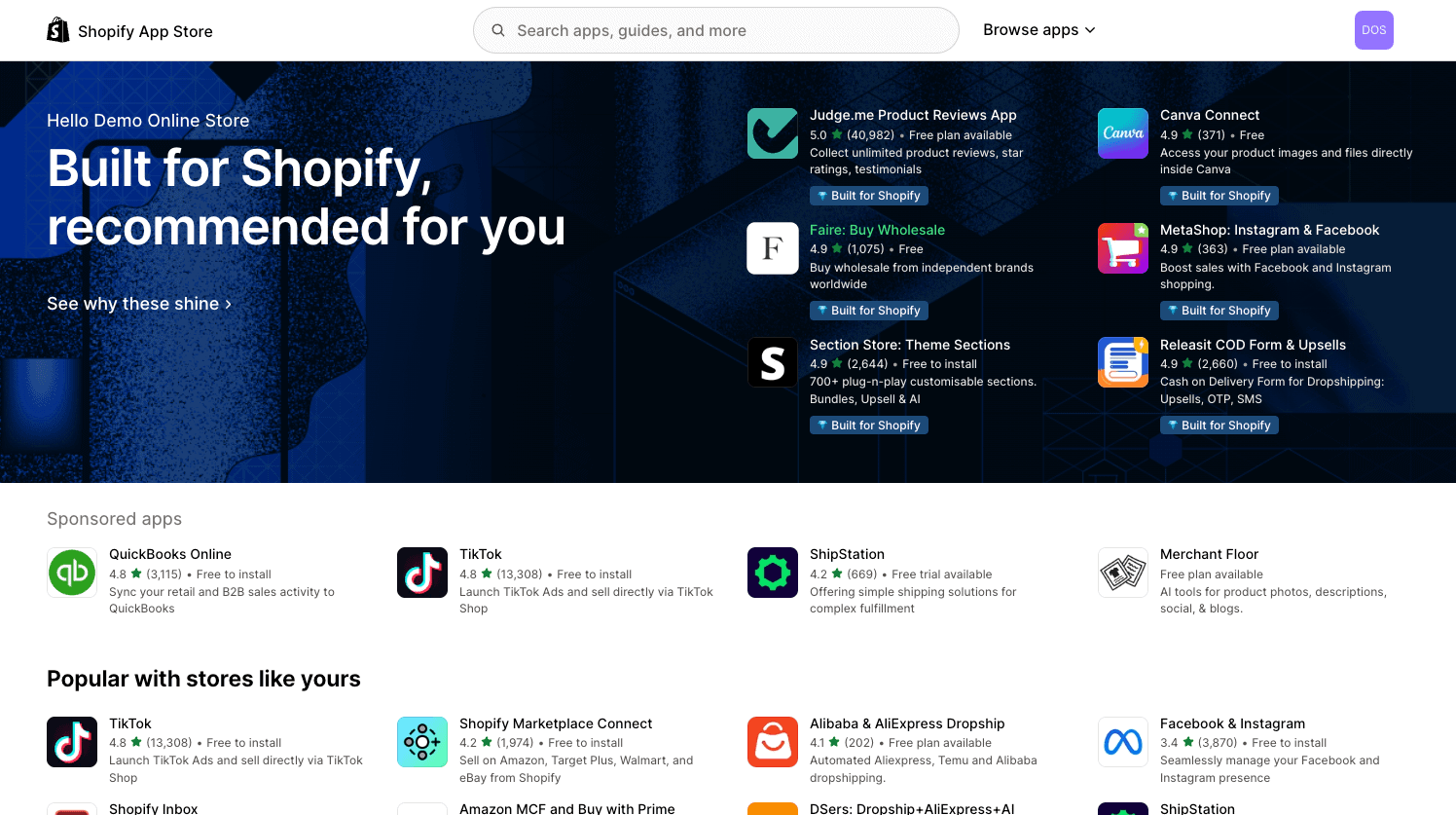
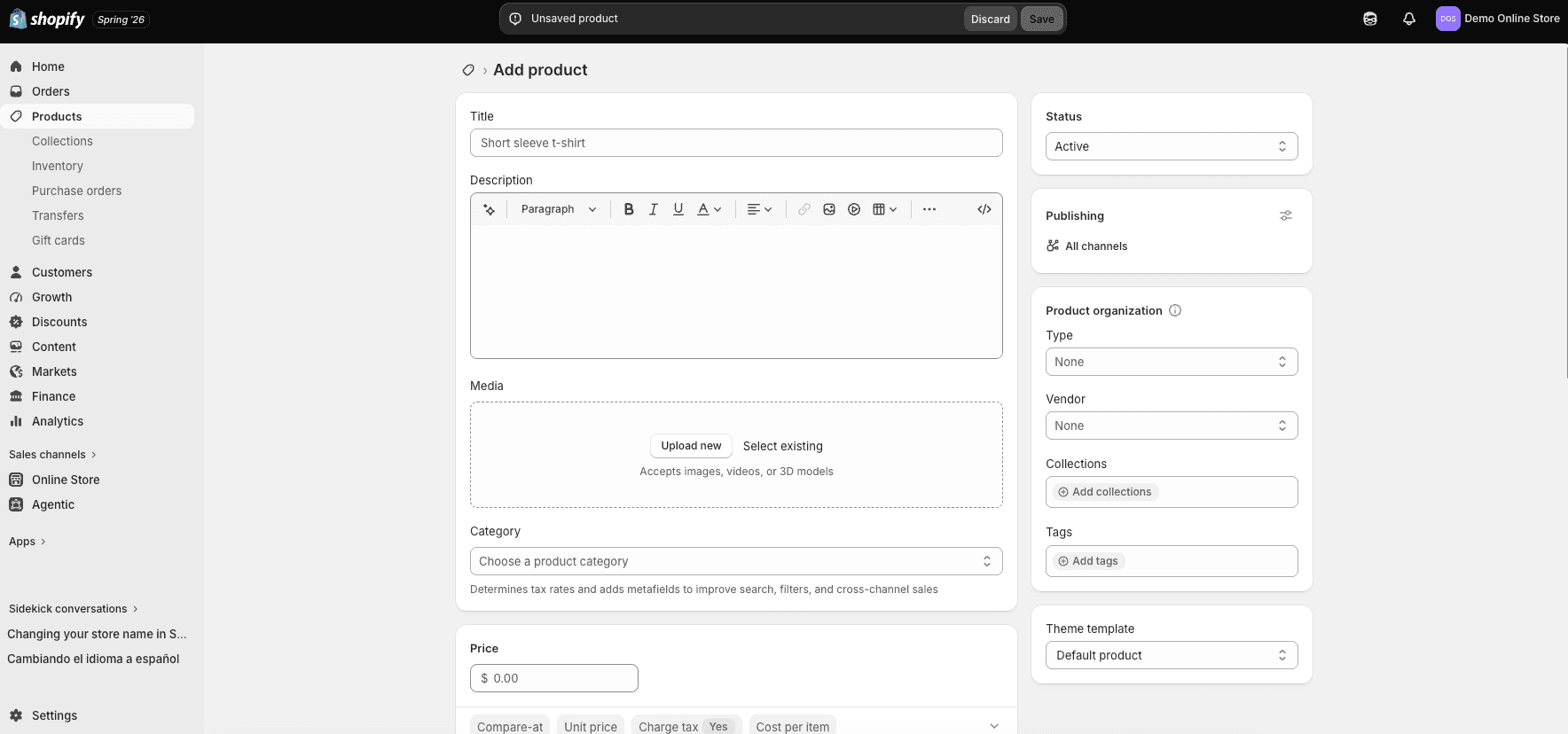
Shopify includes products, variants, collections, inventory, orders, customer records, discounts, gift cards, shipping configuration, secure checkout, payment integrations, analytics, sales channels, and an app marketplace. The feature set is coordinated around commerce from the beginning.
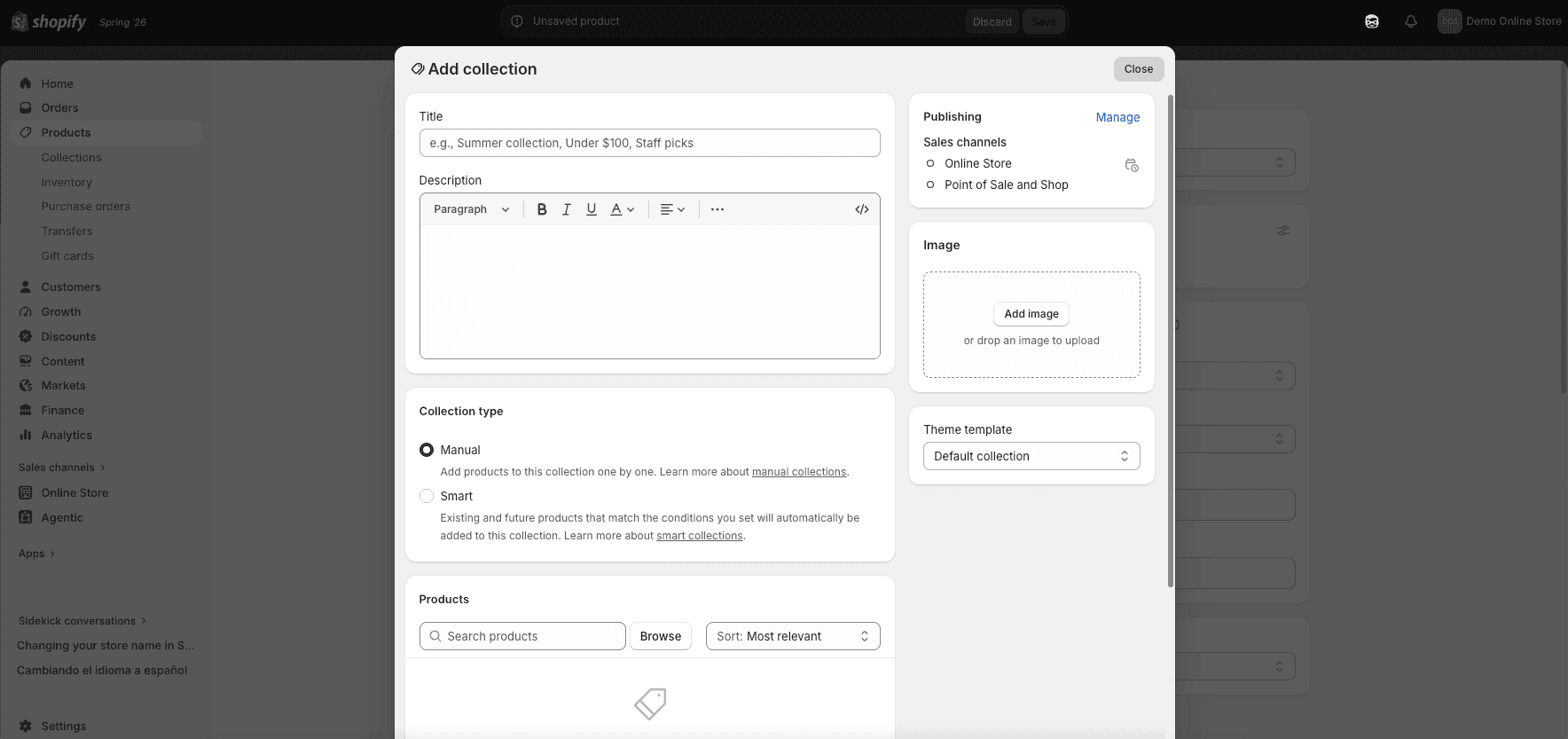
A WordPress website becomes an online store by adding a commerce system. WooCommerce is the common open-source choice and adds products, cart, checkout, orders, and extensibility to WordPress. Other solutions can embed products or send buyers to an externally hosted checkout.
If both candidates will be full online stores, read my detailed Shopify vs WooCommerce comparison. It evaluates the closer ecommerce matchup, including checkout, products, hosting, extensions, maintenance, scalability, ownership, and total cost.
Business model matters. For example, a made-to-order catalog needs supplier integration, sample testing, shipping expectations, replacement procedures, and enough cash to pay fulfillment charges. The Shopify print-on-demand guide covers that workflow from provider selection through launch.
Ecommerce winner: Shopify for an integrated beginner experience. WordPress with WooCommerce wins when a qualified team needs deeper application control or must add commerce to an established WordPress site.
If the primary goal is selling downloads through Shopify, follow my Shopify digital-products guide to configure the product, file delivery, pricing, policies, product page, test order, and launch process.
Pricing and the Real Cost of Ownership
Shopify costs
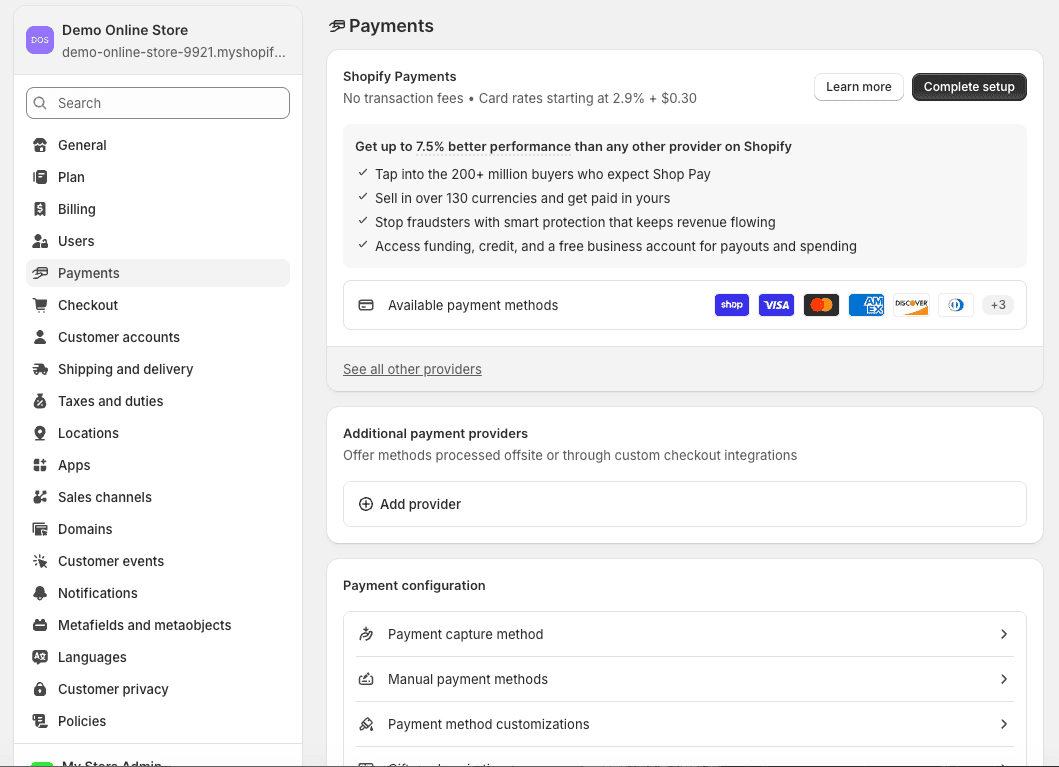
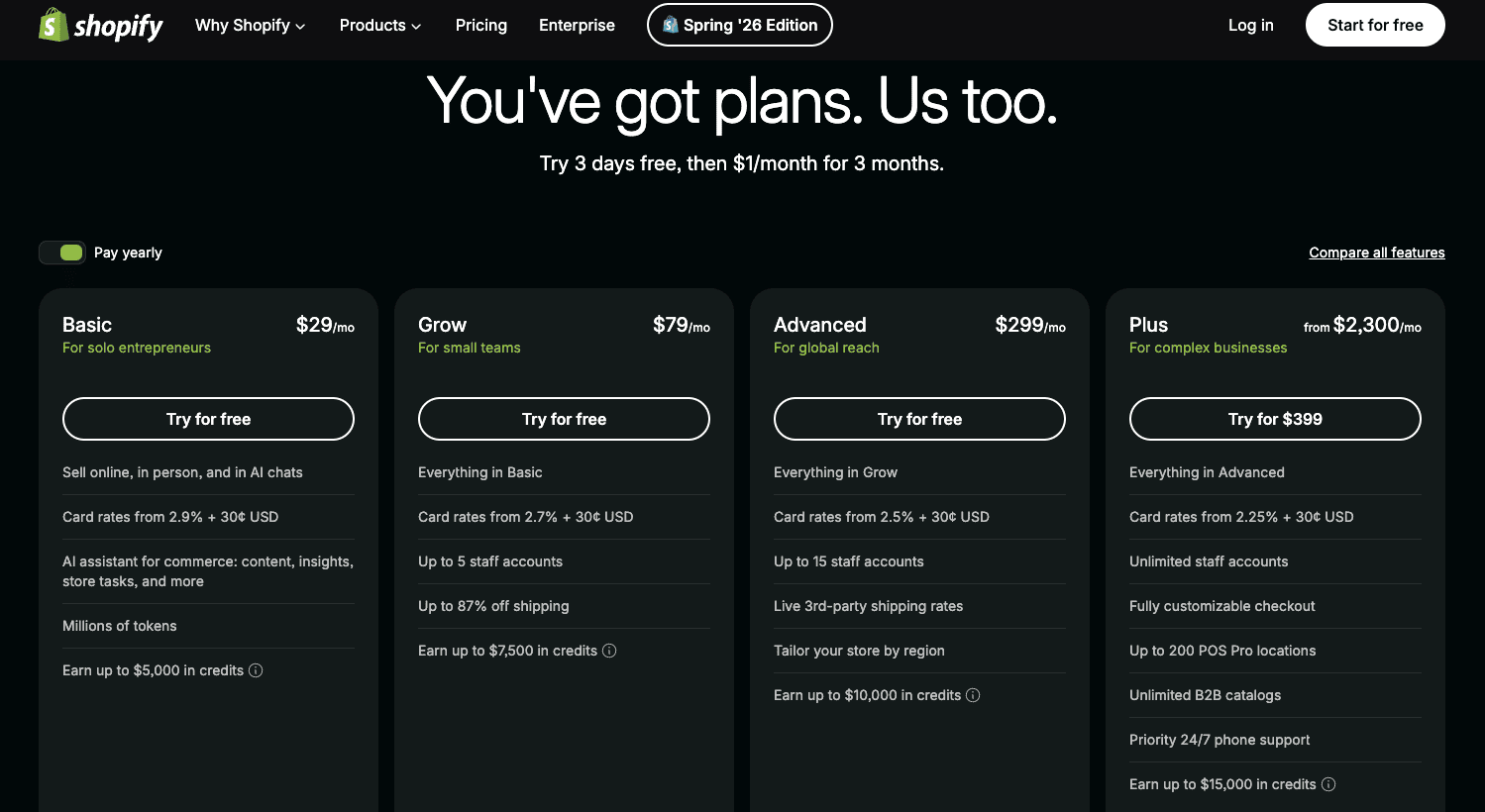
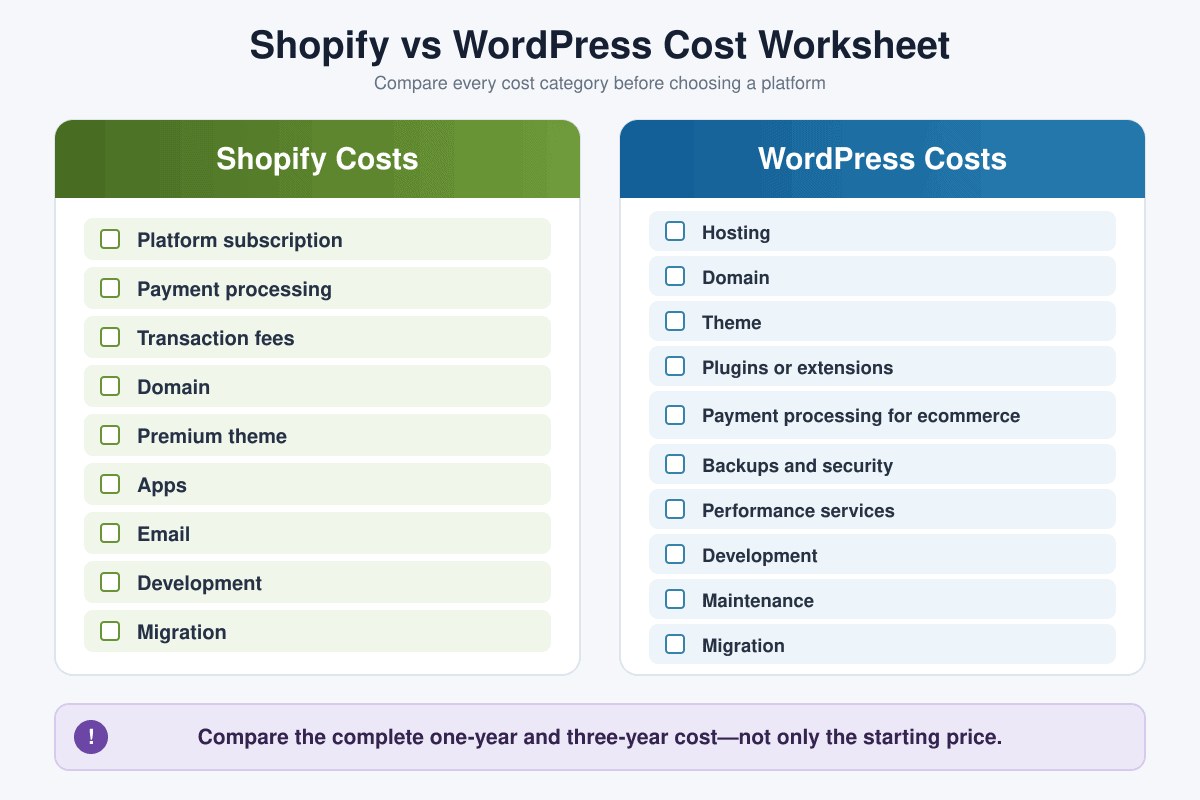
Shopify charges a recurring platform subscription. Hosting, the core ecommerce software, platform updates, SSL for connected domains, and hosted checkout are included. The total can also include a domain, payment processing, transaction fees when applicable, a premium theme, apps, email, point-of-sale tools, development, and migration.
Prices, promotions, payment rates, and included features can change by country and plan. Review my current Shopify pricing and fee breakdown and verify the official pricing page before selecting a plan.
WordPress costs
The self-hosted WordPress software is open source, but “free WordPress” is not the same as a free production website. Budget for a domain, hosting, premium themes or plugins when needed, email, backups, security, performance services, development, maintenance, accessibility work, and recovery.
A simple brochure site can be inexpensive. A busy membership site or custom WooCommerce store can cost more than Shopify because software licensing is only one part of ownership. Managed hosting may raise the visible hosting price while reducing maintenance labor and risk.
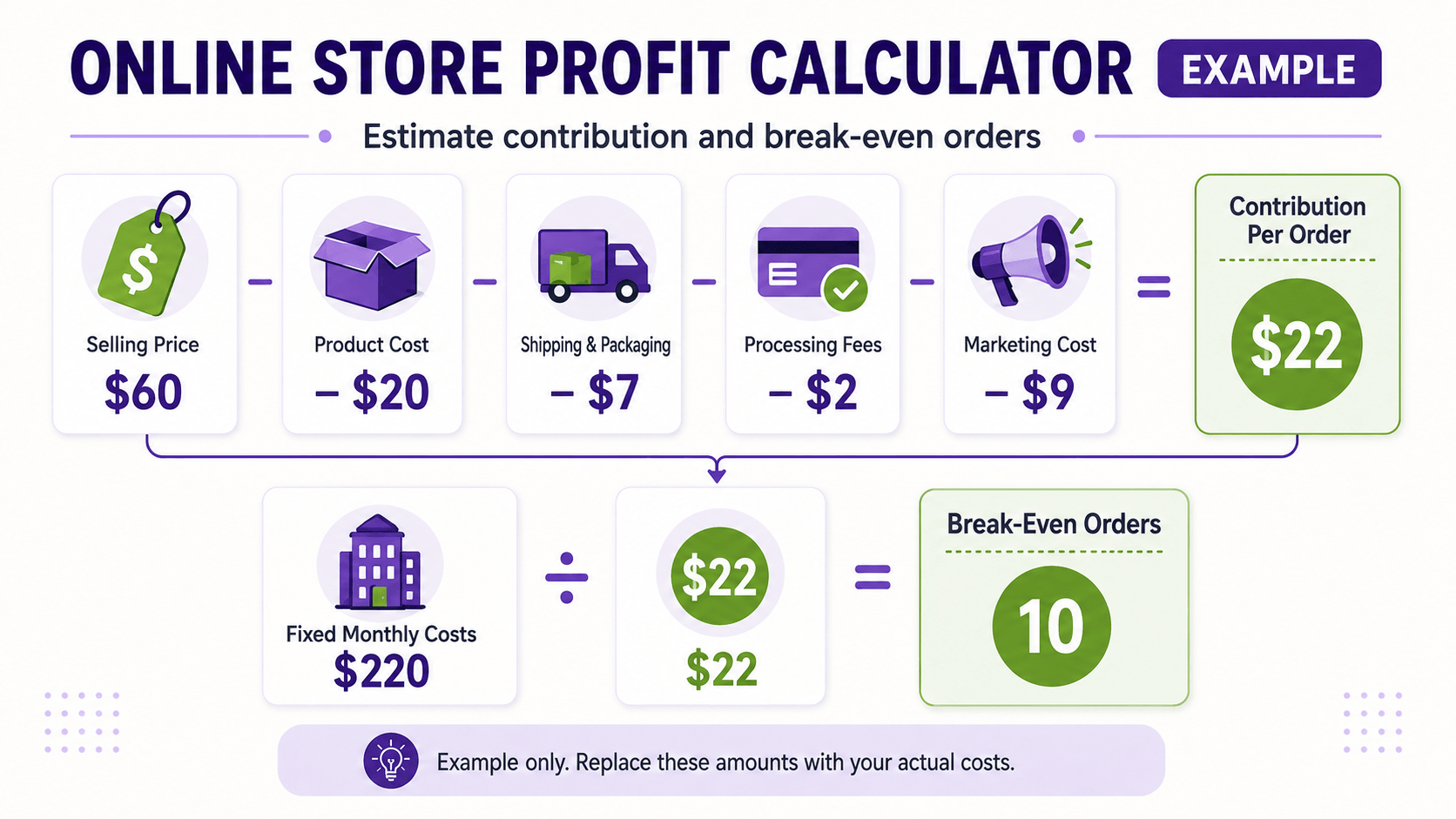
Compare the complete cost: subscription or hosting + domain + payment fees + theme + apps or plugins + email + development + maintenance + security + backups + migration + staff time.
Pricing winner: It depends. Shopify is easier to forecast at the platform level. WordPress lets the owner control the stack, but cost varies widely. Compare one-year and three-year totals for the same finished website.
Design and Customization
Theme flexibility cannot compensate for unclear or inconsistent product imagery. My Shopify product-photography guide explains how beginners can plan useful shots, build a simple setup, edit consistently, and optimize images for an ecommerce website.
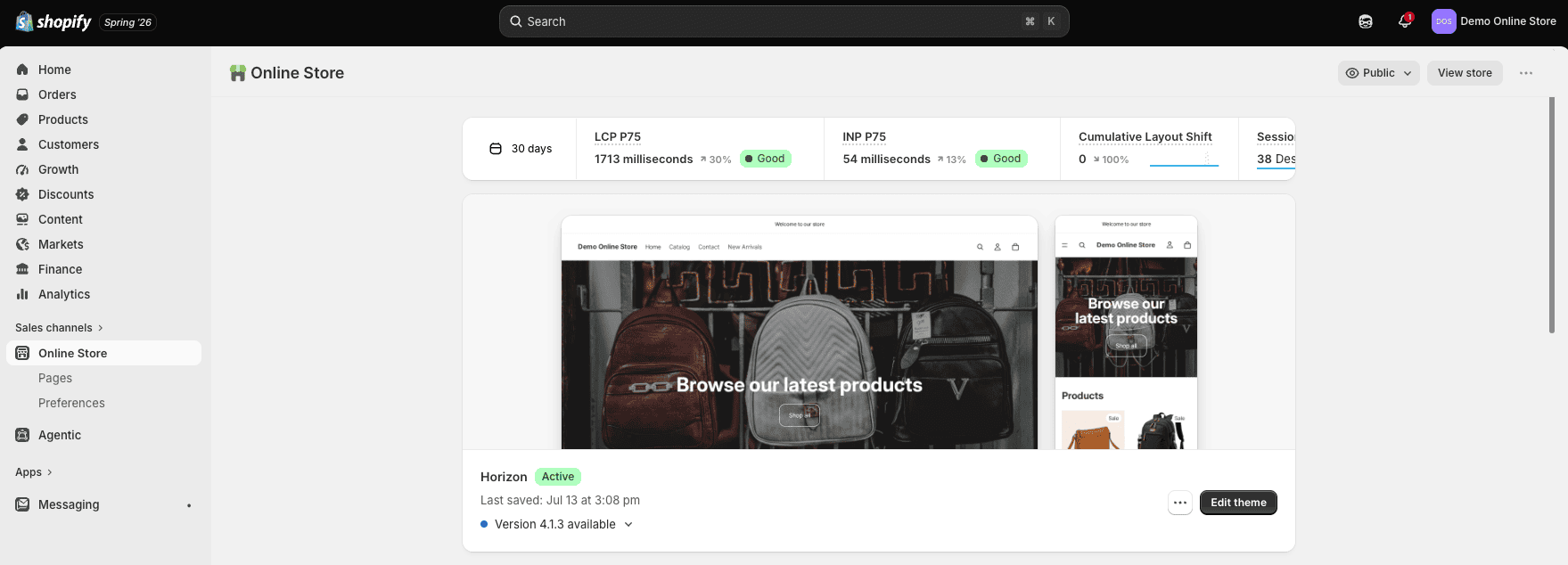
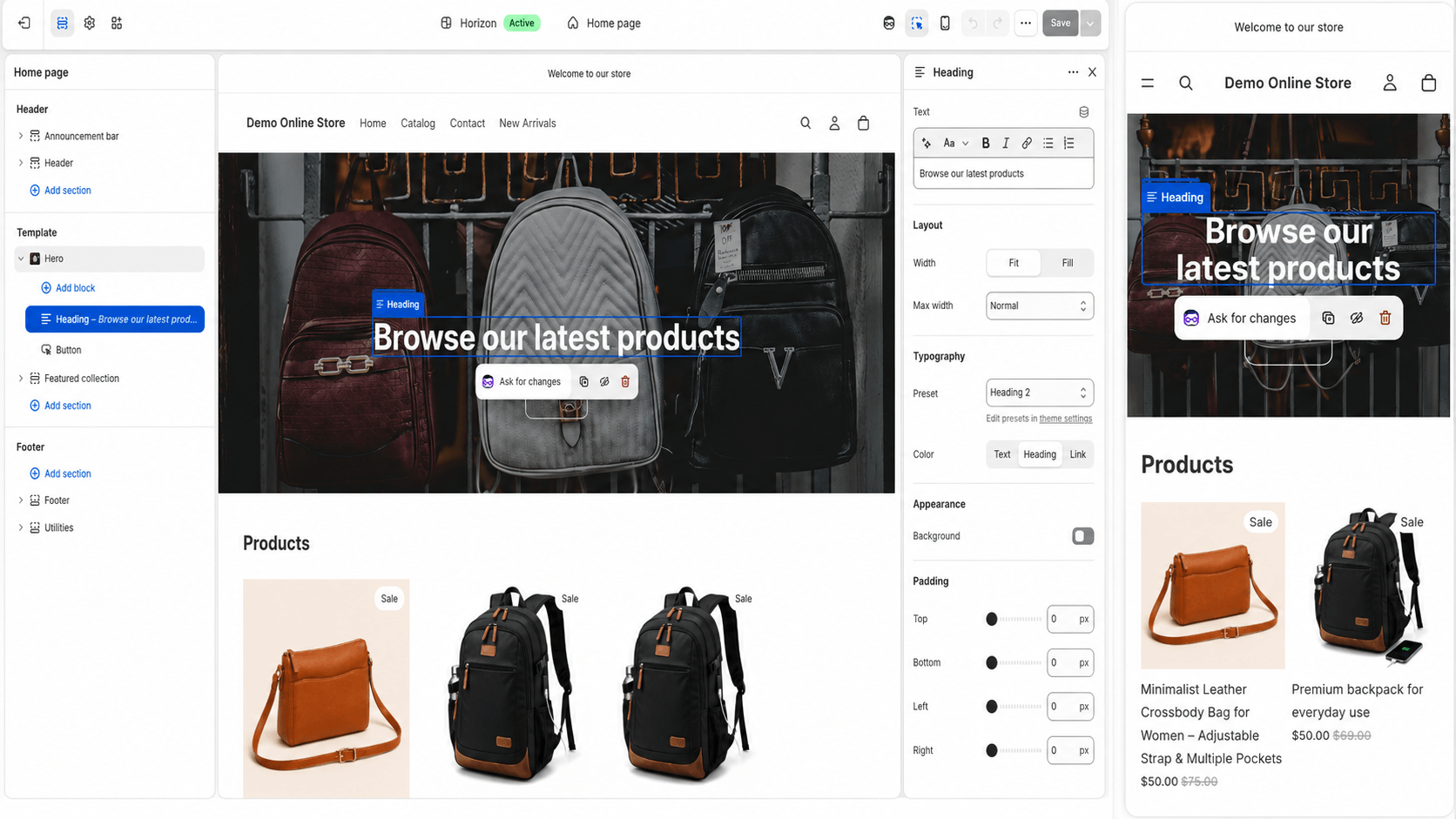
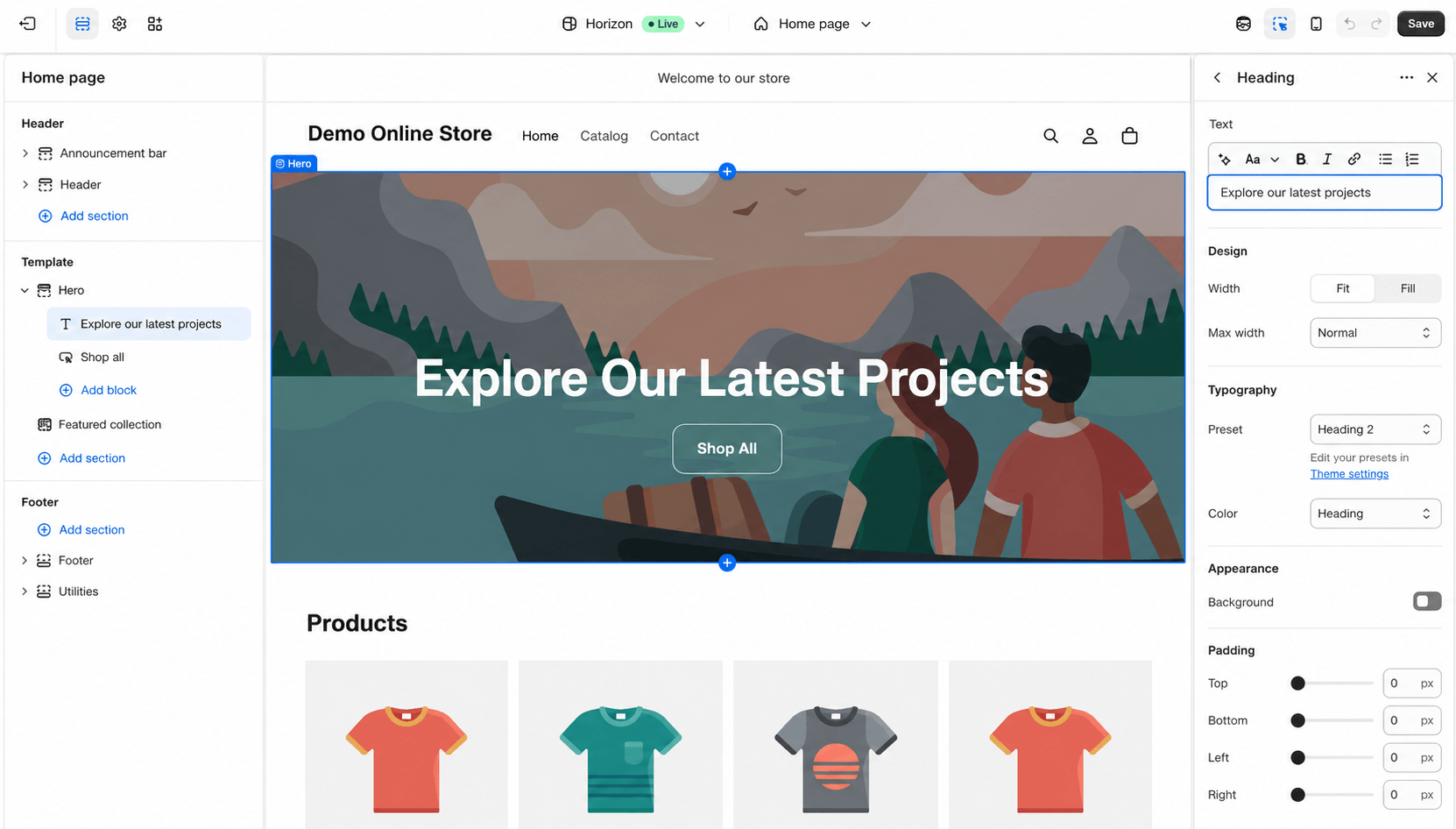
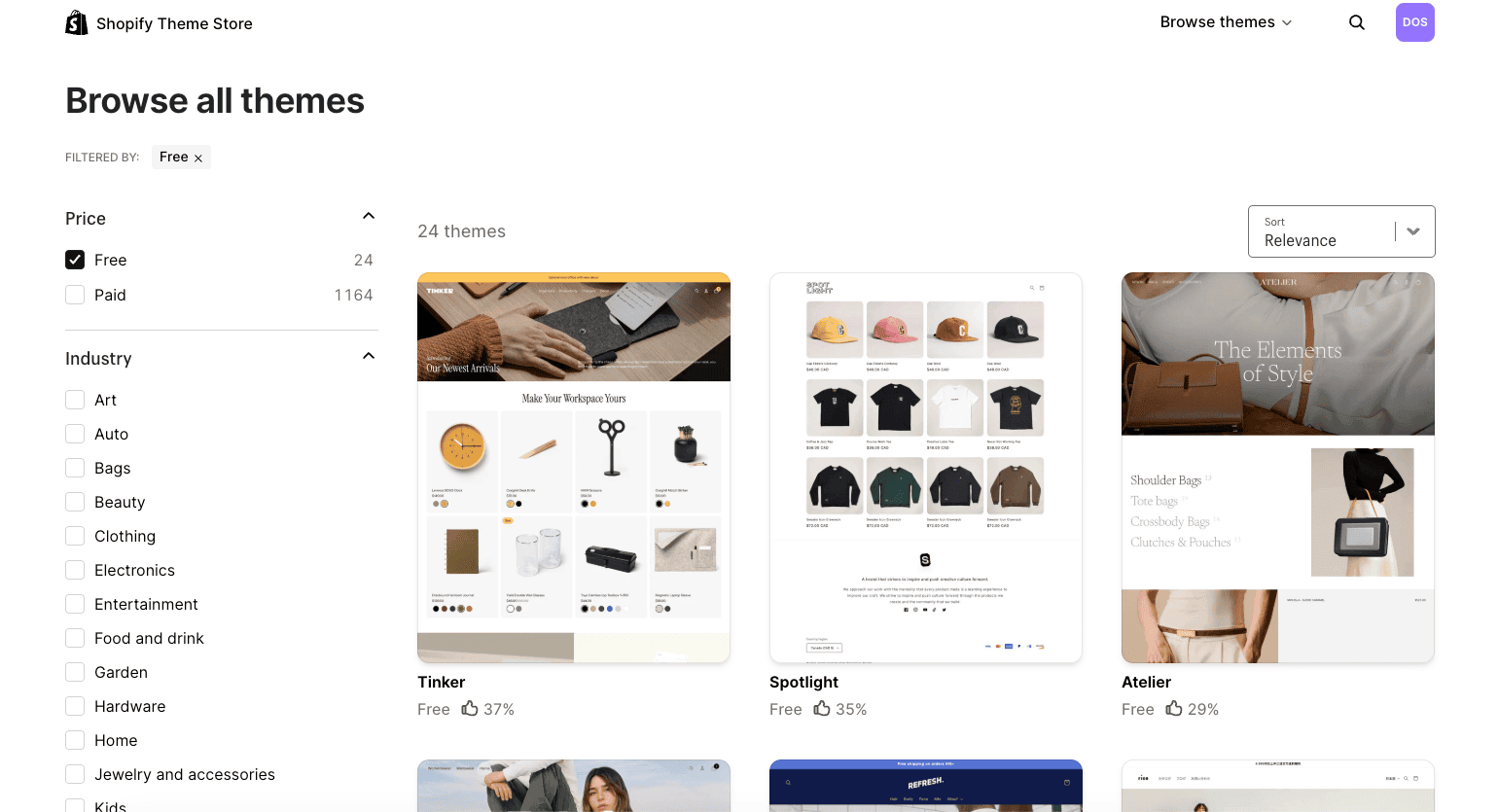
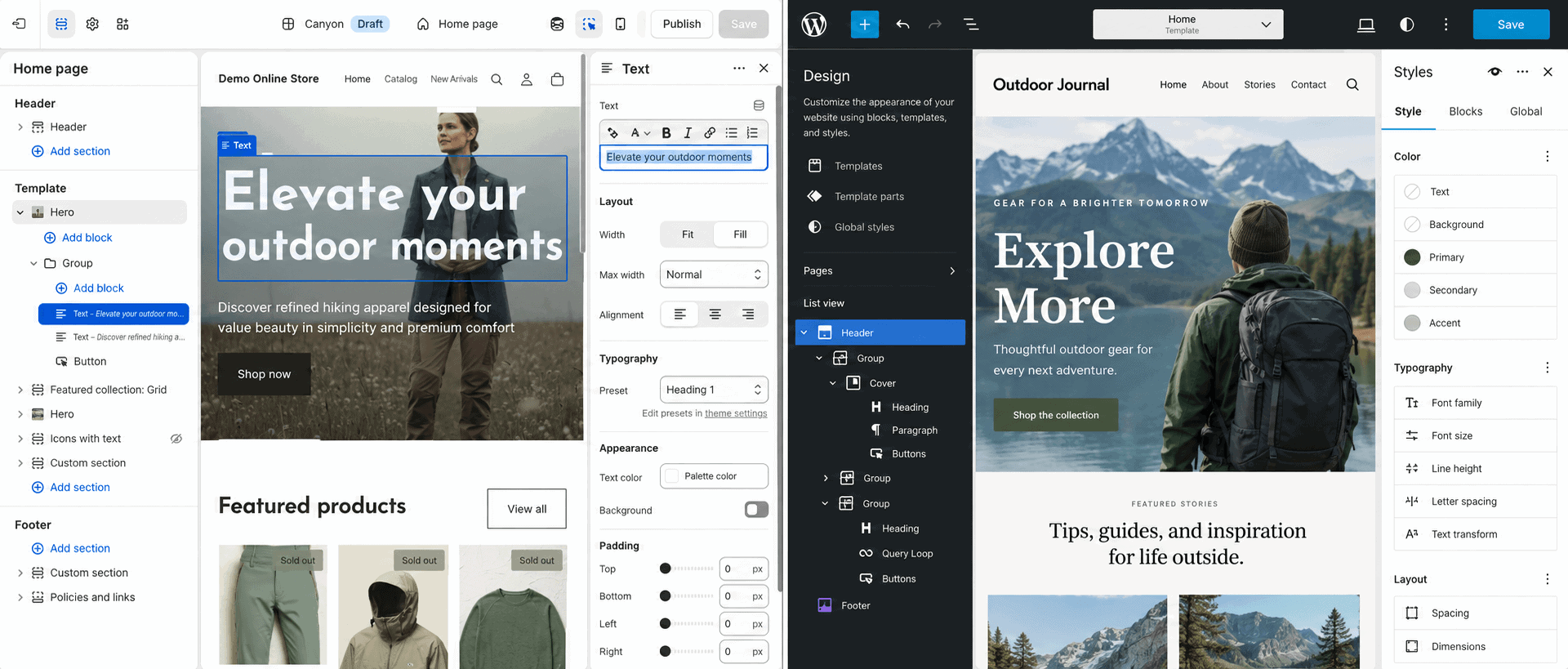
Shopify themes use templates, sections, blocks, settings, and Liquid-based customization. The theme editor makes common visual changes accessible, while apps and APIs add functionality. The platform protects parts of the system, particularly checkout and core operations, to maintain consistency and security.
Shopify can also generate an initial storefront direction from a short description. My Shopify AI Store Builder review shows what the tool produces and explains the product, copy, settings, policy, mobile, and testing work it does not finish.
WordPress offers themes, the block editor, site editing, patterns, plugins, page builders, templates, custom fields, and direct code access. A developer can control the front end, application logic, database, and hosting environment. That is a higher customization ceiling, but theme and plugin combinations need compatibility and performance testing.
Good design is not decoration alone. Navigation, product discovery, mobile readability, accessibility, page speed, trust, and clear calls to action matter on either platform. Study these successful Shopify store examples for practical merchandising and usability ideas without copying another brand.
Customization winner: WordPress. Guided design winner: Shopify.
Blogging and Content Management
WordPress has the stronger content foundation. It supports categories, tags, authors, custom post types, editorial plugins, reusable blocks, archives, taxonomies, revision workflows, and a large publishing ecosystem. Complex magazines, resource hubs, affiliate sites, and content-led businesses benefit from that flexibility.
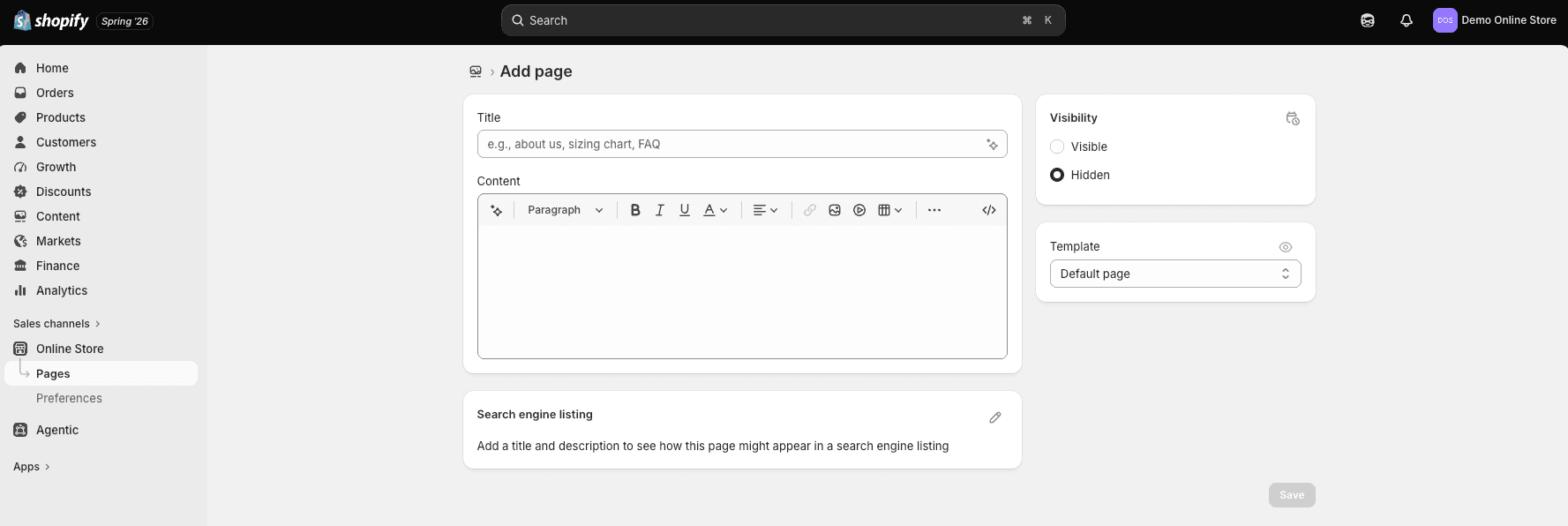
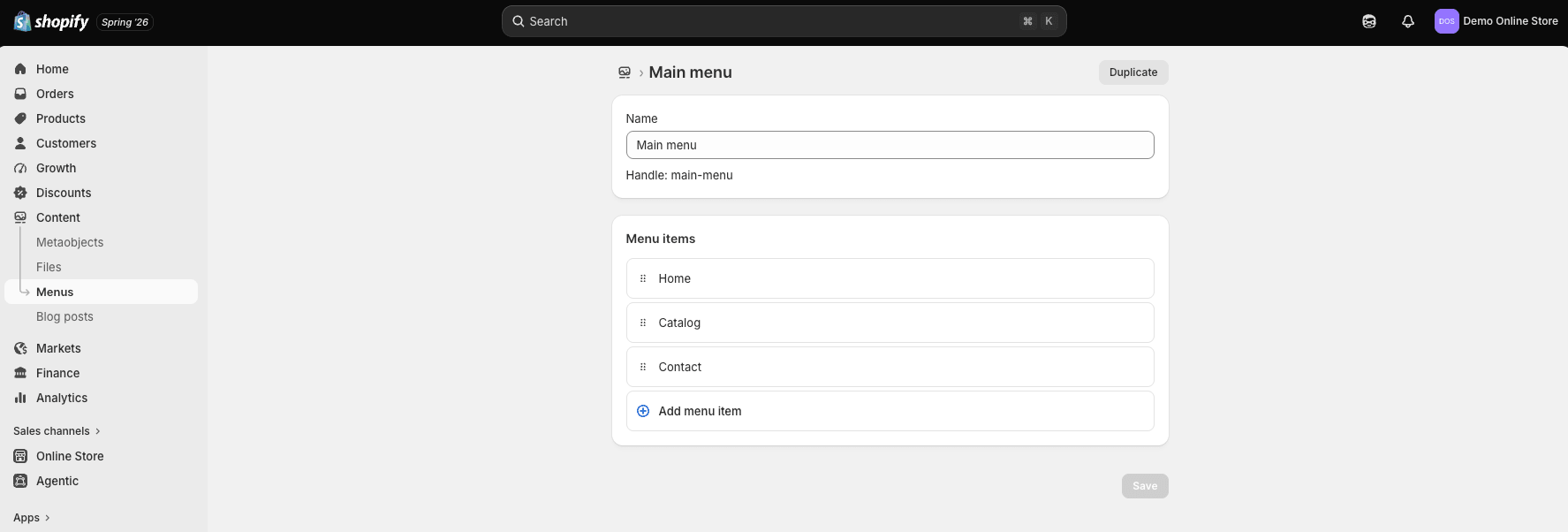
Shopify includes blog posts, pages, menus, media, and basic publishing tools. These are sufficient for many store blogs, buying guides, announcements, and educational articles. A merchant does not need a second platform merely to publish useful content.
Choose based on the website’s primary operating model. If most daily work involves products, orders, customers, and fulfillment, Shopify’s content limitations may be a reasonable tradeoff. If editorial production and complex content relationships drive the business, WordPress is usually a better foundation.
Blogging and content winner: WordPress.
SEO
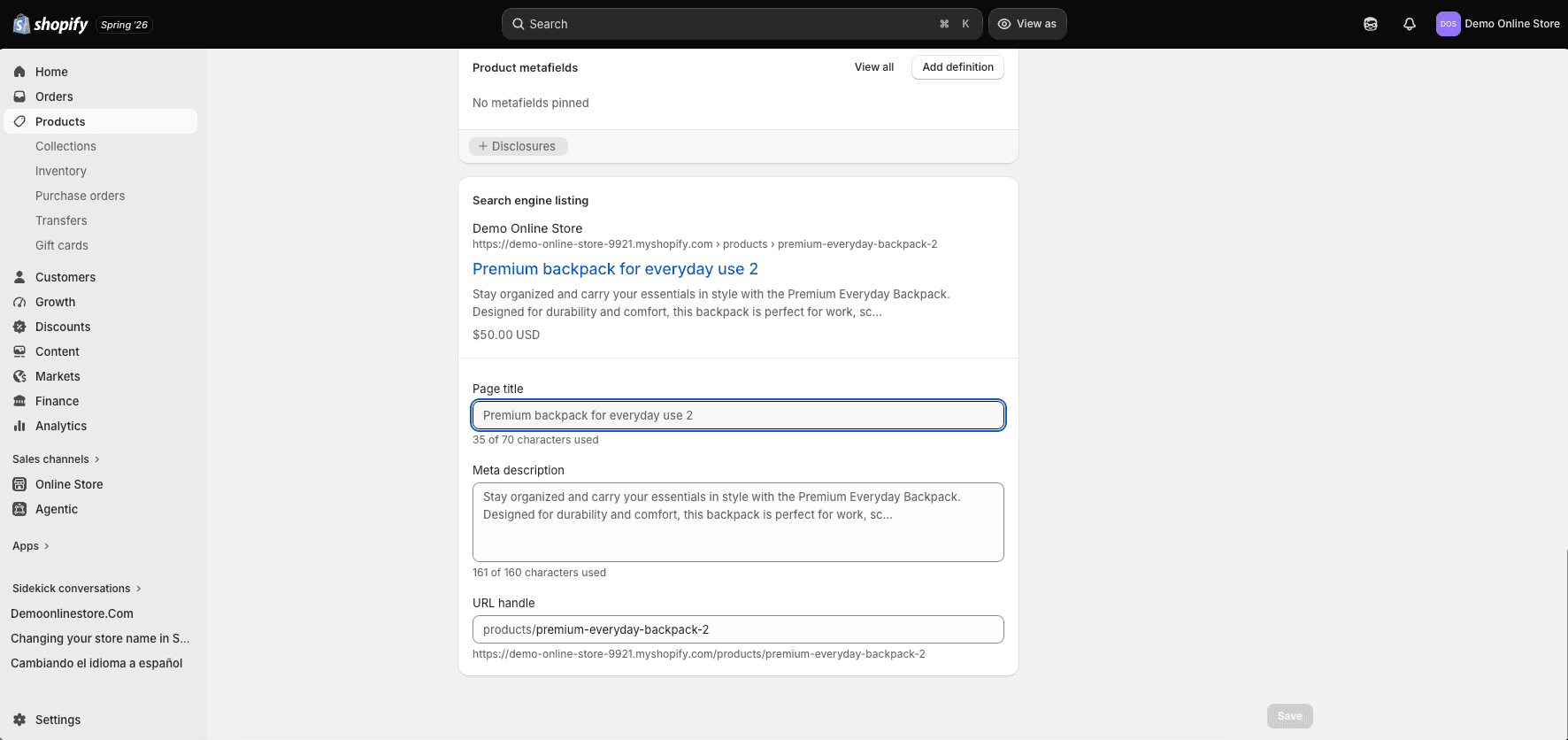
Both platforms can rank. Shopify handles an XML sitemap, SSL, canonical tags, editable search fields, redirects, and a mobile-responsive theme foundation. Store owners remain responsible for search intent, original content, useful product and collection pages, internal links, optimized images, backlinks, and performance measurement.
WordPress offers greater control over URLs, templates, metadata, schema, archives, taxonomies, internal-link tools, server behavior, and technical plugins. That flexibility helps advanced teams, but poor settings or overlapping plugins can also produce duplicate pages, conflicting schema, crawl waste, or slow performance.
Platform choice matters less than execution for most ordinary searches. A thin WordPress page does not outrank a useful Shopify page because it uses WordPress. Follow my Shopify SEO guide for beginners for the practical work of keyword mapping, page optimization, internal linking, technical checks, and measurement.
SEO flexibility winner: WordPress. Neither platform guarantees visibility.
If Shopify’s sales-channel integrations matter to your decision, my Shopify Pinterest guide shows how its catalog, Product Pins, tracking, and store checkout work together.
Payments, Checkout, Inventory, and Operations
Shopify’s advantage is operational integration. Products, inventory, discounts, customers, orders, payments, shipping, returns, analytics, and channels live within one commerce system. Its secure hosted checkout is part of the platform, and supported apps extend specialized workflows.
WordPress has no native checkout or inventory system. Those depend on the ecommerce plugin and extensions selected. This can support highly tailored workflows, but the site owner must evaluate payment providers, compatibility, data ownership, plugin support, checkout performance, updates, and failure recovery.
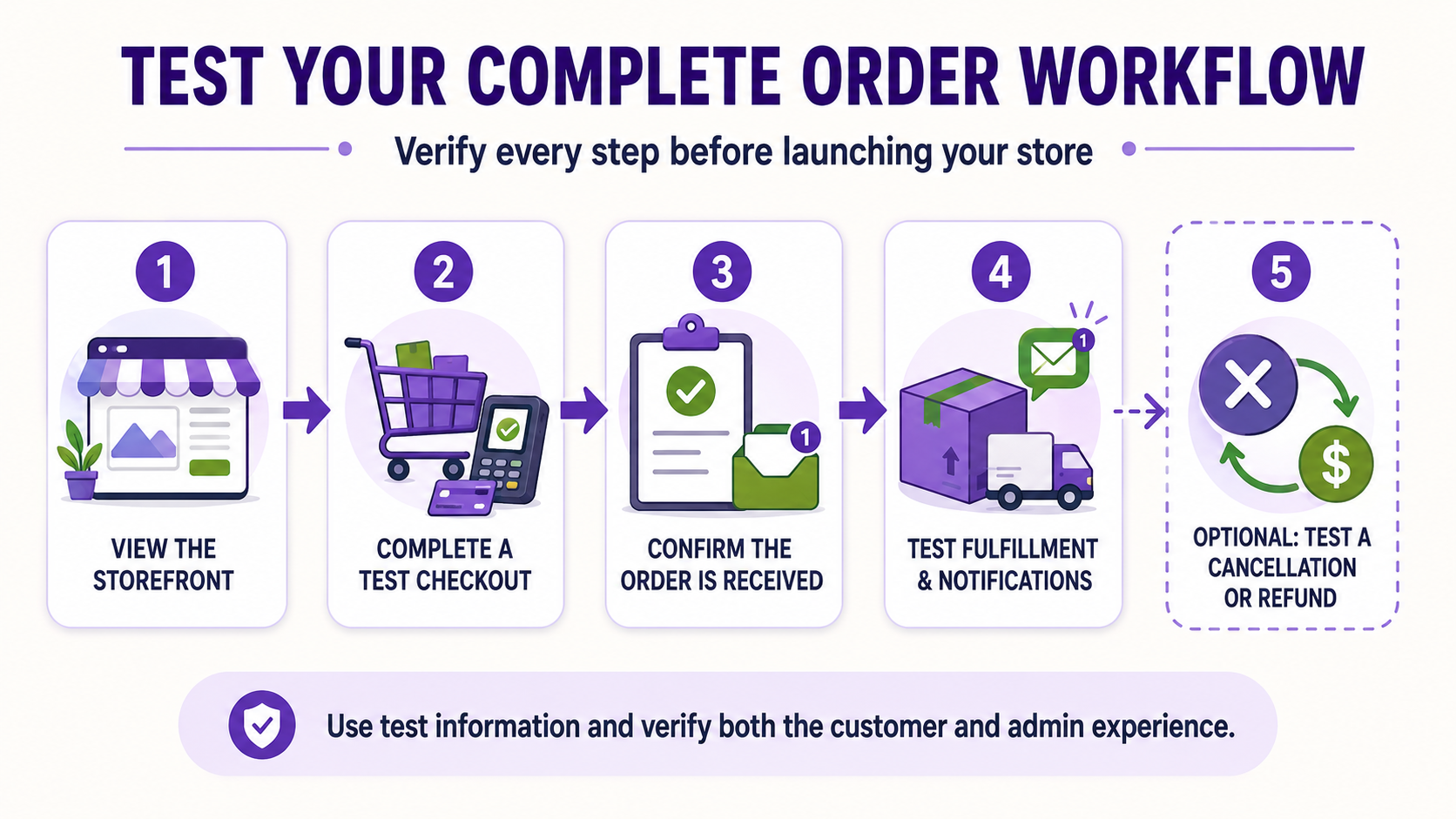
Test the complete path on either platform: product page, cart, checkout, confirmation email, order administration, fulfillment, cancellation, refund, inventory change, analytics, and customer communication. A homepage preview does not prove the store can operate reliably.
Before accepting real Shopify orders, use the Shopify store launch checklist to verify payments, shipping, tax, notifications, policies, mobile behavior, analytics, fulfillment, refunds, and support.
Commerce operations winner: Shopify for most small and midsize merchants.
Hosting, Security, and Maintenance
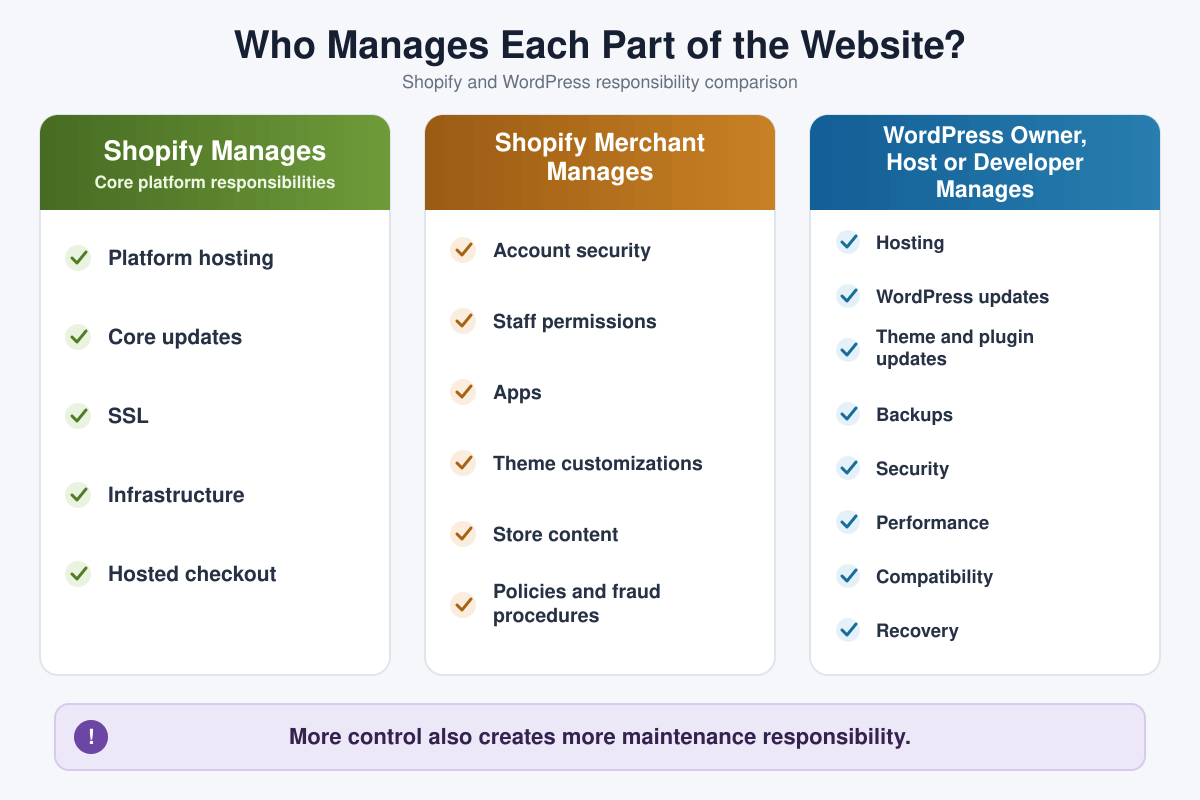
Shopify manages the platform hosting, core updates, SSL issuance for connected domains, infrastructure, and hosted checkout. The merchant remains responsible for account security, staff permissions, apps, theme code, store content, legal policies, fraud procedures, and operational continuity.
With self-hosted WordPress, responsibility is divided among the owner, host, theme and plugin developers, security services, and any hired professionals. Someone must own WordPress, theme, plugin, and PHP updates; backups and restore testing; malware prevention; access control; uptime; caching; database health; compatibility; and incident response.
Managed WordPress hosting can assume more of that work, but “managed” has no universal definition. Check exactly what is included, how often backups run, whether restores are tested, who fixes a compromised site, and where plugin conflicts fall.
Many preventable problems begin with unnecessary tools, unclear responsibilities, and incomplete testing. Review these Shopify mistakes to avoid before adding apps or publishing the store.
Low-maintenance winner: Shopify. Infrastructure-control winner: WordPress.
Support
Shopify provides a central starting point for platform support. Themes, apps, domains, payment providers, and custom code can still involve other companies, but the hosted platform has a defined operator.
WordPress support is decentralized. The host supports hosting, plugin authors support plugins, theme developers support themes, payment providers support their services, community forums help with open-source software, and developers handle custom code. This provides choice but can create finger-pointing when several components interact.
For a business-critical WordPress site, document vendors, renewal dates, licenses, backup locations, support boundaries, administrator access, and an escalation path. The cheapest stack is not a bargain if no one is accountable during an outage.
Ownership, Control, and Portability
Self-hosted WordPress gives the owner direct access to the application files, database, and hosting account. The site can move between compatible hosts, and developers can inspect or modify the system. Migration still requires planning, but the stack is comparatively portable.
Shopify lets merchants export important store data and provides APIs and migration options, but it remains a hosted service. Themes, checkout behavior, customer credentials, subscriptions, gift cards, app-specific information, and some platform features may not transfer directly to another system.
Control has a cost. Owning the full WordPress stack means owning more maintenance and recovery. Accepting Shopify’s platform boundaries reduces infrastructure work but increases dependence on its platform, policies, pricing, and supported architecture.
Performance and Scalability
Shopify manages the hosting platform and scales ordinary store infrastructure behind the service. Merchants can still slow storefronts with heavy themes, oversized media, third-party scripts, and excessive apps, so platform hosting does not remove the need for performance discipline.
WordPress performance depends on the host, theme, plugins, media, database, caching, CDN, traffic pattern, code quality, and maintenance. A well-engineered WordPress site can be extremely fast and support large traffic, but the owner or technical team must design and monitor the stack.
Do not compare only a cached homepage score. Test representative mobile pages, search, forms, logged-in behavior, product pages, cart, checkout, administrator tasks, background jobs, traffic spikes, and backup restoration.
Shopify Pros and Cons
| Shopify pros | Shopify cons |
|---|---|
| Commerce tools, hosting, SSL, and checkout are integrated | Recurring platform and possible app or transaction costs |
| Easier setup for a conventional online store | Less hosting, database, and application control |
| Central admin for products, orders, customers, and analytics | Advanced content structures are less flexible than WordPress |
| Platform-managed core infrastructure and updates | Some platform and app data can be difficult to reproduce elsewhere |
| Large theme, app, channel, and integration ecosystem | Apps can create cost, performance, and dependency problems |
WordPress Pros and Cons
| WordPress pros | WordPress cons |
|---|---|
| Open-source software with hosting, code, and database control | Hosting and maintenance are not included with WordPress.org |
| Powerful content and publishing system | Plugins and themes can introduce conflicts or security risk |
| Extensive themes, plugins, APIs, and developer flexibility | Total cost is harder to predict without defining the stack |
| Broad portability between compatible hosts | Support is divided among multiple providers |
| Can support many website and application types | A full online store requires additional ecommerce software |
Who Should Choose Shopify?
- A beginner whose primary goal is launching an online store
- A commerce-first brand that wants integrated operations
- A team without a dedicated WordPress developer or maintainer
- A retailer that needs products, checkout, orders, channels, and POS in one ecosystem
- A business willing to accept platform boundaries for less infrastructure responsibility
Use the Shopify free trial guide to understand the current promotion, what you can build before paying, and when billing begins. Then build a representative store with Shopify and test the workflow yourself.
If the alternative is selling through an existing marketplace rather than operating a WordPress site, compare Shopify vs Etsy for audience access, branding, fees, marketing responsibility, product rules, and business control.
Who Should Choose WordPress?
- A blogger, publisher, affiliate site, or content-led business
- A service business that does not need a commerce-first admin
- A project requiring custom post types, workflows, integrations, or application logic
- An organization that wants hosting, code, database, and deployment control
- A team with qualified WordPress maintenance and development resources
WordPress is also sensible when an established content site wants to add a limited store, provided the team can maintain the ecommerce stack. Define who owns security, updates, backups, compatibility, and recovery before accepting transactions.
Can You Use Shopify and WordPress Together?
Yes. A business can use WordPress for publishing and Shopify for commerce. Shopify’s Buy Button can be embedded on a website or blog, including compatible WordPress templates, to display products and let customers purchase through Shopify. Another approach is to keep the content site and Shopify store on separate subdomains or clearly linked domains.
A two-platform setup can combine WordPress publishing flexibility with Shopify operations, but it also creates duplicate navigation, analytics, search, styling, cookie, domain, and maintenance decisions. Confirm how customers move between systems, where checkout occurs, how products are updated, and which platform owns each page.
Do not create a hybrid stack only to avoid choosing. Use it when the content and commerce requirements genuinely justify two systems and someone can maintain the integration.
How to Test Shopify and WordPress Before Choosing
- Write the website’s primary goal and the three tasks visitors must complete.
- List required content types, products, payments, shipping, forms, accounts, memberships, integrations, and editorial workflows.
- Build the same representative homepage, content page, product or offer page, navigation, and mobile experience.
- If selling, test cart, checkout, payment failure, email, fulfillment, cancellation, refund, and reporting.
- Record every paid theme, app, plugin, service, developer task, and maintenance responsibility.
- Calculate one-year and three-year cost, including staff time and migration risk.
- Choose the system the team can operate reliably—not the one with the longest feature list.
Readers who want WordPress with hosting and platform management combined can also try WordPress.com before choosing between the available options.
Once the Shopify store is ready, the next challenge is demand. My guide to getting your first sale on Shopify explains how to improve the offer, create proof, reach a qualified audience, plan outreach, and measure the funnel without promising a guaranteed sale.
Decision Checklist
- Is the website commerce-first, content-first, service-first, or application-first?
- Does the project need a native product, inventory, order, and checkout system?
- Who will maintain hosting, updates, security, backups, performance, and recovery?
- Which customization and data-access requirements are genuinely nonnegotiable?
- What are the complete one-year and three-year costs?
- Can critical data be exported and migrated?
- Which support organization owns each part of the system?
- Can the team operate the website if the original developer becomes unavailable?
If Shopify is the better fit for your website, use my Shopify Black Friday checklist to prepare the offer, storefront, inventory, checkout, marketing, and fulfillment plan.
Frequently Asked Questions
Is Shopify better than WordPress?
Shopify is better for most beginners building a commerce-first website because hosting, products, inventory, checkout, orders, and core platform maintenance are integrated. WordPress is better for content-heavy or highly customized websites that need hosting, code, and data control.
Is WordPress cheaper than Shopify?
Not automatically. WordPress software is open source, but a live site needs hosting, a domain, maintenance, security, backups, and sometimes paid themes, plugins, or development. Compare the complete finished website over several years rather than the software’s entry price.
Can WordPress build an online store?
Yes. WordPress can power an online store after adding WooCommerce or another ecommerce system. The owner must configure and maintain the store’s hosting, plugins, payment tools, checkout, security, and extensions.
Is Shopify better for ecommerce?
Shopify is usually the easier ecommerce choice because selling features and hosted checkout are built into the platform. WordPress with WooCommerce can be better when an existing WordPress site or technical team needs deeper control and custom workflows.
Which is better for SEO, Shopify or WordPress?
WordPress offers more technical and content flexibility. Shopify handles many SEO foundations and can rank well. Results depend on search intent, useful original content, crawlability, internal links, authority, performance, and user experience—not the platform name alone.
Which is easier for beginners?
Shopify is generally easier for a beginner creating an online store. WordPress can be straightforward for basic publishing, but self-hosting, plugins, security, backups, and ecommerce configuration create more decisions.
Can I blog on Shopify?
Yes. Shopify includes pages and a blog suitable for store news, guides, comparisons, and educational content. WordPress is stronger when advanced publishing, custom content structures, or editorial workflows are central to the business.
Can I use Shopify with WordPress?
Yes. Shopify Buy Buttons can be embedded in a website or blog, and a business can connect a WordPress content site with a separate Shopify store. Plan navigation, branding, analytics, domains, search, and maintenance across both systems.
Can I migrate from WordPress to Shopify or Shopify to WordPress?
Migration is possible, but not every design, account, URL, order record, subscription, app feature, plugin function, or customer credential transfers directly. Inventory the data, create redirects, test transactions, preserve analytics, communicate with customers, and keep a verified rollback plan.
Final Verdict: Shopify or WordPress?
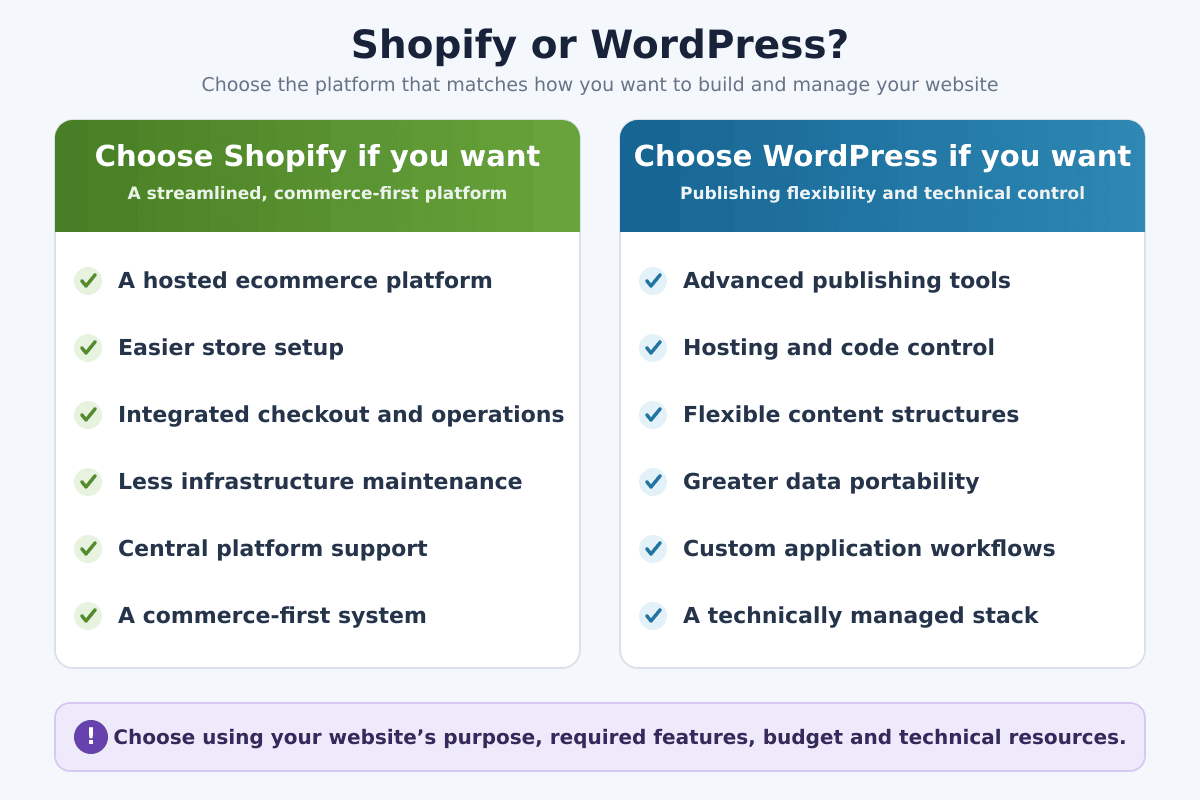
Choose Shopify when the website is primarily an online store and you value a guided setup, integrated checkout and operations, central platform support, and less infrastructure maintenance. It is the more practical choice for most first-time merchants.
Choose WordPress when the website is primarily a publication, service site, resource, community, or custom application—or when a capable team needs direct control of hosting, code, content structures, and data. It provides more freedom, but someone must own the technical stack.
If you need a store, test the actual catalog and transaction flow instead of choosing from marketing pages. Try Shopify and build a test version of your store, then compare it with a representative WordPress setup using the same requirements, costs, and maintenance assumptions.
Neither platform guarantees traffic, rankings, sales, or profit. The best choice is the one that supports the business model and can be operated reliably with the budget, skills, and resources actually available.
If you are considering selling products without storing inventory, follow my Shopify dropshipping guide to evaluate suppliers, calculate profit, build product pages, plan fulfillment, and prepare the store for launch.
If Shopify is the better fit and your store will center on one flagship item, use my one-product Shopify store guide to validate the offer, calculate profit, structure the pages, and test the customer journey.