
How to Start a Shopify Store: The Complete Beginner’s Guide
Last Updated on September 17, 2026
Starting an online store can feel overwhelming when you’re new to ecommerce. There are products to choose, payments to set up, shipping to configure, and a website to build. The good news is that Shopify simplifies almost all of those tasks, making it possible for beginners to launch a professional online store without learning to code.
Whether you want to sell your own products, start a print-on-demand business, launch a dropshipping store, or build a long-term ecommerce brand, Shopify provides nearly everything you need in one place.
I’ve spent a considerable amount of time testing Shopify while creating tutorials and reviewing its features. One thing I’ve consistently found is that Shopify removes much of the technical complexity that often prevents people from starting an online business. Instead of worrying about hosting, software updates, security, or checkout functionality, you can spend your time building your products, improving your website, and finding customers.
In this guide, I’ll walk you through every step of creating your first Shopify store—from signing up for your account to launching a professional ecommerce website that’s ready to accept orders.
By the end of this article, you’ll know how to:
- Create a Shopify account
- Choose the right Shopify plan
- Customize your online store
- Add products and collections
- Configure payments and shipping
- Optimize your store for search engines
- Launch your website with confidence
- Begin attracting your first customers
If you’re following along for the first time, I recommend opening Shopify in another browser tab so you can complete each step as you read.
Key Takeaways
- Shopify is one of the easiest ecommerce platforms for beginners.
- You can build your store during the free trial before selecting a paid plan.
- Start with a free theme and keep your design simple.
- Focus on writing unique product descriptions and using high-quality images.
- Configure payments, shipping, taxes, and your domain before launching.
- Invest in SEO and content marketing to attract long-term traffic.
- Launch once your store is ready, then continue improving it based on customer feedback and performance data.

What Is Shopify?

Quick Answer: Shopify is an all-in-one ecommerce platform that lets you create an online store, sell products, process payments, manage inventory, and grow your business without needing technical experience.
Unlike a traditional website where you have to purchase hosting, install software, configure security, and maintain updates yourself, Shopify combines everything into one platform.
With Shopify, you can:
- Sell physical products
- Sell digital downloads
- Launch a dropshipping business
- Create a print-on-demand store
- Accept online payments
- Manage inventory
- Track orders
- Offer discount codes
- Sell through social media and online marketplaces
- Manage your business from desktop or mobile
Because everything is integrated, Shopify allows beginners to focus on building a business rather than managing the technical side of running a website.
Is Shopify Right for You?
Before creating an account, it’s worth asking whether Shopify is the right ecommerce platform for your goals.
In my experience, Shopify is one of the easiest platforms for beginners while still offering enough advanced features to support long-term growth.
Shopify is a great choice if you want to:
- Launch your first online business
- Sell physical products
- Start a print-on-demand business
- Create a dropshipping store
- Build a recognizable ecommerce brand
- Sell internationally
- Scale your business over time
Shopify may not be the best choice if you:
- Only need a personal blog
- Don’t plan to sell products
- Want complete control over your website’s code
- Prefer managing your own hosting environment
If your primary goal is selling products online, Shopify is one of the strongest options available.
Here’s a quick overview of Shopify’s biggest advantages and potential drawbacks.
| Pros | Cons |
|---|---|
| Beginner-friendly interface | Monthly subscription required after the trial |
| Hosting and security included | Premium themes and apps can increase costs |
| Fast setup process | Some advanced customization requires coding knowledge |
| Excellent app ecosystem | Transaction fees may apply with certain payment providers |
| Scales as your business grows |
Overall, I believe the advantages far outweigh the disadvantages for most first-time store owners.
If you are choosing between Shopify and a general-purpose WordPress website, read my Shopify vs WordPress comparison before creating your store.
For a deeper look at the platform before building your store, read my complete Shopify review covering its features, ease of use, pricing, advantages, and limitations.
How Much Does Shopify Cost?
Shopify offers several plans designed for businesses at different stages of growth.
| Plan | Best For |
|---|---|
| Basic | New ecommerce businesses |
| Grow | Businesses with increasing sales |
| Advanced | Established online stores |
| Plus | Large enterprise businesses |
If you’re launching your first store, the Basic plan typically includes everything you need, including:
- Unlimited products
- Secure checkout
- Inventory management
- Discount codes
- SSL certificate
- Website hosting
- Customer accounts
- Sales reports
- Multiple sales channels
The good news is that you don’t have to commit to a paid plan immediately.
For a complete breakdown of every plan, including monthly and annual costs, transaction fees, and additional expenses, read my Shopify pricing guide.
Start with the Shopify Free Trial
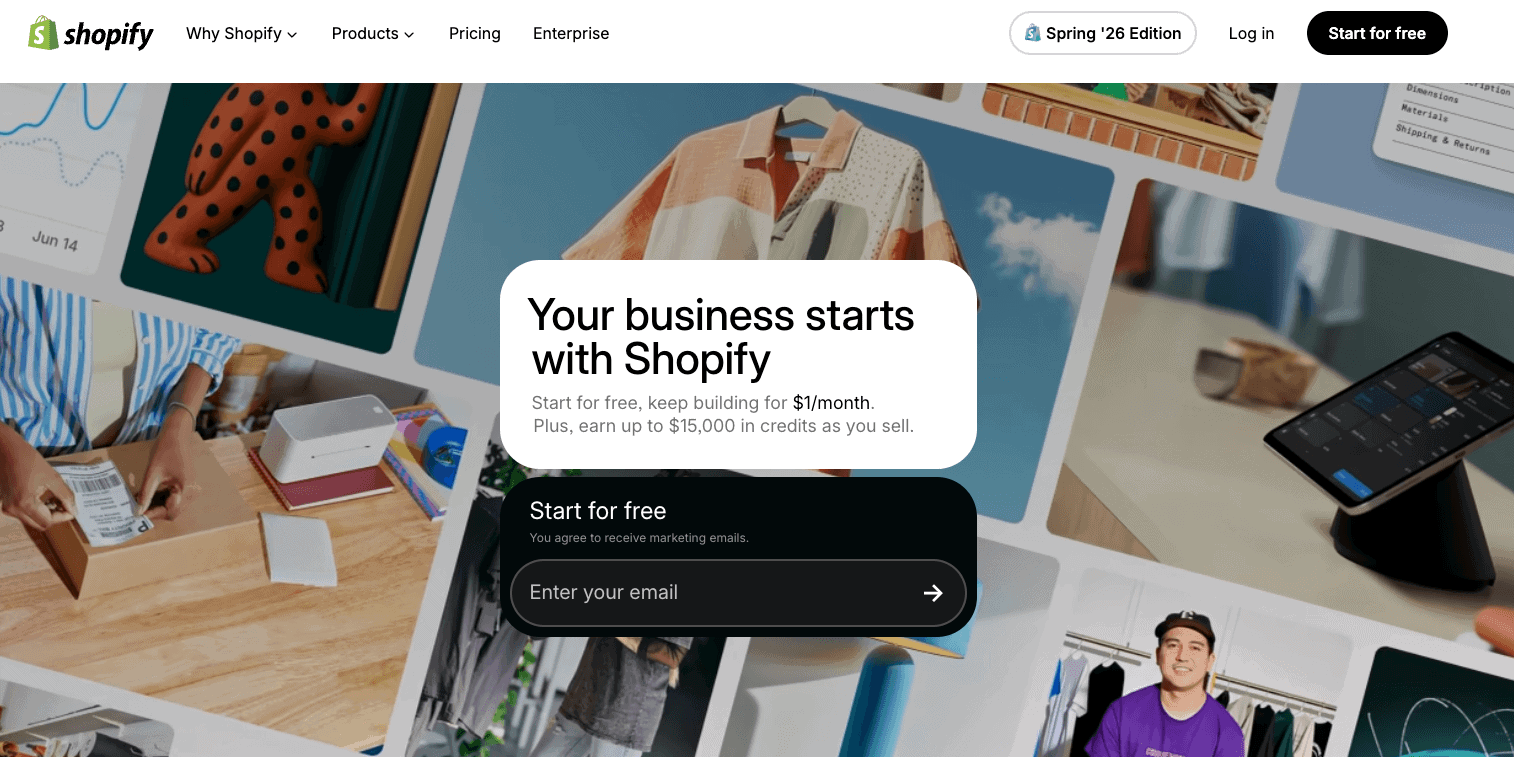
One of the biggest advantages of Shopify’s free trial is that new users can build their store before committing to a paid plan. Promotional offers may also include discounted introductory pricing for eligible new customers after the Shopify free trial ends.
I always recommend using the trial period to build as much of your store as possible before upgrading.
During your trial, you can:
- Learn the dashboard
- Upload products
- Design your homepage
- Connect a domain
- Configure shipping
- Set up payment methods
- Test your store
By the time you’re ready to choose a paid plan, much of the hard work is already complete.
What You’ll Need Before You Start
One mistake many beginners make is believing they need every detail figured out before creating a Shopify store.
That’s simply not true.
You can always refine your website after launch.
However, having a few basics prepared will make the setup process much smoother.
A Business Name
Choose a name that’s:
- Easy to remember
- Easy to spell
- Relevant to your brand
- Available as a domain name if possible
Don’t spend weeks trying to find the perfect name.
I’ve seen many successful businesses launch with simple names and refine their branding later.
Products
Know what you plan to sell.
Whether it’s handmade products, clothing, digital downloads, or print-on-demand merchandise, having a clear direction will make the setup process much easier.
Product Photos
Product images have a significant impact on conversions.
Aim for photos that are:
- Bright
- High resolution
- Consistent
- Taken from multiple angles
If you’re using a smartphone, natural lighting near a window often produces excellent results.
Logo (Optional)
Don’t delay your launch because you don’t have a professional logo.
A clean text-based logo is perfectly acceptable when you’re starting.
Your branding can always evolve as your business grows.
This tutorial focuses on building the store with Shopify. If you also need help validating products, estimating startup costs, calculating profit margins, planning fulfillment, and marketing the business, follow my complete guide on how to start an online store.
Step 1: Create Your Shopify Account
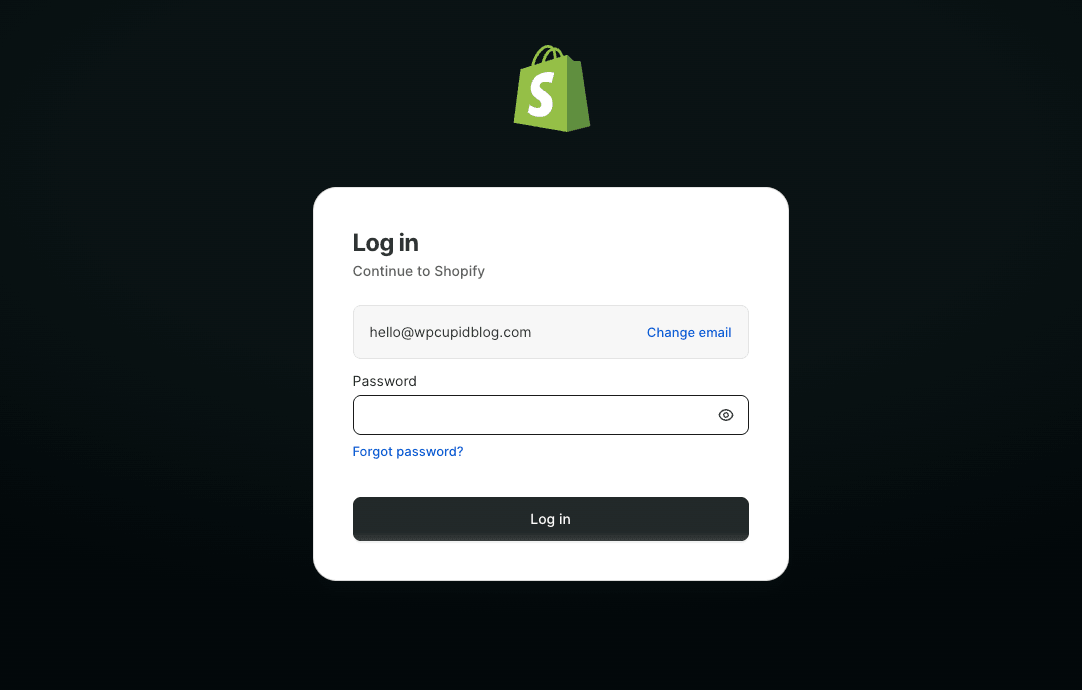
Visit Shopify to start your free trial, then follow along with each step in this guide as you build your store.
You’ll be asked to create an account using your email address or another supported sign-in method.
Shopify then walks you through a short onboarding process designed to personalize your experience.
Some of the questions include:
- Are you already selling?
- What products do you plan to sell?
- Where do you want to sell?
- What’s your primary business goal?
These questions simply customize your dashboard and can be updated later.
Pro Tip
I recommend using a business email address rather than your personal email whenever possible. It keeps customer communication, order notifications, and business messages organized as your store grows.
Step 2: Choose Your Store Name
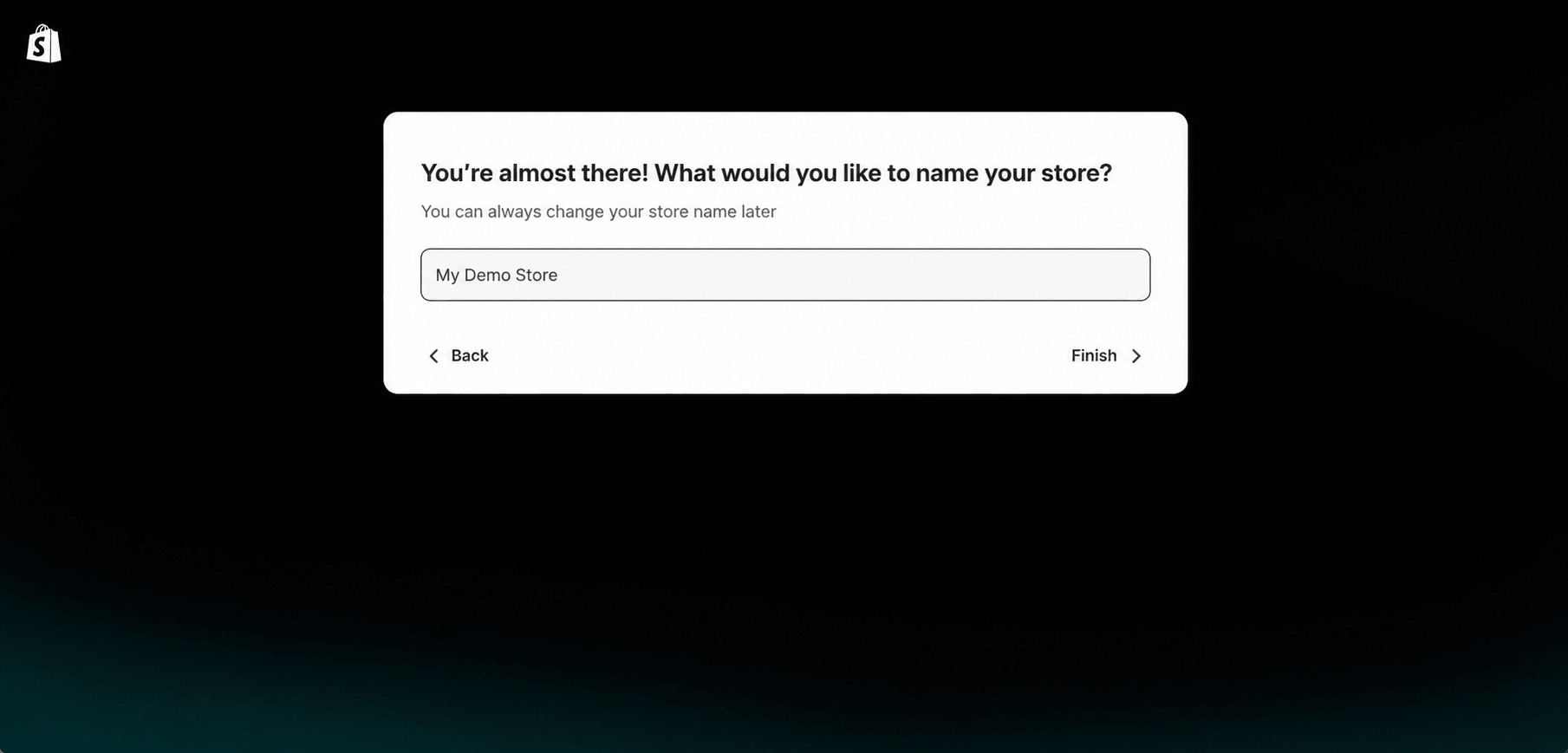
During setup, Shopify asks you to create a store name.
This doesn’t have to be permanent, so don’t let it become a roadblock.
A few best practices include:
- Keep it short.
- Avoid unusual spellings.
- Make it easy to pronounce.
- Check domain availability.
- Avoid trademarked names.
Remember that your brand becomes valuable because of the reputation you build—not because you found the “perfect” name on day one.
Step 3: Explore Your Shopify Dashboard
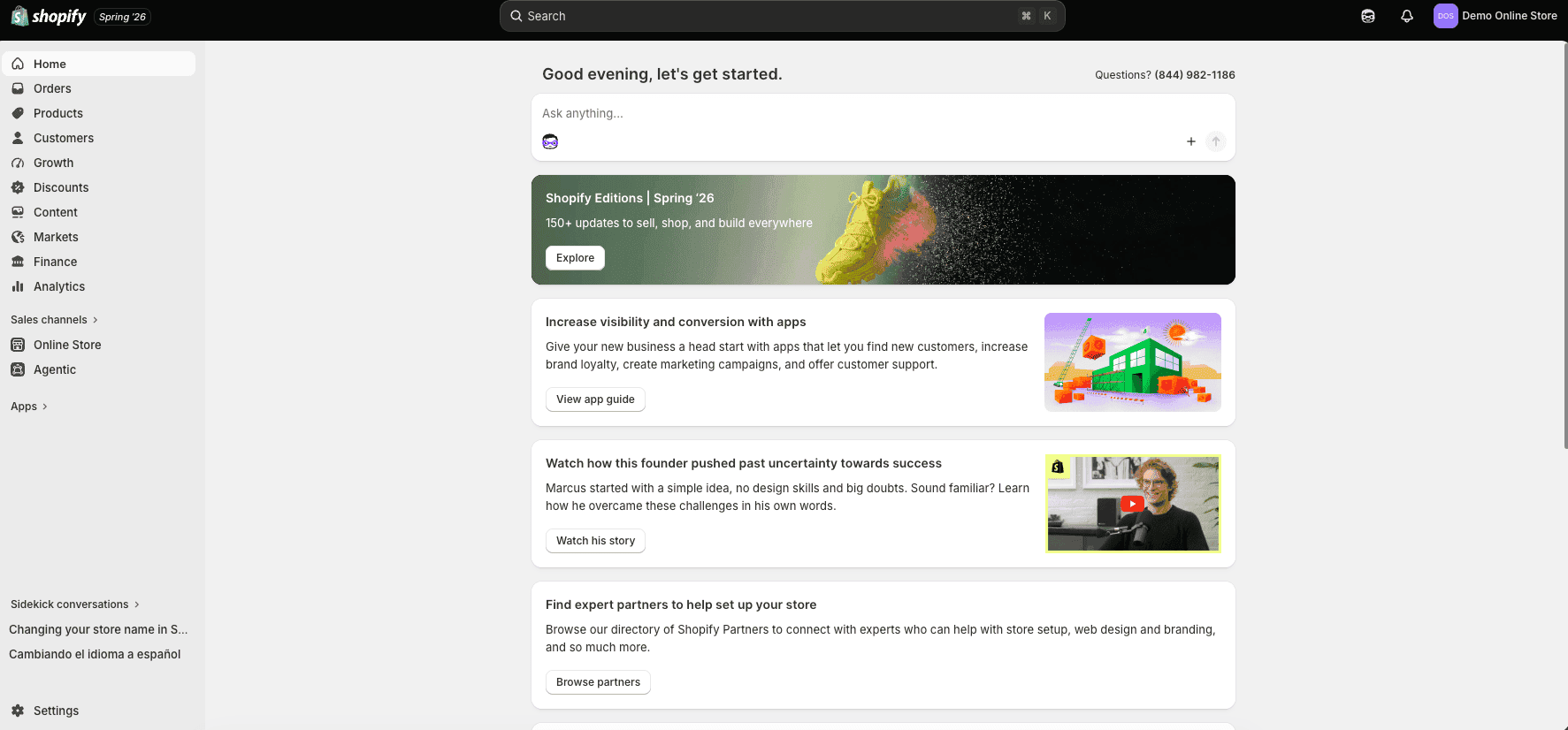
After completing the setup process, you’ll arrive at your Shopify admin dashboard.
At first glance, there are quite a few options available, but the interface is organized logically and becomes familiar very quickly.
The sections you’ll use most often include:
| Section | Purpose |
|---|---|
| Home | Setup tasks and store overview |
| Orders | Customer orders |
| Products | Products and collections |
| Customers | Customer management |
| Content | Pages and blog posts |
| Discounts | Promotions and coupon codes |
| Analytics | Store performance |
| Settings | Payments, shipping, taxes, domains and more |
One thing I noticed while testing Shopify is that spending just a few minutes clicking through each menu makes the rest of the setup process much easier because you already know where everything is located.
Before moving on, take a moment to familiarize yourself with the dashboard. It’ll save you time as you continue building your store.
Step 4: Choose a Shopify Theme
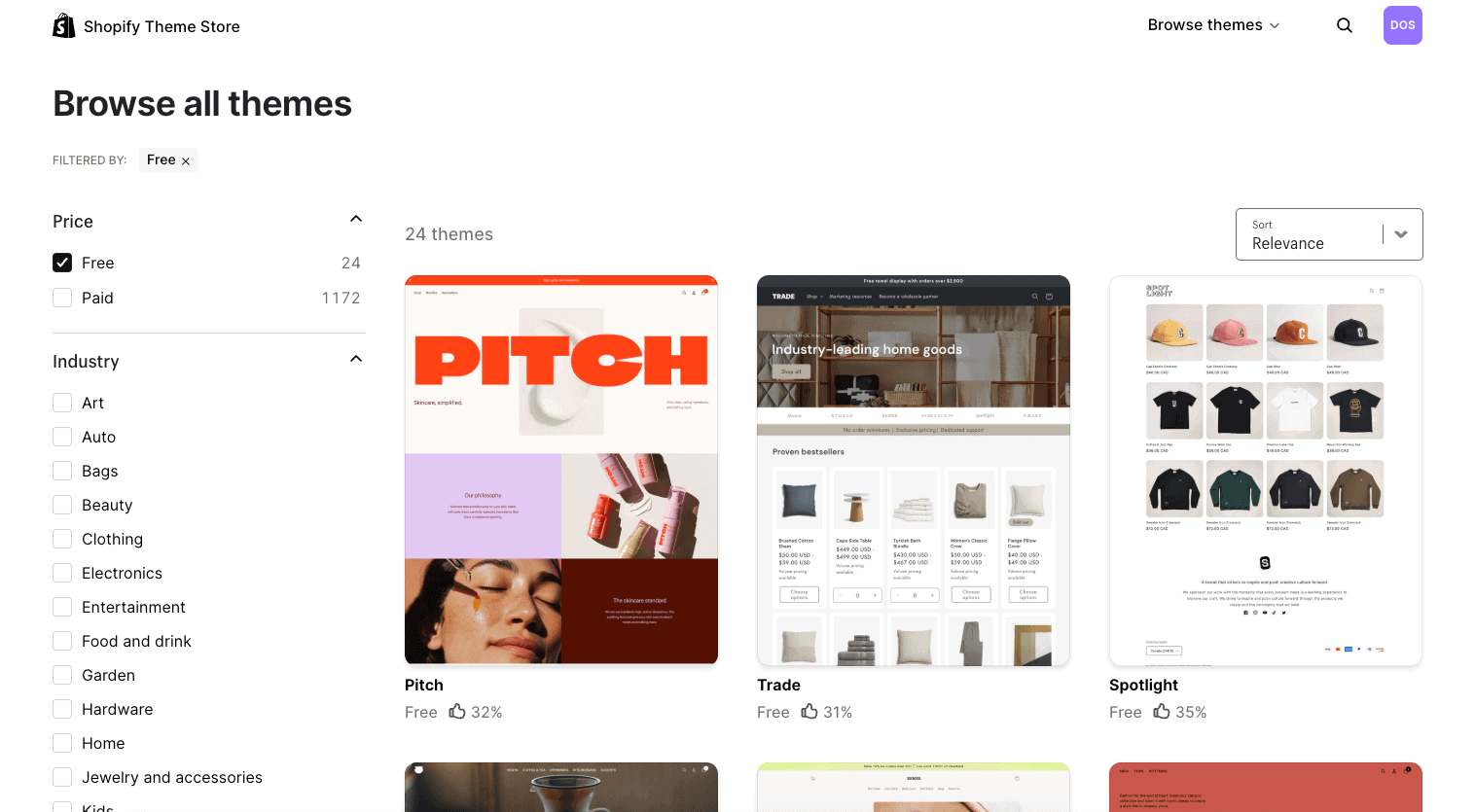
Now it’s time to make your store look like a real business.
Your Shopify theme controls your store’s design, including its layout, typography, colors, product pages, navigation, and overall customer experience.
One of the biggest misconceptions I see is that beginners think they need to purchase a premium theme before launching.
In my experience, that’s rarely necessary.
Shopify’s free themes are professionally designed, mobile responsive, and fast enough for the vast majority of new ecommerce stores.
You can always upgrade to a premium theme later if your business outgrows the features included with a free one.
Shopify also offers a built-in AI Store Builder that can generate personalized storefront designs from a short business description. Before choosing a theme manually, read my Shopify AI Store Builder review to see how the tool works, what it creates, how the generated designs can be customized, and which parts of the store still require manual setup.
How to Choose a Theme
From your Shopify dashboard:
- Click Online Store → Themes.
- Browse Shopify’s Theme Store.
- Preview several themes before making a decision.
- Click Add Theme.
- Select Customize to begin editing.
When comparing themes, look for:
- Mobile-friendly design
- Fast loading speed
- Easy navigation
- Product filtering
- Search functionality
- Flexible homepage sections
- Good product page layouts
Don’t choose a theme simply because it has flashy animations or dozens of customization options. A clean, easy-to-use website almost always performs better than one that’s overloaded with design elements.
Step 5: Customize Your Store
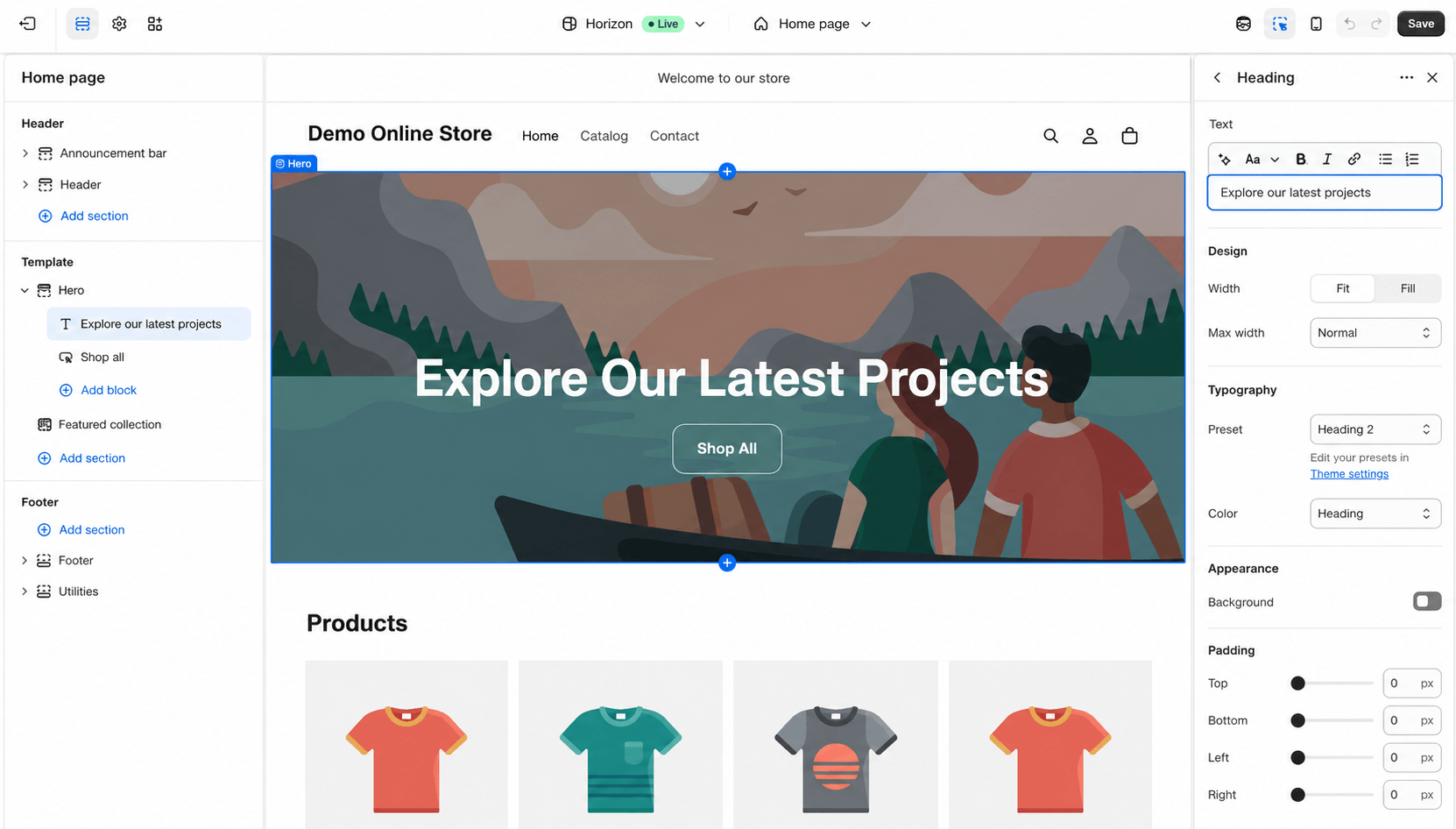
After selecting your theme, click Customize to open Shopify’s visual editor.
This is where you’ll build the look and feel of your website without writing a single line of code.
The editor allows you to customize nearly every part of your storefront, including:
- Homepage banner
- Logo
- Colors
- Fonts
- Buttons
- Featured collections
- Featured products
- Announcement bar
- Footer
- Navigation
As you make changes, you’ll see a live preview of your store.
Upload Your Logo
If you already have a logo, upload it now.
If you don’t, don’t let that delay your launch. A simple text-based logo looks far more professional than rushing to create an overly complicated design.
Choose Brand Colors
Limit yourself to two or three primary colors.
Too many colors can make a website feel cluttered and distract visitors from your products.
Consistency is far more important than complexity.
Build an Effective Homepage
Your homepage should answer three questions within a few seconds:
- What do you sell?
- Why should customers buy from you?
- What should they do next?
A simple homepage structure that works well for most Shopify stores looks like this:
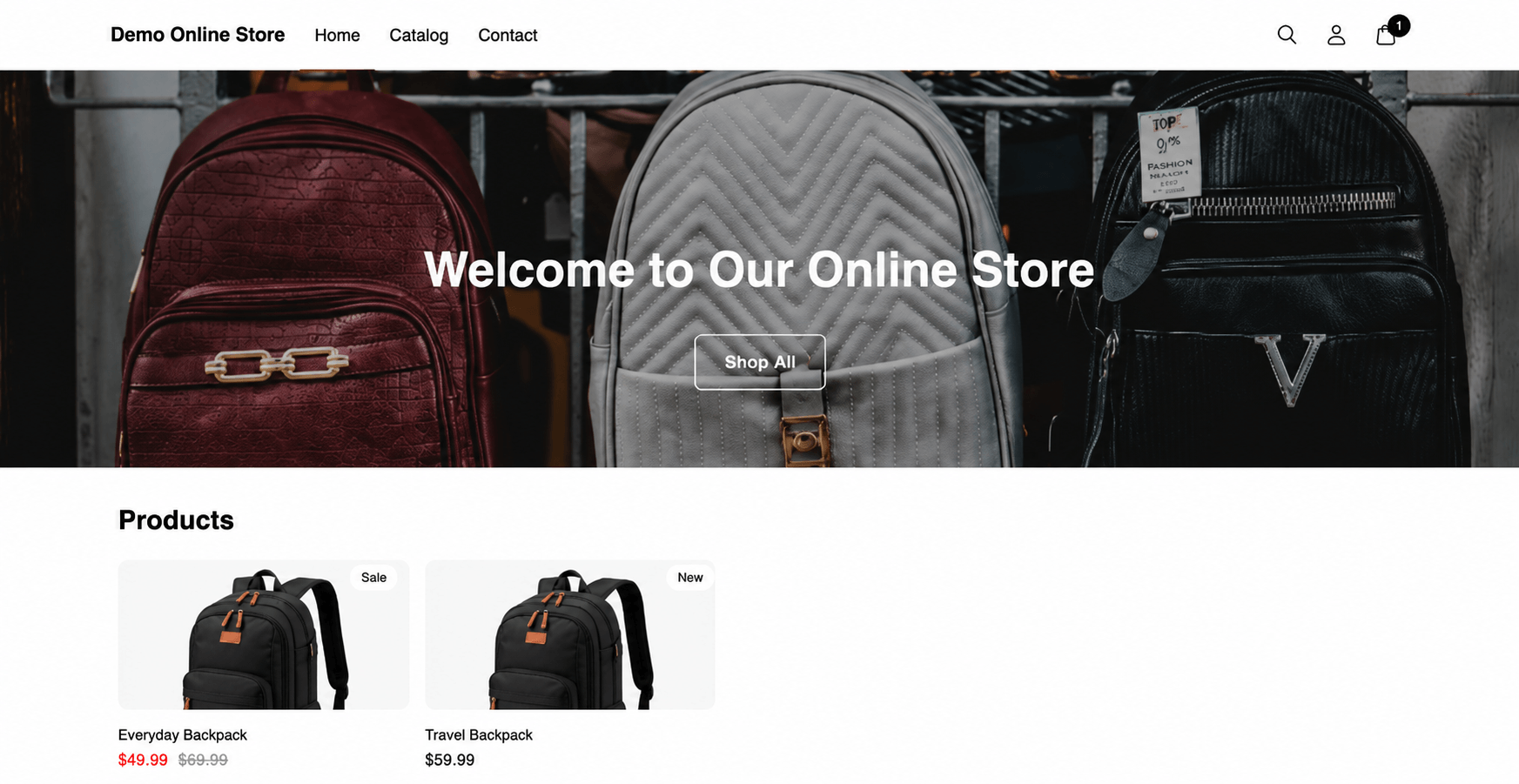
- Hero image with headline
- Shop Now button
- Featured collection
- Best-selling products
- Customer testimonials
- Benefits or guarantees
- Newsletter signup
- Footer
One thing I found while reviewing successful Shopify stores is that they don’t overwhelm visitors with dozens of sections. Instead, they focus on making it easy for shoppers to discover products and complete a purchase.
For additional design inspiration, explore the 25 best Shopify store examples to see how different stores approach homepage structure, branding, product photography, navigation, product pages, trust, and conversions. Identify the principles that fit your customers instead of copying another store’s design.
Step 6: Add Your Products
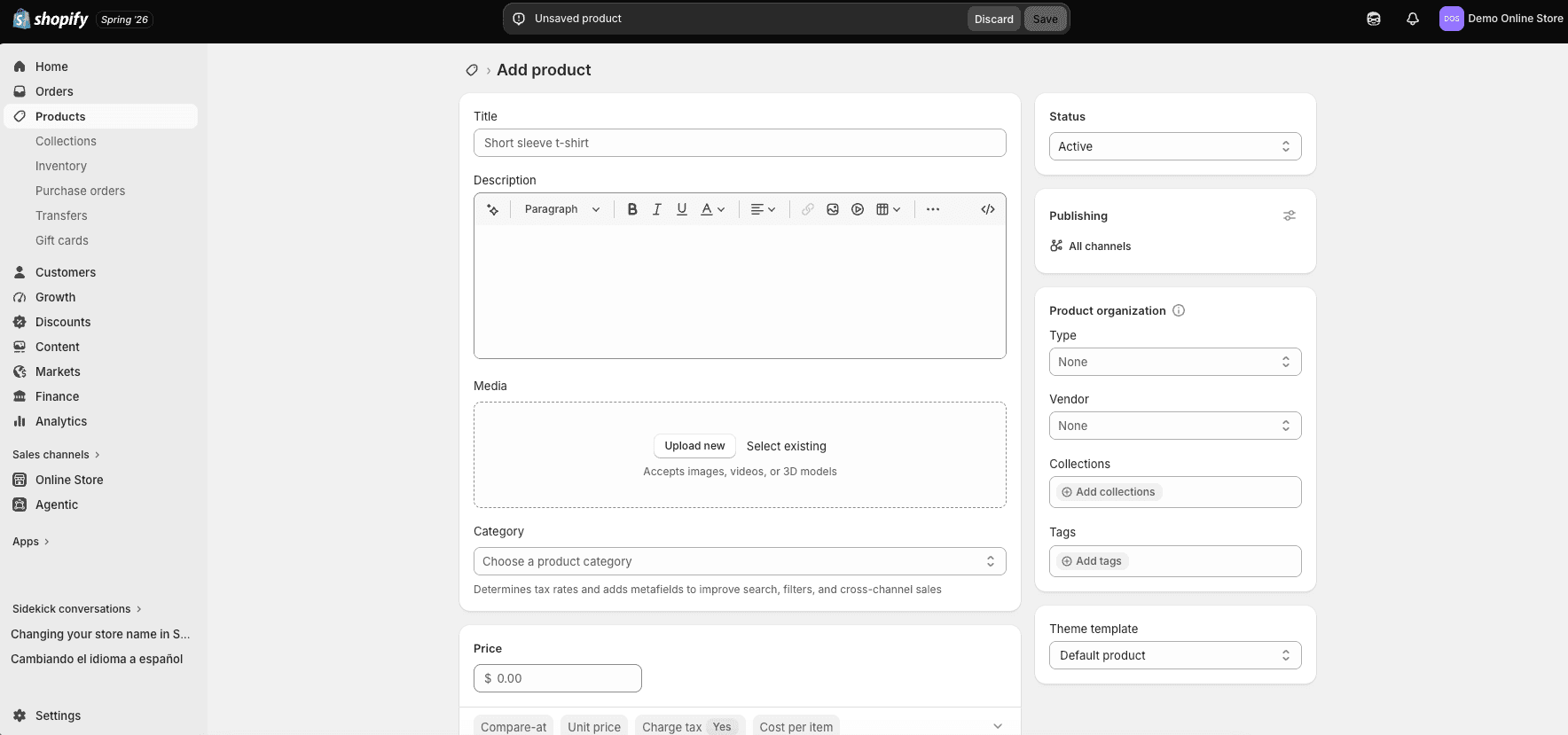
Products are the foundation of your Shopify store.
To add your first product:
- Go to Products.
- Click Add Product.
You’ll now complete the product information.
Product Title
Choose a title that’s both descriptive and easy to understand.
For example, instead of:
Coffee Mug
Use:
16 oz Insulated Stainless Steel Travel Coffee Mug
A more descriptive title helps customers understand what they’re buying and gives search engines additional context.
Product Description
Your product description should explain more than just features.
Instead of listing specifications, explain how the product benefits the customer.
For example:
Feature: Waterproof fabric
Benefit: Stay dry during unexpected rain while keeping your belongings protected.
Descriptions that focus on solving problems often convert better than descriptions that simply list technical details.
Upload Product Images
Product images can make or break a sale.
Whenever possible, include:
- Front view
- Back view
- Side view
- Close-up details
- Lifestyle photos showing the product in use
Use consistent lighting and backgrounds across all of your products to create a more professional shopping experience.
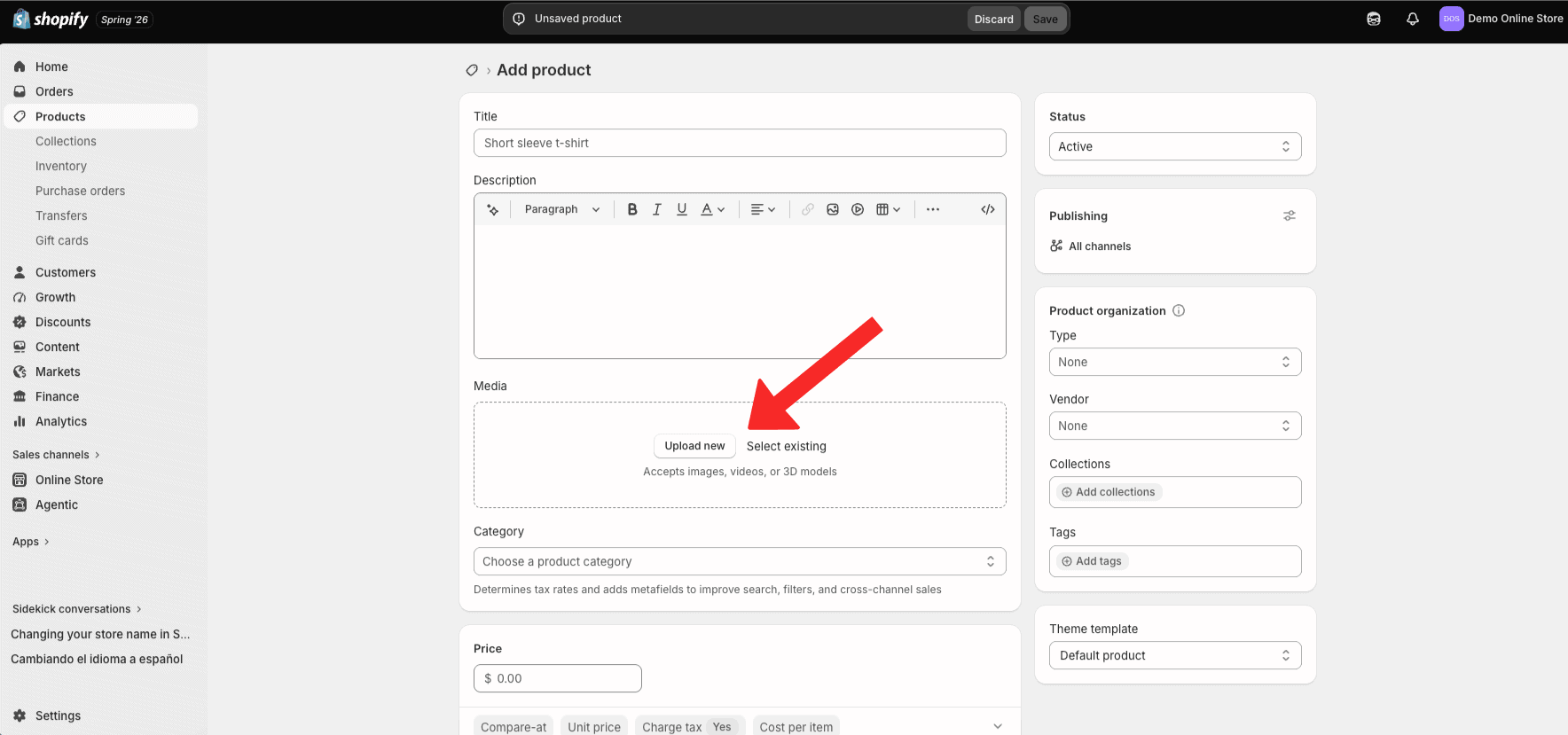
Set Pricing
Enter your selling price.
If you’re running a promotion, you can also use Shopify’s Compare-at Price feature to display the original price alongside the discounted price.
Just make sure any discounts you advertise are genuine and accurately represent the product’s previous pricing.
Track Inventory
Enable inventory tracking so Shopify automatically updates stock levels after each purchase.
This helps prevent overselling and keeps customers informed about product availability.
Step 7: Organize Products into Collections
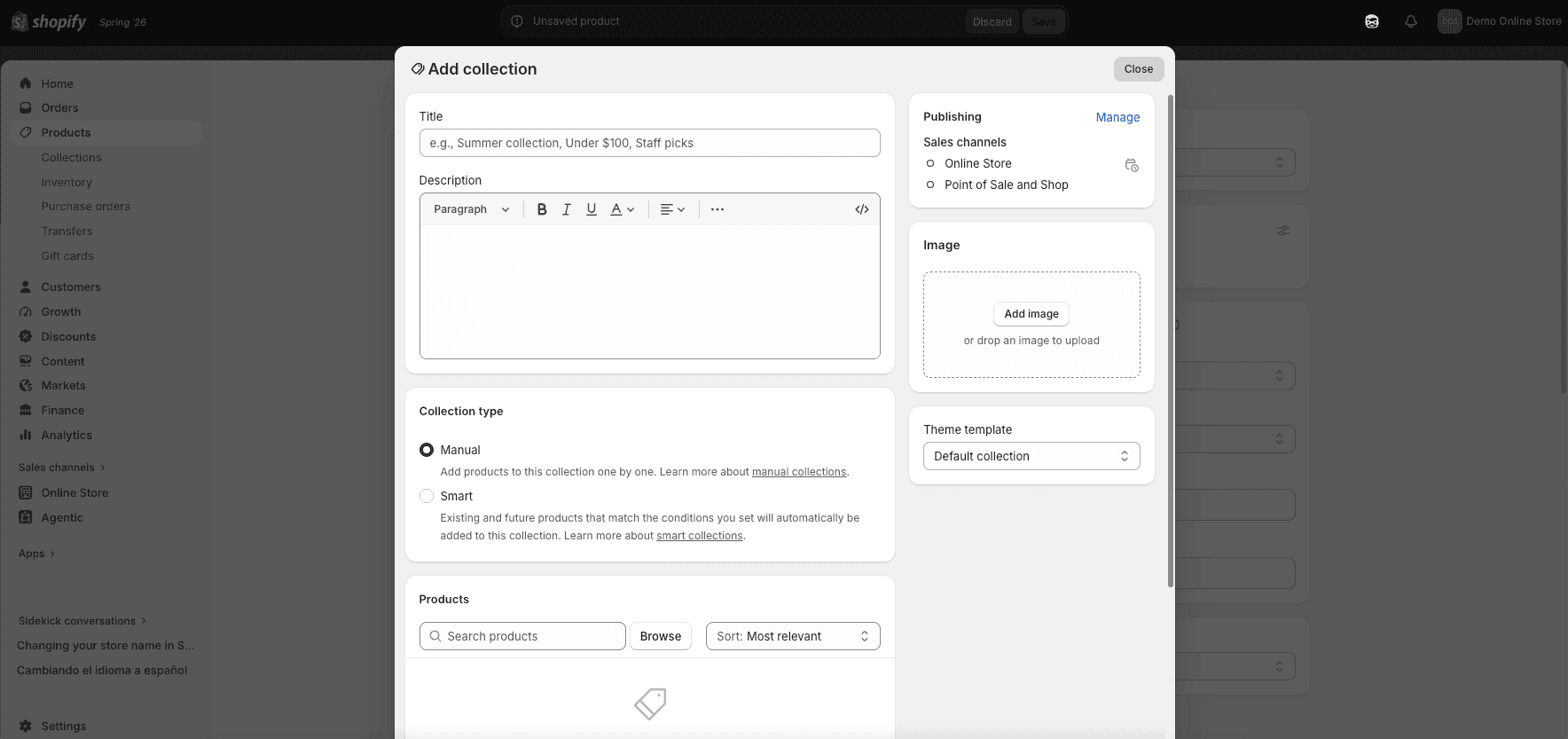
As your inventory grows, collections help customers find products more quickly.
Think of collections as categories within your store.
Examples include:
- New Arrivals
- Best Sellers
- Men’s Clothing
- Women’s Clothing
- Accessories
- Home Decor
- Gifts
- Sale Items
To create one:
- Go to Products → Collections.
- Click Create Collection.
Manual Collections
You choose exactly which products appear.
These work well for:
- Holiday promotions
- Featured products
- Seasonal collections
Automated Collections
Shopify automatically adds products based on rules you create.
For example:
- Product tag equals “Summer”
- Price greater than $50
- Product type equals “Shoes”
In my experience, automated collections save a tremendous amount of time once your store begins growing because new products are categorized automatically.
Step 8: Create Your Essential Pages
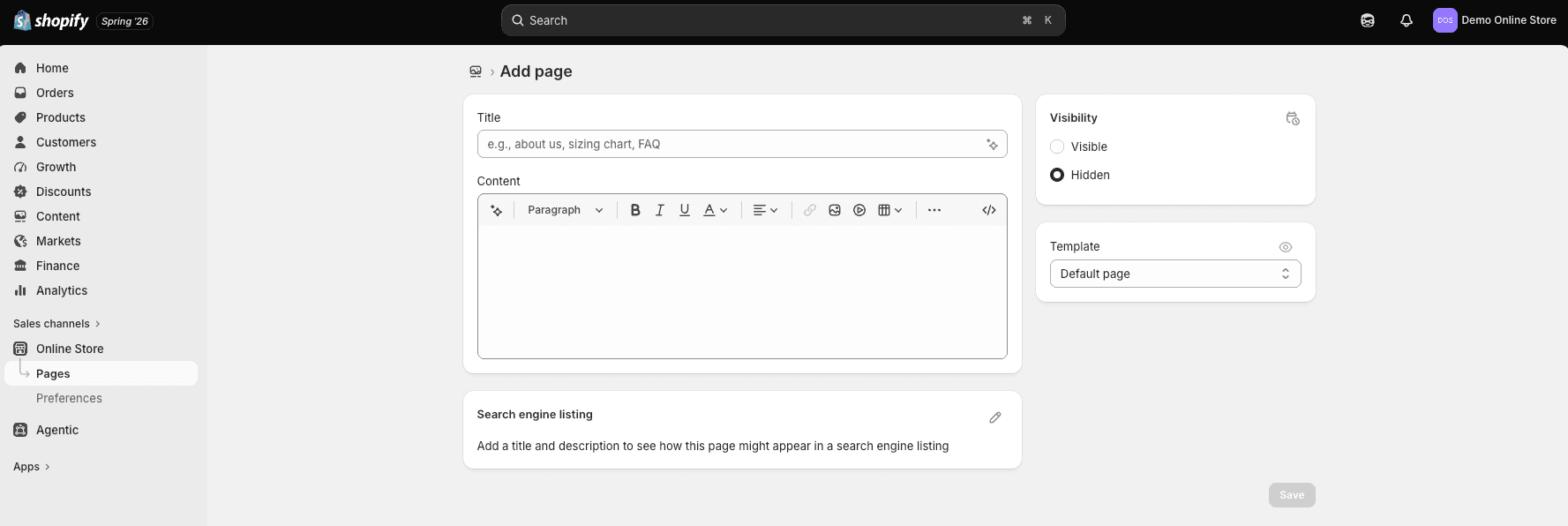
A professional Shopify store needs more than product pages.
Customers expect to find information about your business, how to contact you, and what happens after they place an order.
I recommend creating these pages before launching.
About Us
Share your story.
Explain:
- Why you started your business
- Your mission
- What makes your products unique
People enjoy buying from businesses they connect with, so don’t be afraid to make this page personal.
Contact Page
Include:
- Contact form
- Email address
- Business hours (if applicable)
- Links to your social media profiles
A visible contact page reassures customers that a real business stands behind the website.
FAQ Page
Answer common questions about:
- Shipping
- Returns
- Product information
- Payment methods
- Order tracking
A good FAQ page can reduce support requests while helping customers make purchasing decisions.
Store Policies
Go to Settings → Policies.
Shopify provides templates for:
- Privacy Policy
- Refund Policy
- Shipping Policy
- Terms of Service
Review each template carefully and customize it to reflect your business practices before publishing.
Step 9: Set Up Your Navigation
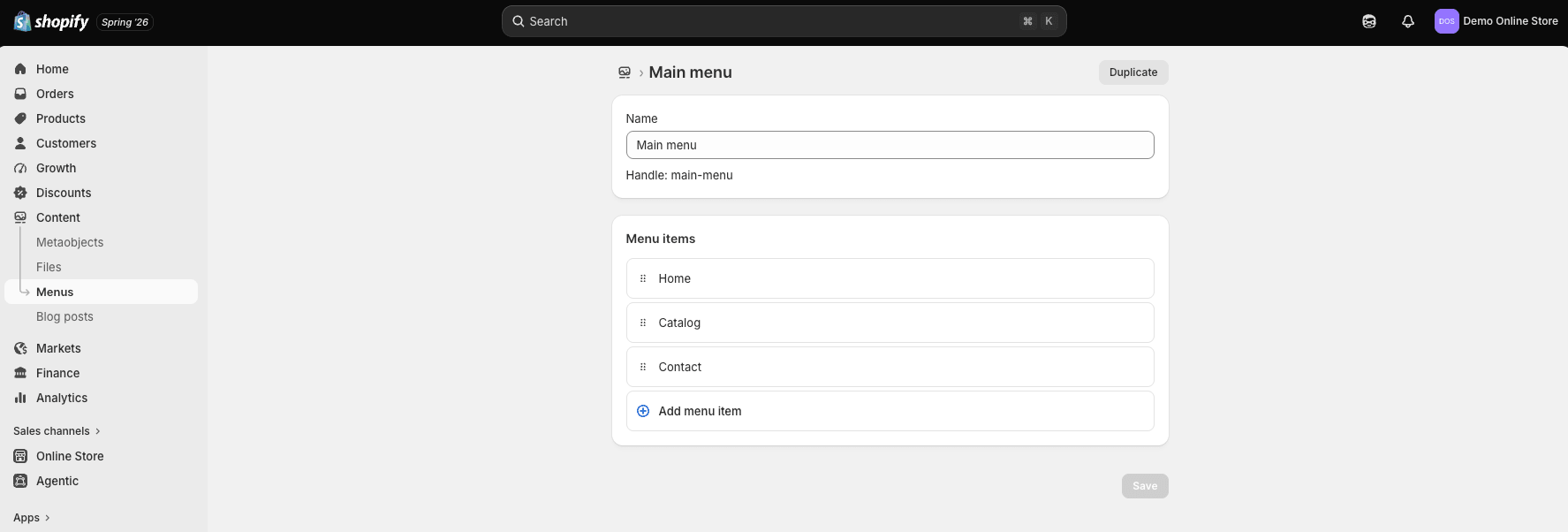
Good navigation helps visitors find products quickly and improves the overall shopping experience.
To edit your menus:
Go to Content → Menus (or Online Store → Navigation, depending on your Shopify version).
For most new stores, keep your primary navigation simple.
A typical menu includes:
- Home
- Shop
- About
- Contact
- FAQ
Avoid creating large, cluttered menus with dozens of links.
The easier your website is to navigate, the easier it is for visitors to become customers.
Step 10: Configure Payments, Shipping, Taxes, and Your Domain
Before launching, you’ll need to configure a few important settings that allow customers to complete purchases successfully.
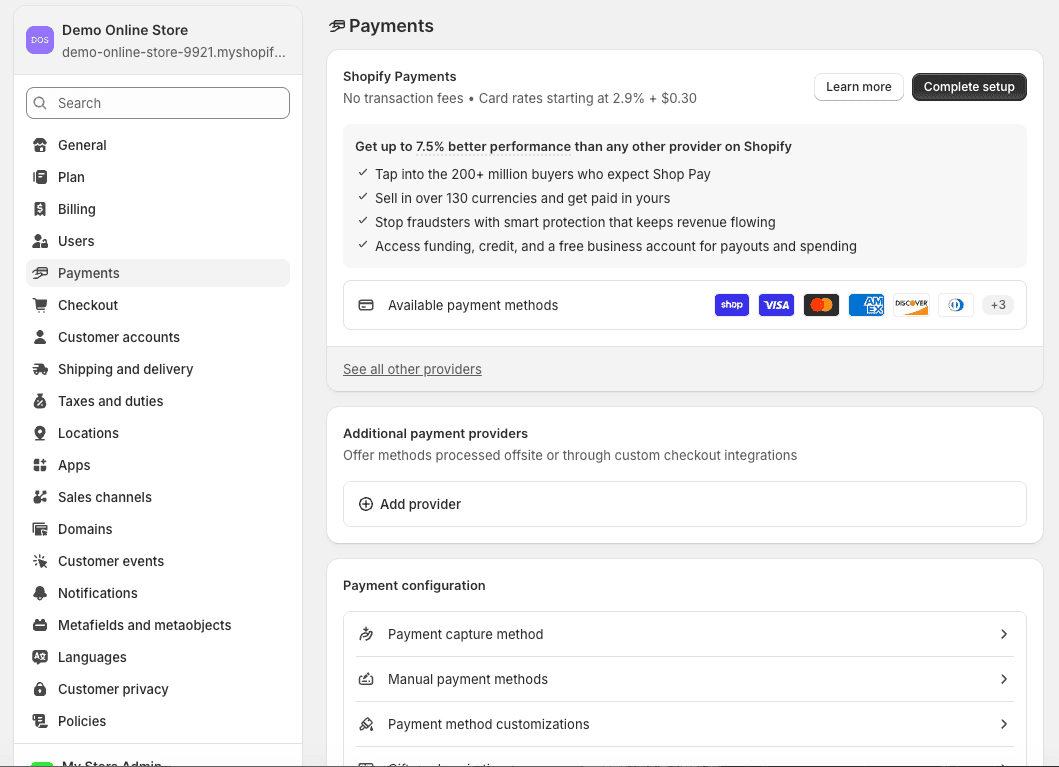
Set Up Payments
Navigate to:
Settings → Payments
If Shopify Payments is available in your country, it’s usually the easiest option to configure because it’s fully integrated with Shopify.
It also supports popular payment methods such as:
- Major credit cards
- Shop Pay
- Apple Pay
- Google Pay
If Shopify Payments isn’t available where you operate, Shopify supports numerous third-party payment gateways.
Configure Shipping
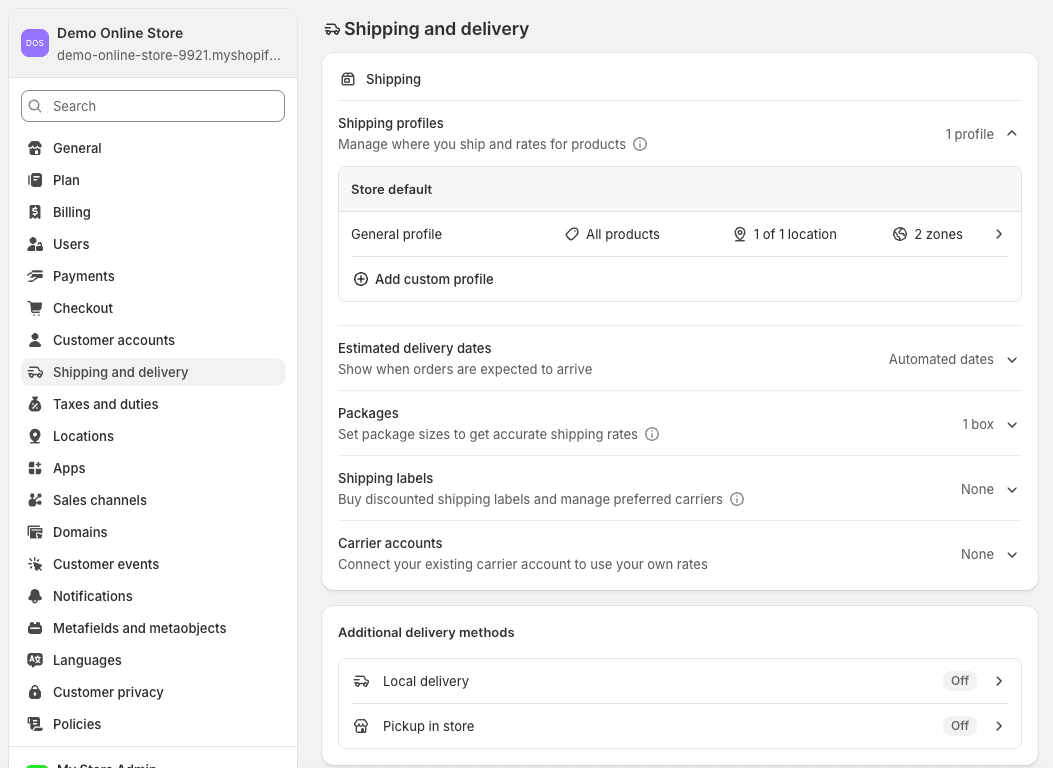
Go to:
Settings → Shipping and Delivery
Create shipping zones based on where you plan to sell.
Common shipping options include:
- Free shipping
- Flat-rate shipping
- Carrier-calculated shipping
- Local pickup
- Local delivery
When you’re first starting, simple shipping rules are often easier to manage than highly customized shipping rates.
Review Tax Settings
Go to:
Settings → Taxes and Duties
Shopify automatically calculates taxes in many regions, but it’s still important to review your settings carefully.
If you’re unsure about your tax obligations, consult a qualified tax professional to ensure everything is configured correctly.
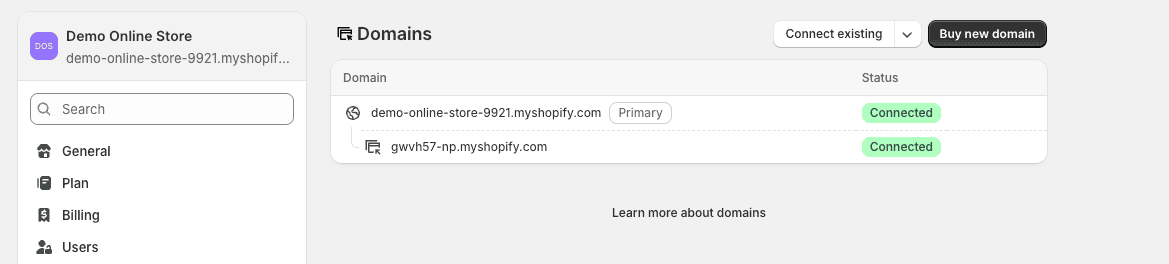
Connect a Custom Domain
While Shopify provides a temporary store URL during setup, you’ll want a custom domain before launching your business.
A domain such as:
yourstore.com
looks significantly more professional and is much easier for customers to remember.
You can either:
- Purchase a domain directly through Shopify, or
- Connect a domain you already own.
After testing both options, I found Shopify’s built-in domain setup to be the simplest for beginners, although connecting an existing domain is also straightforward if you’ve already registered one elsewhere.
At this point, your store is fully built and nearly ready to launch. In the next section, we’ll optimize it for search engines, install the most useful apps, prepare for launch, attract your first customers, avoid common beginner mistakes, and answer the most frequently asked Shopify questions.
Step 11: Optimize Your Shopify Store for SEO
Launching your store is exciting, but it won’t generate sales if people can’t find it.
Search engine optimization (SEO) helps your products appear in Google when people search for what you’re selling. While SEO takes time, setting your store up correctly from the beginning gives you a significant advantage.
One thing I found after reviewing successful Shopify stores is that many of them receive consistent traffic because they invested in SEO early rather than relying entirely on paid advertising.
For the complete process, follow my Shopify SEO guide for beginners, which covers keyword research, products, collections, internal linking, technical SEO, content, and performance measurement.
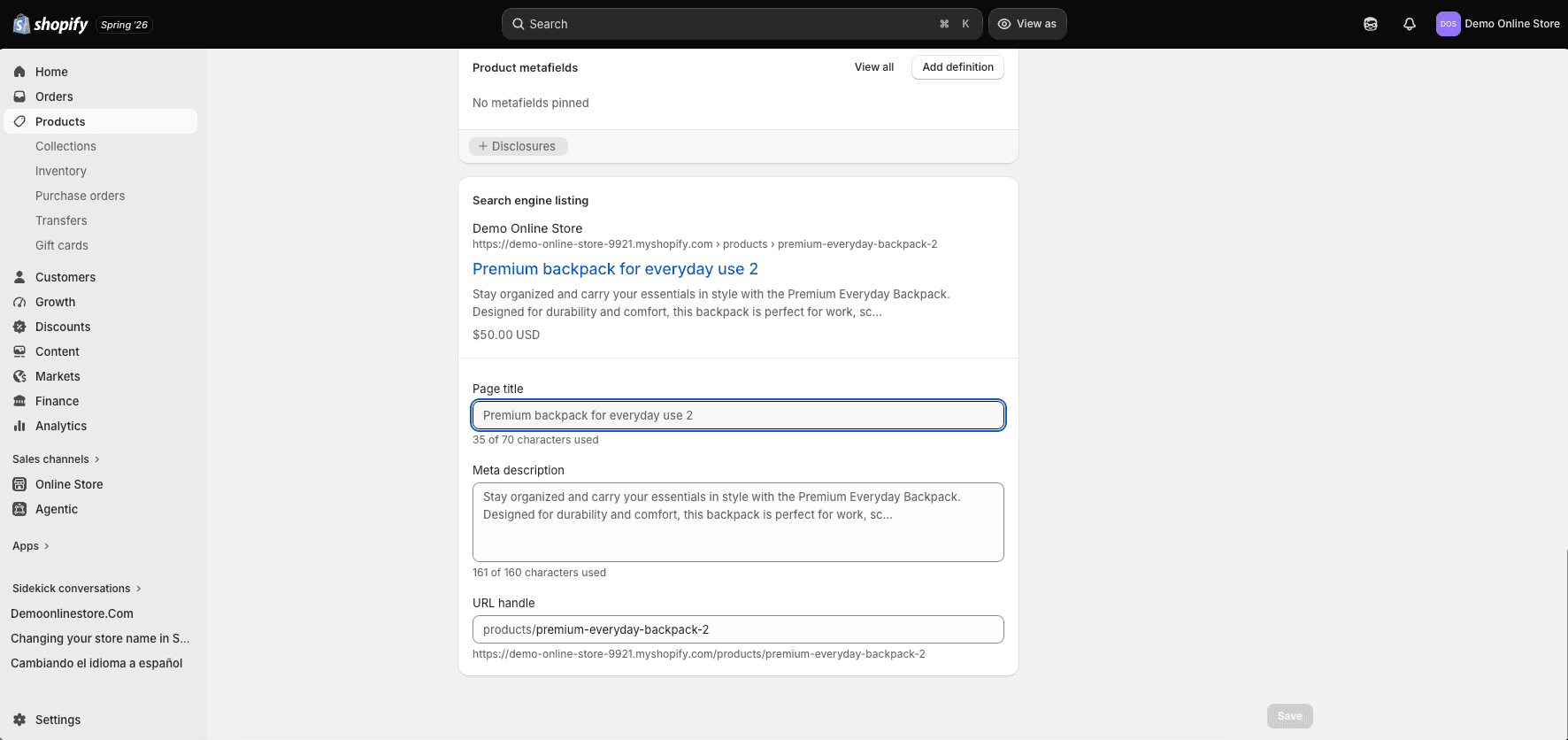
Edit Your SEO Titles and Meta Descriptions
Every important page should have a unique SEO title and meta description.
To edit them:
- Open a product, collection, or page.
- Scroll to the Search engine listing section.
- Click Edit website SEO.
A good SEO title should:
- Include your primary keyword naturally.
- Clearly describe the page.
- Stay around 50–60 characters.
Your meta description should briefly explain what visitors will find and encourage them to click.
Write Unique Product Descriptions
Avoid copying product descriptions from manufacturers or suppliers.
Duplicate content makes it more difficult for search engines to understand why your page deserves to rank.
Instead, write descriptions that answer questions such as:
- Who is this product for?
- What problem does it solve?
- Why is it better than similar products?
- How should customers use it?
Helpful product descriptions improve both SEO and conversions.
Optimize Product Images
Before uploading product images:
- Compress large files.
- Use descriptive filenames.
- Add meaningful alt text.
For example:
Filename
black-leather-wallet.webp
Alt Text
Black leather RFID wallet with multiple card slots
This improves accessibility while giving search engines additional information about your products.
Start a Shopify Blog
One of Shopify’s most underrated features is its built-in blog.
Publishing helpful articles can attract visitors before they’re ready to buy.
For example, if you sell fitness equipment, you could write articles like:
- Home Gym Setup Guide
- Adjustable Dumbbells vs Fixed Dumbbells
- Best Workout Equipment for Small Spaces
These articles build trust, target informational keywords, and create opportunities to link naturally to your products.
If you want long-term organic traffic, blogging is one of the best investments you can make.
Step 12: Install Only the Apps You Need
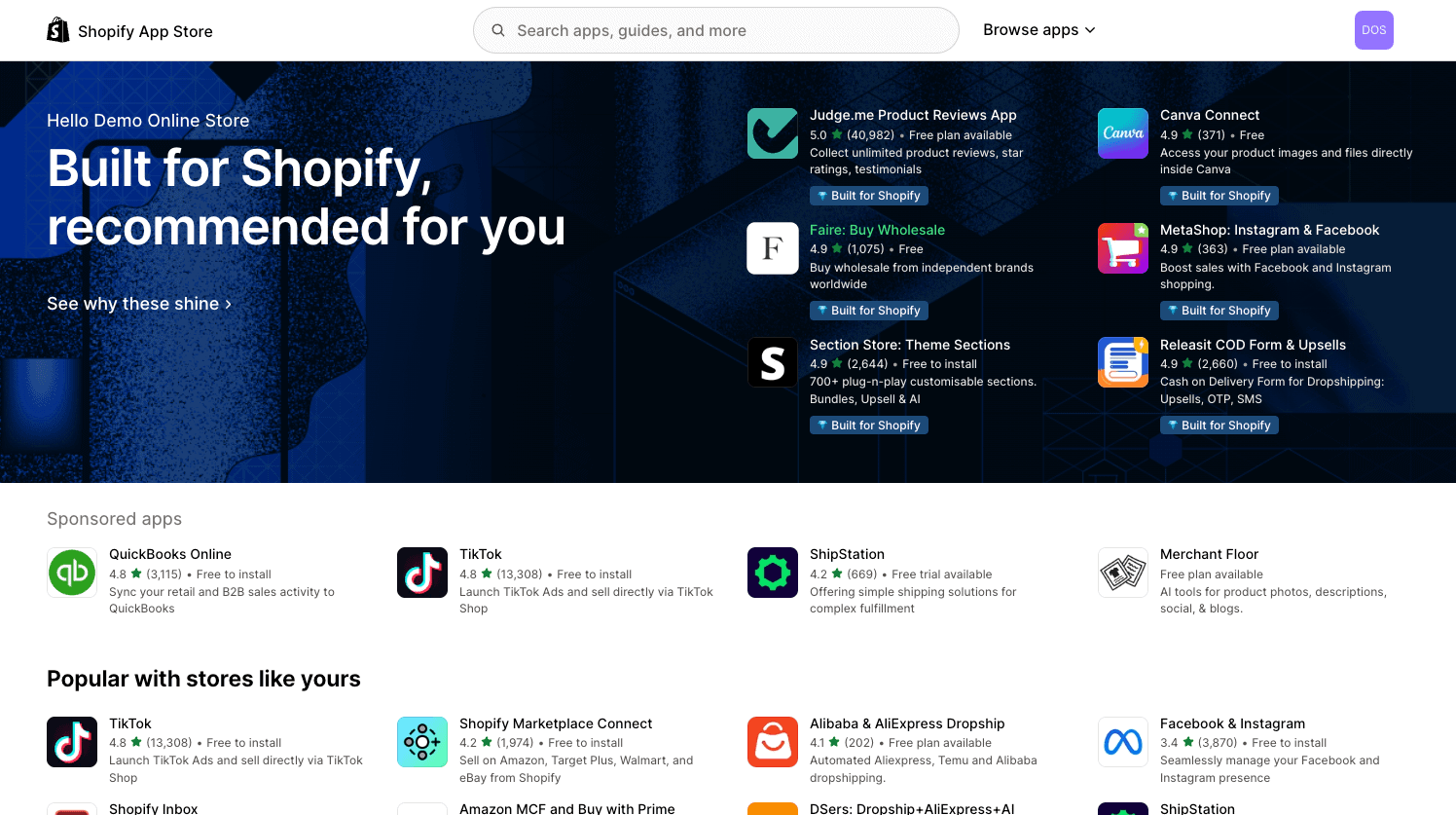
Shopify’s App Store includes thousands of apps, but installing too many can make managing your store more complicated and increase your monthly costs.
When I first started exploring Shopify, I found it tempting to install apps for every possible feature. After testing different setups, I realized that simpler stores are often easier to manage and provide a better experience for both the owner and the customer.
For most beginners, I recommend starting with only a few essentials.
| App | Purpose |
|---|---|
| Shopify Email | Email marketing |
| Shopify Inbox | Customer chat |
| Judge.me | Product reviews |
| DSers | Dropshipping (optional) |
As your business grows, you’ll have a better idea of which additional tools are worth adding.
Step 13: Test Your Store Before Launching
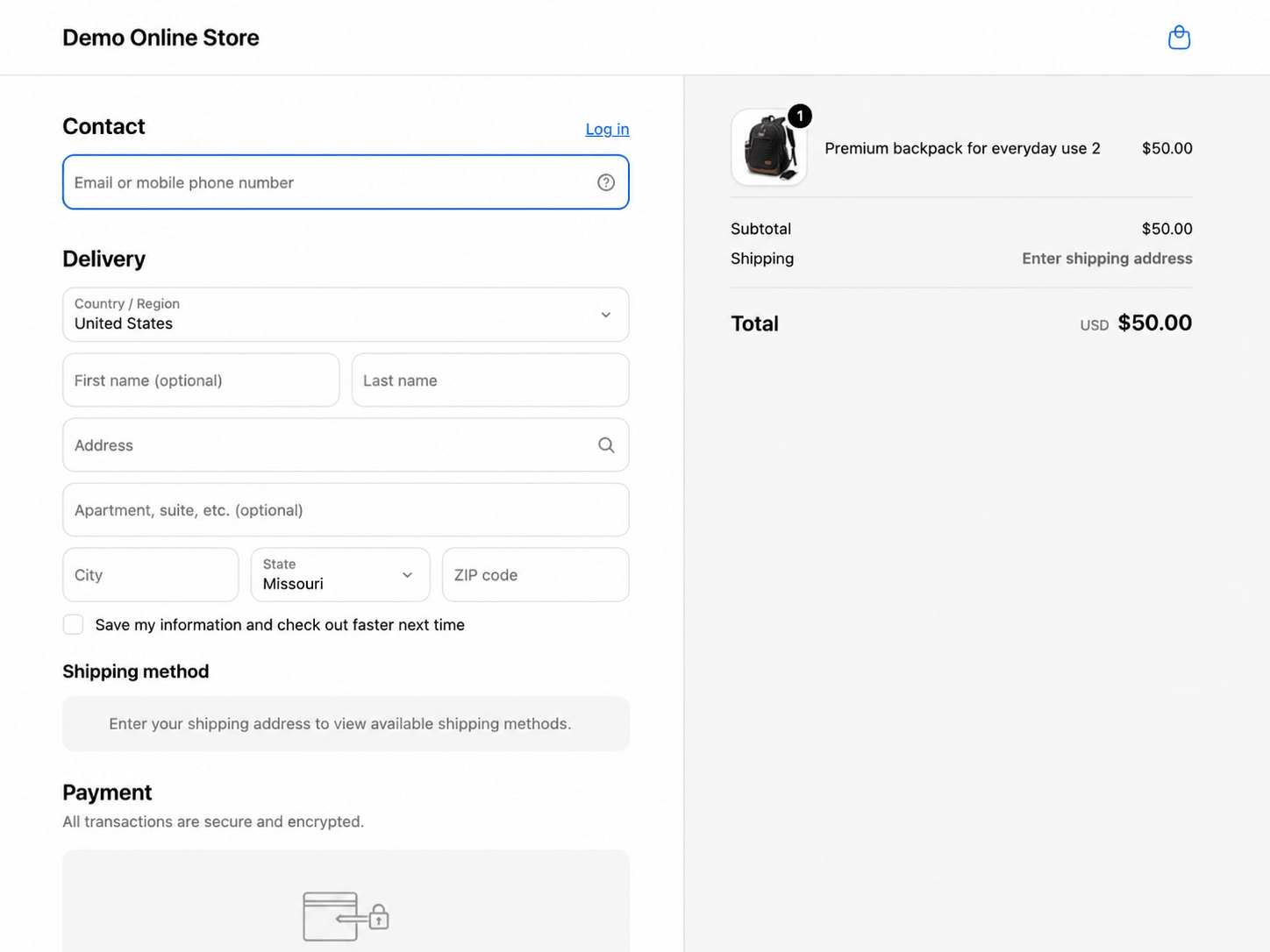
Before announcing your website to the world, go through the entire shopping experience as if you were a customer.
Check each of the following:
- Homepage loads correctly.
- Navigation works.
- Products display properly.
- Images load quickly.
- Discount codes apply correctly.
- Shipping rates calculate accurately.
- Taxes are correct.
- Checkout functions properly.
- Order confirmation emails are received.
If possible, place a test order.
It’s much better to discover a problem yourself than have your first customer find it.
I also recommend testing your store on both desktop and mobile devices. Since many shoppers browse and purchase on their phones, your mobile experience should be just as polished as your desktop version.
Step 14: Launch Your Shopify Store
Once everything has been tested, you’re ready to launch.
Before removing your storefront password, use the complete Shopify store launch checklist for a more detailed 25-step review, then confirm the items below.
Shopify Launch Checklist
- Connect your custom domain.
- Upload your logo.
- Complete your homepage.
- Add all products.
- Organize collections.
- Publish your About and Contact pages.
- Add your store policies.
- Configure payments.
- Configure shipping.
- Review tax settings.
- Test your checkout.
- Optimize SEO titles and meta descriptions.
- Verify your navigation.
If everything looks good, remove your storefront password and officially launch your store.
Congratulations—you now have a live ecommerce website.
Step 15: How to Get Your First Customers
Building your store is only the first step.
The next challenge is attracting visitors and turning them into customers.
Here are a few marketing strategies that work well for new Shopify stores.
Search Engine Optimization
Optimize your products, collections, and blog posts around keywords your customers are already searching for.
SEO usually takes time, but it can become one of your most reliable traffic sources.
Pinterest is an excellent platform for many ecommerce businesses because pins can continue driving traffic for months after they’re published.
If your products fit categories like home decor, fashion, beauty, recipes, DIY, gifts, or lifestyle, Pinterest is worth considering.
Social Media
Rather than trying to grow every platform at once, focus on one or two where your ideal customers spend time.
Post consistently, showcase your products, and interact with your audience.
Email Marketing
Start building an email list from day one.
Even if you only have a handful of subscribers, your email list is one marketing asset you fully control.
Offer a discount or helpful resource to encourage visitors to subscribe.
For the complete customer-acquisition process, follow my guide to getting your first sale on Shopify, including offer validation, audience building, outreach, traffic strategies, funnel measurement, and a 30-day action plan.
Common Shopify Mistakes to Avoid
Over the years, I’ve noticed that many new store owners make the same mistakes.
Avoiding them can save you a lot of frustration.
Waiting for Perfection
Your store doesn’t need to be perfect before launching.
Launch once the fundamentals are complete and continue improving over time.
Buying Too Many Apps
More apps don’t automatically make a better store.
Only install tools that solve a specific problem.
Ignoring Mobile Users
Always review your website on a smartphone before publishing changes.
Using Poor Product Photos
Professional-looking images build trust and often influence purchasing decisions more than elaborate website designs.
Forgetting to Test Checkout
A broken checkout can cost you sales immediately.
Always place at least one test order before launching.
For a more complete review before launch, read my Shopify mistakes to avoid guide covering products, store design, apps, checkout, shipping, SEO, mobile usability, and ongoing maintenance.
Shopify Alternatives
Although Shopify is my recommendation for most beginners, it isn’t the only ecommerce platform available.
| Platform | Best For |
|---|---|
| Shopify | Most online stores |
| WooCommerce | Existing WordPress websites |
| Wix | Small ecommerce websites |
| Squarespace | Creatives and portfolios |
| BigCommerce | Larger online businesses |
If you’re already committed to WordPress and enjoy managing your own website, WooCommerce is a strong alternative.
Read my complete Shopify vs WooCommerce comparison to understand the differences in pricing, setup, customization, checkout, SEO, ownership, and ongoing maintenance.
However, if your goal is launching an online store as quickly and easily as possible, Shopify remains my preferred recommendation.
If Etsy is one of the alternatives you are considering, read my Shopify vs Etsy guide for a detailed comparison of costs, control, marketplace discovery, branding, and long-term growth.
Frequently Asked Questions
Can I start a Shopify store without inventory?
Yes. Many entrepreneurs use dropshipping or print-on-demand services, allowing products to be manufactured or shipped after a customer places an order.
Do I need an LLC to sell on Shopify?
Not necessarily.
Many people begin as sole proprietors and form an LLC later. Requirements vary depending on where you live, so research your local regulations or speak with a qualified professional if you’re unsure.
How much money do I need to start a Shopify store?
The amount depends on your business model.
If you’re selling your own inventory, you’ll need to budget for products and marketing.
If you’re using print-on-demand or dropshipping, startup costs are often much lower because you don’t purchase inventory upfront.
Can I use my own domain?
Yes.
You can purchase a domain through Shopify or connect one you’ve already registered with another provider.
Is Shopify good for beginners?
Absolutely.
One of Shopify’s biggest strengths is its ease of use. Most beginners can build a professional-looking online store without needing technical skills.
Is Shopify good for SEO?
Yes.
Shopify includes built-in SEO features such as customizable title tags, meta descriptions, image alt text, SSL security, mobile-friendly themes, and clean URLs.
Like any platform, your results depend on creating high-quality content and providing a great user experience.
Final Verdict
If you’re wondering whether Shopify is the right platform for your first online store, my answer is yes for most people.
After testing Shopify and comparing it with other ecommerce platforms, I believe it offers one of the best combinations of simplicity, flexibility, and long-term scalability available today.
What I appreciate most is that Shopify removes much of the technical work involved in building an ecommerce website. Instead of spending your time managing hosting, installing software, or troubleshooting security issues, you can focus on what actually grows a business—finding great products, serving your customers, and improving your marketing.
Remember, your first store doesn’t need to be perfect.
It simply needs to be professional, trustworthy, and ready to accept orders.
As your business grows, you can continue improving your design, expanding your product catalog, refining your SEO strategy, and experimenting with new marketing channels.
If you’ve been waiting for the right time to start your online business, this is a great opportunity to take the first step.

- Shopify vs WordPress (2026): Which Is Better for Your Website? - September 15, 2026
- Shopify SEO for Beginners: Complete Guide (2026) - September 17, 2026
- Shopify vs WooCommerce (2026): Which Is Better? - September 17, 2026

Leave a Reply
Want to join the discussion?Feel free to contribute!