
Shopify Store Launch Checklist: 25 Essential Steps
This Shopify store launch checklist covers the 25 checks I would complete before removing a store password and inviting customers to purchase. It moves from business settings and products through shipping, policies, mobile usability, analytics, checkout, and launch-day monitoring.
If you are still building, start Shopify’s free trial and use the protected store as a working draft. A trial is time for configuration and testing, not a reason to rush a store live before it is ready.
The goal is not perfection. The goal is to prevent avoidable confusion, confirm that the order and fulfillment process works, and make sure your promises match what the business can deliver.
Key Takeaways
- Complete the checklist as a customer on both desktop and a real mobile phone.
- Verify every product, price, variant, image, inventory quantity, shipping promise, and policy.
- Place at least one approved test order and follow it through confirmation, fulfillment, cancellation, and refund steps.
- Do not assume tax, shipping, payment, or legal defaults match your business and selling locations.
- Keep apps limited to tools with a defined purpose, owner, cost, and testing procedure.
- Install analytics before launch so the first visits and orders are measurable.
- Launch to a manageable audience, monitor the store, and fix important issues before increasing traffic.
When Should You Use This Checklist?
Use the full checklist before the first public launch, after moving a store from another platform, and before a major redesign or selling-region expansion. Repeat the relevant sections whenever you change payments, shipping, taxes, theme code, apps, domains, or the fulfillment process.
If the business is still at the planning stage, begin with the complete how to start an online store guide. It covers product validation, startup costs, profit margins, fulfillment, Shopify setup, testing, launch, and customer acquisition.
Shopify’s official new-store checklist notes that policies, contact information, and shipping rates should be finalized before going live. It also explains that a subscription plan is required to remove the online-store password during a trial.
Shopify Launch Checklist at a Glance
| Phase | Checklist Items | Owner |
|---|---|---|
| Foundation | Business, plan, domain, settings, access | Store owner |
| Catalog | Products, variants, images, collections, inventory | Merchandising and operations |
| Storefront | Homepage, pages, policies, mobile, SEO | Content and design |
| Checkout | Payments, tax, shipping, email, apps | Finance and operations |
| Launch | Analytics, test order, marketing, support, monitoring | Store owner and team |
Foundation and Account Setup
1. Confirm the business and legal foundation
Confirm the business name, ownership, required registrations or licenses, banking, accounting workflow, insurance, supplier agreements, and any product-specific obligations. Requirements depend on the products and locations involved. Use qualified local legal, tax, and accounting help instead of assuming Shopify settings create compliance.
If you are still deciding between an independent storefront and an established marketplace, review the Shopify vs Etsy comparison before committing resources. The checklist below assumes Shopify will be the primary storefront.
2. Select a Shopify plan and verify billing
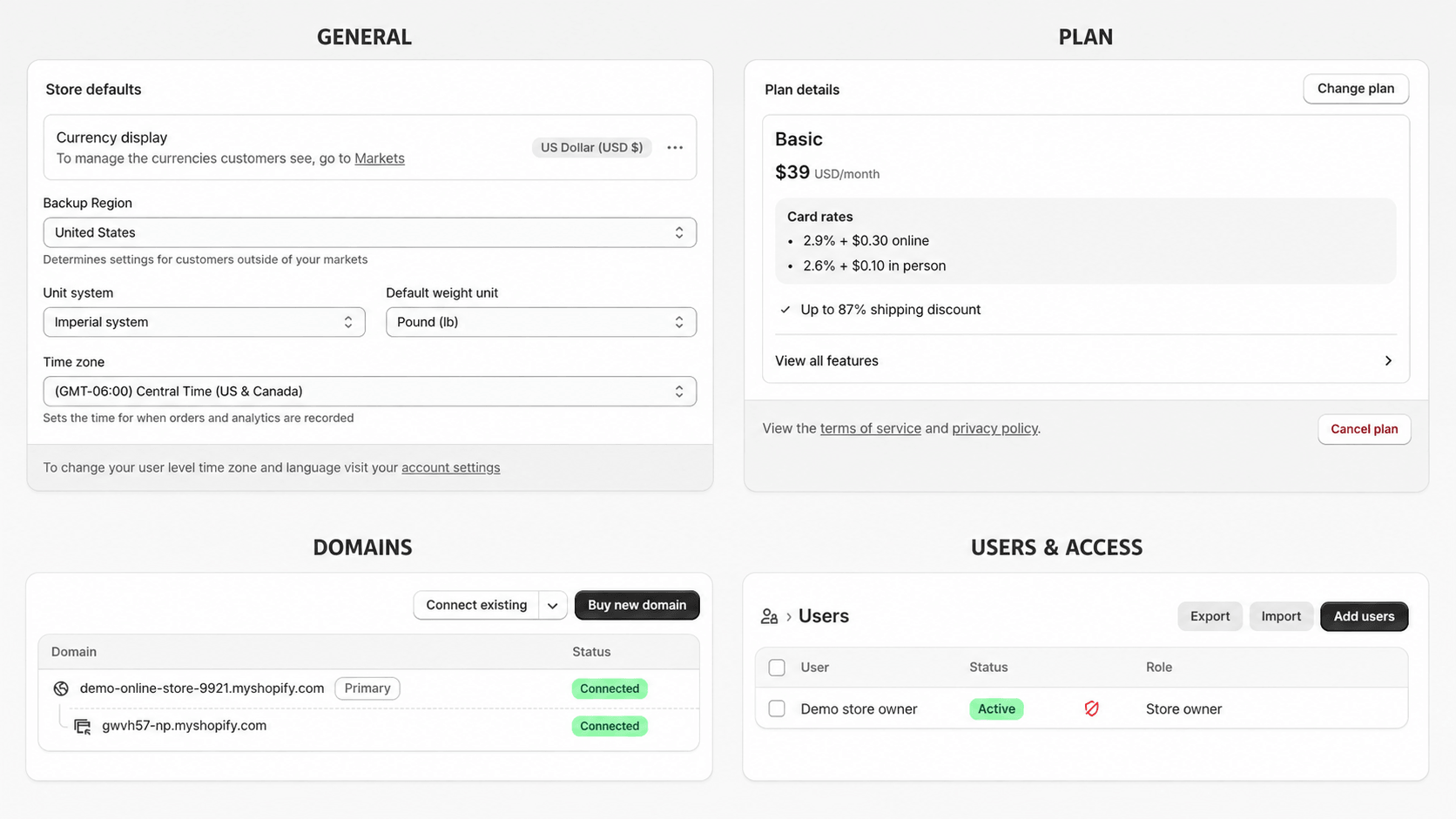
Select a plan based on the features, users, reporting, markets, payment setup, and operating needs you have now. The Basic plan is usually the practical starting point for a new single-store business. Review the current Shopify pricing guide, confirm the checkout total, and document app charges and renewal terms.
3. Connect and verify the custom domain
Connect the intended domain, confirm its Shopify status, choose the primary domain, and test both the root and www versions. Check HTTPS, redirects, common misspellings you own, and branded email authentication. Avoid announcing a domain until it resolves consistently and the correct store is visible.
4. Review every store detail and regional setting
Check the legal and customer-facing business name, email, phone, address, time zone, store currency, unit system, order ID format, customer accounts, markets, languages, and checkout contact method. A wrong time zone or sender address can affect reports, notifications, and support before you notice it.
5. Secure accounts and assign access
Use unique passwords and multifactor authentication, give each person an individual account, and provide only the access needed for the role. Remove old collaborators and unused app access. Document who owns the domain, Shopify account, payment provider, email platform, social accounts, analytics, and recovery methods.
Products and Catalog
Before working through the catalog checks, confirm that the products fit a defined customer, solve a recognizable problem, and leave room for sustainable margins. My Shopify product-ideas guide can help you compare and validate possible offers.
6. Audit every product listing
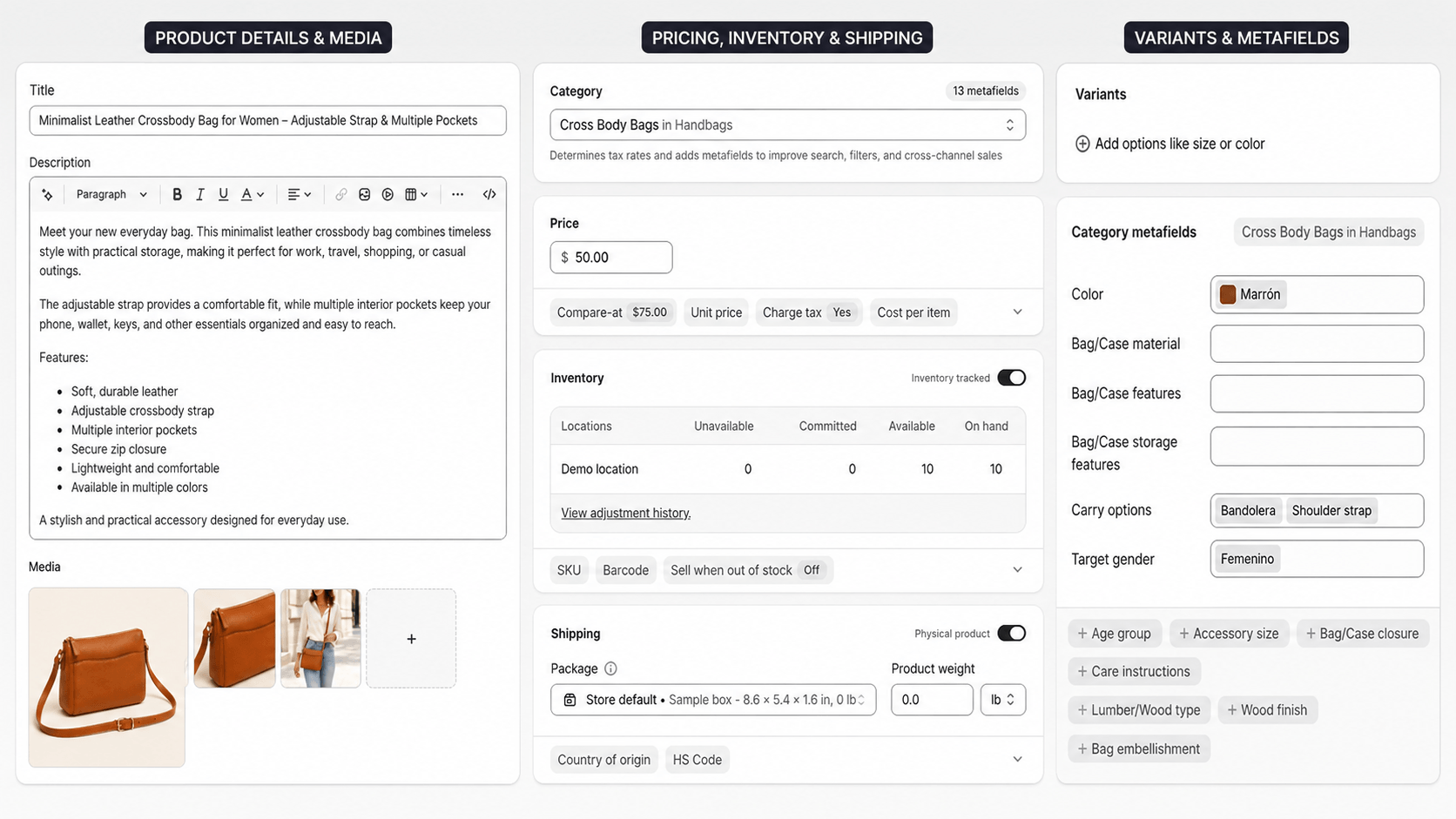
Confirm the title, description, status, vendor, product type, tags, collections, price, compare-at price, cost, SKU, barcode, weight, country information, fulfillment location, and sales channels. Remove placeholder copy, supplier instructions, test products, inaccurate scarcity, and claims you cannot support.
7. Test variants, inventory, and availability
Select every size, color, material, bundle, or personalization option and confirm it shows the correct image, SKU, price, weight, inventory, and availability. Decide how overselling, backorders, preorder dates, and out-of-stock products should behave. Test invalid combinations rather than assuming customers will avoid them.
8. Replace placeholders with accurate images and media
Before launch, make sure every important product has original, consistent images that communicate appearance, scale, details, and use. The Shopify product-photography guide provides a practical shot list and workflow for creating and optimizing those images.
Use sharp, consistent, compressed images showing the product alone, in context, at scale, and from decision-making angles. Check video captions and controls. Add concise alt text to meaningful images and leave decorative images appropriately empty. Make sure edits do not misrepresent color, size, finish, or included accessories.
For practical ideas about product photography, brand consistency, navigation, product pages, trust, and conversions, review the best Shopify store examples. Adapt the principles that help your customers instead of copying another store’s design or assets.
9. Verify collections, search, filters, and navigation
Organize products around the language customers use. Check automated collection conditions, sorting, filters, search suggestions, zero-result searches, breadcrumbs, menus, footer links, and account or cart icons. Ask a person who did not build the store to find a product without coaching.
10. Confirm the assortment and merchandising plan
Feature the products you can actually fulfill, remove weak or unrelated items, and verify cross-sells, recommendations, bundles, discounts, gift cards, and subscription terms. If the catalog is still uncertain, revisit the Shopify product-selection guide before buying more inventory.
11. Confirm inventory and fulfillment readiness
Count available stock, test location assignments, verify supplier or fulfillment integrations, and document picking, packing, labels, tracking, damaged orders, cancellations, returns, and replacements. Confirm packaging, inserts, scales, printers, carrier accounts, cutoff times, and who handles orders when the primary owner is unavailable.
If your store will use print-on-demand fulfillment, follow my Shopify print-on-demand guide to compare providers, connect an app, calculate costs, order samples, and test the complete order workflow before launch.
For a digital-product store, follow my Shopify digital-products guide to verify file access, delivery settings, customer emails, download limits, policies, mobile usability, and the complete test-order experience.
Storefront, Content, and Trust
12. Make the homepage clear within seconds
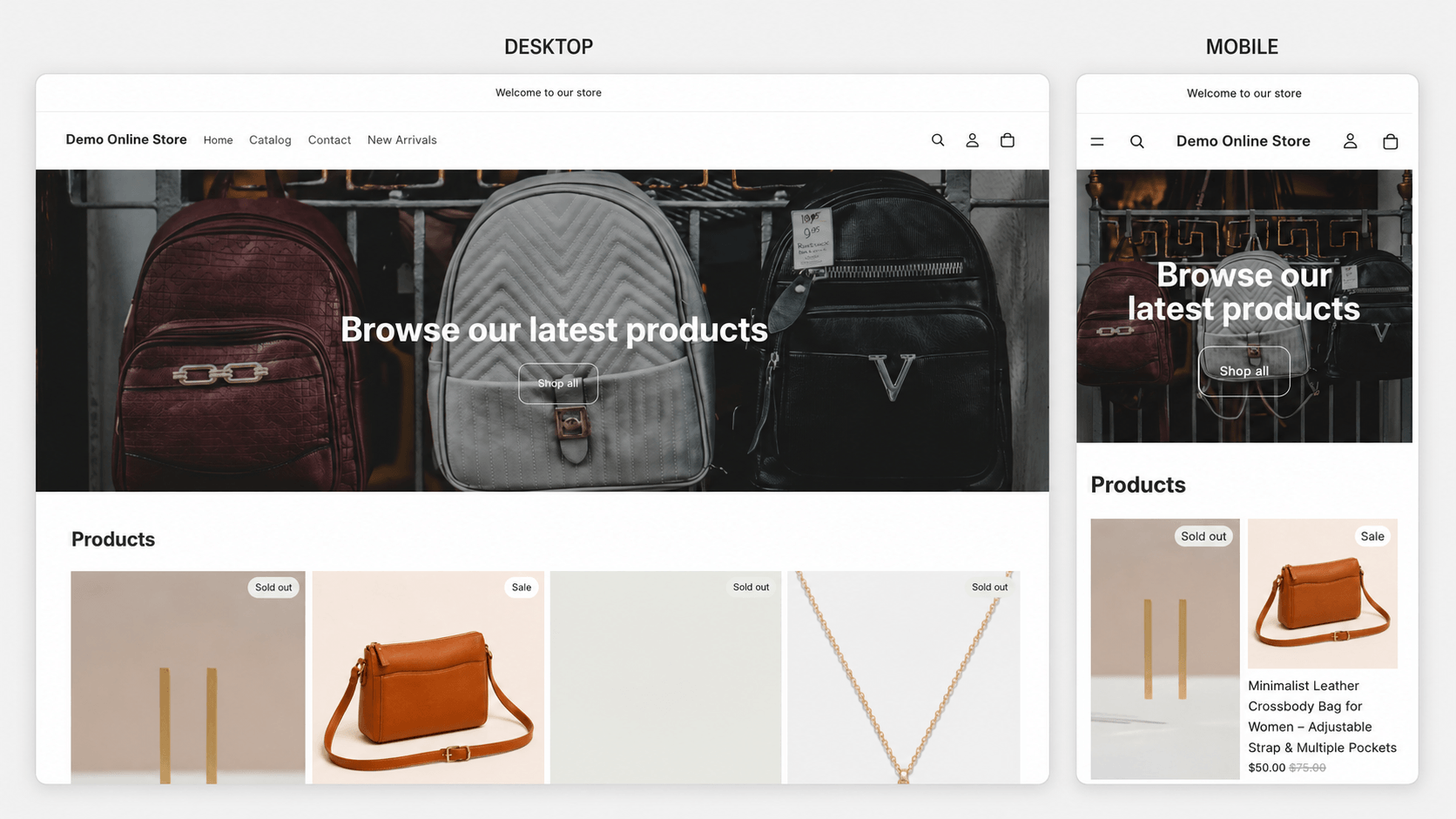
The first screen should communicate what the store sells, who it serves, and the next action. Check the announcement bar, headline, hero image, main button, featured collection, credibility, and footer. Remove expired promotions, duplicate buttons, vague claims, and sections that push the important product path too far down.
If the storefront began with Shopify’s AI tools, use the Shopify AI Store Builder review to understand what the builder creates and which design, content, product, operational, and testing tasks still need manual attention before launch.
13. Publish the essential customer pages
Complete the About, Contact, FAQ, shipping, returns, privacy, terms, and any product-specific information pages. Include accurate response times and support methods. Add sizing, care, compatibility, warranty, accessibility, or ingredient information where relevant. Test every email address, phone number, form, map, and social profile.
14. Match every policy to actual operations
Generated policy text is only a draft. Review it for the correct business, products, locations, processing time, delivery estimates, duties, taxes, return window, exclusions, condition requirements, refund method, subscription terms, privacy practices, and contact process. Have qualified counsel review policies when the risk or law requires it.
15. Test mobile usability and accessibility
Use real phones and tablets, not only a desktop preview. Check text size, contrast, keyboard access, focus, menus, filters, option selectors, forms, buttons, error messages, zoom, image meaning, video controls, cart, chat, cookie controls, and checkout. Remove popups that cover content or compete with the buying path.
16. Complete the search and sharing basics
Check unique titles, descriptions, headings, URL handles, canonical behavior, image alt text, internal links, redirects, sitemap access, and Search Console. Preview social-sharing images and text. Use the Shopify SEO checklist for the deeper work, but do not delay critical store fixes to chase rankings.
Checkout and Operations
17. Activate and verify payments
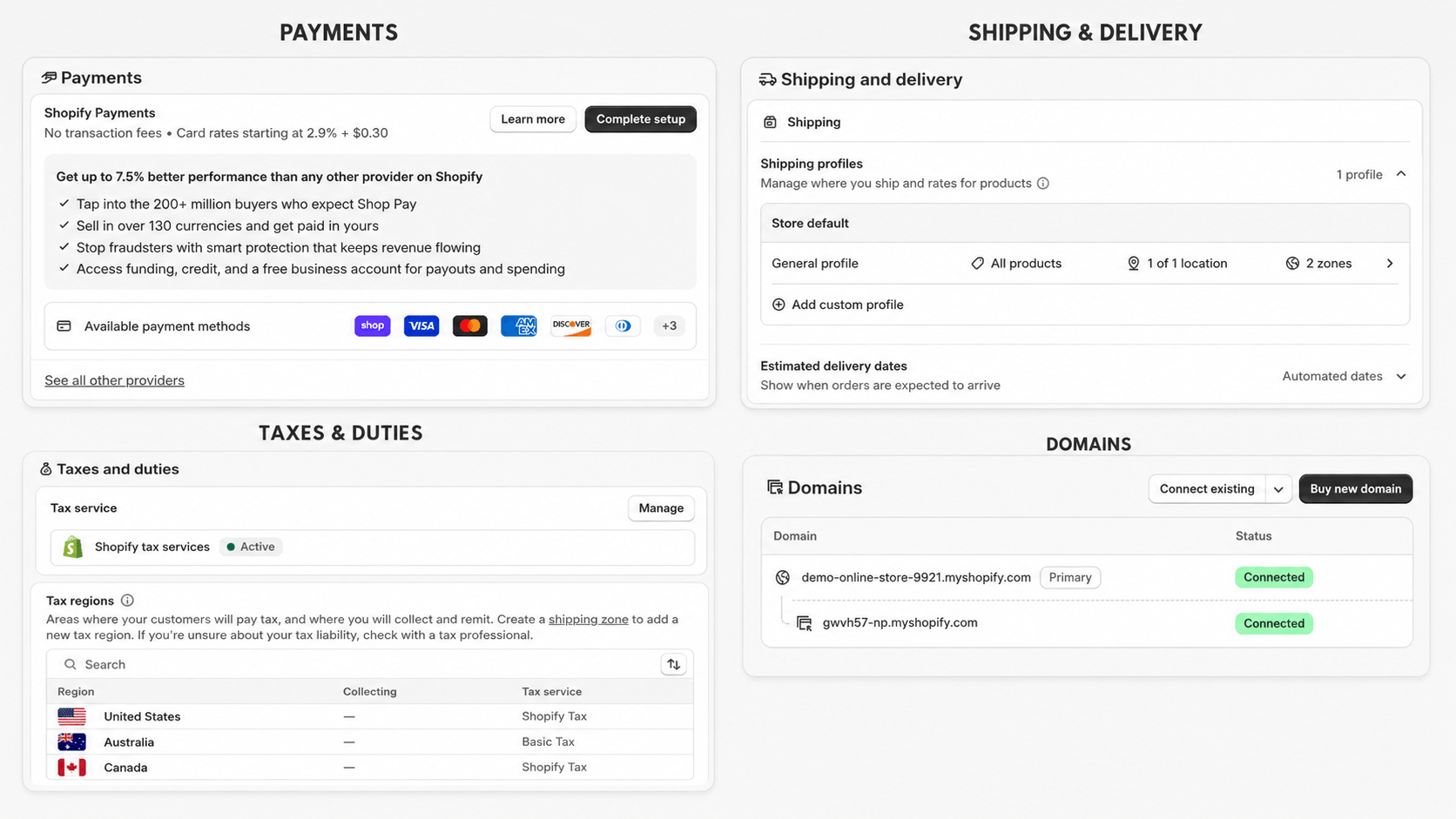
Complete payment-provider verification and confirm the correct business, bank, statement descriptor, payout currency, supported methods, fraud settings, capture behavior, and refund access. Test payment failure and decline messages. Do not leave a gateway in test mode when real customers arrive.
18. Review tax settings with qualified help
Confirm where the business has collection obligations, registrations, product tax categories, prices that include or exclude tax, shipping taxation, exemptions, and reporting processes. Shopify can calculate supported taxes based on configuration, but the seller remains responsible for understanding registration, filing, and payment obligations.
19. Test every shipping scenario
Use addresses from every intended zone and test ordinary, free, threshold, local, expedited, oversized, digital, and mixed carts as relevant. Confirm weights, packages, rates, delivery estimates, carrier services, restricted destinations, duties, pickup, and fulfillment locations. Make sure the policy and checkout show consistent expectations.
20. Audit automated email and customer messages
Send order, shipping, delivery, pickup, cancellation, refund, account, contact-form, and marketing messages to real inboxes. Check the sender, reply-to address, logo, links, footer, legal details, mobile formatting, personalization, and timing. Remove placeholder language and inaccurate promises. Confirm email authentication and unsubscribe behavior.
21. Review every app and integration
List each app’s purpose, owner, permissions, recurring cost, theme changes, customer data, support contact, and removal effect. Test discounts, reviews, subscriptions, fulfillment, chat, email, cookie tools, feeds, and other integrations in the exact launch theme. Remove duplicates and unused trials.
Testing and Launch
22. Install analytics and verify events
Configure Shopify analytics and any approved analytics, advertising, consent, search, and email tools before launch. Verify page views, product views, add-to-cart, checkout, purchase, source, and campaign tracking without creating duplicate events. Exclude internal traffic where practical and document the launch baseline.
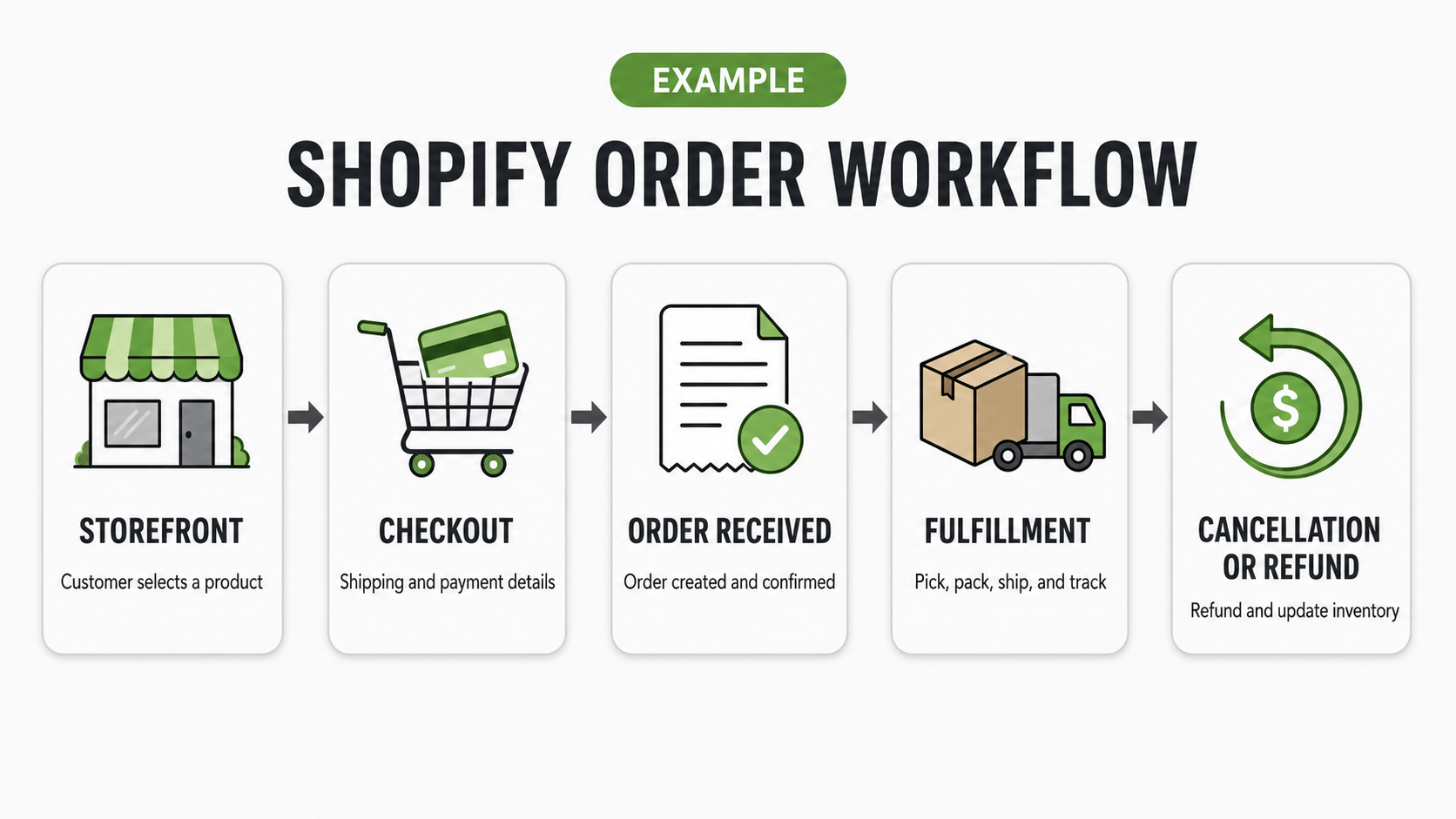
23. Place a complete test order
Shopify’s test-order documentation recommends testing the checkout, order processing, inventory, shipping, notifications, and taxes. Use Shopify’s supported test method for your payment setup, then verify the order in admin, fulfillment, tracking, cancellation, restock, refund, and customer communication.
One thing I notice in launch reviews is that owners often stop after seeing an order-confirmation page. Continue until the inventory, email, fulfillment, support, accounting, and refund consequences have all been checked.
24. Prepare marketing, support, and an issue plan
Schedule launch messages only after the store passes testing. Prepare email, social, partner, content, and advertising assets with tagged links. Assign someone to orders, messages, inventory, fulfillment, technical issues, and refunds. Save provider and developer contacts, and decide which problems require pausing campaigns or restoring the password.
25. Remove the password and monitor the store
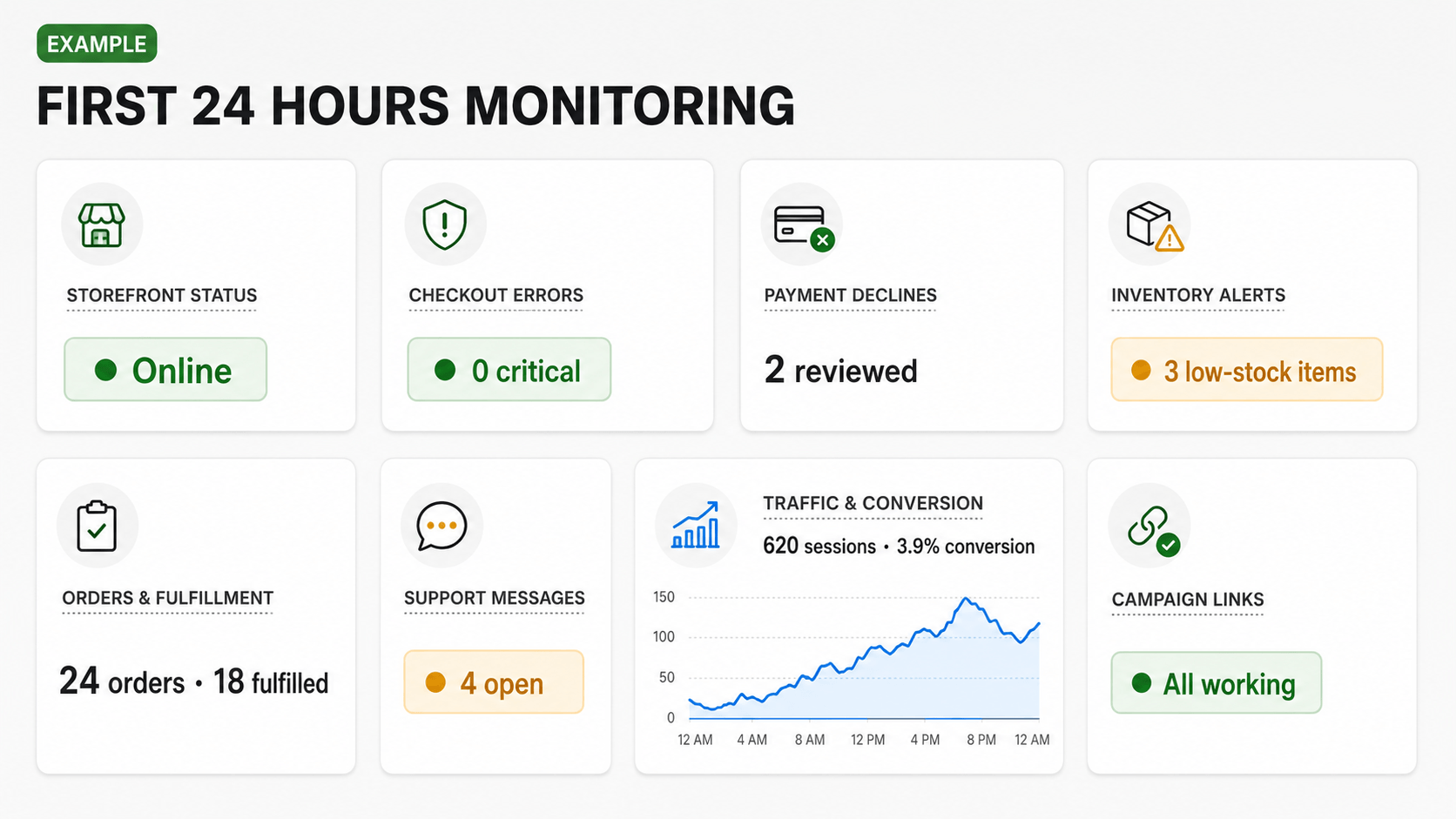
Check the live domain one last time, remove the password, and browse as a signed-out customer. Start with a manageable audience. Watch uptime, errors, payment declines, checkout abandonment, inventory, fulfillment, support messages, email delivery, analytics, and campaign links. Record issues and fix high-risk customer problems before cosmetic refinements.
After the store is live and functioning correctly, follow my Shopify first-sale guide to reach a manageable audience, promote your products intentionally, measure the funnel, and improve the store using real feedback.
If Pinterest will be one of your launch channels, complete my Shopify Pinterest setup guide before promotion so the catalog, Product Pins, destination pages, and tracking are ready.
Run a Final Store Rehearsal
Before the go/no-go decision, assign several people different tasks without explaining where to click. One person should shop as a first-time mobile customer, one should process the order in Shopify, one should fulfill it, and one should respond to a support request. If you work alone, perform the roles separately and use a written scenario for each.
- Customer: find a product, compare options, use a discount if applicable, check delivery, pay, and locate support.
- Store operator: identify the order, confirm fraud signals, edit or cancel safely, and send the correct communication.
- Fulfillment: locate inventory, pick the correct variant, pack it, create tracking, and handle an exception.
- Support: answer a product question, find the order, explain the policy, and document the resolution.
Record every hesitation, unexpected message, workaround, and missing permission. Rehearsals reveal gaps that a visual review cannot, including who has access to refunds, which email address receives alerts, where packaging supplies are stored, and whether a customer can understand a delay. Repeat any failed critical task after the fix.
What to Monitor During the First 24 Hours
Keep the launch owner available and avoid unrelated theme or app changes. Check the storefront from outside the admin, the domain certificate, site speed, inventory, add-to-cart rate, checkout errors, payment declines, tax and shipping totals, order notifications, fulfillment routing, campaign links, and support inbox. Compare analytics with actual orders so a tracking problem does not hide behind normal-looking traffic.
Create a short incident log with the time, customer impact, evidence, owner, workaround, fix, and result. Pause advertising when a problem can charge the wrong amount, accept an unavailable order, expose private data, block checkout, or create a promise the business cannot fulfill. After the store stabilizes, review common searches, abandoned carts, questions, and order patterns to set the next improvement priorities.
Final Go/No-Go Decision
| Status | Meaning | Action |
|---|---|---|
| Go | Purchase, payment, tax, shipping, fulfillment, policy, and support paths work | Launch to a controlled audience and monitor |
| Conditional | Minor issue has a safe workaround and named owner | Document the risk, deadline, and customer communication |
| No-go | Broken checkout, inaccurate pricing, missing policy, unsafe claim, or fulfillment failure | Keep the password active and fix before taking orders |
Do not let a planned announcement force a no-go store into production. Review the related Shopify mistakes to avoid and prioritize anything that can prevent, misrepresent, delay, or mishandle a purchase.
For a holiday-specific follow-up to this launch process, use my Shopify Black Friday checklist to prepare the offer, campaign timing, inventory, support, and post-sale workflow.
Frequently Asked Questions
How do I launch a Shopify store?
Build the products and storefront, configure payments, tax, shipping, policies, domain, notifications, apps, and analytics, then place a full test order. Select a plan and remove the password only after the critical paths work. The step-by-step Shopify tutorial covers the building process.
Can I launch Shopify during the free trial?
You can build and test during a free trial, but Shopify’s current guidance states that you need to choose a subscription plan to remove the online-store password and make the storefront public. The Shopify free trial guide explains the current offer, what you can build before paying, and how to prepare before starting the trial. Confirm current trial and plan terms before launch.
Do I need to place a test order?
Yes. Shopify recommends placing at least one test order during setup and after changing payment settings. Test the customer experience and the administrative consequences through fulfillment, cancellation, refund, and restocking.
What pages should a Shopify store have?
Most stores need a homepage, product and collection pages, About, Contact, FAQ, shipping, returns, privacy, and terms pages. Product, business, and location requirements may call for additional pages or disclosures.
How many products do I need before launch?
There is no required number. Launch with a coherent assortment that can be stocked or produced, described, photographed, shipped, and supported correctly. One complete collection is better than many unfinished listings.
How long should I test a Shopify store?
Test until all critical scenarios pass, not for an arbitrary number of days. The time depends on the catalog, variants, markets, payment methods, shipping zones, apps, and fulfillment complexity.
Should I install apps before launch?
Install only apps that solve a defined launch requirement. Review permissions and recurring costs, test them in the live theme, and confirm the store still works if an app is removed or unavailable.
Is Shopify a good platform for a new store?
Shopify can be a strong fit for sellers who want hosted ecommerce, checkout, product management, and integrations in one system. Read the complete Shopify review to evaluate costs, capabilities, and limitations.
If you are also considering WordPress, the Shopify vs WooCommerce comparison explains the differences in setup, costs, control, checkout, security, maintenance, and scalability.
For a broader platform decision that also covers blogging, publishing, design, SEO, support, and non-store websites, read my Shopify vs WordPress comparison.
Launching a supplier-fulfilled store requires additional checks for samples, supplier reliability, delivery estimates, margins, tracking, returns, and cash flow. Use my Shopify dropshipping guide alongside this checklist.
Final Verdict
A launch date is not proof that a store is ready. Readiness means a customer can understand the offer, choose the right product, pay the correct amount, receive accurate communication, and get the promised product and support.
Complete the checklist, place a full test order, ask an uninvolved person to shop on mobile, and fix every no-go issue. When the store is ready, continue with Shopify, remove the password, and launch to a controlled first audience while you monitor the complete customer journey.
For a store built around one flagship product, use my one-product Shopify store guide alongside this checklist to verify the positioning, page structure, profit assumptions, and complete customer journey.