Posts

Shopify AI Store Builder Review 2026: Is It Worth It?

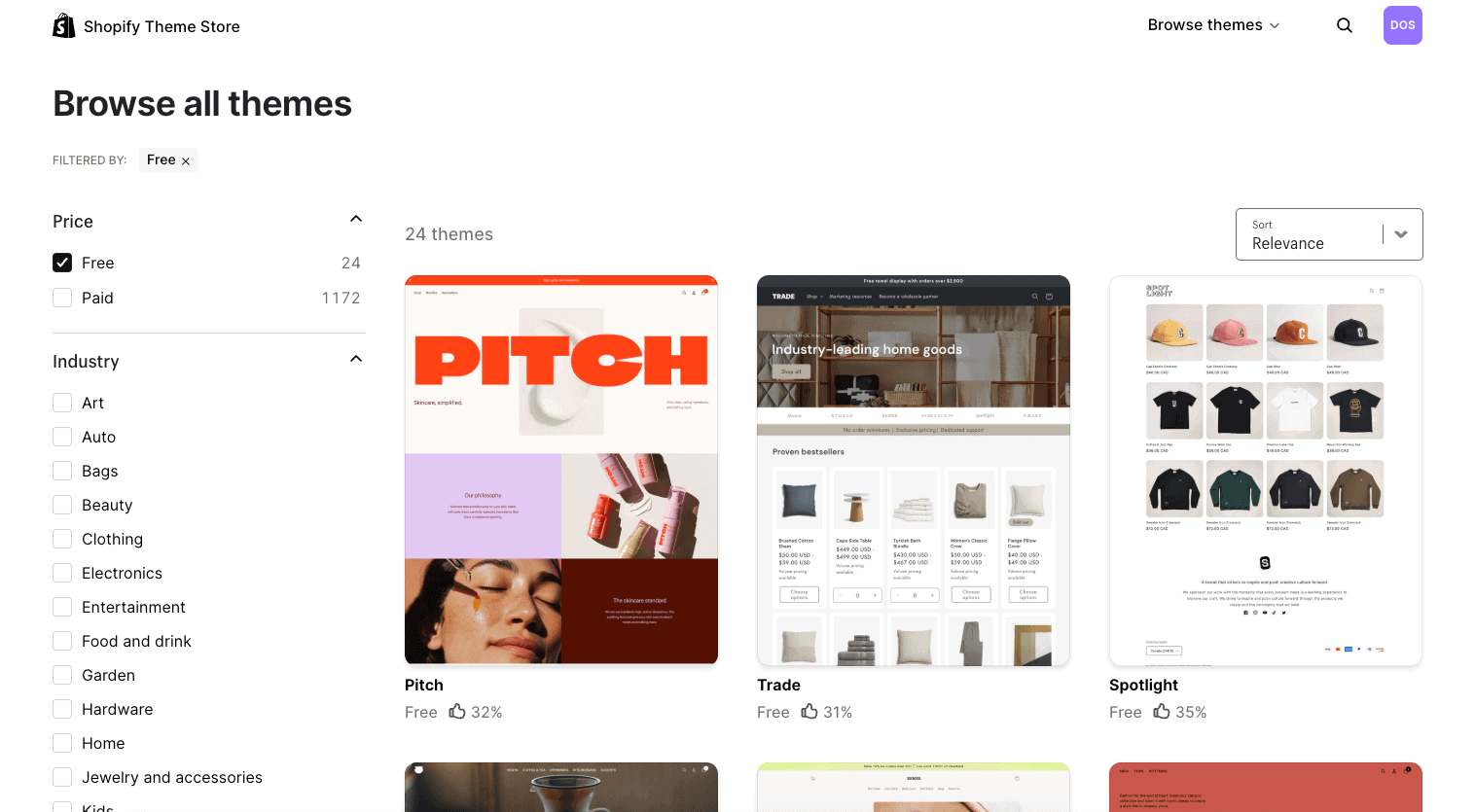
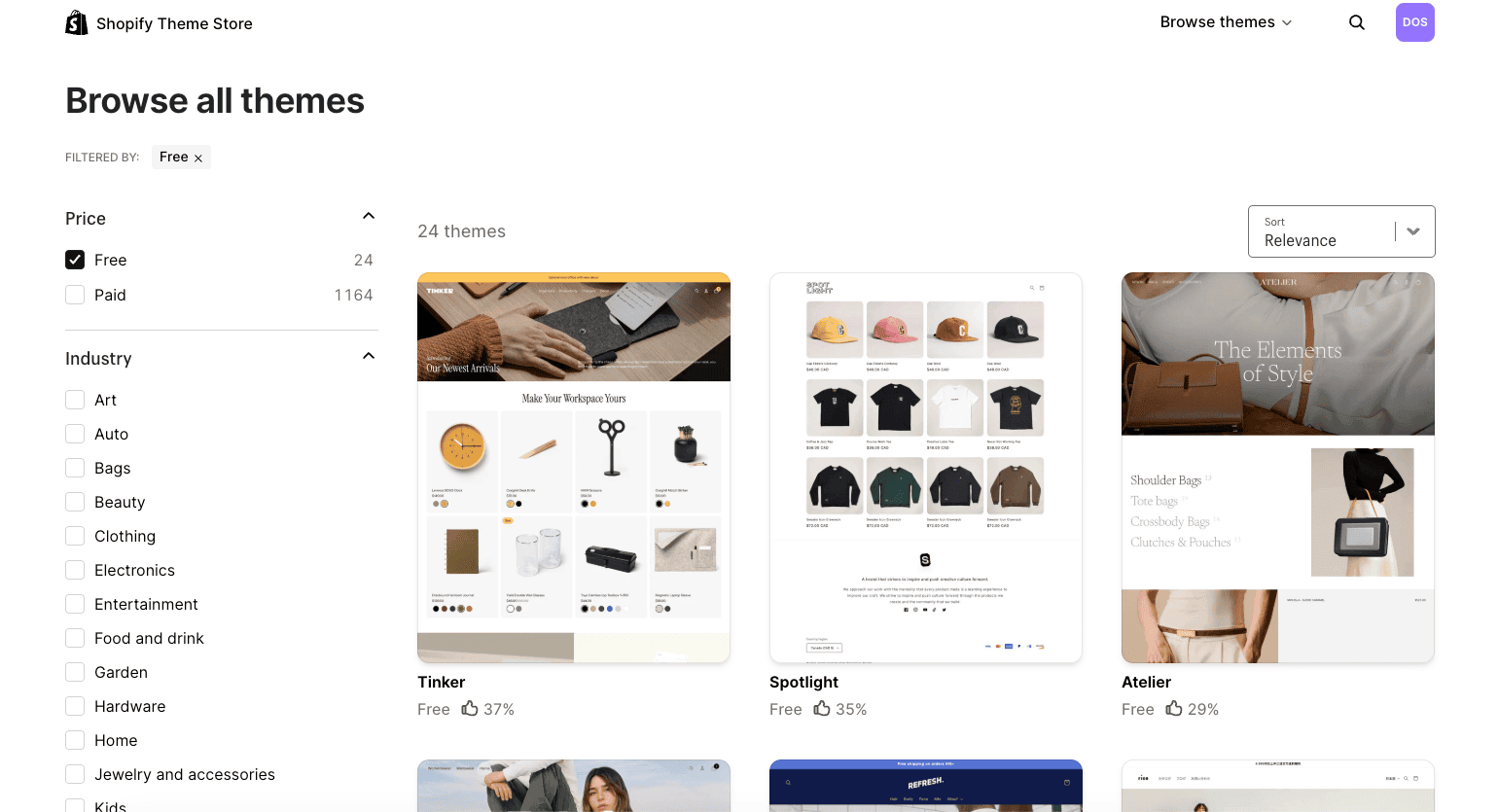
Shopify’s AI Store Builder is one of the fastest ways to move from a business idea to a usable ecommerce design. You describe the brand in a short prompt, Shopify generates three personalized store designs, and you choose one to customize with the regular theme editor.

The tool is useful, but the phrase “AI store builder” can create the wrong expectation. It gives you a strong visual starting point. It does not finish the product catalog, verify generated claims, configure payments and shipping, write accurate policies, connect the domain, test checkout, or bring customers to the website.

My verdict is that Shopify’s AI Store Builder is worth using—especially because the design-generation feature is included with Shopify—but it should be treated as the first stage of a store build, not a replacement for the complete launch process.

Key Takeaways

  • The AI Store Builder creates three personalized Shopify store designs from a short description of the business.
  • It is designed to eliminate the blank page and help beginners get to a professional starting layout quickly.
  • The generated design can be customized with Shopify’s theme editor, sections, blocks, colors, fonts, images, and supported code tools.
  • Shopify Magic and Sidekick extend AI assistance to content, images, theme blocks, analysis, and supported store-management tasks.
  • You still need to add or verify products, collections, navigation, payments, shipping, taxes, policies, domain settings, and test orders.
  • The builder is included, but publishing and operating the store requires an eligible Shopify plan.
  • The best results come from a specific prompt followed by careful manual editing and real product imagery.

Prefer to watch? This Shopify AI Store Builder video shows how to generate a store design with AI, customize the result, add products, edit your pages, and prepare the store for publishing.

Shopify AI Website Builder Tutorial 🔥 - Build a Store With AI

Features and pricing verified October 14, 2026. Shopify can change availability, usage limits, plan features, and promotions. Test the current experience on Shopify’s official AI Store Builder.

Shopify AI Store Builder Rating

Category WP Cupid Rating Summary
Setup speed 4.9/5 Creates three store-design directions in seconds
Ease of use 4.8/5 A short prompt is enough to begin
Generated design quality 4.4/5 Strong starting layouts that still need brand-specific editing
Customization 4.6/5 Uses Shopify’s theme editor, sections, blocks, and code options
Store completeness 3.9/5 Design generation does not complete every launch task
Value 4.8/5 Included with Shopify and can reduce initial design time
Overall 4.6/5 Excellent starting tool when its limits are understood

The lower store-completeness score is intentional. The AI builder is highly effective at generating a design direction, but a publish-ready ecommerce business requires accurate products, trustworthy content, operational settings, policies, and quality assurance that go beyond visual theme generation.

What Is the Shopify AI Store Builder?

The Shopify AI Store Builder is a prompt-based design generator built into Shopify’s store-creation experience. You enter a description of the business or products, and Shopify generates three custom store designs intended to match the idea. You select a direction and continue editing it as a Shopify theme.

This is different from asking a general AI chatbot for website code. The generated design sits inside Shopify, where it can use Shopify’s product system, checkout, payments, inventory, hosting, security, analytics, sales channels, apps, and theme editor.

It is also different from installing a third-party AI page-builder app. Shopify’s native builder is part of the core platform. Third-party apps may offer specialized landing pages, product imports, conversion elements, or additional generation credits, but they can add cost and another layer of software to manage.
Shopify AI Store Builder review covering how it works, pricing, pros, and cons

How the Shopify AI Store Builder Works
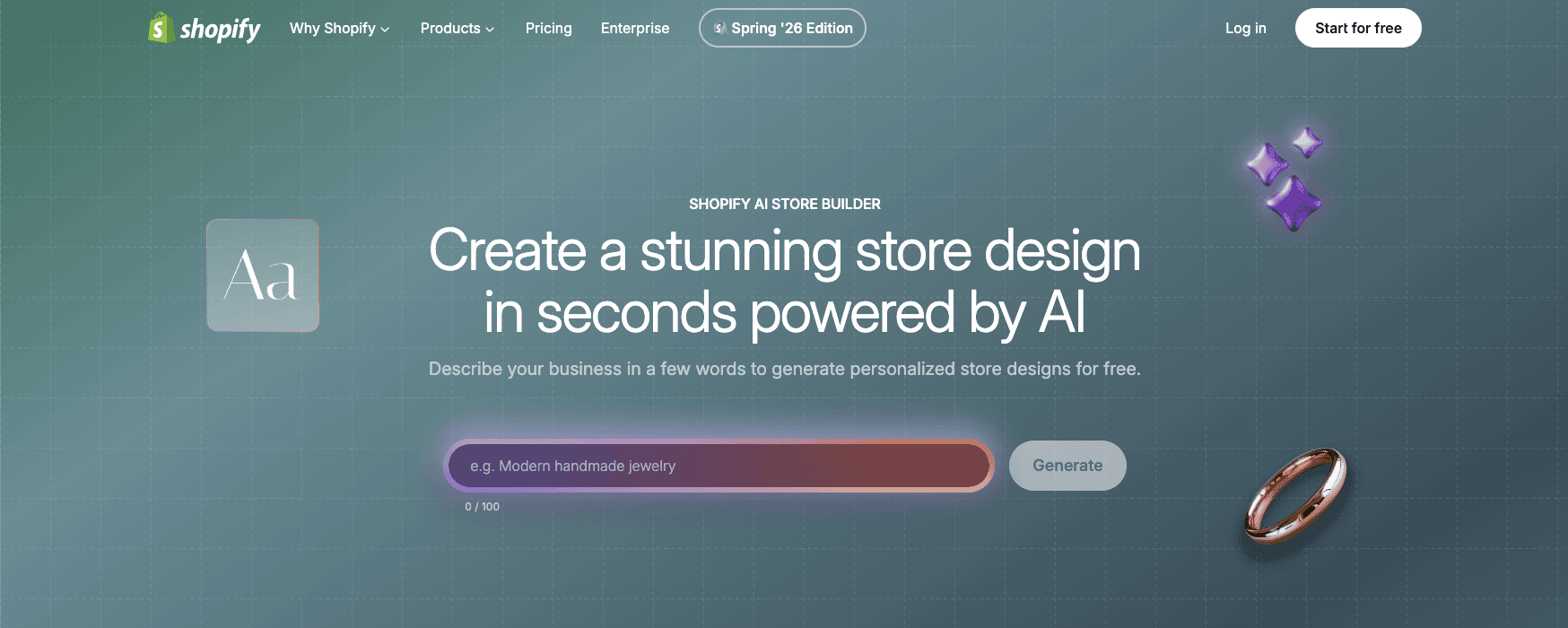
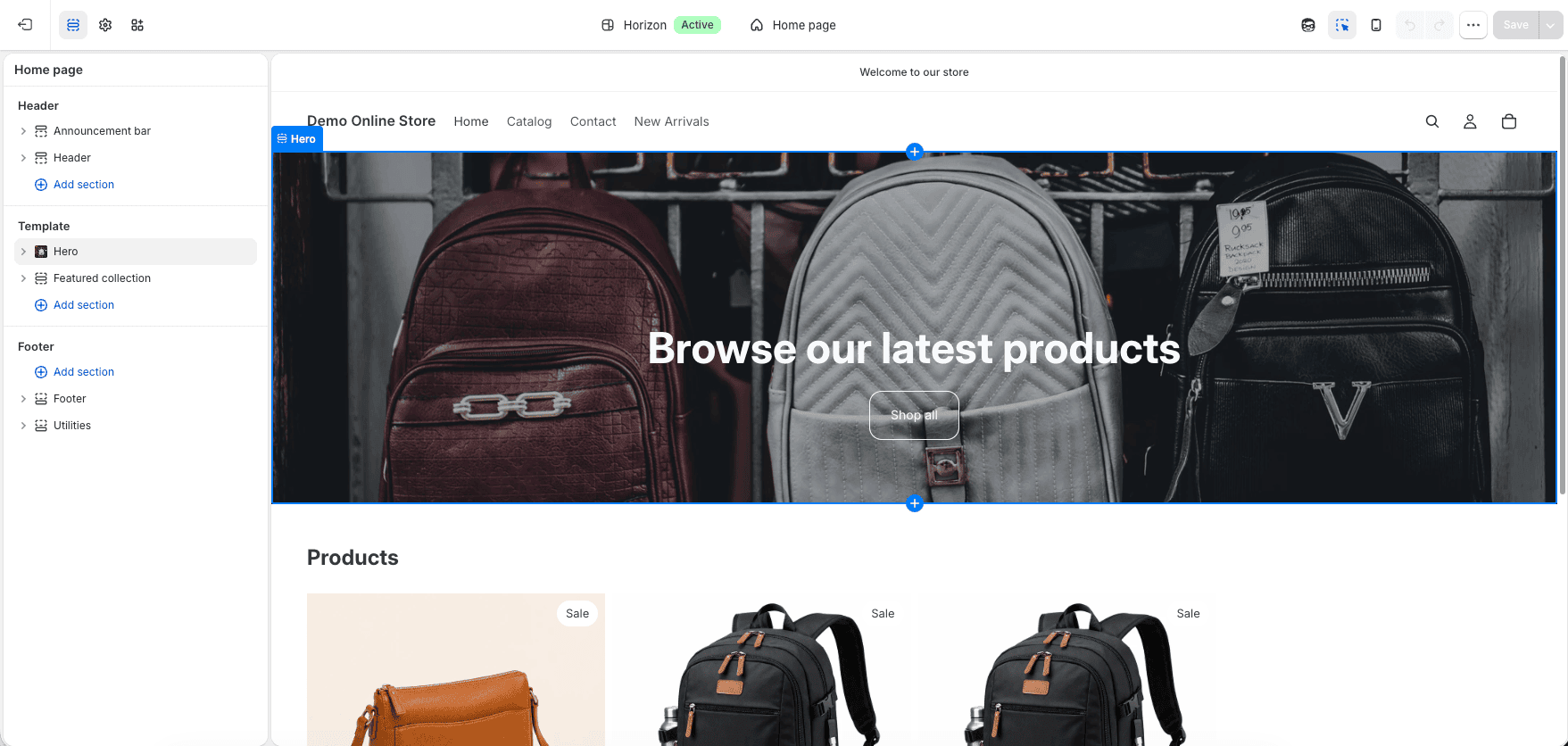
Entering a business prompt in Shopify AI Store Builder
  1. Open Shopify’s AI Store Builder and describe the business in a short prompt.
  2. Include the product type, target customer, visual style, mood, and important brand qualities.
  3. Generate three personalized store-design options.
  4. Compare the layouts, typography, colors, imagery, and overall direction.
  5. Select the best starting design and add it to the Shopify store.
  6. Customize sections, blocks, navigation, pages, product areas, fonts, colors, images, and content.
  7. Complete products, collections, payments, shipping, taxes, policies, domain, and testing before launch.

A vague prompt such as “make an online store” gives the tool little direction. A better prompt identifies what is being sold and how the brand should feel. For example: “Create a clean, premium skincare store for busy professionals, using warm neutral colors, large product photography, simple typography, and an educational homepage.”

Keep the first prompt focused on the visual and commercial direction. Do not expect it to contain every policy, product specification, or keyword. Those details should be added and verified after selecting the design.

What Does the AI Store Builder Create?

The builder creates a personalized theme direction rather than simply showing a generic template library. The generated options can include a homepage structure, colors, typography, imagery, written placeholders, and ecommerce-focused sections that reflect the prompt.
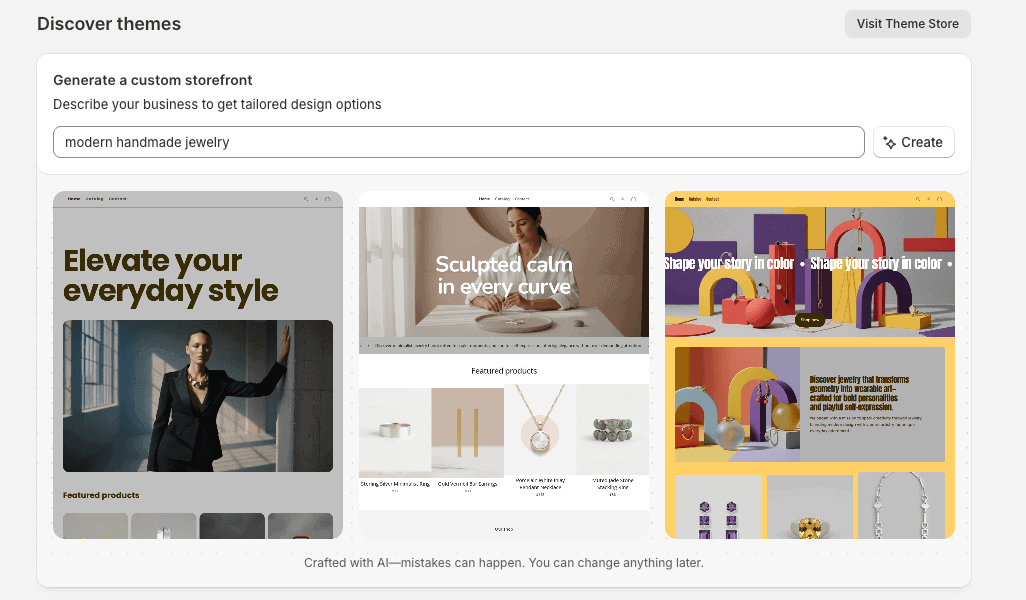
Three store designs generated by Shopify AI

Starting with three options is helpful because design decisions are easier when you can compare complete directions. One version may have the right layout but the wrong color palette; another may have stronger typography or product emphasis. Choose the structure that would be hardest to recreate manually, because colors, images, and text are easier to change later.

The generated theme can then use Shopify’s standard commerce foundation. You can add products and collections, connect menus, feature promotions, publish pages, and use the theme editor to adjust the storefront.

What the AI Store Builder Does Not Finish

The AI builder does not decide which product has real demand, workable margins, or a defensible reason to buy. My 30 product ideas to sell on Shopify helps beginners compare business models, sourcing options, and validation methods before generating the storefront.

The generated storefront also does not replace original product photography. Use my Shopify product-photography guide to plan the images, angles, detail shots, scale references, editing, and optimization needed for trustworthy product pages.

The biggest mistake is assuming that a generated design equals a finished business. Before publishing, use the complete Shopify store launch checklist and make sure you have completed or verified:

  • Real product titles, descriptions, prices, variants, inventory, and images
  • Collections, filters, menus, search, and navigation
  • Brand logo, colors, fonts, voice, and original media
  • Payment-provider eligibility and payout information
  • Shipping zones, rates, packages, delivery estimates, and returns
  • Tax settings and business registrations
  • Privacy, refund, shipping, terms, contact, and other required policies
  • Custom domain, business email, notifications, and sender authentication
  • Mobile layout, accessibility, SEO, analytics, and performance checks
  • Test orders, refunds, discounts, taxes, shipping, and notification emails

This is not a weakness unique to Shopify. No AI builder can safely make every legal, financial, product, fulfillment, and marketing decision for a real business. Shopify’s value is getting the storefront design moving quickly so the owner can spend more time on the parts that require judgment.

Before publishing an AI-generated storefront, review the complete Shopify mistakes to avoid guide to catch problems involving product content, navigation, apps, checkout, shipping, mobile usability, and store maintenance.

If the AI-generated storefront will sell made-to-order products, use my Shopify print-on-demand guide to choose a provider, connect the app, price products, order samples, and prepare the fulfillment process.

The AI builder handles only one part of launching an ecommerce business. For the complete process—from validating an idea and calculating costs to choosing products, planning fulfillment, building the storefront, testing checkout, and attracting customers—follow this guide on how to start an online store.

If the generated storefront will sell downloadable products, use my guide to selling digital products on Shopify to configure the files, delivery method, pricing, product pages, policies, and test orders that the AI-generated design does not complete.

Design Quality and Customization

The AI-generated designs are polished enough to become real storefronts, but they are starting points. The most common signs of an unfinished AI site are generic hero text, interchangeable stock-style imagery, repeated section patterns, weak product differentiation, and claims that do not match the business.
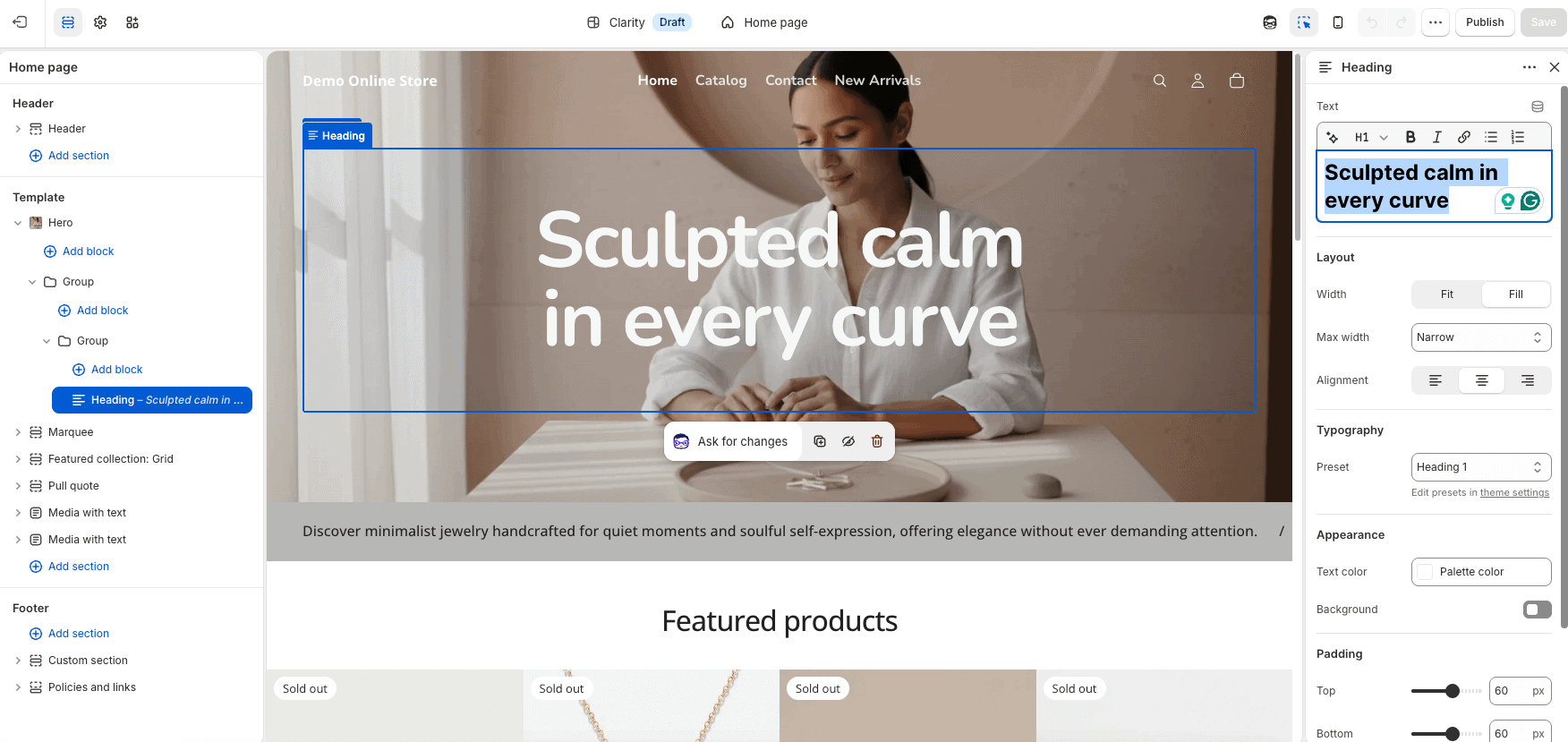
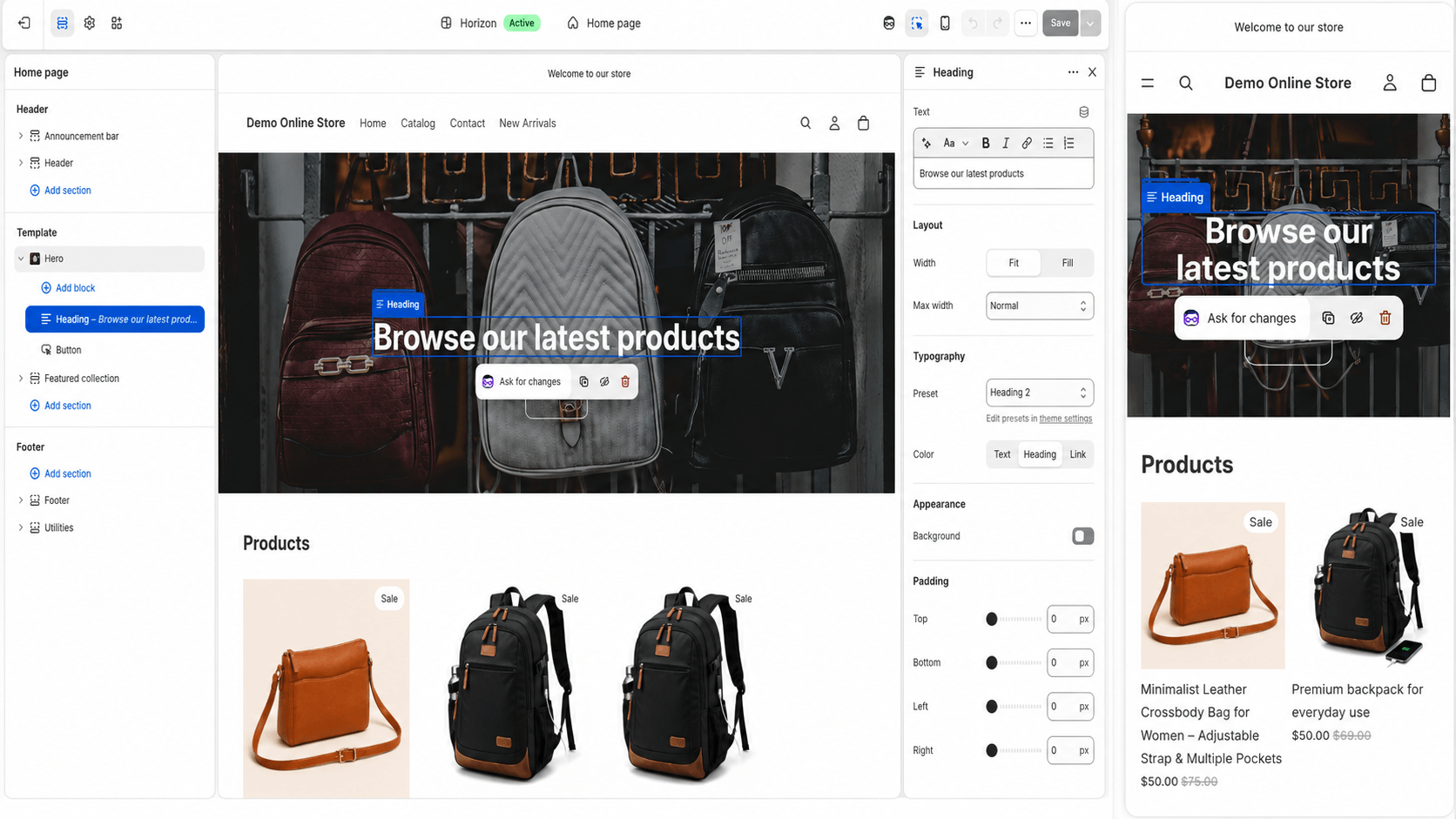
Customizing an AI-generated Shopify store design

Replace generated images with original product photography whenever possible. Rewrite headlines around the customer’s problem and the product’s real value. Remove sections that do not support the buying decision, and add trust information such as shipping details, returns, contact options, product specifications, and authentic reviews.

Before finalizing the AI-generated layout, explore the 25 best Shopify store examples to see how successful stores approach branding, homepage structure, product photography, navigation, product pages, trust, and conversions. Use the examples for inspiration while creating a design that fits your own products and customers.

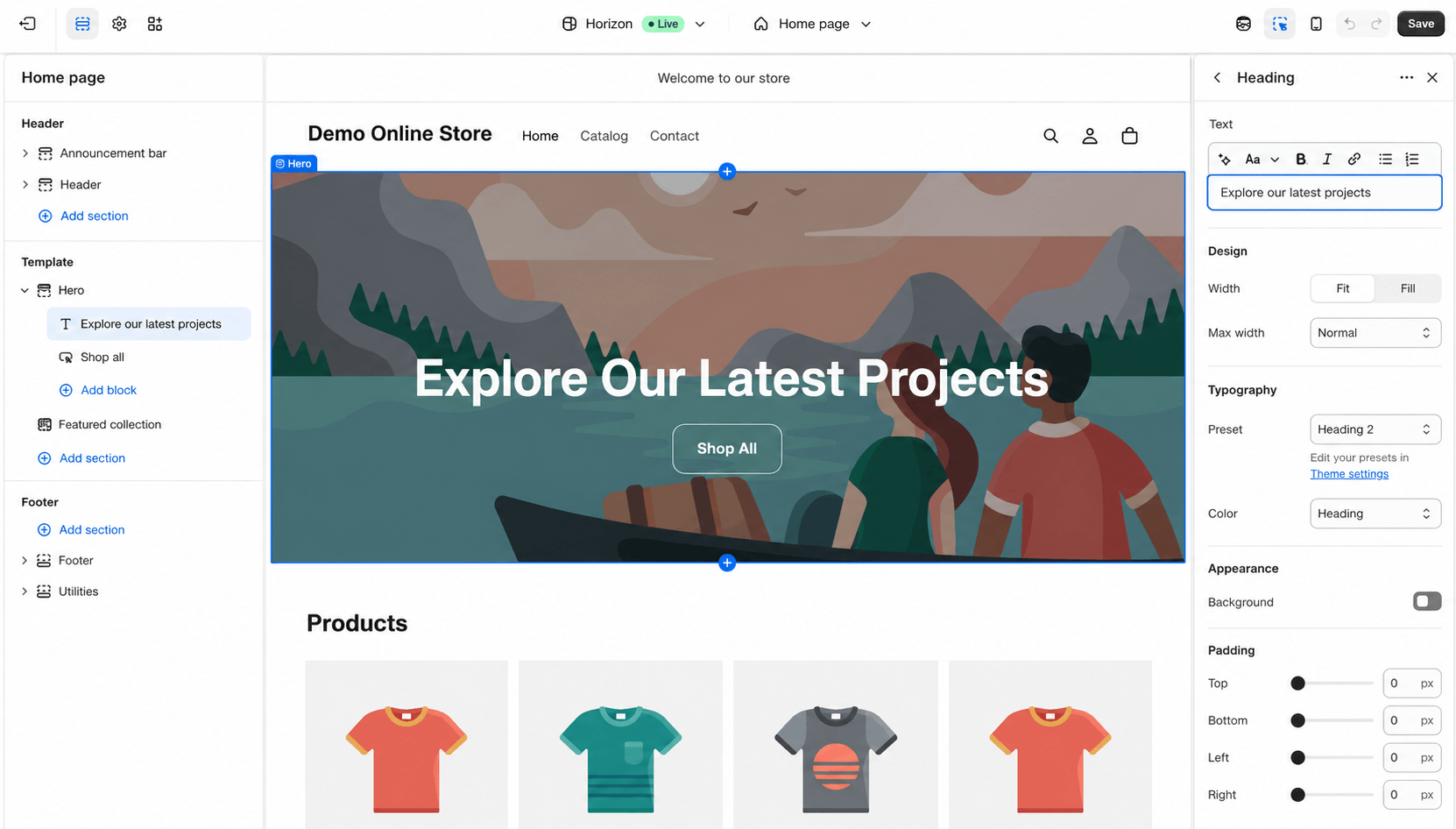
Shopify’s theme editor lets you adjust sections and blocks without code. Shopify Magic can also generate custom theme blocks from text instructions on supported themes, producing Liquid code that can be reviewed and added to the design. This extends customization beyond the initial AI-generated theme, but every generated block should be tested on desktop and mobile.

Shopify Magic and Sidekick

The AI Store Builder is only one part of Shopify’s AI system. Shopify Magic can assist with product descriptions, written content, image creation and editing, theme generation, and custom theme blocks. The media editor can remove or replace backgrounds, generate assets, and suggest image alt text.
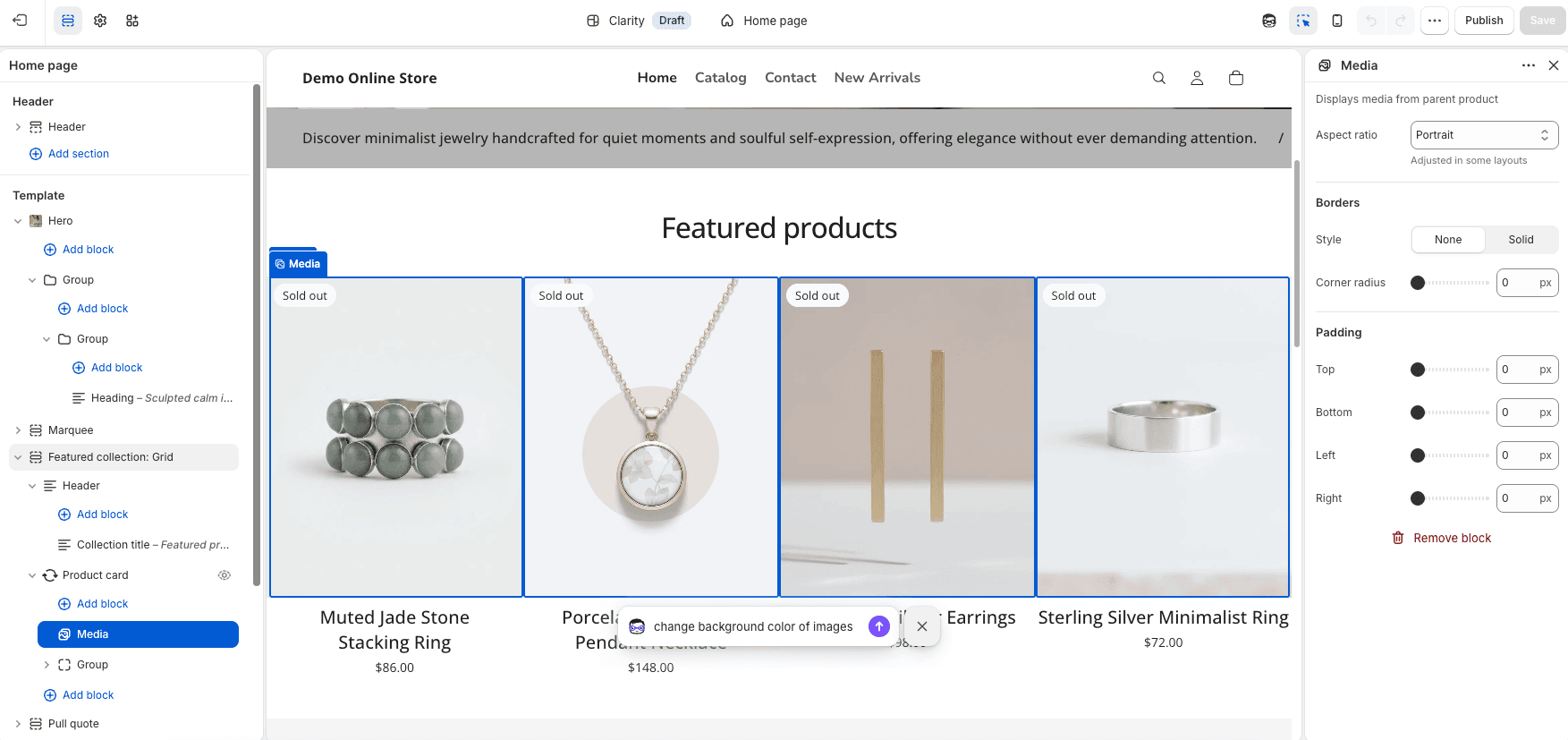
Using Shopify Magic to create store content

Sidekick is the AI assistant inside the Shopify admin. It understands supported commerce workflows and store information, and it can help analyze data, answer questions, create content, edit products, manage supported tasks, and generate custom admin apps. Sidekick respects staff permissions, and features or usage limits can vary by plan.
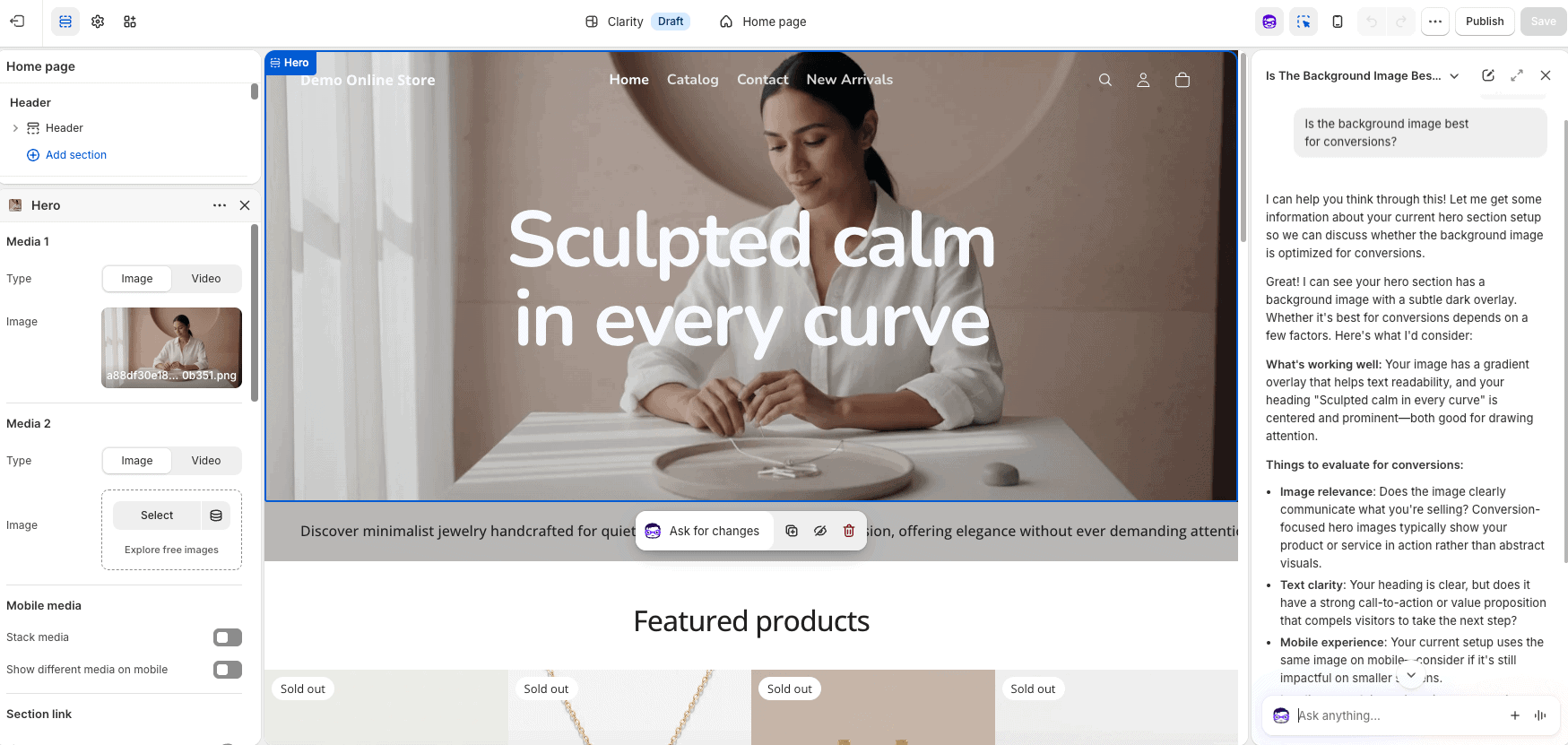
Shopify Sidekick AI assistant in the store dashboard

Because I’ve built Shopify stores for tutorials, the practical benefit is not one dramatic AI action. It is the accumulation of smaller time savings: starting the design, drafting a description, locating a setting, editing an image, or creating a section without beginning from zero.

Best Workflow for Building a Store With Shopify AI

  1. Define the customer, products, price range, brand promise, and visual direction before writing the prompt.
  2. Generate the three designs and choose based on structure rather than temporary text or images.
  3. Set global colors, typography, logo, buttons, and spacing before editing individual sections.
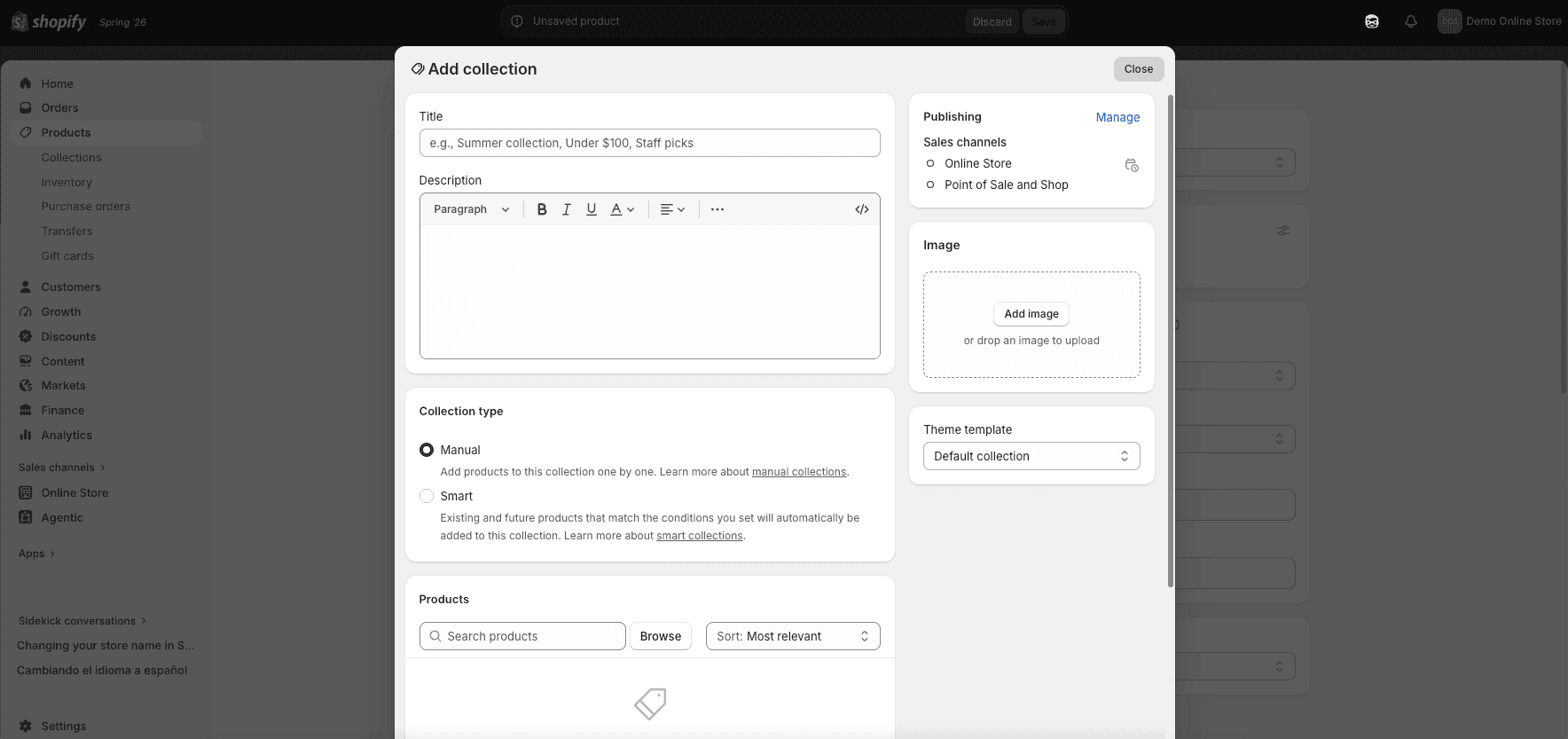
  4. Add real products and organize them into useful collections.
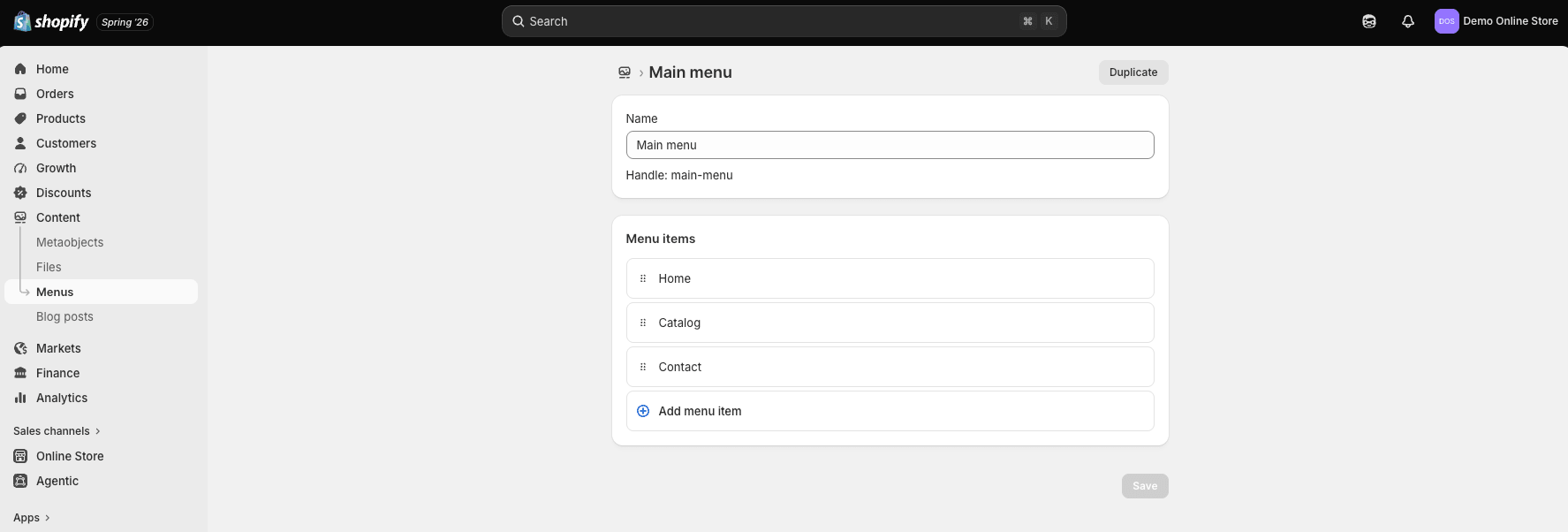
  5. Build navigation around how customers shop, not around the order in which pages were created.
  6. Replace generic AI copy with specific, accurate, benefit-focused content.
  7. Use Shopify Magic for drafts and image assistance, then review every output.
  8. Configure payments, shipping, taxes, notifications, policies, and the domain.
  9. Check desktop, tablet, and mobile layouts and remove unnecessary apps or sections.
  10. Place a test order and verify the entire customer and fulfillment experience.

For the complete process beyond the AI-generated design, follow the Shopify store setup tutorial.
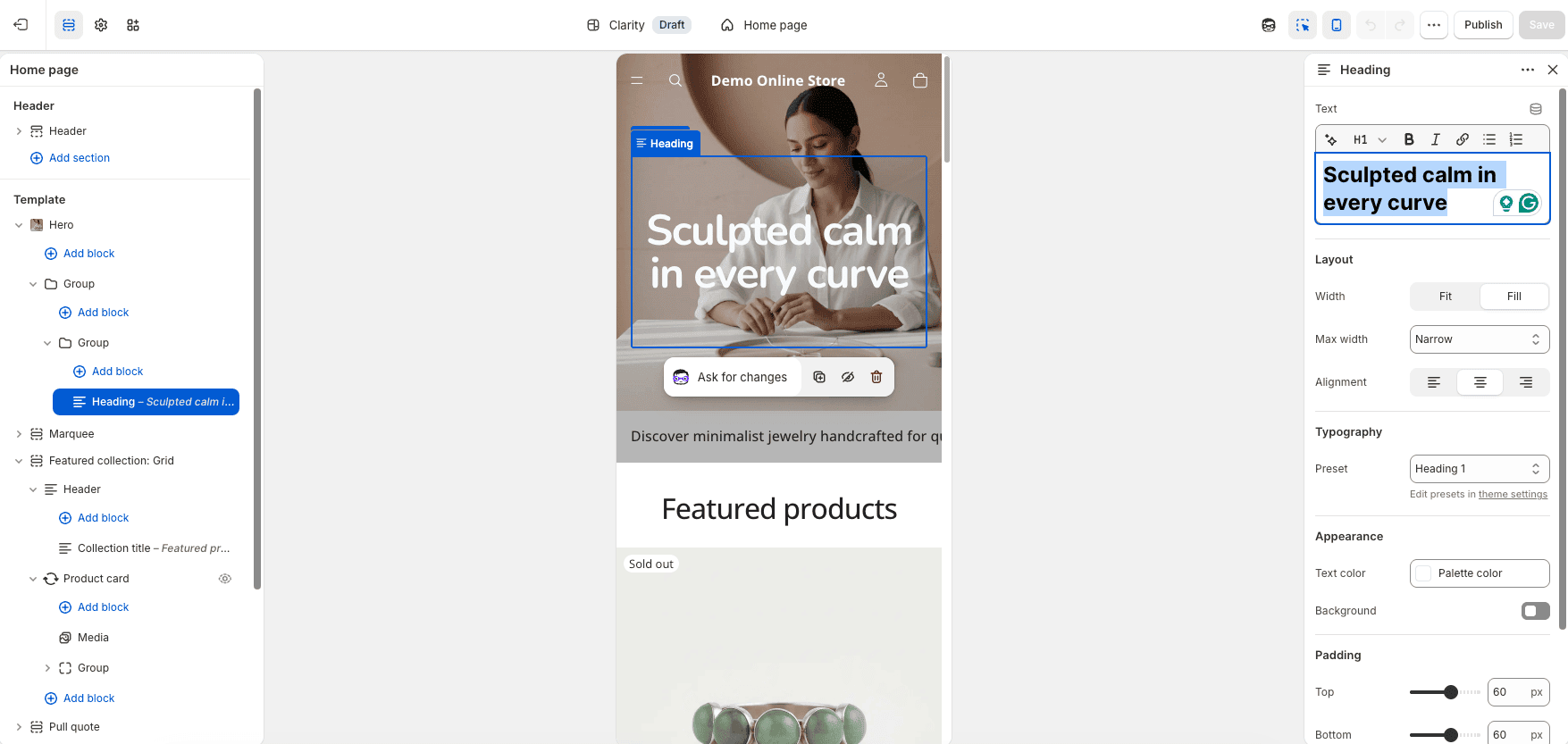
Mobile preview of a customized Shopify AI store

Shopify AI Store Builder Pricing

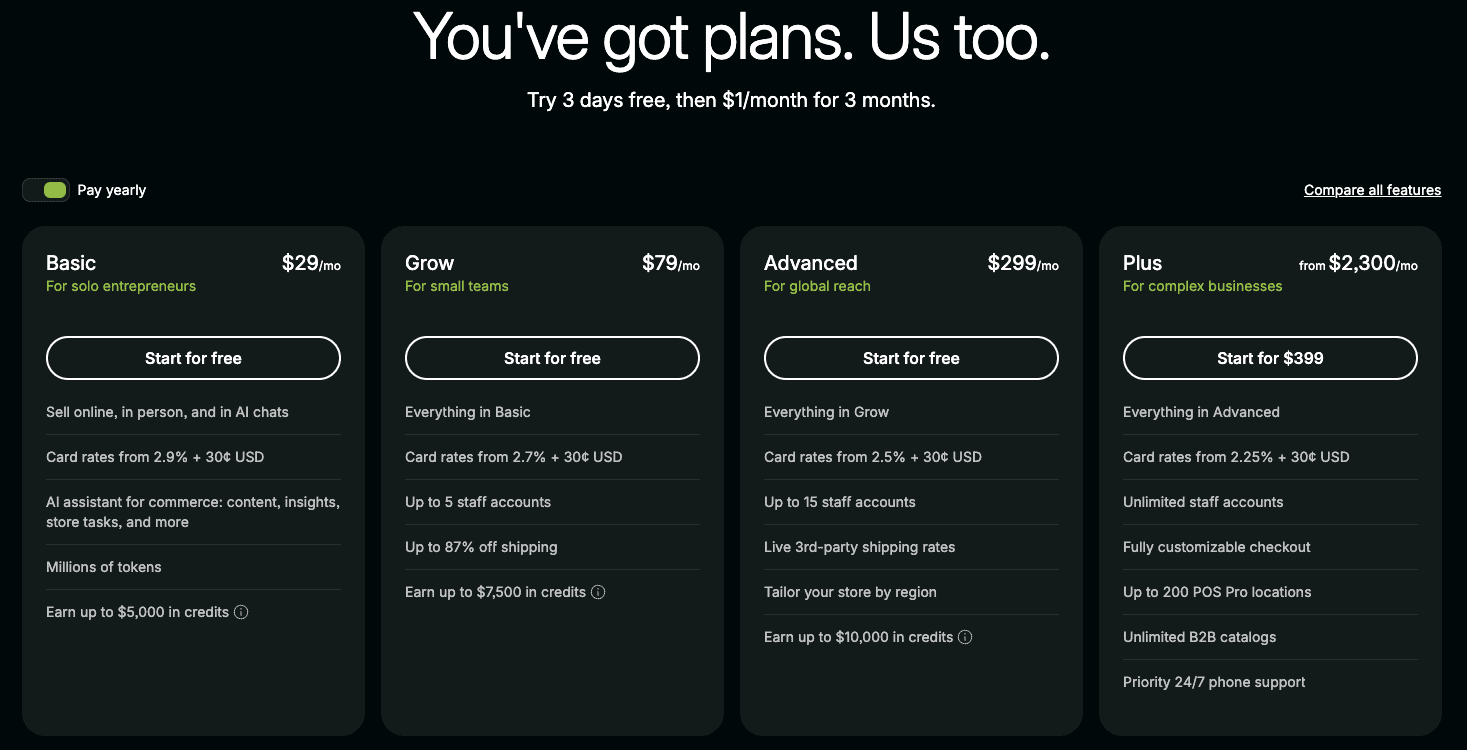
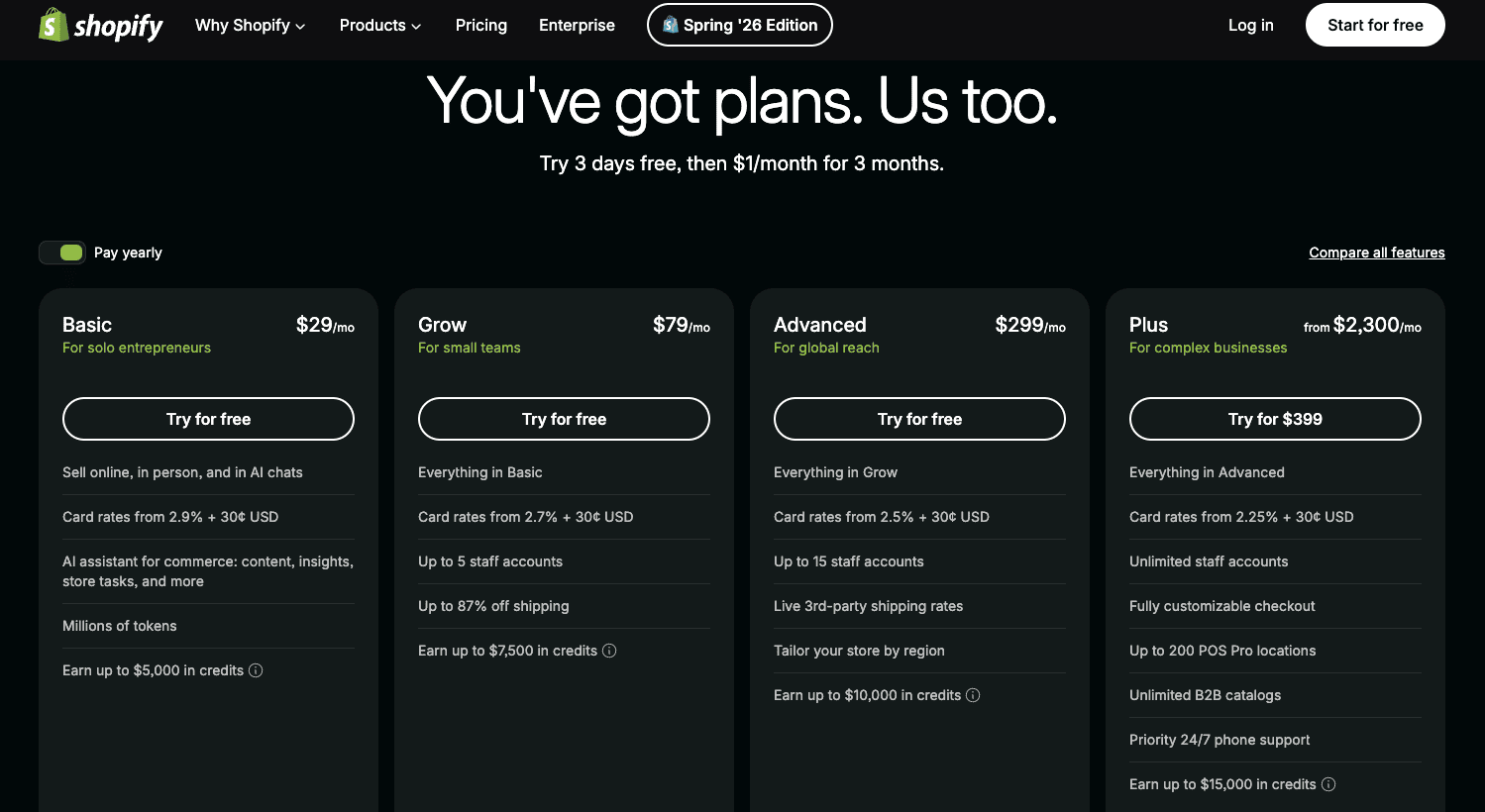
Shopify currently describes its AI store-building features as included with Shopify rather than a separate paid design subscription. You can generate a design and start building during the trial, but operating and publishing a complete store requires an eligible Shopify plan.

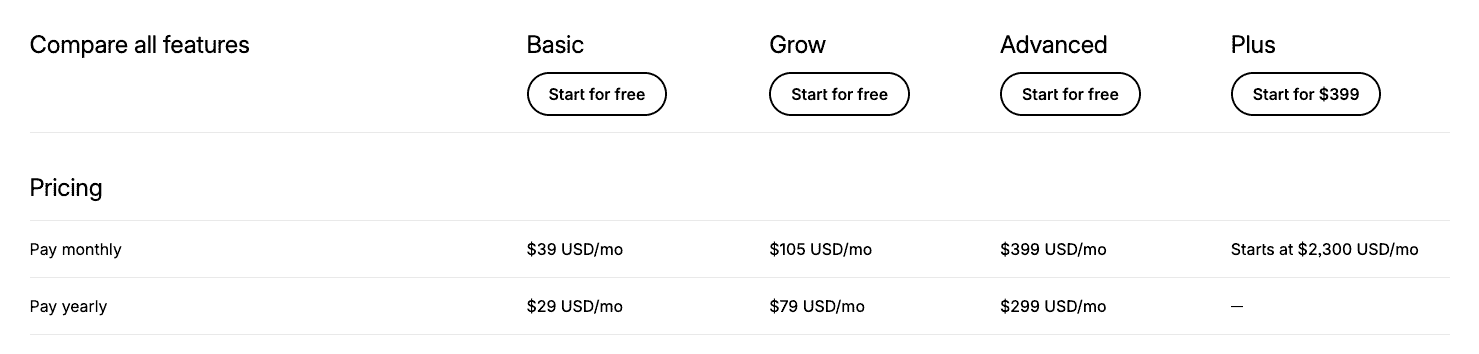
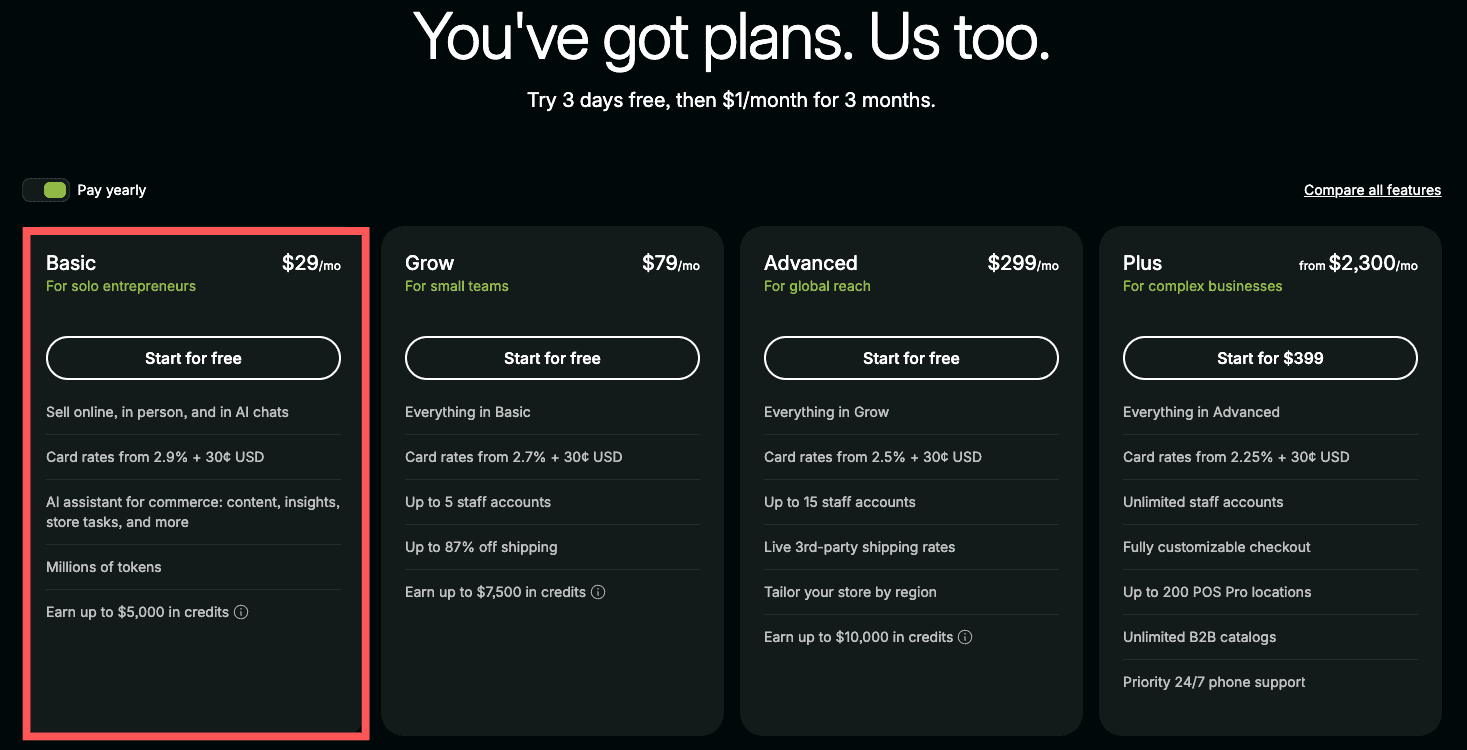
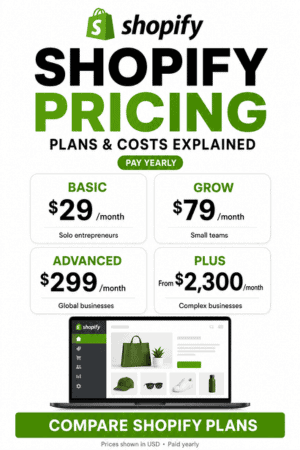
Plan Monthly Billing Yearly Billing Who It Is For
Basic $39/month $29/month Solo entrepreneurs and most new stores
Grow $105/month $79/month Small teams needing up to five staff accounts
Advanced $399/month $299/month International and more complex operations
Plus From $2,300/month Contract-based Large and enterprise businesses

Shopify currently offers new users a three-day free trial followed by $1 per month for the first three months on eligible plans. The practical approach is to generate the design, build as much of the store as possible, and choose a paid plan only after reviewing the real workflow and total cost.

Remember that the plan is not the full budget. A domain, premium theme, paid apps, payment processing, email tools, product photography, inventory, shipping, and marketing can add cost. Review the current Shopify pricing guide before publishing the store.

Start With the Shopify Free Trial

Shopify AI Store Builder Pros and Cons

Pros

  • Creates three design directions quickly from one prompt
  • Removes the intimidating blank-theme starting point
  • Requires no coding to generate and edit the initial design
  • Works inside Shopify’s complete ecommerce platform
  • Can be customized with themes, sections, blocks, apps, Liquid, and CSS
  • Connects naturally with Shopify Magic and Sidekick
  • Included rather than sold as a separate native builder subscription
  • Useful for beginners, product tests, campaign stores, and design inspiration

Cons

  • Generated designs can feel generic without original branding and imagery
  • Does not complete every ecommerce configuration or launch task
  • AI text, images, and code require accuracy, rights, accessibility, and mobile review
  • Publishing still requires a Shopify plan and other business expenses
  • Advanced design changes can still require code, apps, or a developer
  • Does not research products, prove demand, or create traffic automatically

Who Should Use the Shopify AI Store Builder?

  • Beginners who want a guided visual starting point
  • Small businesses launching an online store without a designer
  • Existing Shopify merchants testing a new product or campaign direction
  • Creators who know their brand concept but struggle to translate it into a layout
  • Store owners who want to compare several design directions before committing

It is less suitable for a business that requires a completely custom experience, complex integrations, a specialized headless architecture, or strict design-system control from the first version. The AI builder can still provide inspiration, but a developer or Shopify Partner may be needed for the production build.

Is the AI-Generated Store Good for SEO?

The generated Shopify theme provides a responsive storefront foundation, but the AI design is not an SEO strategy. You still need keyword research, useful collection structure, accurate product content, unique titles and descriptions, descriptive image alt text, internal links, fast media, and content that matches what customers search for.

Follow my Shopify SEO guide for beginners to turn that foundation into an organized search strategy for products, collections, content, internal links, technical checks, and performance measurement.

Do not publish large amounts of generic AI copy simply because it is fast to create. Rewrite product and category pages around real customer questions, specifications, comparisons, use cases, and buying concerns. Original photography, firsthand product knowledge, and transparent policies improve both trust and usefulness.

Once the storefront and product data are accurate, my Shopify Pinterest guide explains how to connect the catalog, create Product Pins, and test the customer journey back to your store.

Review every generated output before it reaches customers. AI can produce inaccurate product claims, unsupported guarantees, invented features, awkward wording, inconsistent branding, inaccessible color combinations, or images that do not accurately represent the product.

Use media and text you have the right to publish. Check product labeling, health or performance claims, return promises, shipping estimates, privacy language, and regulated-product requirements with an appropriate professional when necessary. Generated policy templates are starting points, not automatic legal compliance.

Test generated theme blocks and code on a duplicate theme before publishing. Check mobile layout, keyboard navigation, contrast, buttons, forms, cart behavior, and page speed. Keep the number of apps and custom scripts as small as practical.

Alternatives to Shopify’s AI Store Builder

You can start with a prebuilt Shopify theme and customize it manually, use a third-party page-builder app, hire a Shopify Partner, build a custom theme, or choose a different ecommerce website builder. The best alternative depends on budget, design requirements, technical skill, and how much control the business needs.

If you are deciding between Shopify’s managed website-building system and WordPress’s greater publishing and technical flexibility, read my Shopify vs WordPress comparison.

If WordPress and WooCommerce are another option, read my Shopify vs WooCommerce comparison to compare the platforms’ setup process, customization, checkout, SEO, ownership, maintenance, and scalability.

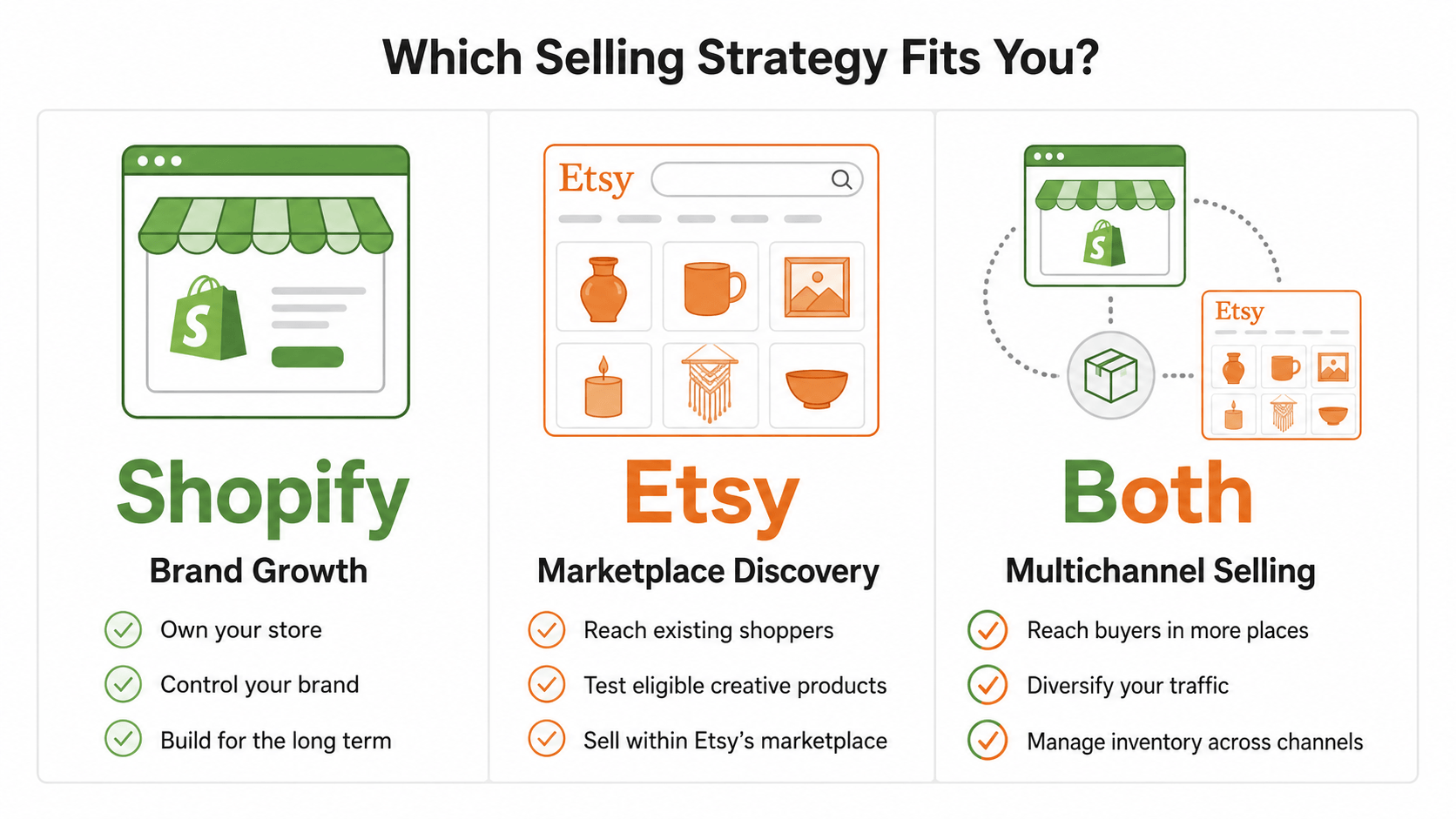
If you are still deciding where to sell, compare Shopify vs Etsy to understand the differences in ownership, fees, customization, customer access, and long-term growth. Shopify is designed for building an independent online store, while Etsy provides access to an established marketplace.

For most new Shopify users, the native AI builder should be tested before paying for another design tool. It may already provide the required layout. Add a paid app or professional only after identifying a specific limitation that affects the customer experience or business results.

The full Shopify review for 2026 explains how the AI tools fit into the broader ecommerce platform.

If an AI-built Shopify store will run a holiday promotion, use my Shopify Black Friday checklist to complete the manual pricing, inventory, checkout, shipping, marketing, and support work.

Shopify AI Store Builder Frequently Asked Questions

Is Shopify’s AI Store Builder free?

Shopify currently includes its native AI store-design features rather than charging a separate builder subscription. You can begin during the free trial, but operating and publishing the complete store requires an eligible Shopify plan.

Can Shopify AI build an entire store?

It can generate a personalized theme and store-design starting point. The owner must still verify or complete products, collections, navigation, payments, shipping, taxes, policies, domain settings, mobile layout, and test orders.

How many designs does the AI Store Builder create?

Shopify currently says the AI Store Builder produces three personalized design options from the business description. Availability and usage limits can change.

Do I need coding skills?

No coding is required to generate a design or make standard changes with the theme editor. Advanced customization can use Liquid, CSS, generated theme blocks, apps, or help from a developer.

Can Shopify AI write product descriptions?

Yes. Shopify Magic can draft product descriptions from details such as a product title and keywords. Review the output for accuracy, brand voice, prohibited claims, repetition, and useful product information before publishing.

Can Shopify AI create product images?

Shopify Magic includes media-generation and editing tools that can create assets, remove or replace backgrounds, and support image work. Generated images should accurately represent the product and be reviewed for quality and usage rights.

Will an AI-generated Shopify store make sales?

No store design can guarantee sales. Results depend on product demand, offer, price, trust, traffic, competition, merchandising, customer service, shipping, and the complete buying experience.

Once the AI-generated design has been properly completed and tested, use my Shopify first-sale guide to develop the offer, reach potential customers, choose a traffic strategy, and measure the complete buying journey.

Can I change the AI-generated design later?

Yes. You can continue editing the selected Shopify theme, change sections and settings, add apps or custom code, and test another theme. Duplicate the current theme before making large changes.

If the AI-generated storefront will use supplier-direct fulfillment, follow my Shopify dropshipping guide to choose suppliers, calculate margins, create product pages, test fulfillment, and plan marketing.

Final Verdict: Is Shopify’s AI Store Builder Worth It?

Yes. Shopify’s AI Store Builder is worth using because it creates three credible design directions quickly, requires no coding to begin, and places the result inside a mature ecommerce platform. It can save the time normally spent choosing a theme and staring at an empty homepage.

Its value depends on understanding the boundary. The tool creates momentum and a storefront foundation. The merchant creates the real business by adding accurate products, original branding, trustworthy policies, operational settings, testing, customer service, and marketing.

Try Shopify’s AI Store Builder during the current free trial. Generate all three options, choose the strongest structure, and evaluate how much manual work remains before selecting a paid plan.

If the AI-generated storefront will center on one item, use my one-product Shopify store guide to validate the offer, refine the positioning, structure the pages, and test the complete customer journey.

How to Start an Online Store in 2026 (Step by Step)

Learning how to start an online store is easier when you separate the project into three jobs: choosing something people want, building a trustworthy storefront, and creating a reliable way to attract and serve customers. Shopify handles the website, hosting, checkout, inventory, and order system, but the business still needs a viable product, healthy margins, clear policies, and a launch plan.

This guide walks through the complete process—from validating an idea and calculating costs to building the Shopify store, configuring payments and shipping, testing checkout, launching, and working toward the first sale.

Key Takeaways

  • Validate demand and profit margin before buying a large amount of inventory.
  • Start with a small, focused catalog that solves a clear customer problem.
  • Shopify is the recommended platform for beginners because hosting, security, checkout, products, and orders are integrated.
  • Shopify Basic currently costs $39 monthly or $29 per month with annual billing in the U.S.
  • Budget for the platform, domain, samples or inventory, packaging, payment processing, apps, and marketing.
  • Never launch before testing a complete mobile order, shipping, taxes, notifications, fulfillment, cancellation, and refund.
  • A store is ready when customers can understand the offer, trust the business, pay successfully, and receive what was promised.

Prefer to watch? In this video, I’ll show you how to start an online store with Shopify step by step.

How To Start an Online Store with Shopify 2026 🔥 (Step-by-Step Tutorial)

Ready to follow along? Create your Shopify account now so you can build your store as you work through each step.

What Do You Need to Start an Online Store?

The first major decision is what you will sell and why a specific customer would want it. If you are still comparing possibilities, explore my 30 product ideas to sell on Shopify, including physical products, digital downloads, print-on-demand items, subscriptions, and services.

You do not need a warehouse, custom-coded website, premium theme, huge catalog, or perfect logo. You do need a product or offer, a defined customer, a way to fulfill orders, realistic pricing, basic business information, product content, and a platform.

Essential Can wait
Clear product and customer Large catalog
Supplier or fulfillment process Custom theme
Price and margin calculation Many paid apps
Store policies and contact information Complex automation
Payment, shipping, tax, and test order Every possible sales channel
Initial traffic plan Perfect branding

Keep the first version narrow enough to finish. One well-presented product or a focused collection is better than dozens of unfinished listings. The purpose of the first launch is to create a complete buying experience and begin learning from real behavior.

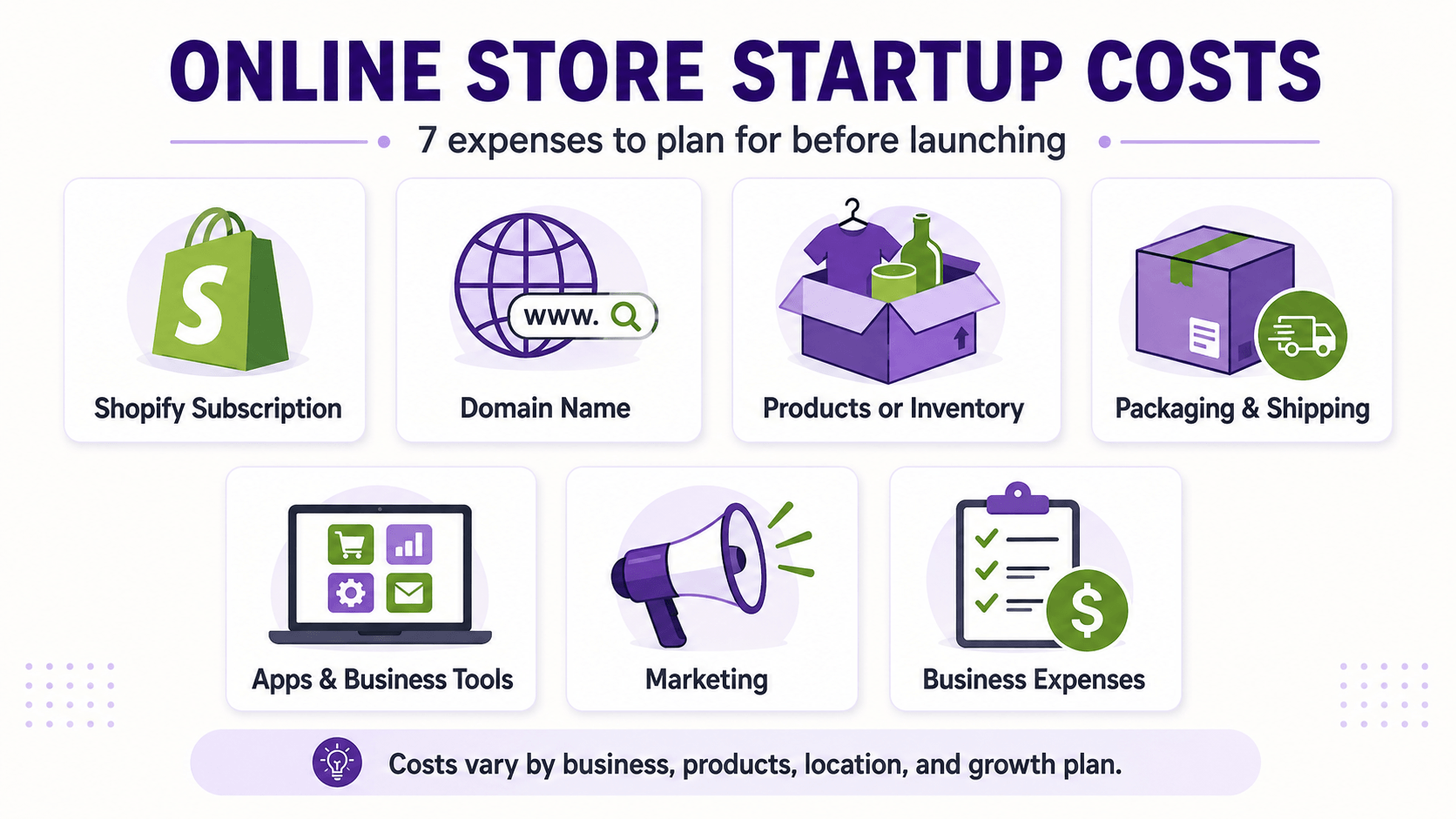
How Much Does It Cost to Start an Online Store?

Online store startup costs including Shopify, products and marketing

The platform is only one part of the budget. A lean store might begin with a free theme, a domain, samples, basic packaging, and a small marketing test. A private-label business with inventory, professional photography, custom packaging, and advertising can require much more.

Cost Lean starting approach
Shopify Basic: $39 monthly or $29 per month annually in current U.S. pricing
Domain Usually an annual registration; price varies by extension and registrar
Theme Begin with a suitable free Shopify theme
Products Samples, a small inventory order, or a no-inventory model
Packaging and shipping Test materials, labels, and representative shipments
Apps Install only when a required workflow is missing
Marketing Content, outreach, email capture, or a controlled paid test
Business requirements Registration, permits, tax, insurance, and professional advice vary by location

Shopify currently offers a three-day free trial followed by $1 per month for the first three months for eligible new users. Offers, eligibility, country pricing, taxes, and plan features can change.

Before signing up, read my Shopify free trial guide to understand what’s included and how the introductory offer works. For ongoing plan costs, transaction fees, and additional expenses, review my complete Shopify pricing guide.

Begin with a customer and a problem, not a random product list. The strongest product ideas usually improve an existing task, serve a recognizable group, express an identity, replace an inconvenient option, or bundle related items into a simpler solution.

Consider whether the product is easy to explain, photograph, price, ship, support, and reorder. Fragile, regulated, perishable, oversized, easily returned, or low-margin products can work, but they require more operational planning.

Business model Advantage Main risk
Owned inventory Control over product and fulfillment Cash tied up in stock
Handmade Distinctive products and story Production capacity
Print on demand Low inventory risk Margin and fulfillment control
Dropshipping No warehouse required Supplier quality and delivery
Digital products No physical shipping Competition and unauthorized sharing
Private label Brand and product control Minimum orders and upfront cost

If the product decision is still open, use the best products to sell on Shopify guide to evaluate demand, margins, repeat-purchase potential, shipping difficulty, competition, and differentiation.

If you want to sell downloadable files instead of physical inventory, follow my guide to selling digital products on Shopify to prepare the files, configure delivery, create the product page, set pricing, test the order process, and launch.

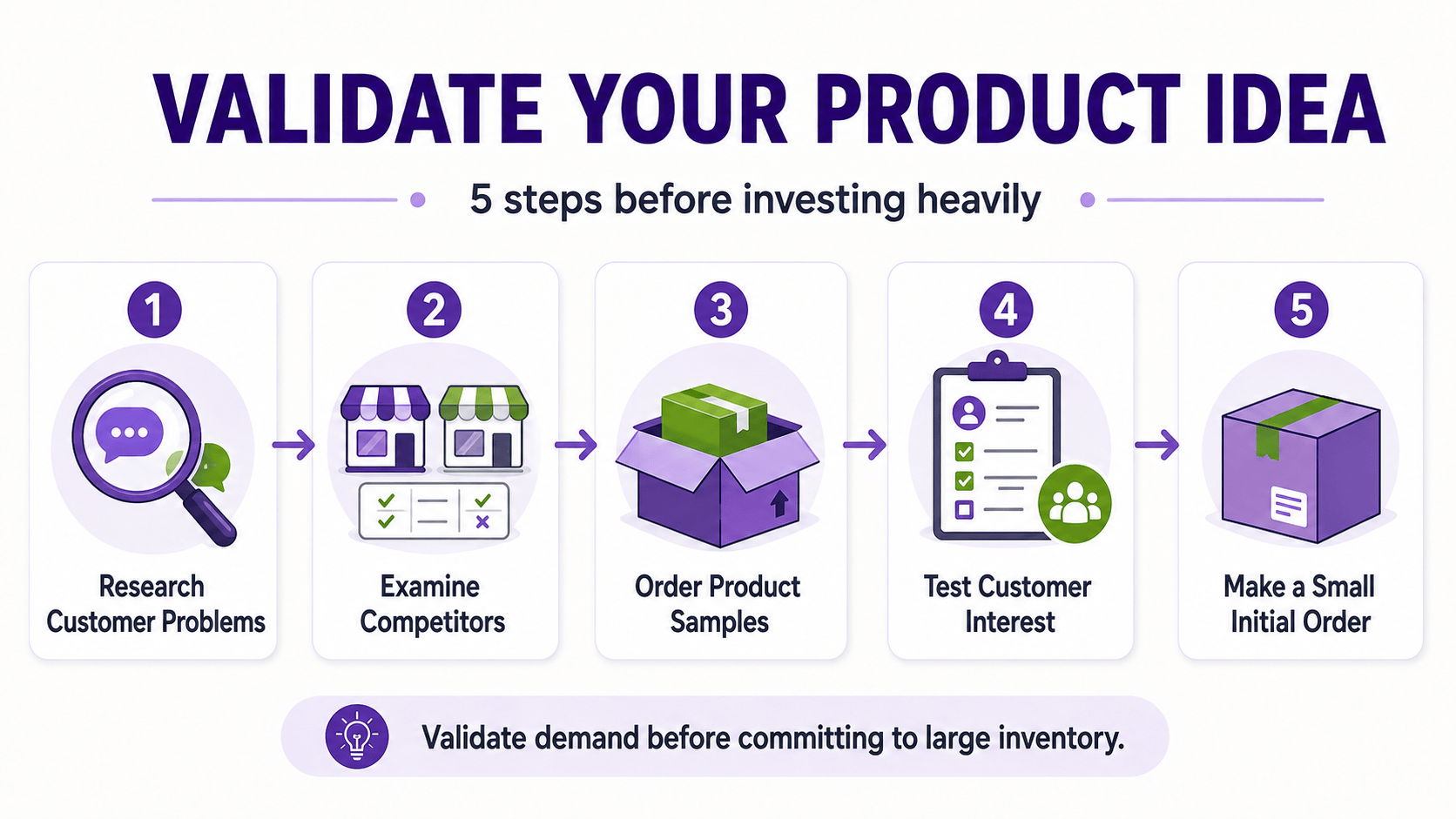
Step 2: Validate Demand Before Investing Heavily

Validation means collecting evidence that the intended customer notices the problem and is willing to pay for the solution. Search volume and social-media views can show interest, but neither proves profitable demand.

  • Read customer reviews for competing products and record repeated complaints.
  • Study marketplace results, pricing, review counts, positioning, and product gaps.
  • Speak with prospective customers without leading them toward the answer.
  • Create a simple offer or waitlist and measure qualified interest.
  • Order samples and evaluate quality, packaging, delivery, and support.
  • Start with the smallest practical order and define a stop-loss amount.

Avoid treating friends’ encouragement as proof. The useful signals are actions: email signups from the target audience, sample requests, preorders where legally and operationally appropriate, repeat questions, and purchases at a price that supports the business.

Steps for validating an online store product idea

Step 3: Calculate Price, Margin, and Break-Even Sales

Revenue is not profit. Before building the store, calculate what remains after the product, inbound freight, packaging, pick-and-pack work, outbound shipping subsidy, payment processing, platform and app costs, returns, damaged orders, discounts, advertising, and taxes paid by the business.

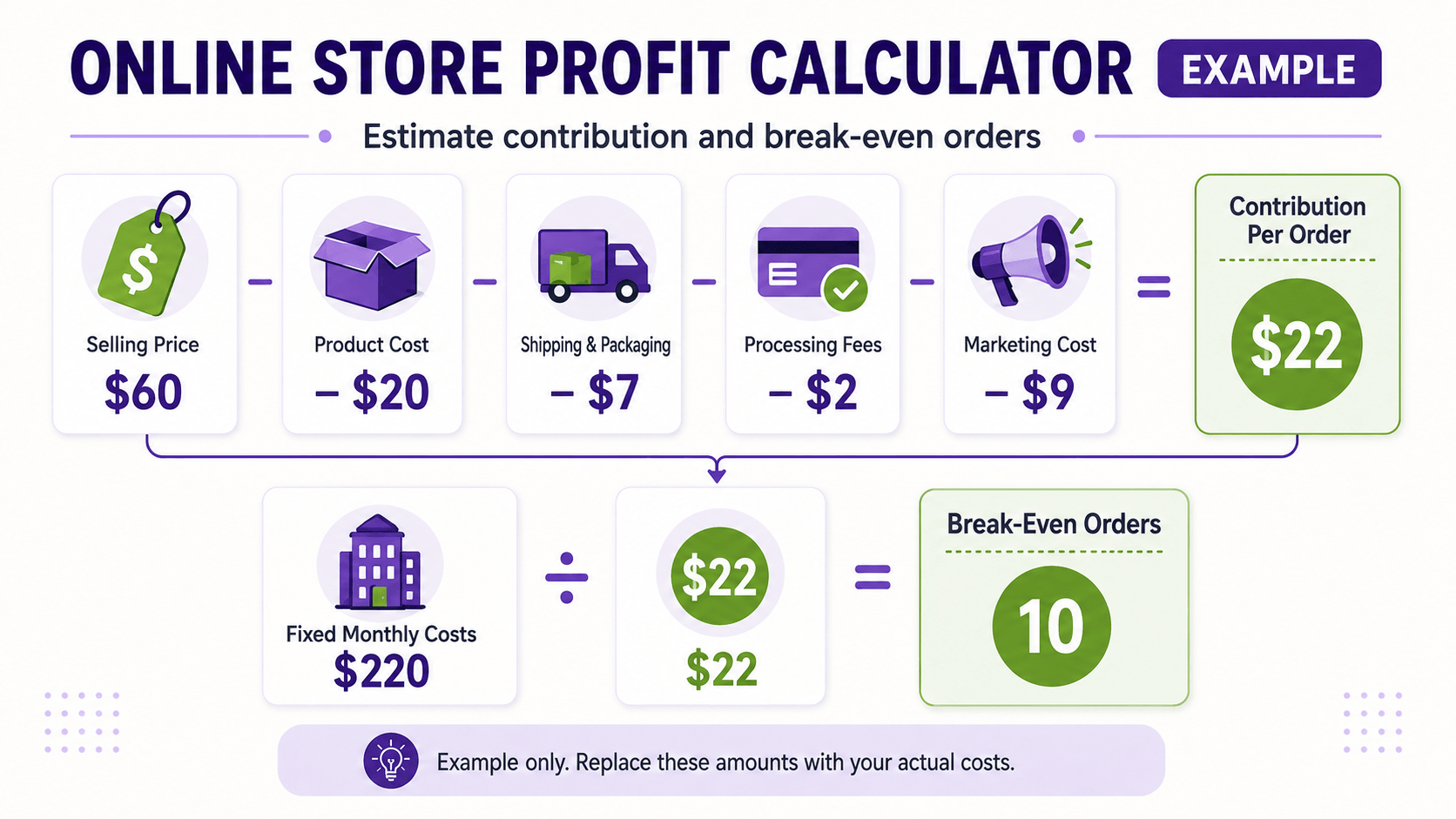
Contribution per order: selling price − product cost − variable fulfillment, packaging, shipping, processing, returns allowance, and marketing cost.

Break-even orders: monthly fixed costs ÷ contribution per order.

Example online store profit margin and break-even calculation

For example, a $60 order with $20 in product cost and $18 in other variable costs contributes $22 before fixed expenses and tax. If fixed monthly costs are $220, the store needs ten similar orders to cover them. Replace every example number with supplier quotes and the business’s real assumptions.

Run a base case, a lower-sales case, and a higher-return or higher-advertising-cost case. A product that works only under perfect assumptions is not ready for a large investment.

Step 4: Choose a Name and Handle the Business Basics

Choose a name that is easy to pronounce, spell, remember, and use in a domain. Search the web, domain registries, social platforms, business registries, and relevant trademark databases before investing in branding. Domain availability does not create trademark rights.

Business registration, seller permits, sales tax registration, product rules, privacy obligations, insurance, bookkeeping, and licenses depend on the location, products, and customers. Separate personal and business finances when appropriate, retain expense records, and use qualified legal and tax professionals for requirements specific to the business.

Prepare a business name, address, support email, return address, customer-service process, supplier information, product costs, weights, package dimensions, and bank details before configuring payments and delivery.

Step 5: Create the Shopify Store

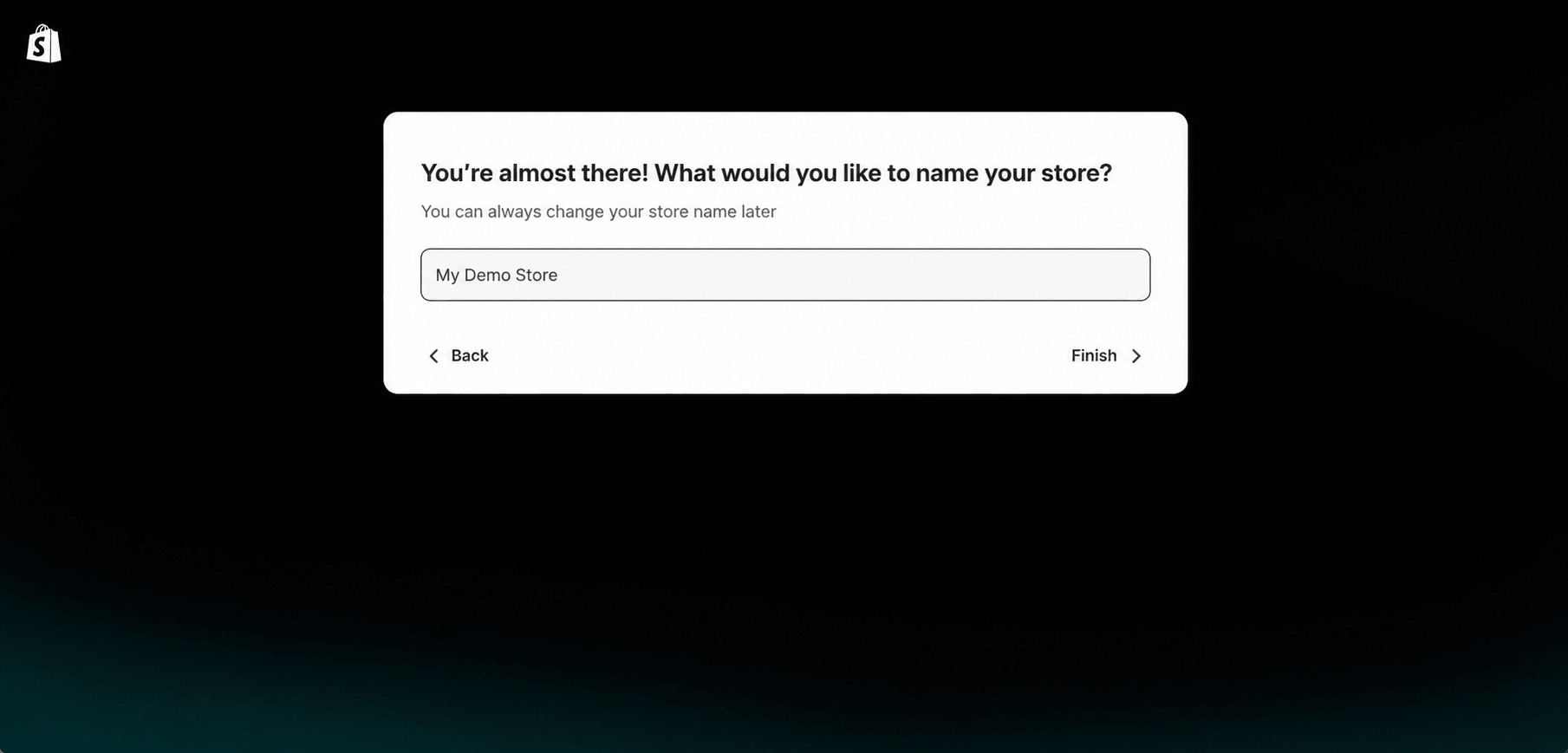
Start the Shopify free trial and create the store account. Shopify currently lets a new user sign up with an email address and password or another supported sign-in method, and the customized setup questions can be skipped or completed.

Use the trial to build before committing to a longer billing term. Add business details carefully, use an email address the business will control, enable strong account security, and grant each collaborator only the access required.

If you are still deciding which platform to use, read my Shopify vs WordPress comparison to compare ecommerce features, setup, costs, customization, maintenance, ownership, and the types of websites each platform handles best.

After creating the account, you can use Shopify’s AI Store Builder to generate personalized storefront designs from a short description of the business. Read my Shopify AI Store Builder review to see what the tool creates, how the generated designs can be customized, its limitations, and which parts of building the store still require manual work.

This article focuses on the business-to-launch roadmap. For the detailed dashboard sequence, theme screens, collections, navigation, and settings, follow the step-by-step Shopify store tutorial. Shopify also maintains an official setup guide.

If WordPress is also under consideration, read my Shopify vs WooCommerce comparison to compare setup, costs, design, checkout, SEO, ownership, maintenance, and scalability before choosing your ecommerce platform.

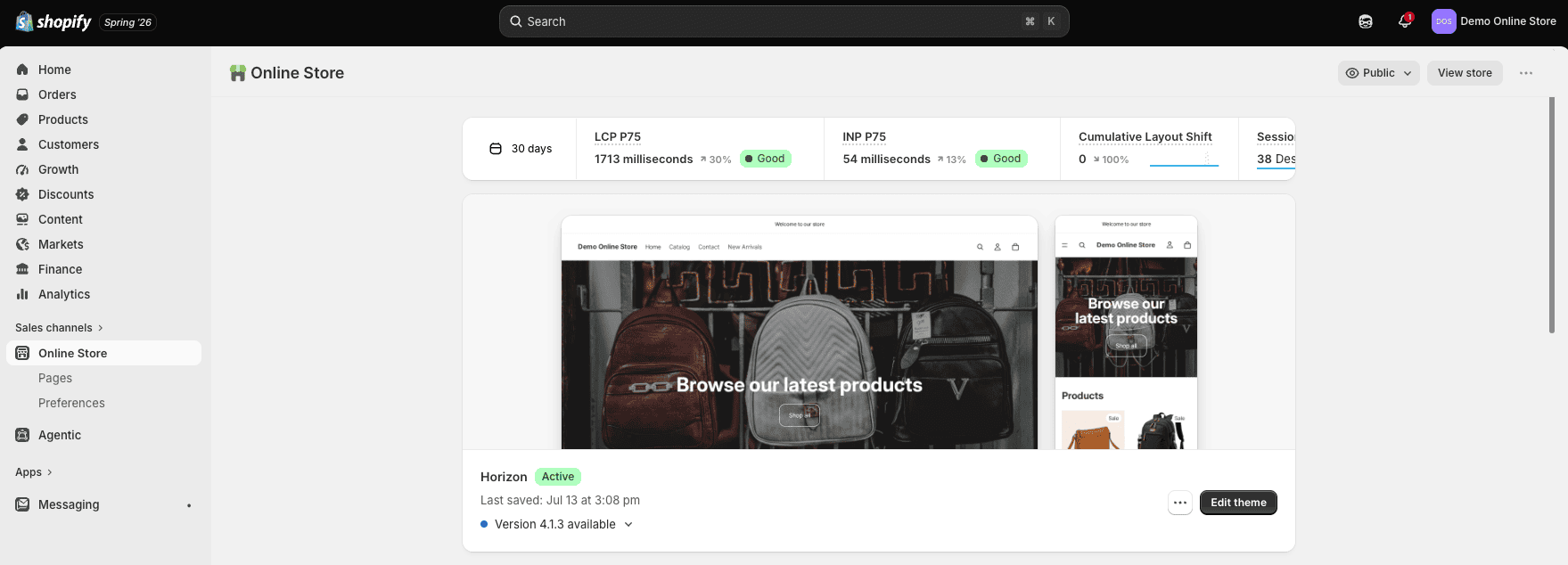
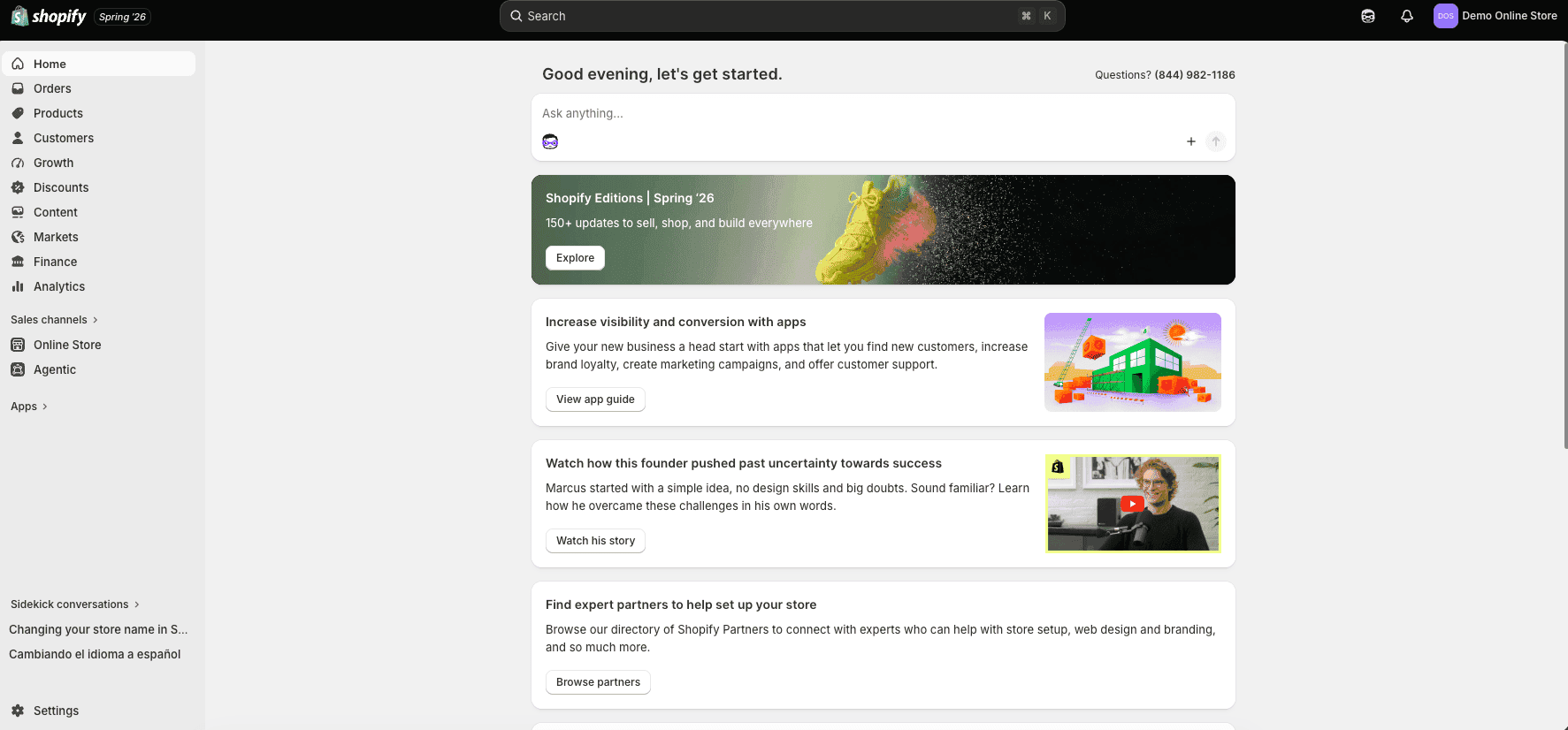
Shopify admin dashboard for creating an online store

Step 6: Add Products That Are Ready to Buy

Good product listings also need clear, consistent images that answer buying questions. Use my Shopify product-photography guide to plan the essential shots, create a simple setup, edit images, and prepare them for your store.

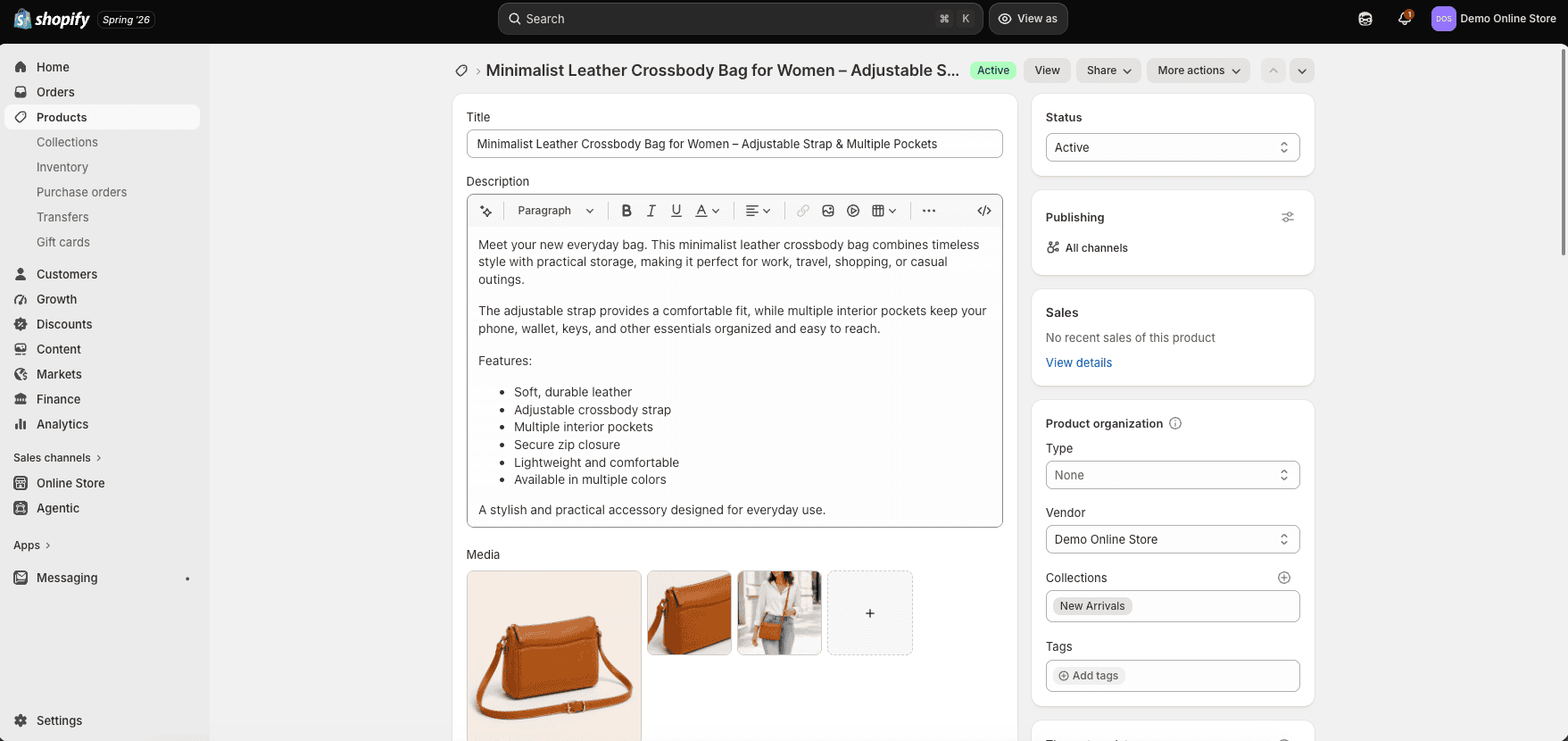
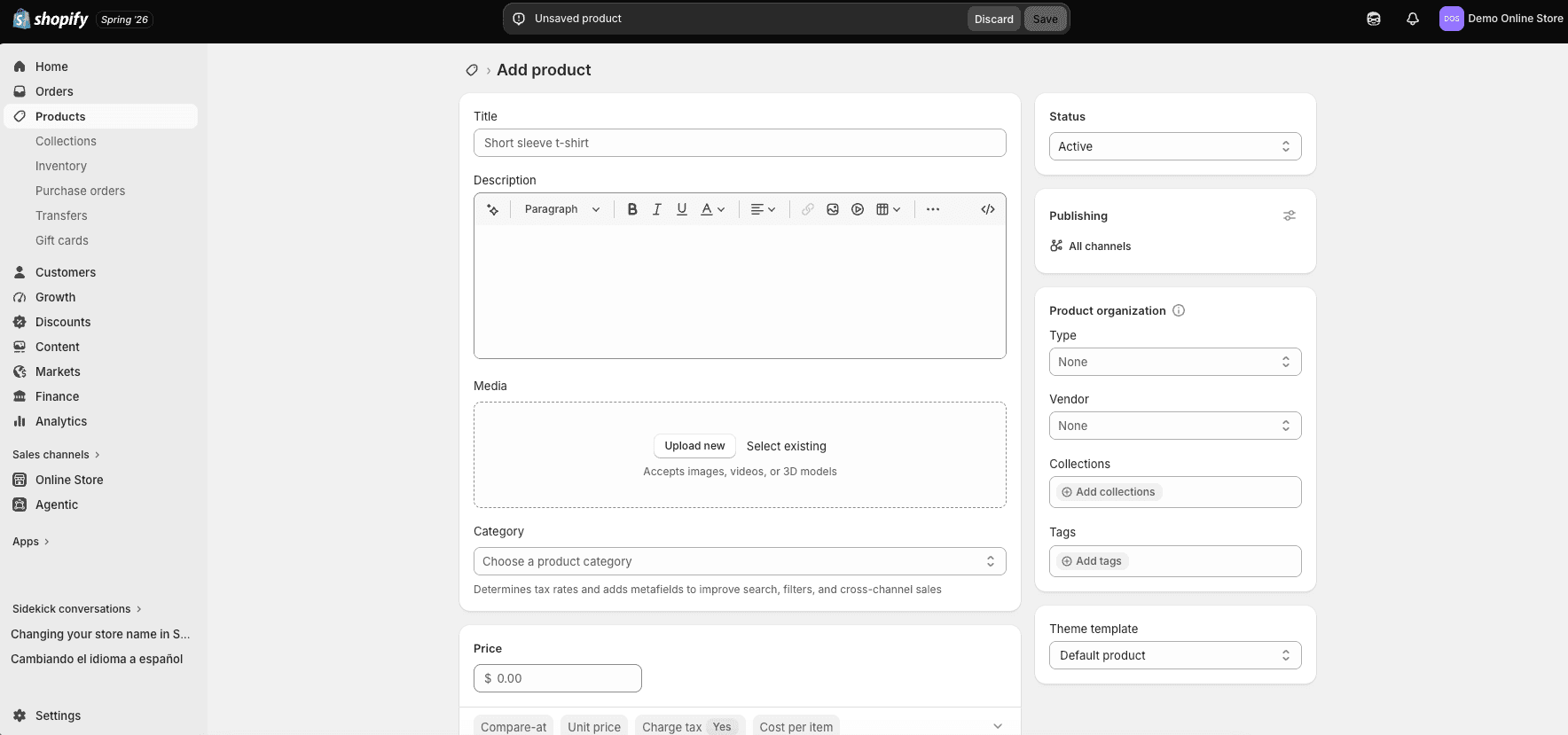
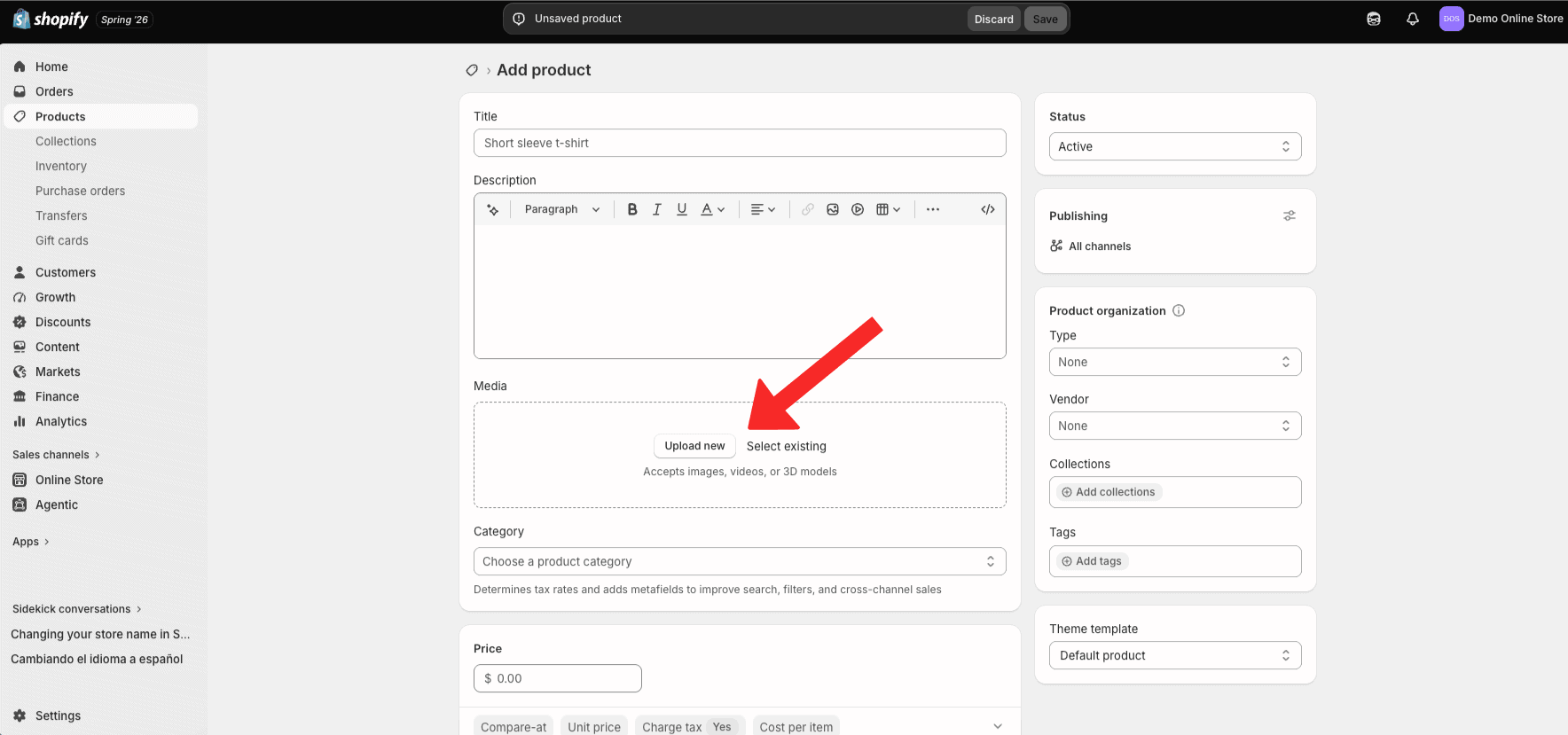
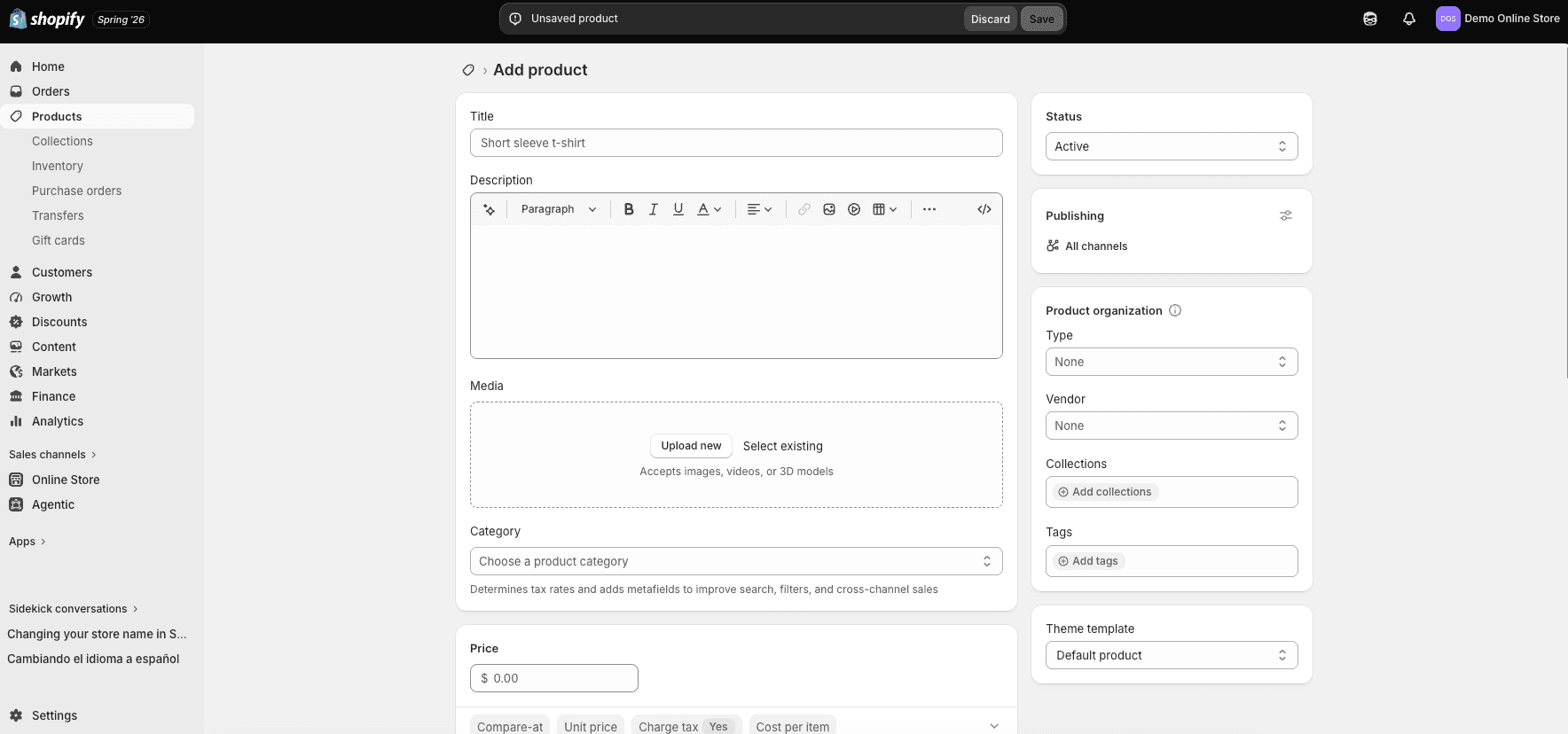
In the Shopify admin, go to Products and add a product. At minimum, Shopify requires a title and price, but a launch-ready listing should answer the questions a customer would ask before purchasing.

  • A clear product name that describes the item
  • Original benefits-focused description
  • Accurate price and genuine compare-at pricing, if used
  • Consistent original images from useful angles
  • Variants such as size, color, material, or quantity
  • SKU, barcode, inventory, weight, and customs information where applicable
  • Shipping, delivery, returns, care, safety, and compatibility details
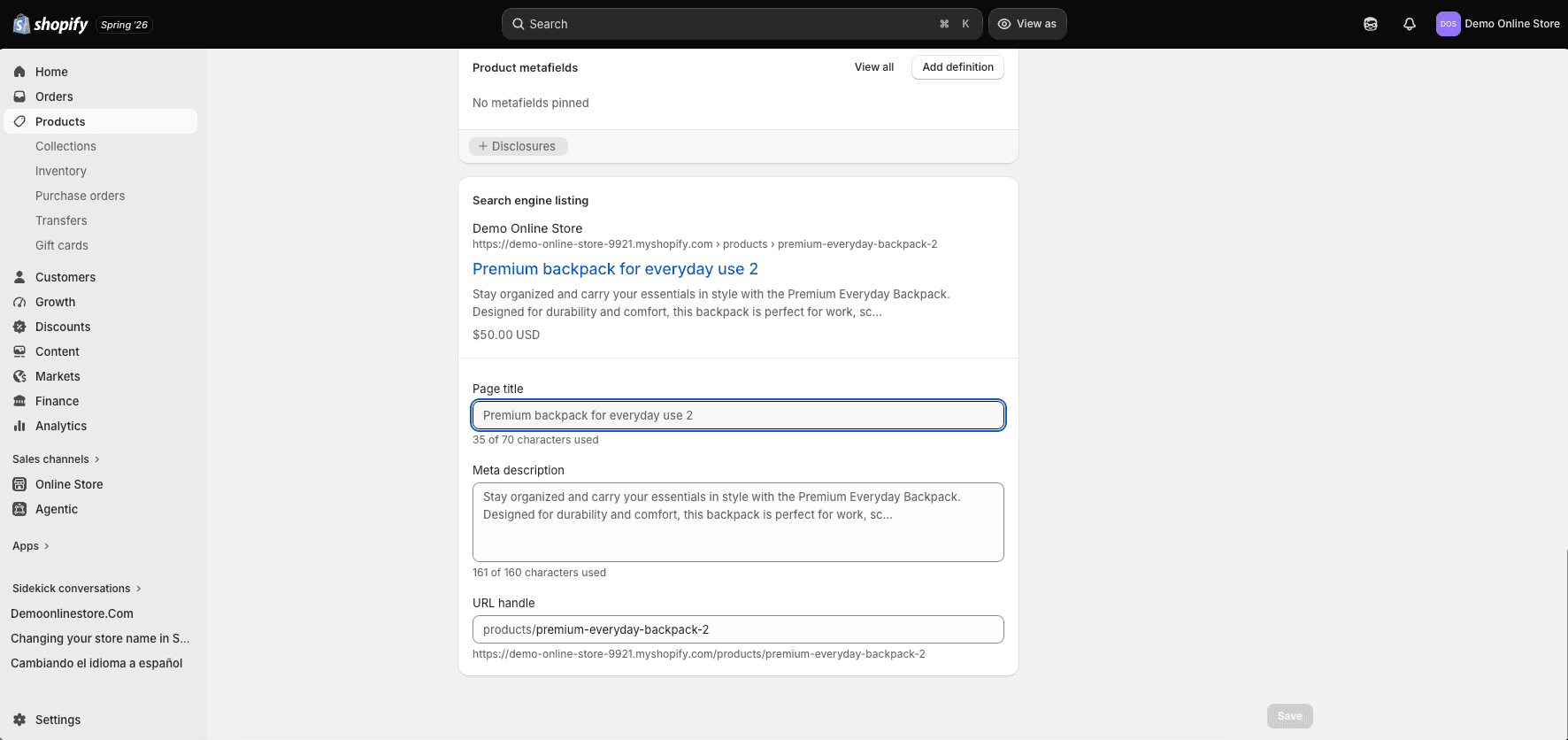
  • Accurate search title, description, URL, and image alt text
Adding a complete product listing to a Shopify store

Do not copy a supplier description without improving and verifying it. Original text should explain who the product is for, what problem it solves, what is included, how it differs, and what the buyer should expect. Claims about results, materials, origin, sustainability, safety, warranties, and discounts must be supportable.

Organize related products into collections and use filters only when they help customers narrow a meaningful catalog. A small store can begin with a simple Shop collection and expand its structure as inventory grows.

Step 7: Design a Simple, Trustworthy Storefront

Begin with a free Shopify theme that supports the catalog and essential features. A premium theme is not automatically faster or more persuasive. Product photography, offer clarity, mobile usability, navigation, and trust usually matter more than elaborate effects.

Before deciding on the layout, review the 25 best Shopify store examples to see how different stores approach branding, homepage structure, product photography, navigation, product pages, trust, and conversions. Use these examples for inspiration while building around your own products and customers.

The homepage should explain what the store sells, who it serves, why the offer is different, and what the visitor should do next. A practical structure is an outcome-focused headline, primary call to action, featured collection, best products, core benefits, proof, helpful content, email signup, and footer.

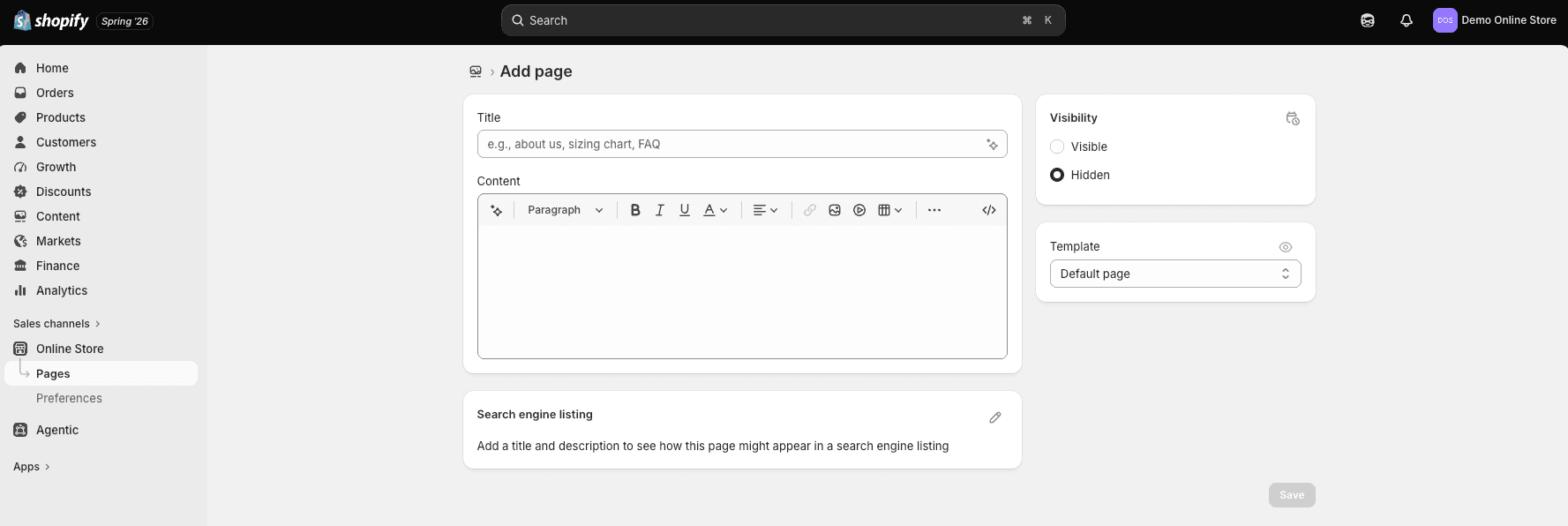
Create About, Contact, FAQ, shipping, return/refund, privacy, and terms pages that accurately reflect the business. Add them to clear header or footer navigation. Templates can provide a starting point, but they must be reviewed for the products, practices, jurisdiction, and promises being made.

Check every important template on a phone. Buttons should be easy to tap, text readable, images compressed, menus understandable, forms usable, and product options unambiguous. Avoid popups and announcement bars that cover the main action or make checkout difficult.

Customizing and previewing a Shopify store on mobile

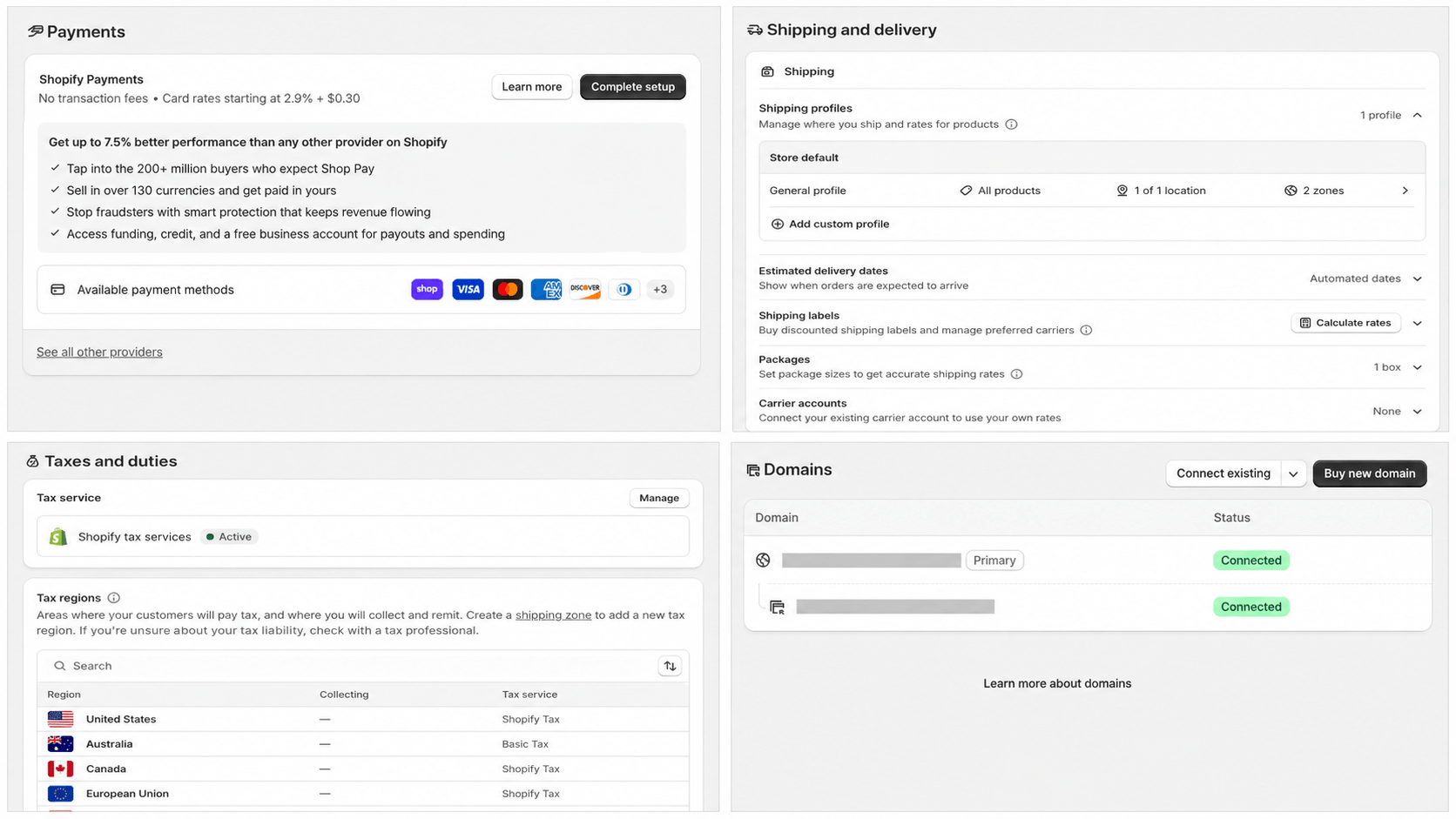
Step 8: Configure Payments, Shipping, and Taxes

Payments

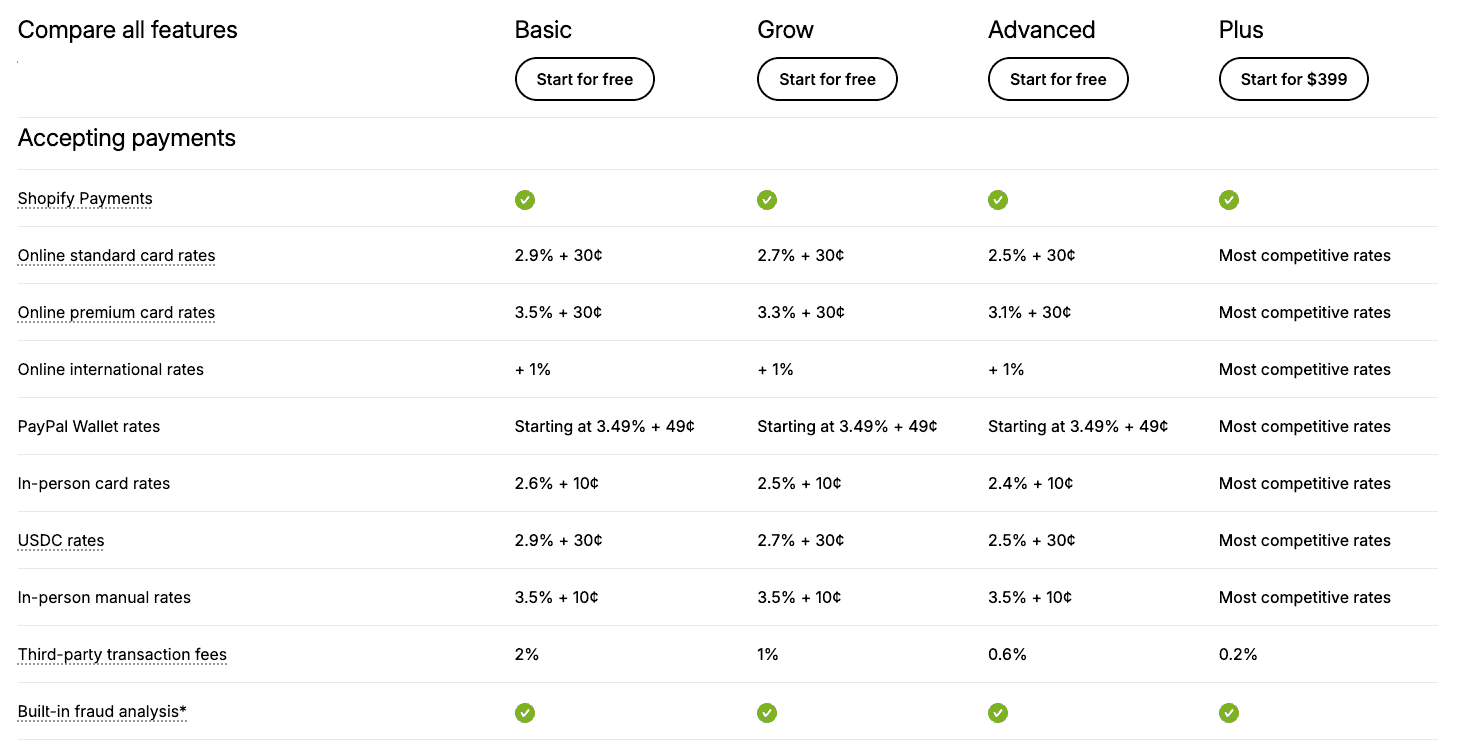
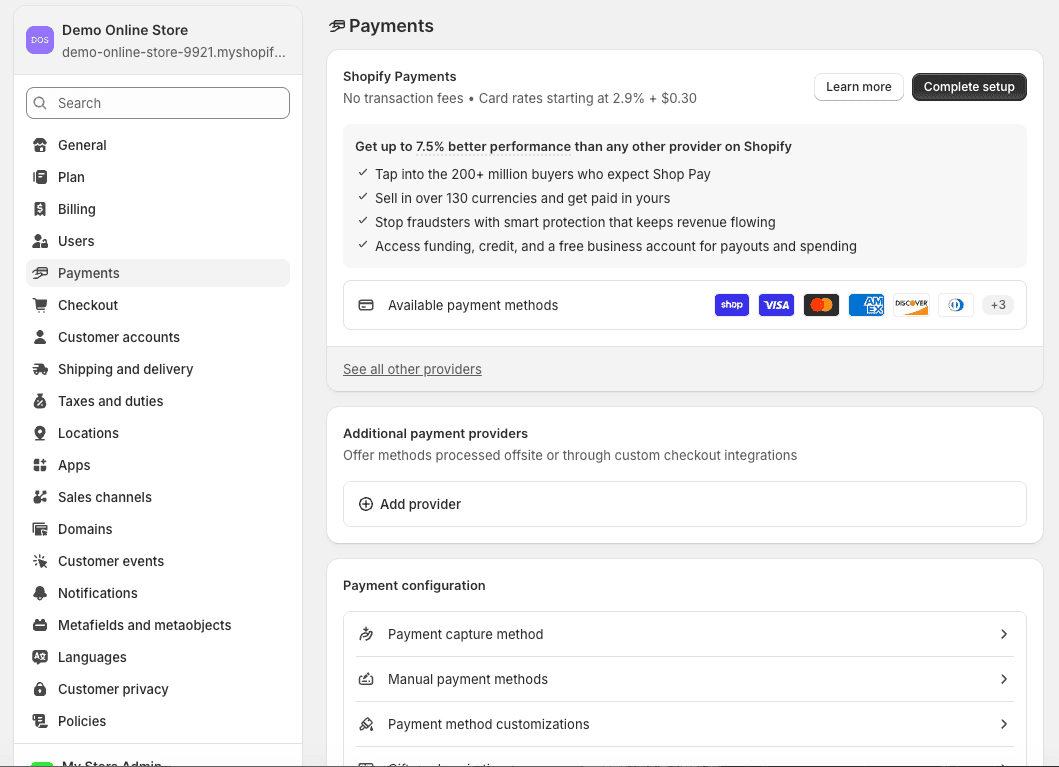
Go to Settings and review Payments. Shopify Payments is integrated where available, while supported external providers vary by business country. Confirm eligibility, identity and banking requirements, card and method rates, payout timing, reserves, refunds, disputes, fraud tools, currency, and any additional platform fee before accepting orders.

Shipping and delivery

Decide where the store ships, which products require special rules, who fulfills each order, which packaging is used, how long handling takes, what customers pay, and how tracking and returns work. Shopify can use flat, price-based, weight-based, free, and eligible calculated rates.

Weigh and measure packed samples. Compare multiple realistic destinations, including remote or expensive zones. Ensure the highest price or weight tier has coverage so a valid customer does not reach checkout with no available shipping rate.

Taxes and duties

Review Settings, Taxes and duties, and the markets where the store sells. Software can calculate amounts from configuration, but it does not decide where the business has registration, collection, filing, invoicing, exemption, or customs obligations. Confirm those requirements with qualified professionals.

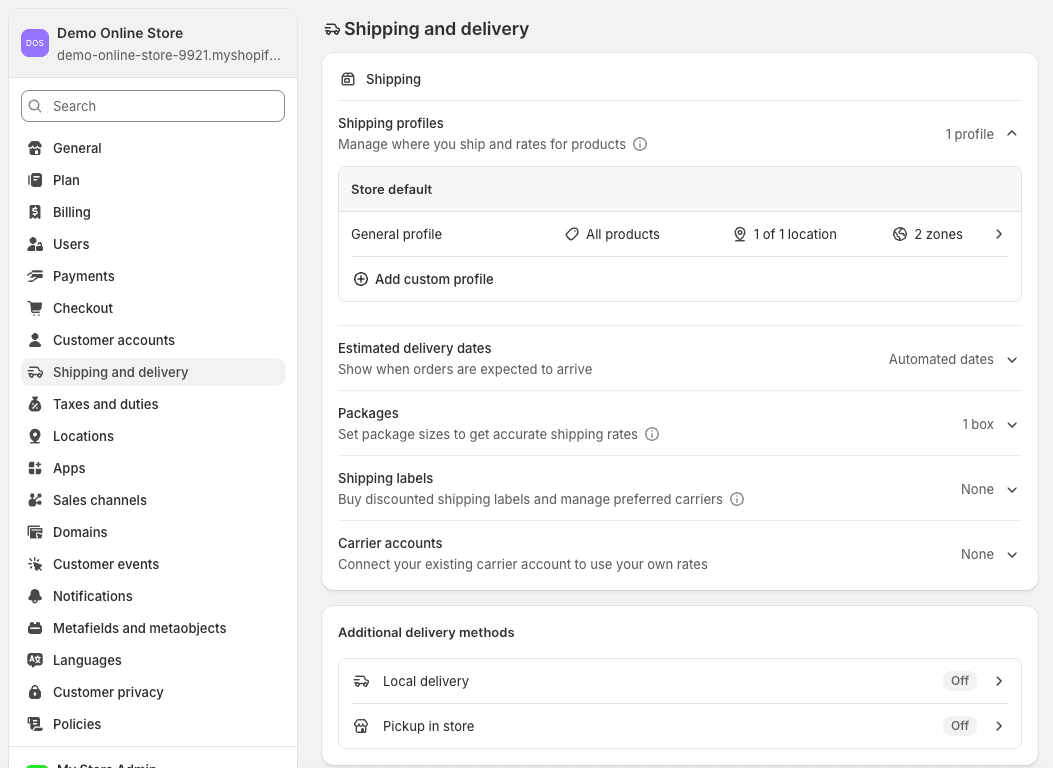
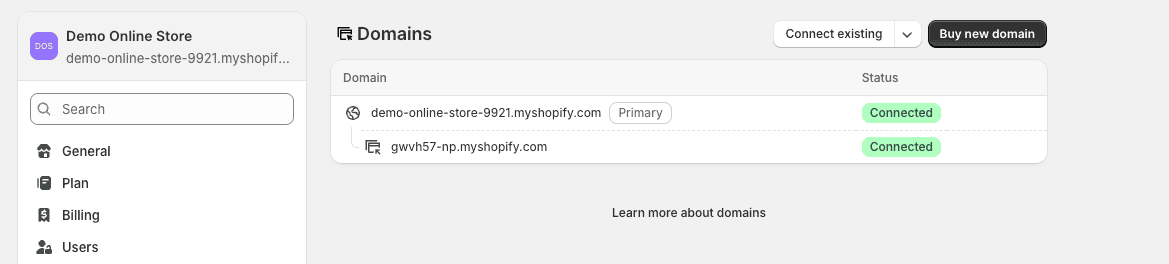
Shopify payment, shipping, tax and domain settings

Step 9: Connect the Domain and Essential Business Tools

Connect a domain the business controls and make it the primary storefront address. A third-party domain remains registered and renewed through that provider even after its DNS points to Shopify. DNS changes can take time, so connect and verify the domain before the planned launch hour.

Set up a professional support address on the domain, authenticate the sending domain where required, and test store notifications. Configure analytics and advertising pixels only when they are needed and compatible with the store’s consent and privacy obligations.

Install as few apps as possible. Record the owner, price, permissions, data collected, storefront impact, support contact, renewal, and uninstall/export process for each app. Remove unused trial apps before they create charges or unnecessary access.

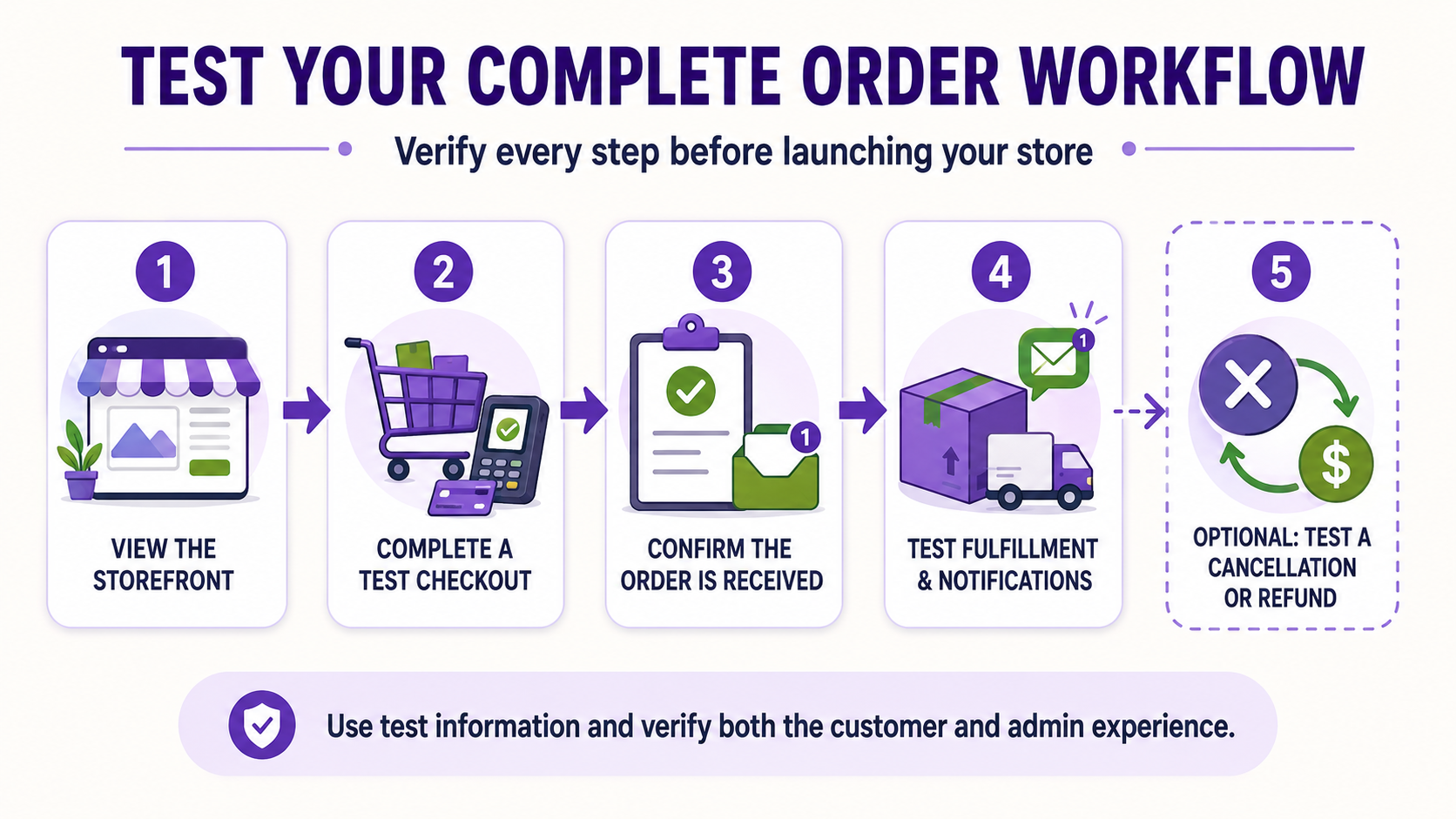
Step 10: Test the Entire Customer Journey

A homepage preview is not a store test. Shopify recommends placing at least one test order to verify checkout, processing settings, inventory, shipping, email notifications, and taxes. Test mode and the Bogus Gateway can simulate supported transactions after an eligible paid plan is selected; a small real order may create processing costs even when immediately refunded.

  • Browse, search, filter, and choose variants on mobile and desktop.
  • Add, change, and remove cart items.
  • Test valid and invalid addresses, shipping zones, discounts, tax, and payment outcomes.
  • Confirm order, shipping, cancellation, refund, and customer emails.
  • Fulfill and partially fulfill a test order.
  • Cancel, restock, refund, and archive an order.
  • Submit every form and verify who receives the message.
  • Check policies, contact information, social links, domain, SSL, favicon, metadata, and broken links.
  • Review accessibility with keyboard navigation, readable contrast, form labels, headings, and image alt text.

Use the full Shopify store launch checklist before removing the password. During payment test mode, customers cannot place live orders, so deactivate it before launch.

Testing a Shopify order from checkout through refund

Step 11: Launch the Online Store

Choose the Shopify plan that supports the required features, complete the final test, back up or export important business data where appropriate, and remove storefront password protection. Shopify requires a subscription plan before the password can be removed during the free trial.

Launch to a small controlled audience first. Ask testers to browse and purchase without coaching, then watch where they hesitate or fail. Correct checkout blockers, unclear product details, broken forms, missing delivery information, and mobile issues before sending a large campaign.

Once your product, pricing, fulfillment, and launch plan are ready, you can begin creating the store and testing the complete customer experience. Keep the opening catalog manageable enough to support every customer well.

Step 12: Get the First Customers

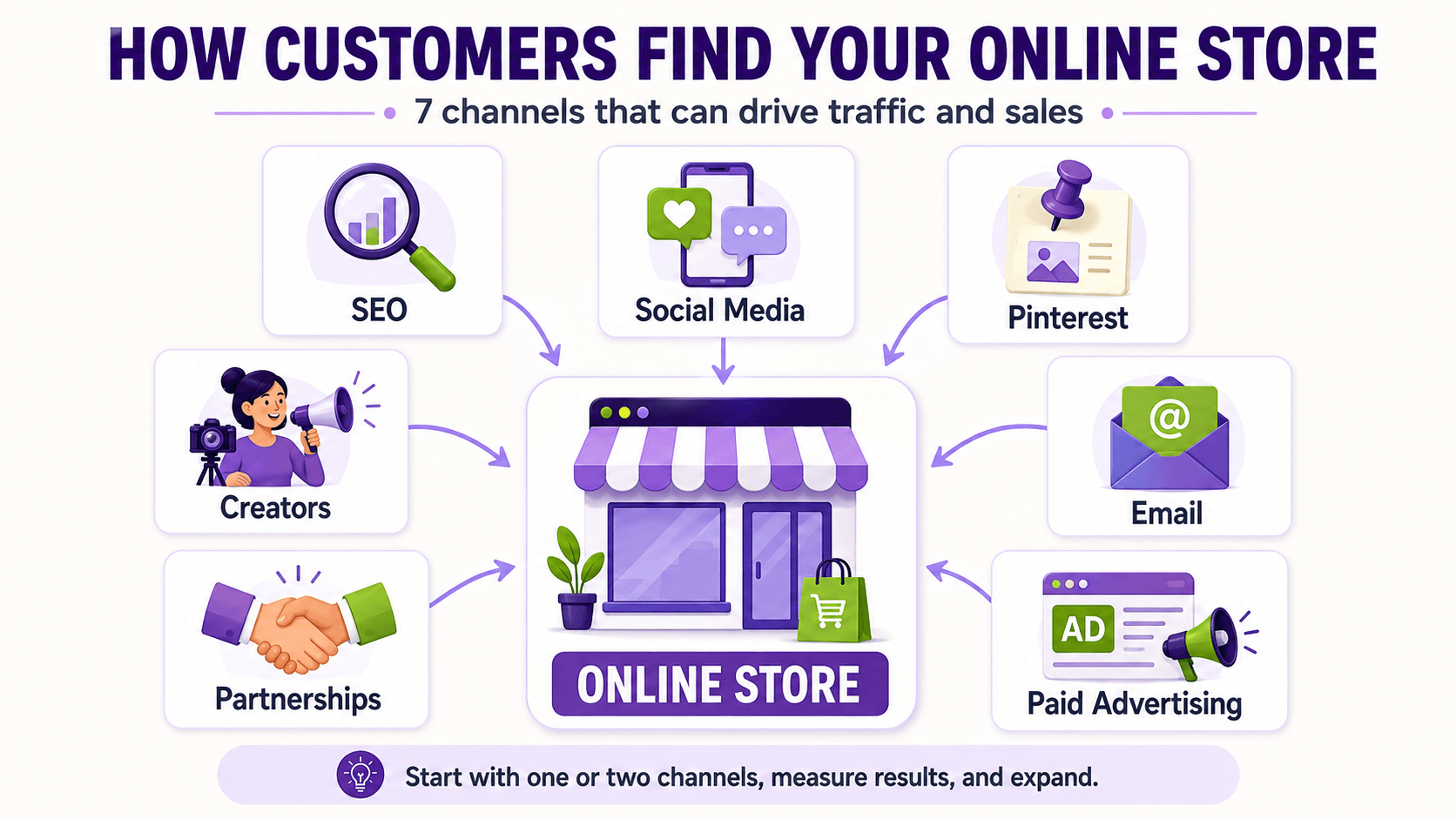
Do not wait until launch day to decide how people will find the store. Choose one primary channel that matches the customer and product, then build a repeatable weekly process around it.

Channel Best starting use
SEO and content Products customers research or search for
Short-form social Demonstrable, visual, or identity-driven products
Pinterest Visual products with planning and discovery intent
Creators and affiliates Products that benefit from trusted demonstration
Email Follow-up, education, launches, and repeat purchases
Paid search or social Measured offer tests with defined economics
Communities and partnerships Focused niches where genuine participation is possible
Marketing channels for getting an online store’s first customers

Create useful material around customer questions, comparisons, use cases, problems, and buying decisions. For organic search, use the Shopify SEO guide for beginners. For the immediate launch period, follow the first Shopify sale plan.

Track the path from visitor to product view, add to cart, checkout, purchase, fulfillment, delivery, support, review, and repeat order. Traffic without qualified product interest is not the goal. Use the data to improve the offer and customer experience rather than changing everything at once.

A Realistic Online Store Timeline

Stage Primary outcome
Days 1–3 Customer, product, competitor, and margin research
Days 4–7 Samples, supplier checks, name, domain, and business requirements
Week 2 Shopify account, products, theme, pages, navigation, and policies
Week 3 Payments, shipping, taxes, domain, email, analytics, and testing
Week 4 Controlled launch, first traffic campaign, fixes, and measurement

A simple digital-product or print-on-demand store may launch faster. Inventory manufacturing, regulated products, international selling, complex shipping, or custom integrations can take much longer. Do not trade legal compliance, product safety, truthful claims, or checkout testing for an arbitrary launch date.

Common Online Store Mistakes

  • Buying large inventory before validating demand
  • Pricing from competitors without calculating complete cost
  • Launching too many unrelated products
  • Copying supplier descriptions and images without differentiation
  • Spending heavily on design before improving the offer and product media
  • Installing apps without a specific requirement
  • Hiding delivery, return, or contact information
  • Testing only the homepage instead of completing orders
  • Launching without a customer-acquisition plan
  • Changing many variables before learning what caused the result

The most expensive mistake is building around assumptions that were inexpensive to test. Validate the riskiest parts first: whether customers care, whether the product is good, whether the numbers work, and whether fulfillment can keep the promise.

If Shopify is your chosen platform, use the complete Shopify mistakes to avoid guide to review products, design, apps, checkout, shipping, SEO, mobile usability, and ongoing maintenance before launch.

If Shopify will be your platform, use my Shopify Black Friday checklist before a major holiday campaign to verify the offer, inventory, checkout, shipping, and fulfillment plan.

Frequently Asked Questions

Can I start an online store with no money?

You can research, validate ideas, create content, and begin building during a free trial with little money. A public operating store normally has costs such as a platform plan, domain, payment processing, products or samples, fulfillment, and marketing. No-inventory models can reduce upfront cost but do not remove business expenses.

How much money should I have before starting?

There is no universal minimum. Calculate the first platform and domain payments, samples or opening inventory, packaging, representative shipping, business requirements, returns reserve, and a controlled marketing test. Set a maximum amount the business can risk without harming household finances.

Do I need an LLC to start an online store?

Not every jurisdiction requires an LLC, and that structure is not available everywhere. Registration, tax, license, liability, and insurance needs depend on the owner, location, products, and customers. Consult appropriate local professionals rather than treating platform setup as legal formation.

Can I start without holding inventory?

Yes. Print on demand, dropshipping, digital products, made-to-order goods, and some supplier or fulfillment arrangements reduce inventory requirements. The owner remains responsible for product accuracy, customer experience, delivery promises, refunds, and applicable law.

How long does it take to build an online store?

A basic storefront can be assembled in days, but a reliable business may require weeks or longer for research, samples, product content, business requirements, shipping, payment approval, policies, testing, and marketing. Launch when the complete order promise works, not when the homepage looks finished.

Is Shopify good for beginners?

Yes. Shopify combines hosting, SSL, themes, products, inventory, checkout, orders, analytics, and support in one platform. Beginners still need to learn ecommerce operations, but they do not need to configure a conventional hosting stack.

How many products should I launch with?

Launch with the smallest catalog that clearly represents the offer and can satisfy the target customer. One strong product can be enough; a category store may need a focused collection. Do not add weak products solely to make the store look larger.

How do online stores get their first sale?

Most first sales come from deliberately reaching a relevant audience through content, search, creators, communities, email, partnerships, personal outreach, or controlled advertising. Choose the channel that matches the customer and measure the entire path to purchase.

For the complete process, follow my guide to getting your first sale on Shopify, which includes customer research, offer preparation, audience building, outreach, launch activities, funnel analysis, and a practical 30-day plan.

Final Checklist

Before removing your storefront password, use the complete Shopify store launch checklist to review every launch requirement in greater detail.

  • Product, customer, demand evidence, supplier, and economics verified
  • Business, tax, product, privacy, and insurance requirements reviewed
  • Shopify account secured and business settings accurate
  • Products, collections, images, descriptions, variants, inventory, and SEO complete
  • Theme, mobile design, navigation, contact details, and policies complete
  • Payments, shipping, taxes, domain, email, analytics, and app permissions verified
  • Successful and failed orders, fulfillment, cancellation, return, refund, and notifications tested
  • Initial audience, channel, launch offer, measurement, and support plan ready
How to start an online store with Shopify step-by-step Pinterest guide

If you want to launch without purchasing inventory upfront, my Shopify dropshipping guide explains how to evaluate suppliers, calculate profit, build the store, test fulfillment, and prepare for launch.

If you want to keep your first launch especially focused, follow my one-product Shopify store guide to validate one flagship item, calculate its profit potential, structure the storefront, and test the complete customer journey.
Final Verdict

Shopify is my recommended platform for most beginners starting an online store because it provides a cohesive system for the storefront, checkout, products, inventory, orders, and growth. The platform makes implementation easier; it does not replace validation, margins, accurate product information, fulfillment, customer support, or marketing.

For a closer look at Shopify itself, read my complete Shopify review covering its features, pricing, advantages, limitations, and who it is best for.

Start small, finish the complete buying experience, test every promise, and learn from real customers before making the operation more complex. When those foundations are ready, you can begin building the store.

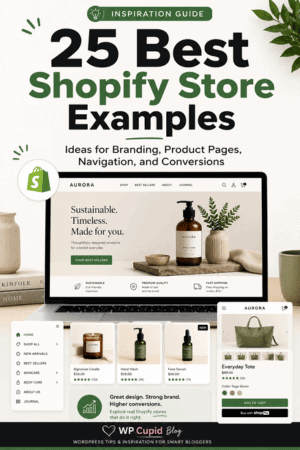
25 Best Shopify Store Examples to Inspire Your Own Store in 2026

The best Shopify store examples do more than look polished. They help the right shopper understand the product, trust the company, find useful information, and move toward a purchase without unnecessary friction.

This guide examines 25 Shopify stores across apparel, home goods, food, subscriptions, accessories, and other categories. Instead of treating them as templates to copy, I will explain the practical lesson behind each example and show how to adapt those ideas to a smaller store.

If you are ready to begin designing your own version, start building with Shopify and use the examples below as inspiration rather than templates to duplicate.

Store designs, promotions, and navigation can change at any time. The examples and observations in this article were reviewed in August 2026, so check each live store before using it as a reference for a major design decision.

If you are still planning the business itself, begin with the complete guide on how to start an online store before focusing on individual design ideas.

Key Takeaways

  • The strongest Shopify stores make the product and target customer clear within seconds.
  • Consistent photography, typography, color, and writing can make a small catalog feel like a complete brand.
  • Useful product pages answer questions about fit, materials, dimensions, delivery, returns, and care before checkout.
  • Simple navigation is usually more valuable than clever navigation.
  • Trust signals should support real claims rather than distract shoppers with badges and popups.
  • Mobile usability, readable text, fast images, and obvious buttons matter as much as desktop appearance.
  • Use examples for principles and patterns, but build around your own products, customers, and evidence.

How I Chose These Shopify Store Examples

I selected stores that Shopify currently highlights and that demonstrate a useful ecommerce principle. Shopify’s official collection of Shopify stores includes businesses of different sizes and product types. Inclusion in that collection does not mean every element of a store will be right for your business, so the analysis below focuses on lessons rather than endorsements.

I looked for clear positioning, intentional visual identity, sensible navigation, useful product information, credibility, mobile-friendly presentation, and a logical purchasing path. I also favored examples that show different ways to solve common store-design challenges.

25 best Shopify store examples with branding, navigation and product page ideas

What Makes a Great Shopify Store?

Store Element What Good Execution Does Question to Ask
Positioning Explains the product, customer, and value quickly Can a new visitor understand the offer in five seconds?
Navigation Groups products in familiar, useful ways Can shoppers reach an important category without guessing?
Product pages Answer buying questions and make choices manageable Is important information visible before checkout?
Brand identity Creates a consistent and memorable experience Do the visuals and words feel like the same company?
Trust Supports claims with policies, details, reviews, or proof What would make a cautious shopper hesitate?
Mobile experience Keeps reading, browsing, and buying comfortable Can a shopper complete the journey with one hand?

If you have not built your store yet, begin with the step-by-step Shopify store tutorial. Structure and product information should come before decorative refinements.

25 Best Shopify Store Examples

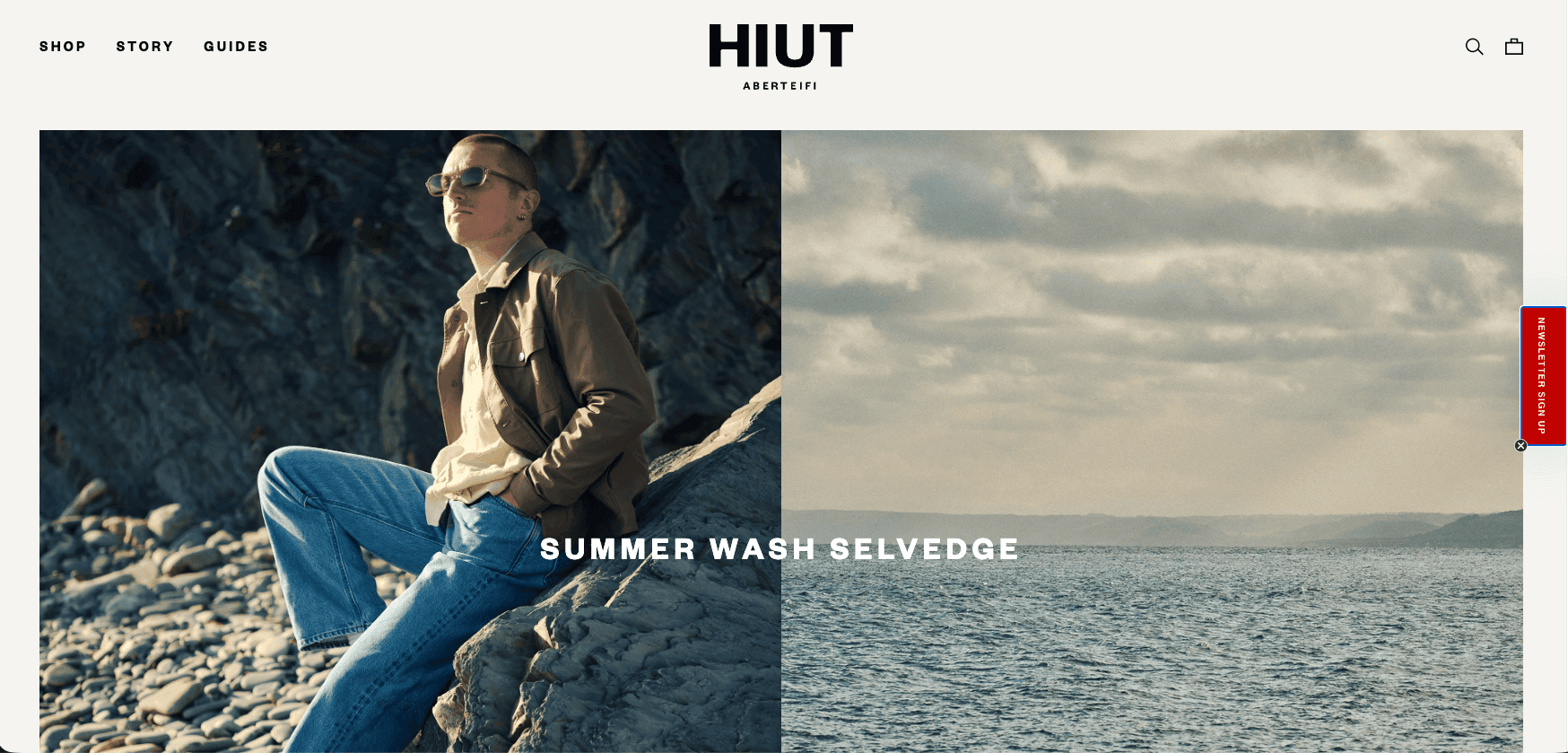
1. Hiut Denim Co.

Hiut Denim Co. homepage showing its denim-focused brand presentation

Hiut Denim Co. shows how a focused product category can become an advantage. Its identity centers on denim, craft, and a specific point of view instead of trying to serve every fashion shopper. The lesson is to turn specialization into useful detail: explain materials, construction, fit, care, and the reason your product deserves attention.

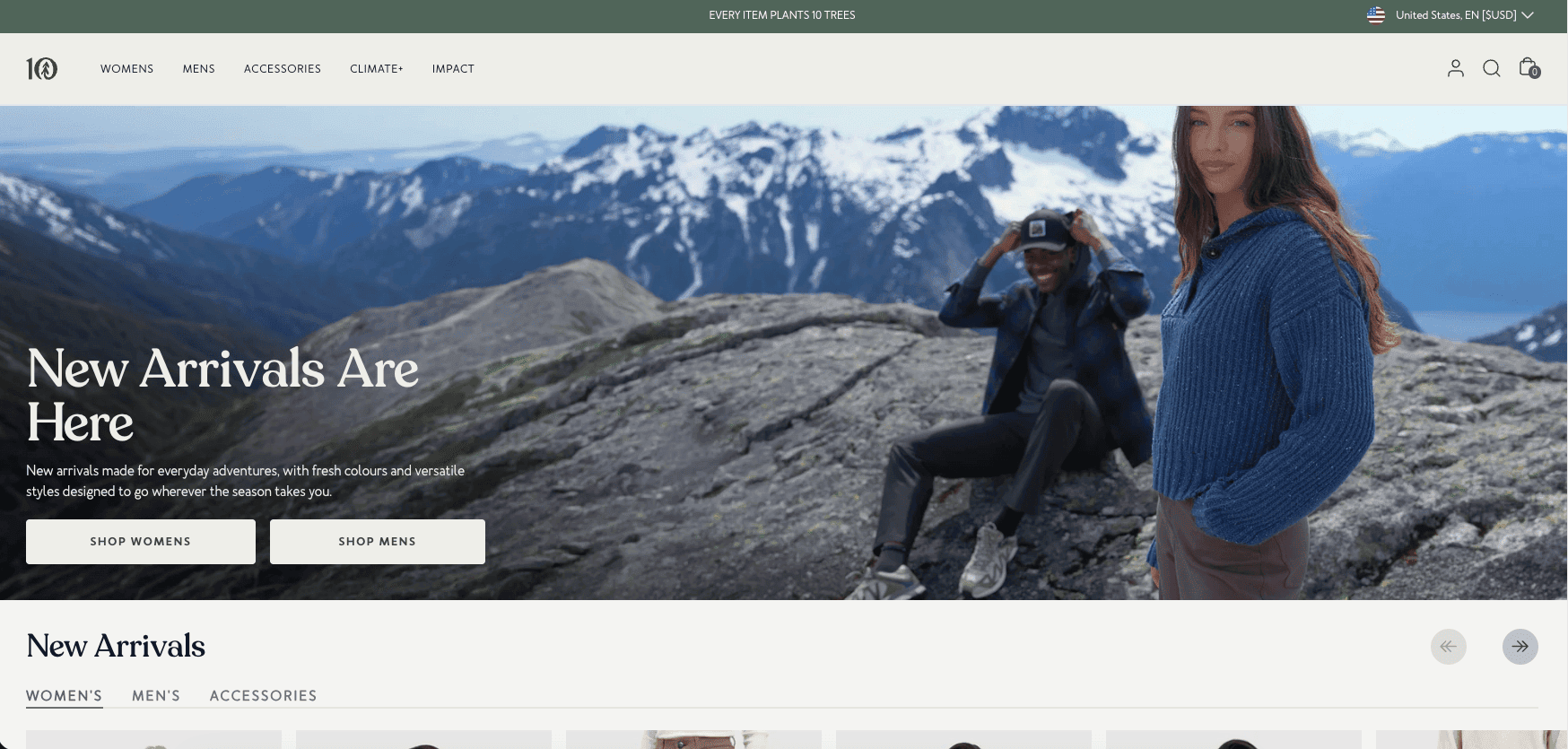
2. Tentree

Tentree homepage connecting its products with an environmental mission

Tentree connects products to a broader environmental mission. The important principle is alignment: a mission works when it appears in product materials, company explanations, impact information, and customer communication. If purpose is part of your brand, show specific evidence and keep the buying experience clear rather than relying on a vague slogan.

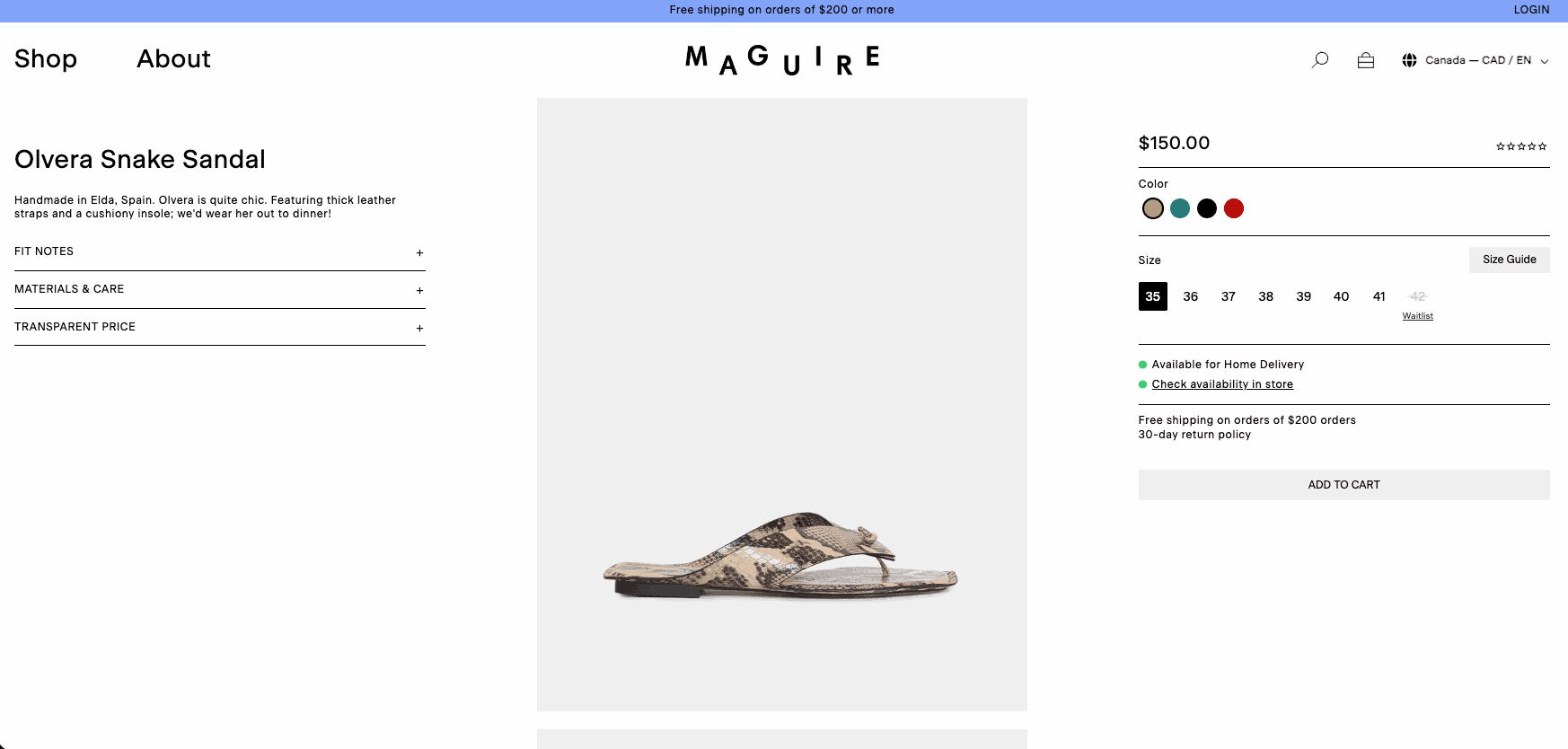
3. Maguire Shoes

Maguire Shoes store showing consistent footwear photography

Maguire Shoes demonstrates the value of strong art direction for a product people normally want to see from several angles. For footwear or apparel, consistent photography makes comparison easier while establishing a recognizable mood. Build a repeatable shot list that includes clean product views, close details, scale, styling, and real-world context.

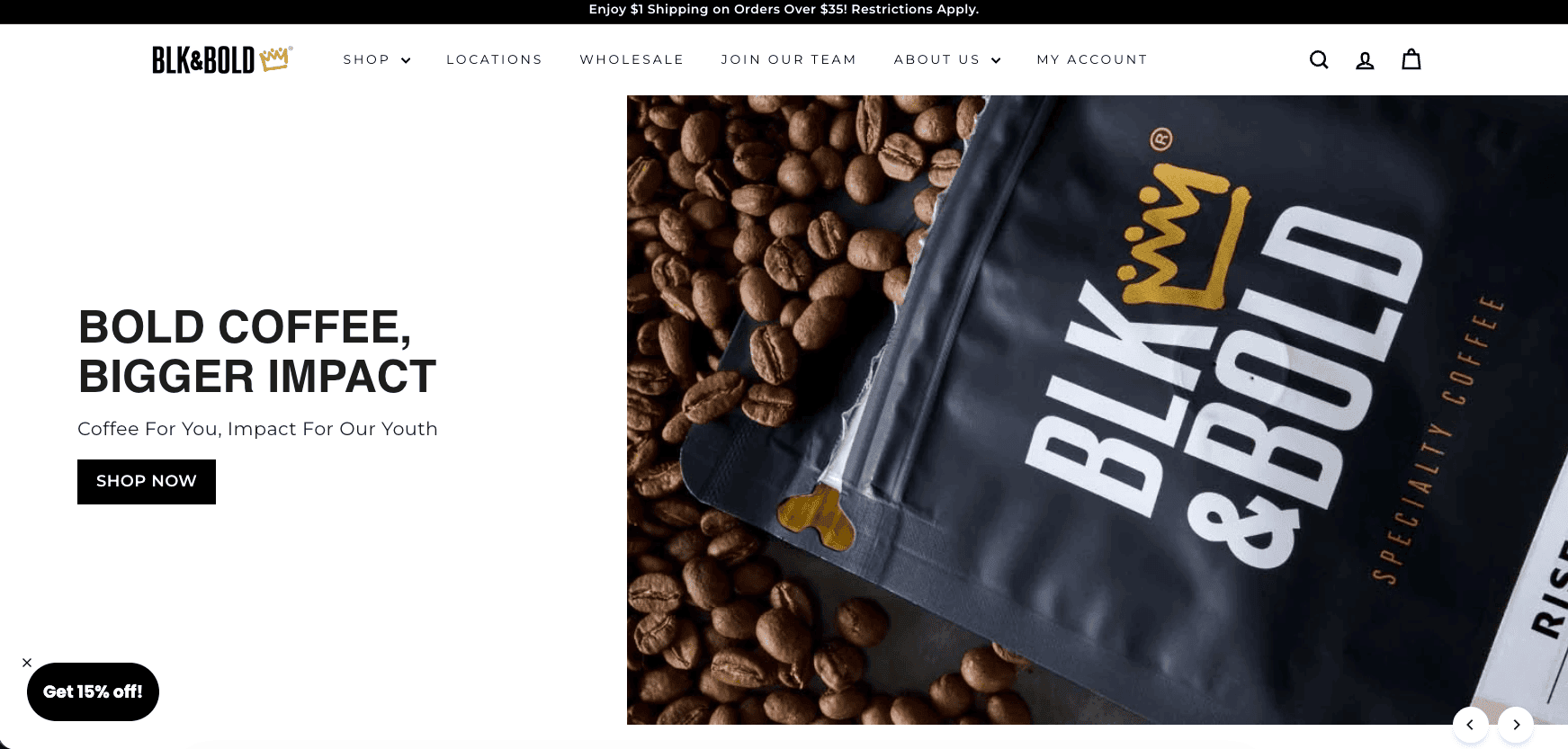
4. BLK & Bold

BLK & Bold homepage combining coffee products with community impact messaging

BLK & Bold combines bold, concise language with a community-centered mission. Its store makes both the product and purpose clear, demonstrating how a recognizable brand voice can connect ordinary products with a larger story. Define a small set of voice rules for headlines, product descriptions, calls to action, and impact content, then support mission-based messaging with specific evidence instead of relying on broad claims.

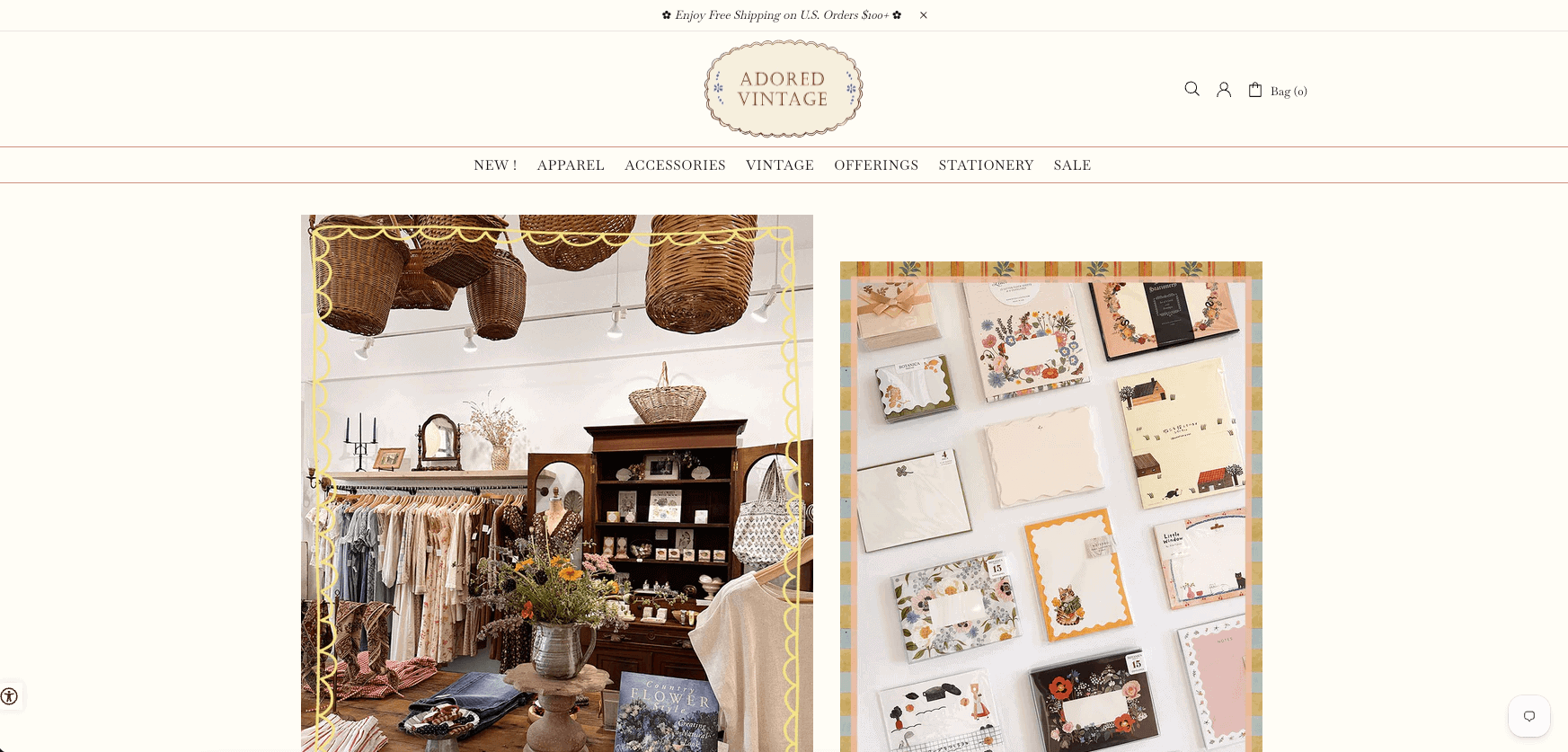
5. Adored Vintage

Adored Vintage store showing cohesive colors and editorial photography

Adored Vintage creates a cohesive atmosphere through restrained colors, photography, and editorial styling. The practical lesson is consistency, not imitation. Choose visual rules that match your products, then apply them to collection images, backgrounds, cropping, type, packaging, and email so customers receive the same impression at every stage.

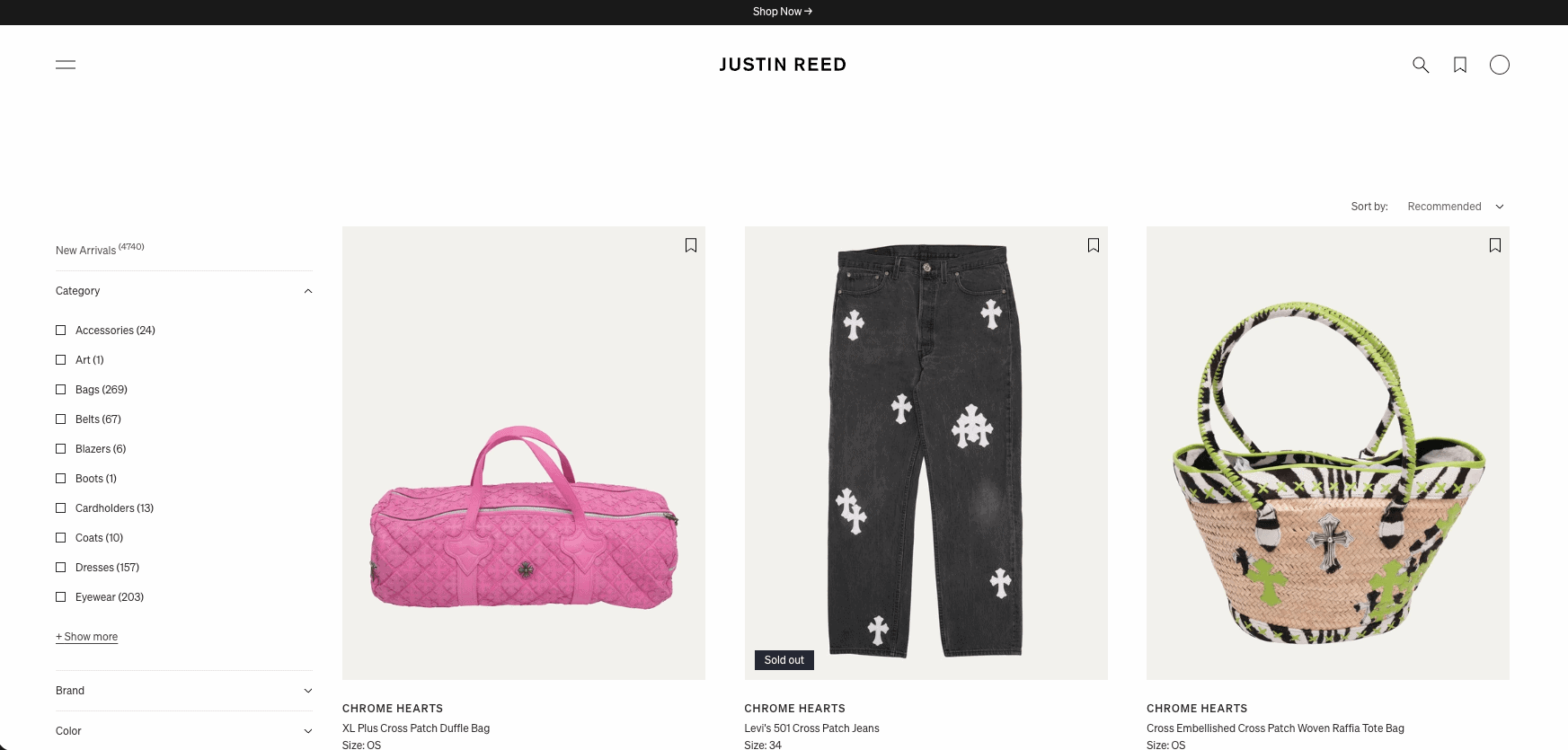
6. Justin Reed

Justin Reed resale store showing curated vintage products and category navigation

Justin Reed shows how a resale store can organize one-of-a-kind inventory without making product discovery difficult. Its catalog spans vintage clothing, designer pieces, accessories, art, and furniture, with categories and filters helping shoppers navigate a constantly changing selection. Stores selling unique or limited-stock products should combine strong curation with accurate measurements, condition details, useful photographs, and mobile-friendly navigation so customers can purchase confidently before an item sells.

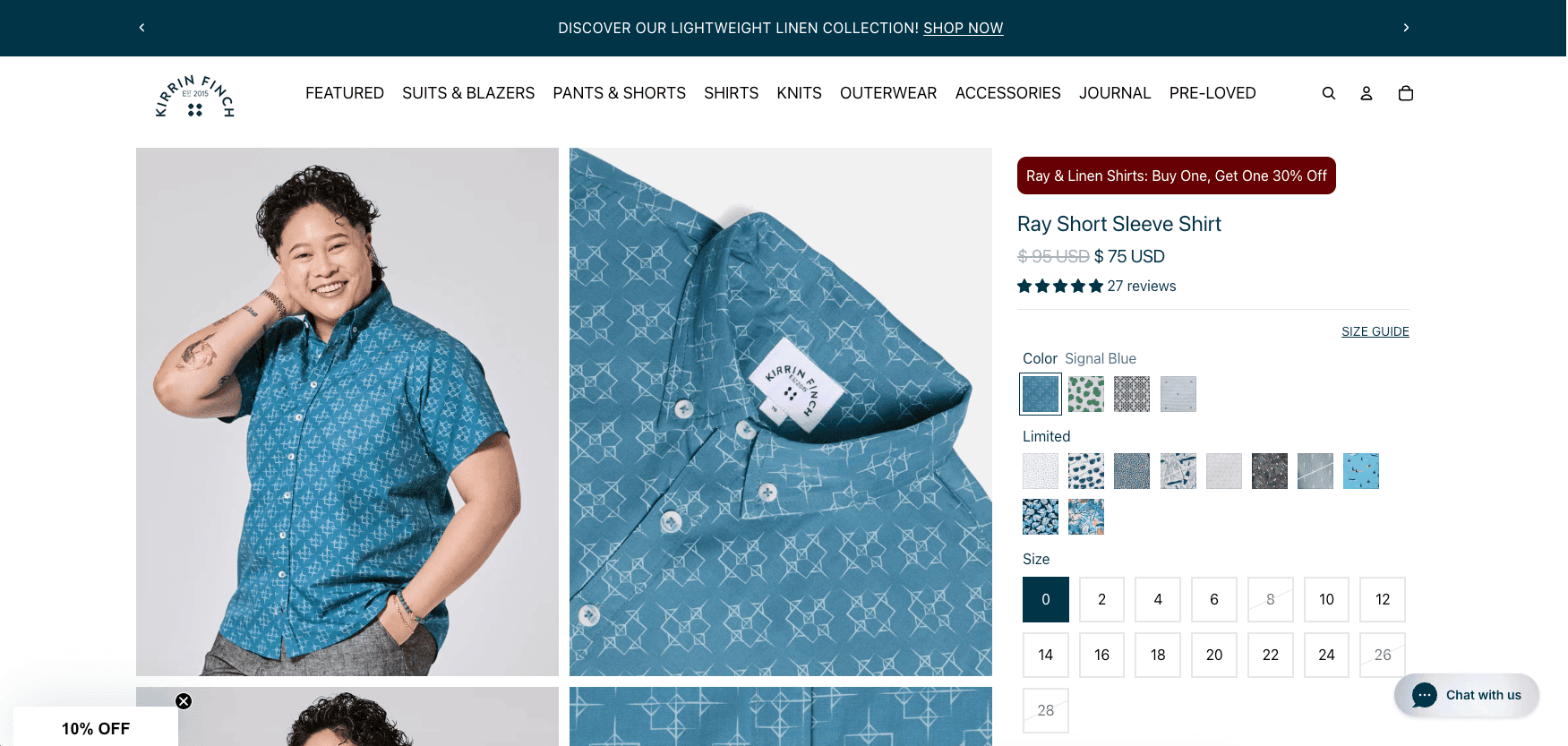
7. Kirrin Finch

Kirrin Finch product page showing inclusive apparel presentation and fit information

Kirrin Finch serves a clearly defined customer with apparel positioning and product information tailored to that audience. This is a reminder that specificity can improve both marketing and merchandising. Use customer interviews, returns, support questions, and reviews to decide which fit notes, photos, size guidance, and categories deserve prominence.

8. Rothy’s

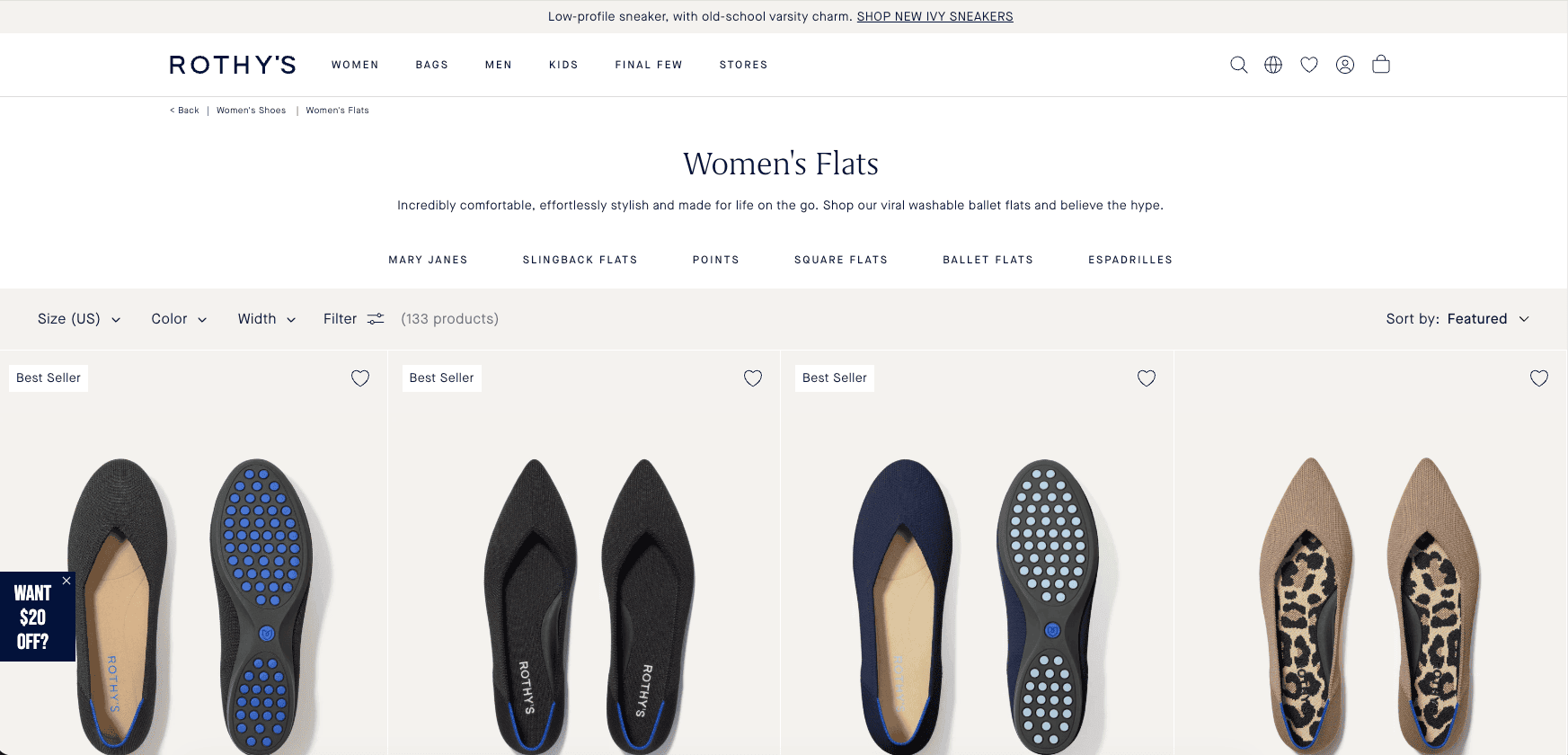
Rothy’s collection page showing organized products, colors and categories

Rothy’s has a broad assortment, so organization and product discovery matter. The takeaway for a growing catalog is to create categories and filters around the way customers actually shop, not only around internal inventory labels. Keep color and variant selection clear, and make care, fit, shipping, and returns easy to locate.

9. Beefcake Swimwear

Beefcake Swimwear product page showing inclusive on-model photography

Beefcake Swimwear shows how a focused product concept and inclusive presentation can differentiate a store in a crowded category. For fit-sensitive products, shoppers need more than a stylish hero image. Provide measurements, model context, fabric behavior, coverage details, and straightforward exchange information to reduce uncertainty.

10. Suta

Suta store connecting its products with artisans and craftsmanship

Suta combines product presentation with stories about craft and the people behind it. Origin stories are most useful when they add concrete context to the item rather than interrupt shopping. Connect maker, process, material, or cultural information directly to relevant products and give readers a clear route back to the collection.

11. Uppercase Magazine

Uppercase Magazine store showing its magazine and subscription options

Uppercase Magazine demonstrates how editorial content and commerce can reinforce one another. A content-led business should make the publication’s subject, audience, format, and purchase options immediately understandable. Use previews, issue details, subscription explanations, and archives to help visitors evaluate a product they cannot fully inspect before buying.

12. Artisaire

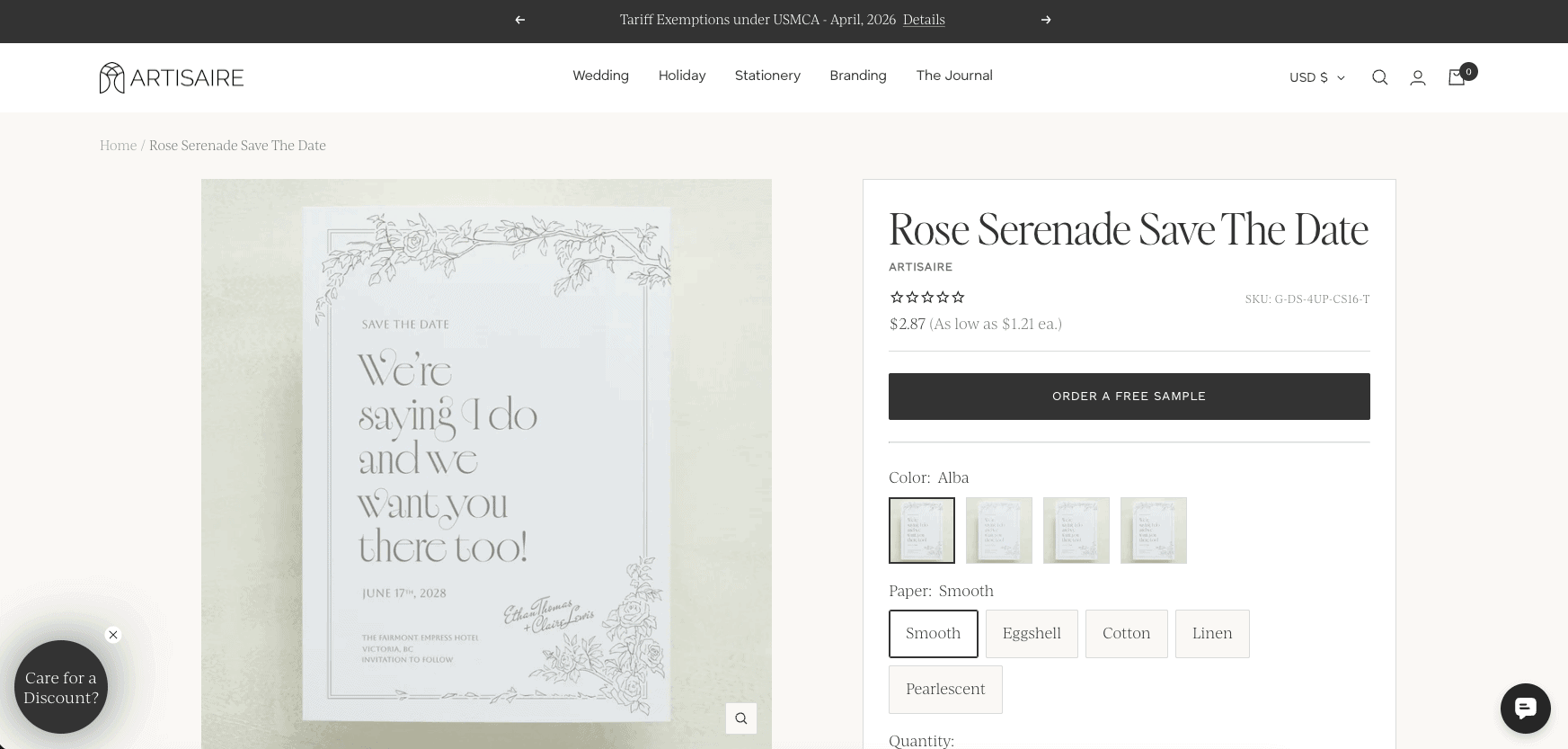
Artisaire product page showing wax seal customization options

Artisaire sells products where customization and fine details influence the purchase. Its category is a useful reference for explaining a process visually. If your product requires personalization, show the steps in order, preview available options, state production time, and identify which choices cannot be changed after an order is placed.

13. Terre Bleu

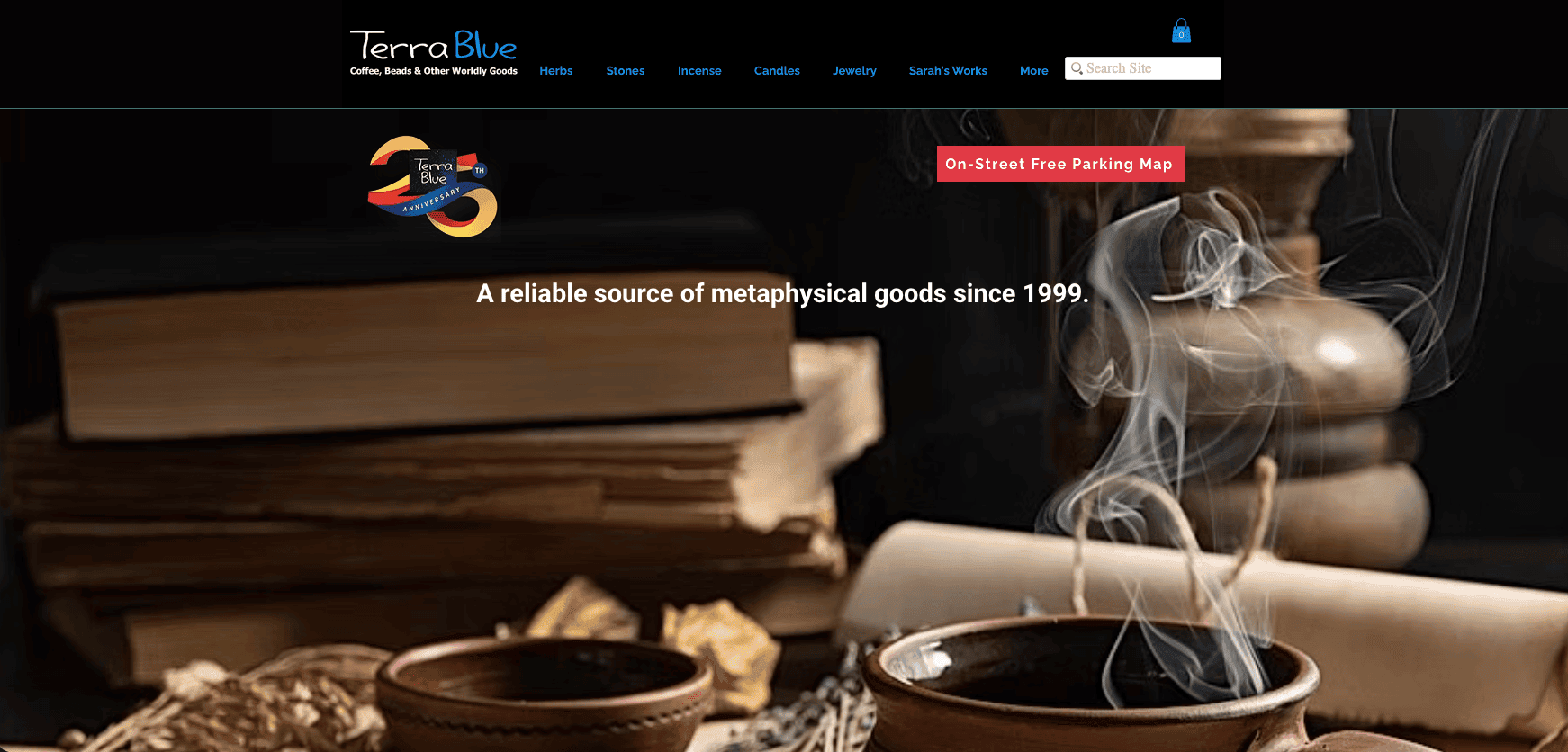
Terre Bleu homepage combining lavender products with farm imagery

Terre Bleu brings the setting and source of its products into the online experience. Place-based brands can use original photography and specific stories to build credibility, but the store must still answer ordinary buying questions. Balance atmosphere with product size, ingredients or materials, delivery limitations, storage, care, and gift information.

14. Silk & Willow

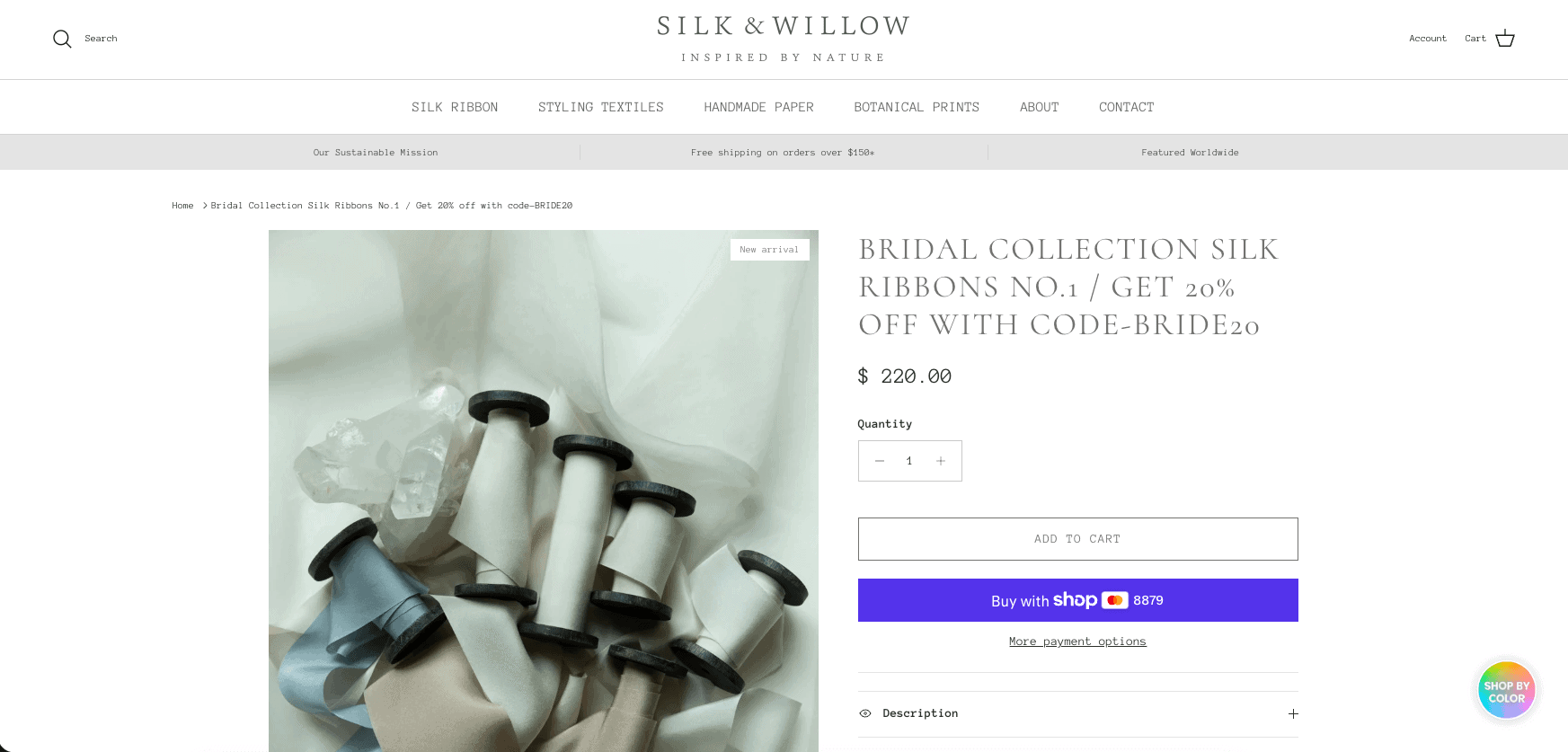
Silk & Willow product page showing detailed fabric textures

Silk & Willow uses tactile photography and a restrained presentation for visually delicate products. The principle is to let product texture and detail carry the page while retaining enough information to make a decision. Use close-ups, scale references, accurate color notes, material descriptions, and sample options where screen differences could create risk.

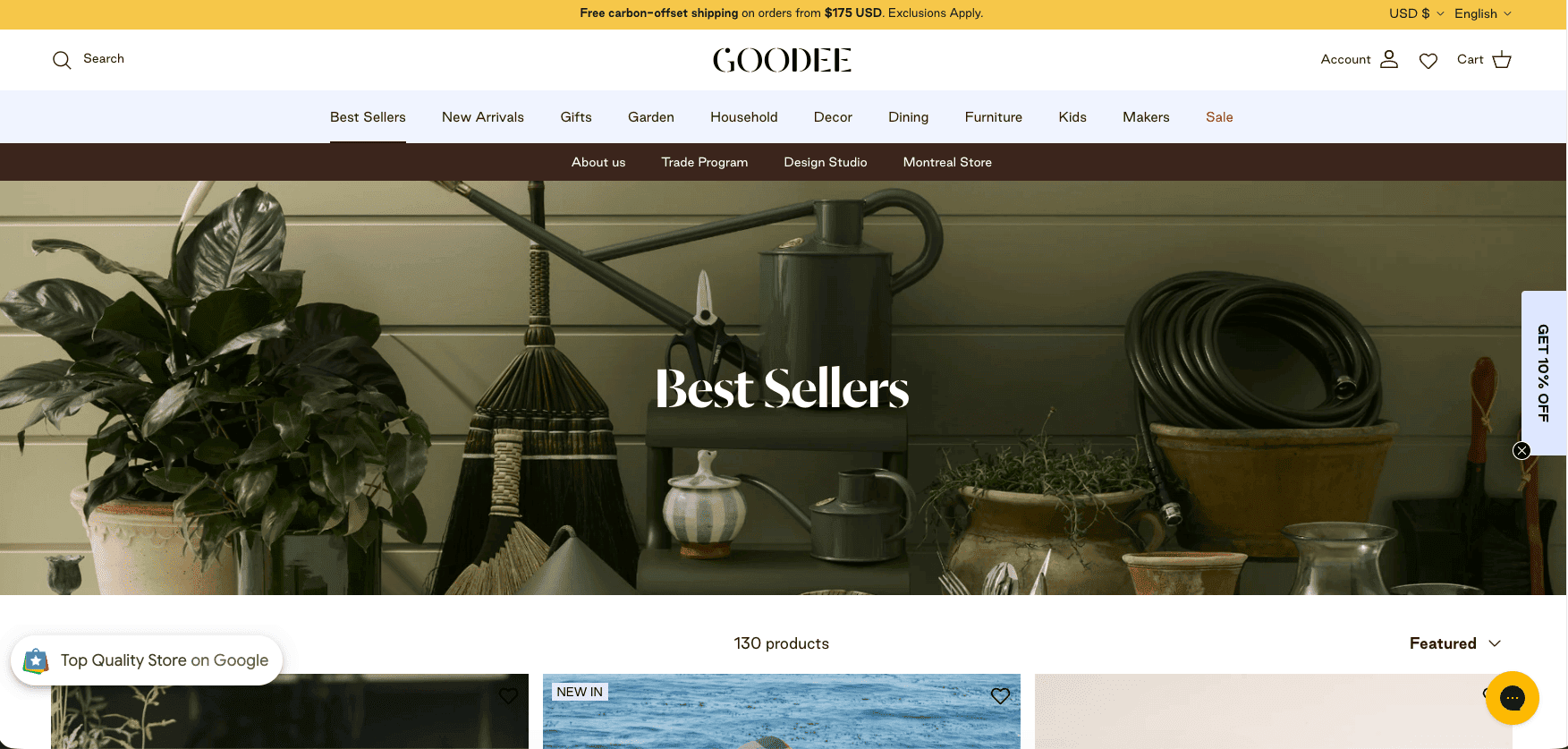
15. GOODEE

GOODEE collection page showing products organized across multiple designers

GOODEE curates products from multiple designers while maintaining a unified editorial identity. Multi-brand stores need clear merchandising rules so a large catalog does not feel random. Group products by useful room, function, value, or story; keep product specifications consistent; and explain why each item belongs in the assortment.

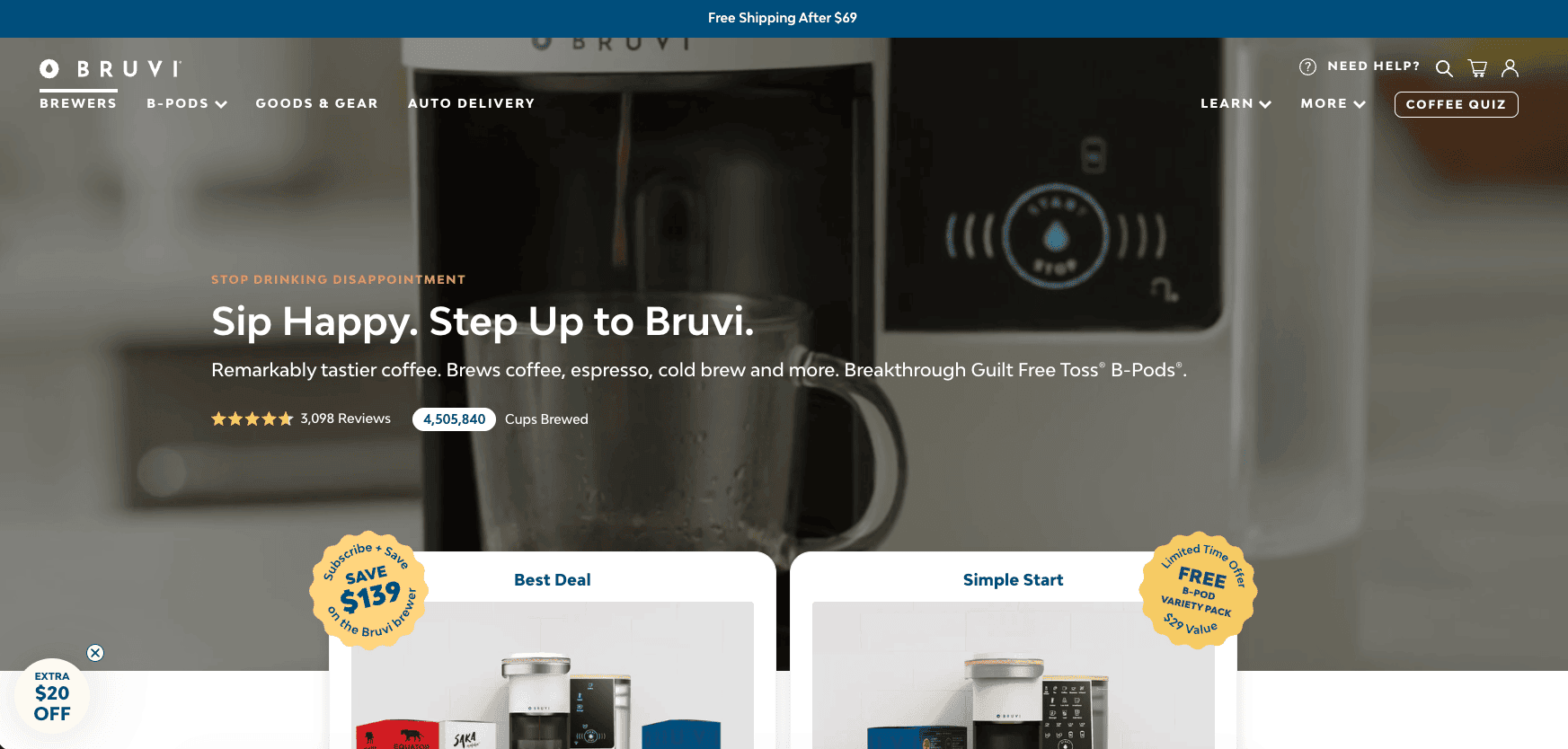
16. Bruvi

Bruvi store showing its coffee maker, pods and product system

Bruvi sells a product system rather than an isolated item, making explanation and compatibility important. If your main product depends on refills, accessories, or a continuing service, show the complete ownership model. Customers should understand what is included, what they will reorder, ongoing costs, setup, cleaning, warranty, and support before purchasing.

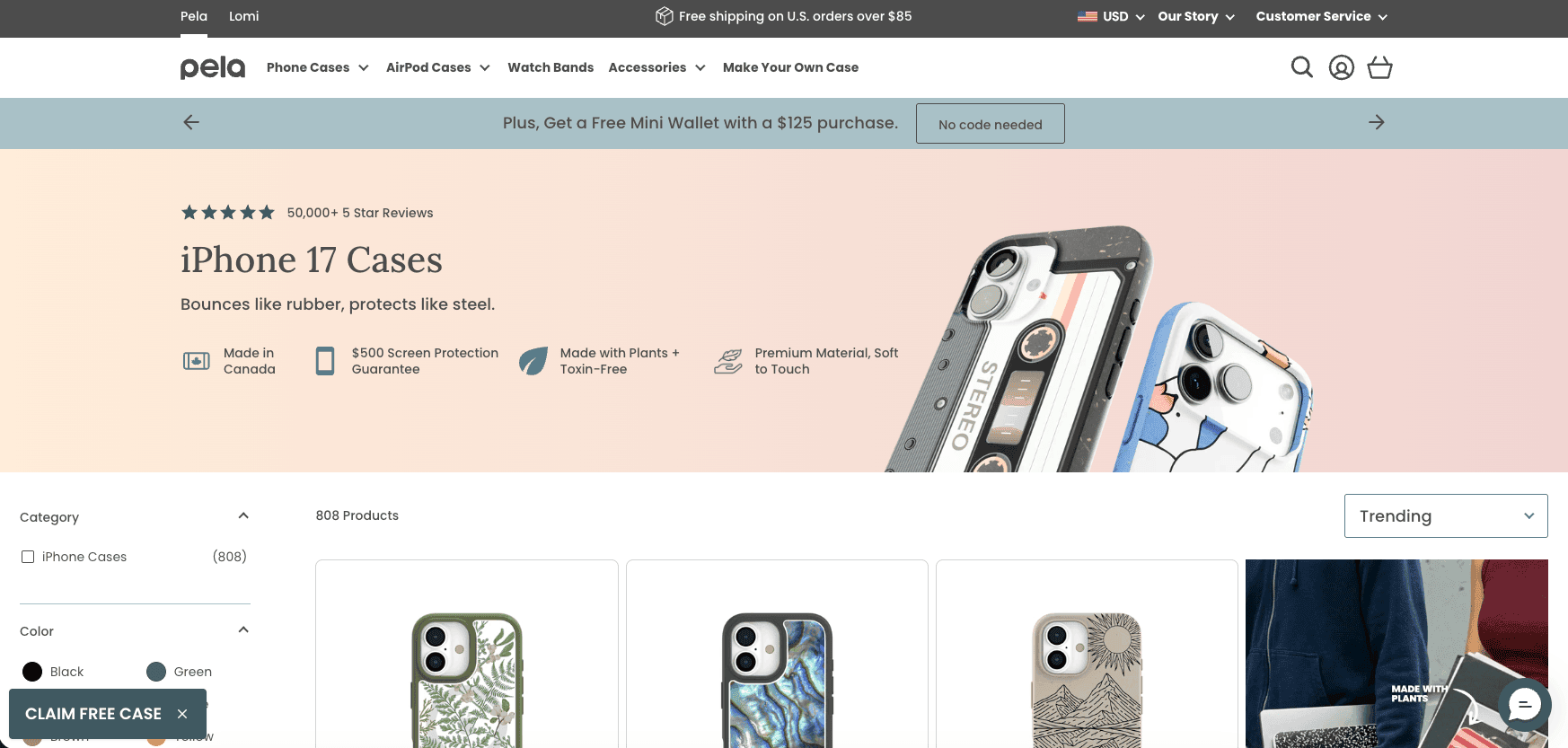
17. Pela

Pela product selector showing phone case compatibility options

Pela has to help shoppers find the correct accessory for a specific device while communicating material and environmental claims. Compatibility selectors, clear model names, and mistake-resistant navigation are essential for this kind of catalog. Substantiate important claims and place details near the product instead of relying only on a campaign headline.

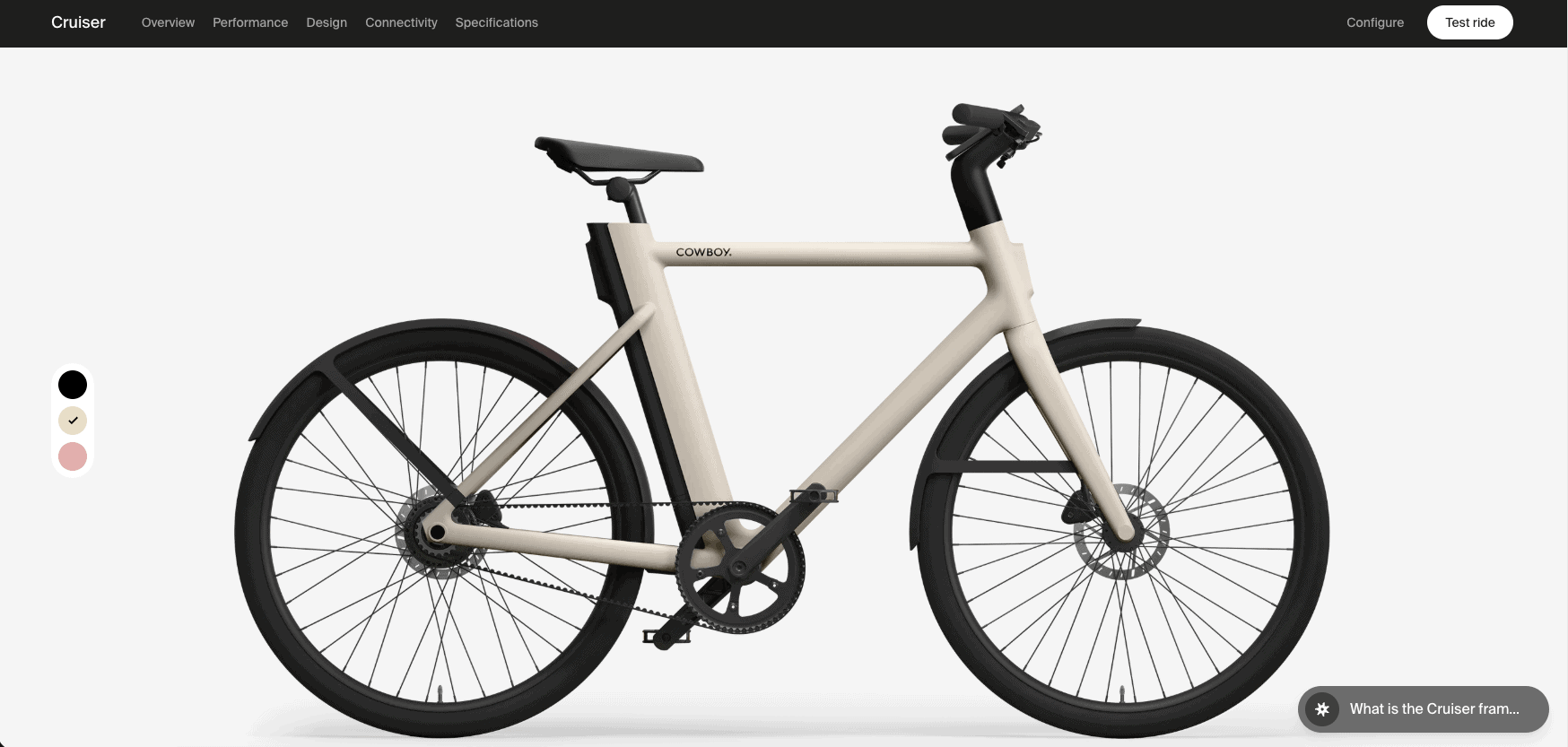
18. Cowboy

Cowboy electric bike product page showing features and product photography

Cowboy offers a higher-consideration product that benefits from strong visuals, feature explanations, comparisons, and support details. Expensive products usually require a longer decision path. Give shoppers multiple ways to learn, address delivery and service questions, explain financing accurately, and provide a logical next step for those who are not ready to buy immediately.

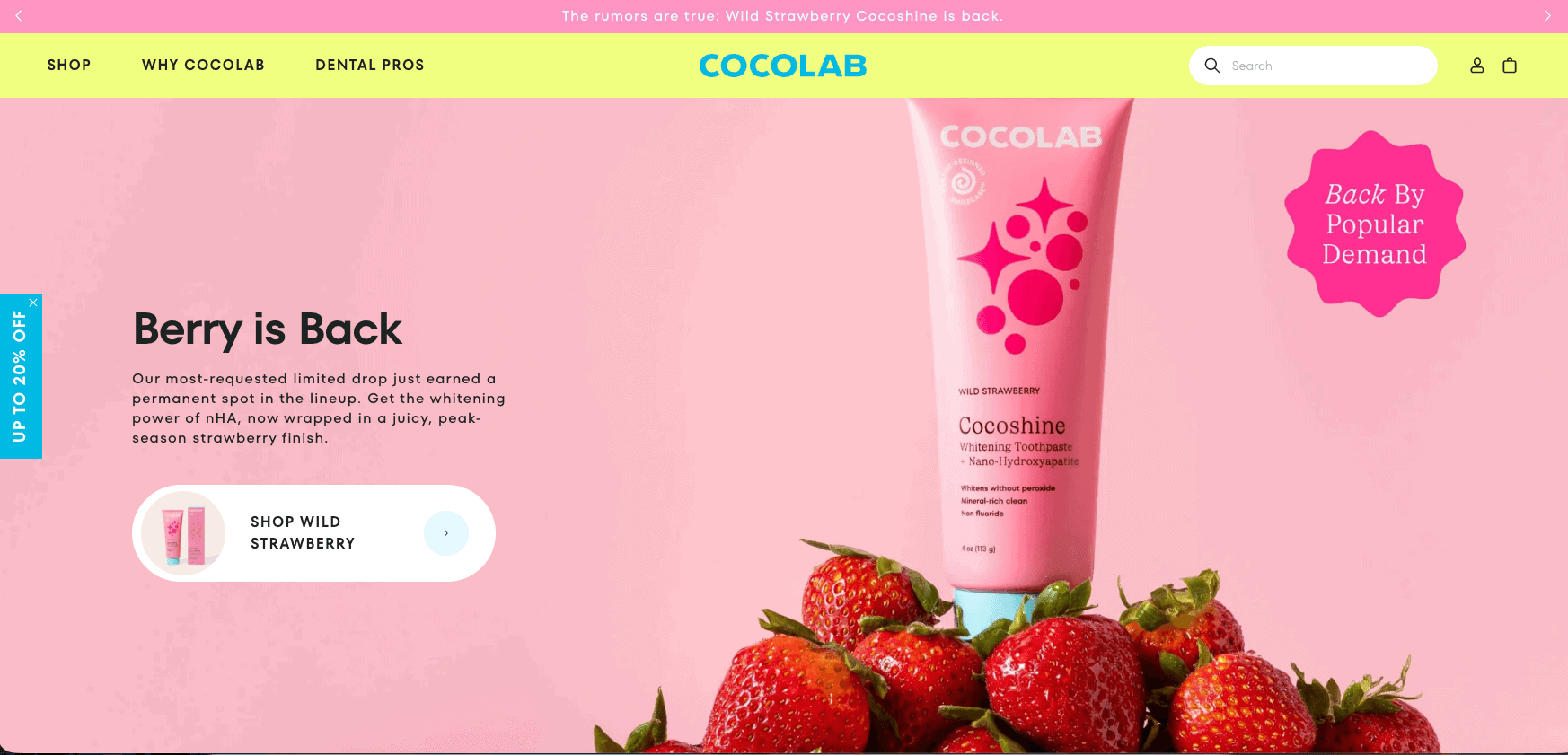
19. Cocofloss

Cocofloss homepage showing colorful oral care products and bundles

Cocofloss brings a colorful, friendly identity to a routine personal-care product. It is a useful example of using packaging, illustration, copy, and bundles to make a familiar category distinctive. Keep novelty grounded in clarity: shoppers still need to know what the product does, how to use it, and which option fits their needs.

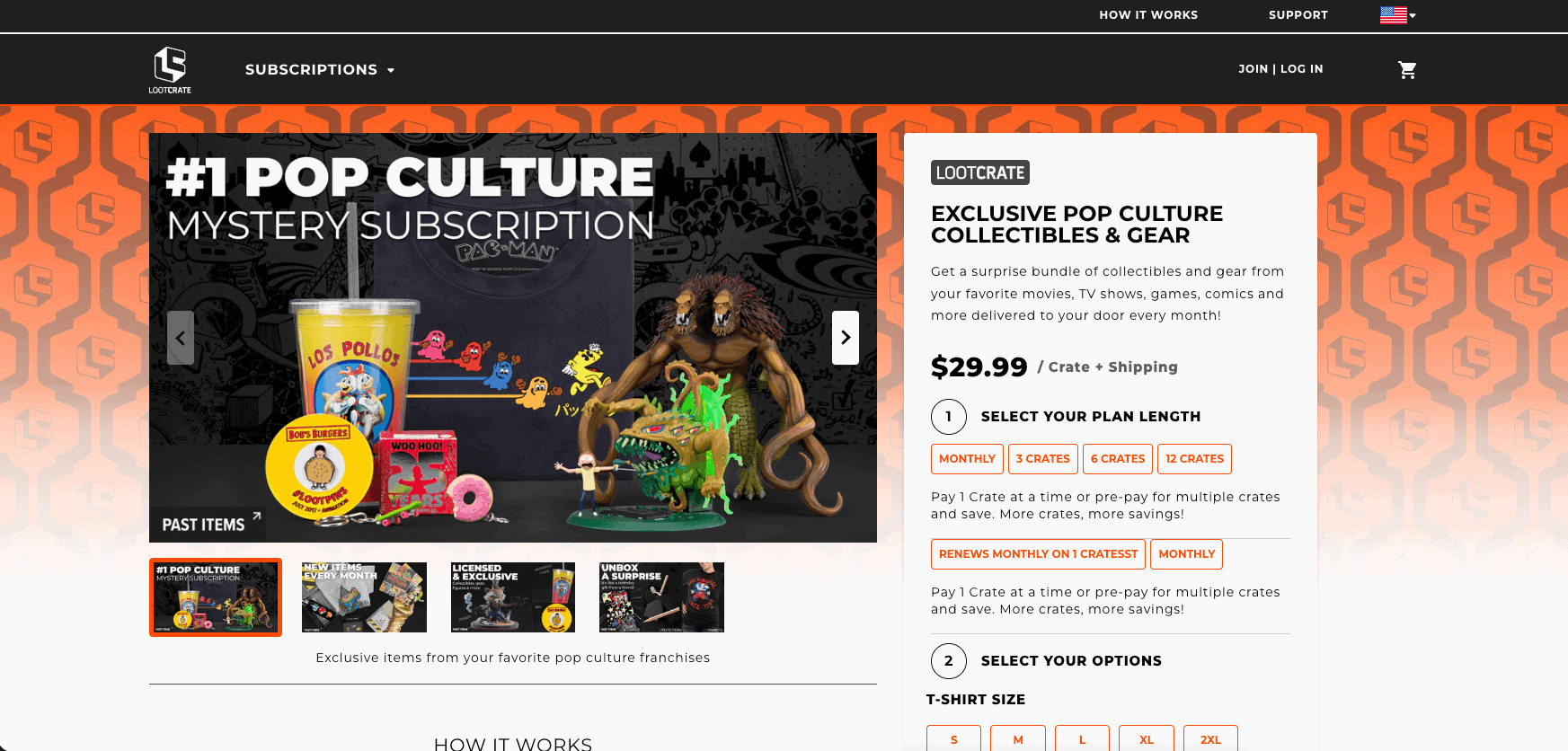
20. Loot Crate

Loot Crate subscription page showing available boxes and plan information

Loot Crate illustrates the information challenge of subscription commerce. A subscription page should explain what customers receive, how often it arrives, when billing occurs, how renewal works, what can vary, and how cancellation is handled. Excitement helps sell discovery, but precise terms are what let customers make an informed commitment.

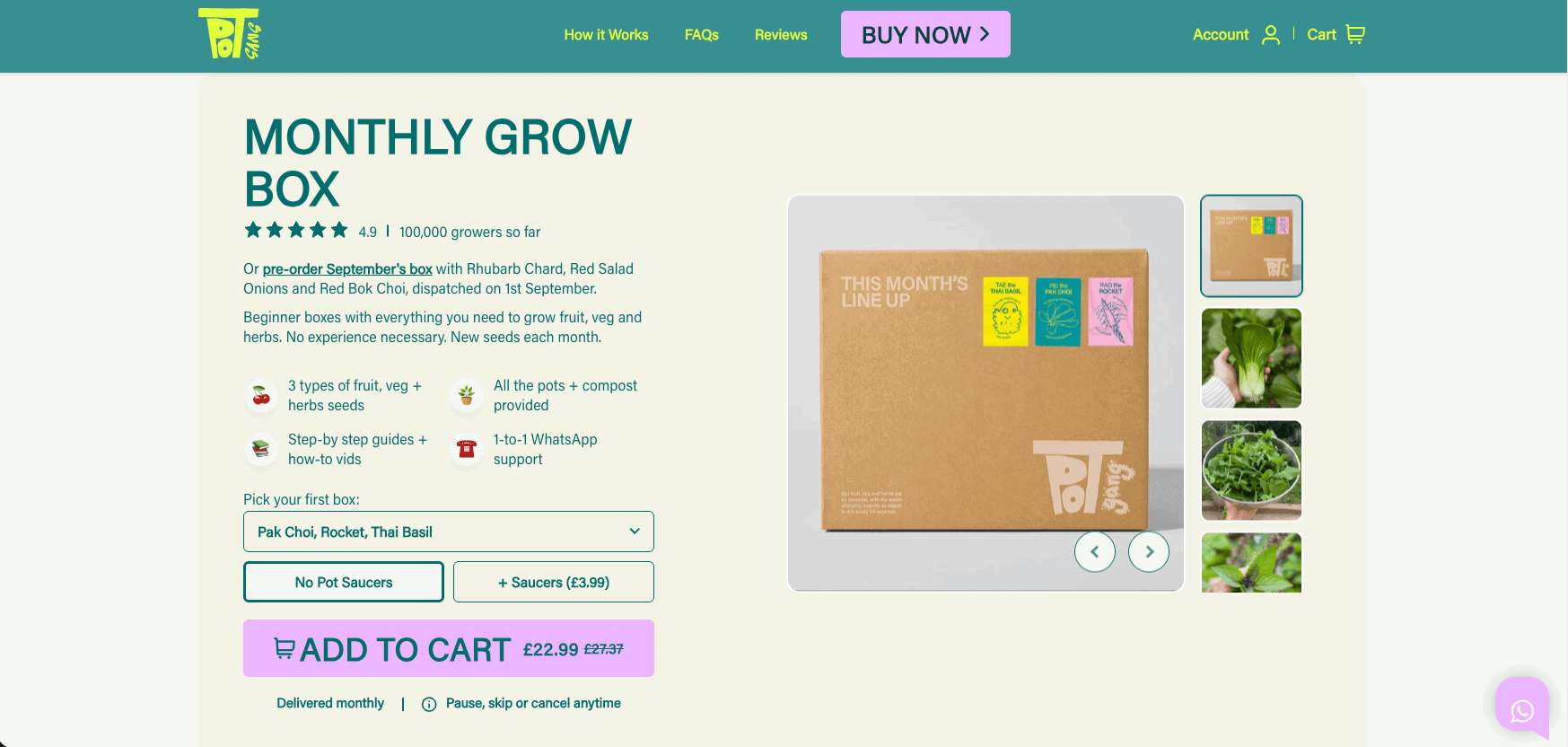
21. Pot Gang

Pot Gang product page showing what is included in its growing kit

Pot Gang combines physical products with guidance for customers learning a process. Stores serving beginners should not assume knowledge. Show what arrives, what else is required, the expected timeline, common problems, and where help is available. Educational content can lower anxiety and give customers a reason to return after the order.

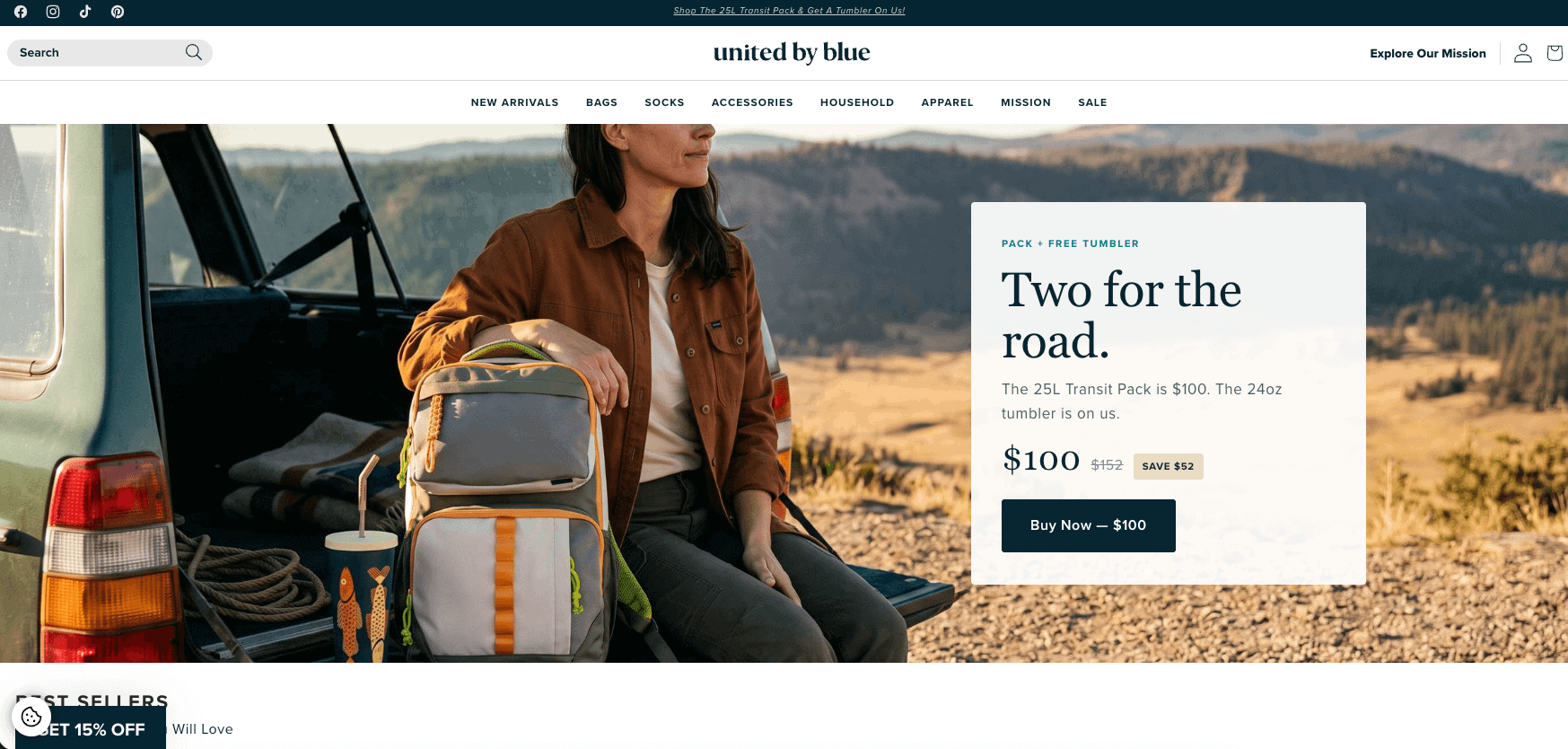
22. United By Blue

United By Blue store combining lifestyle products with environmental messaging

United By Blue pairs a lifestyle assortment with mission-based storytelling. When a store spans apparel, accessories, and home products, consistent merchandising and category labels keep the mission from overwhelming discovery. Make impact claims specific, give them context, and ensure shoppers can still compare products on ordinary attributes such as material, size, function, and care.

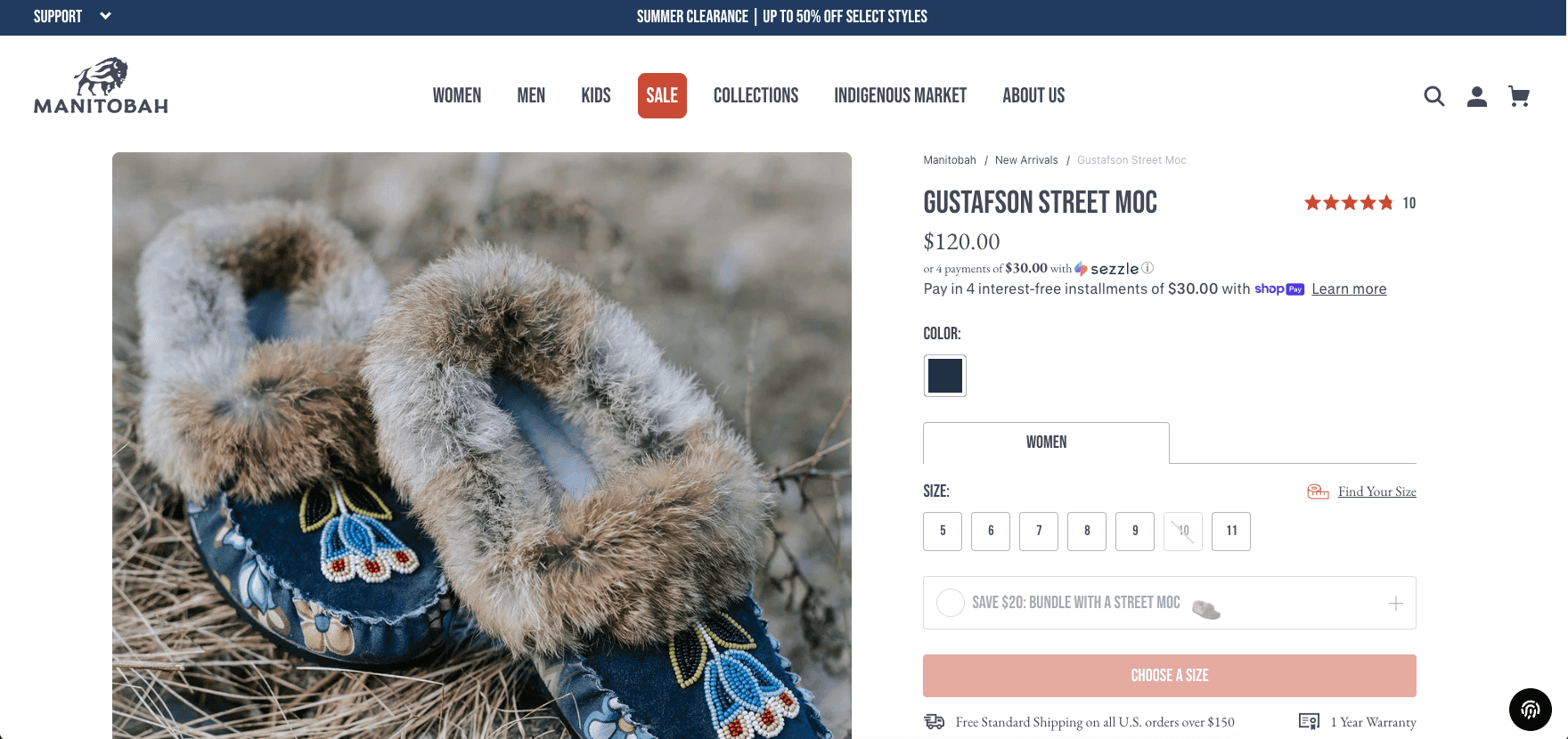
23. Manitobah

Manitobah store connecting footwear with makers and cultural context

Manitobah demonstrates the importance of connecting products, makers, and cultural context responsibly. If heritage is central to a brand, explain relationships and sourcing with care and specificity. Product pages should credit relevant makers or designs where appropriate while still providing sizing, materials, construction, care, and shipping details.

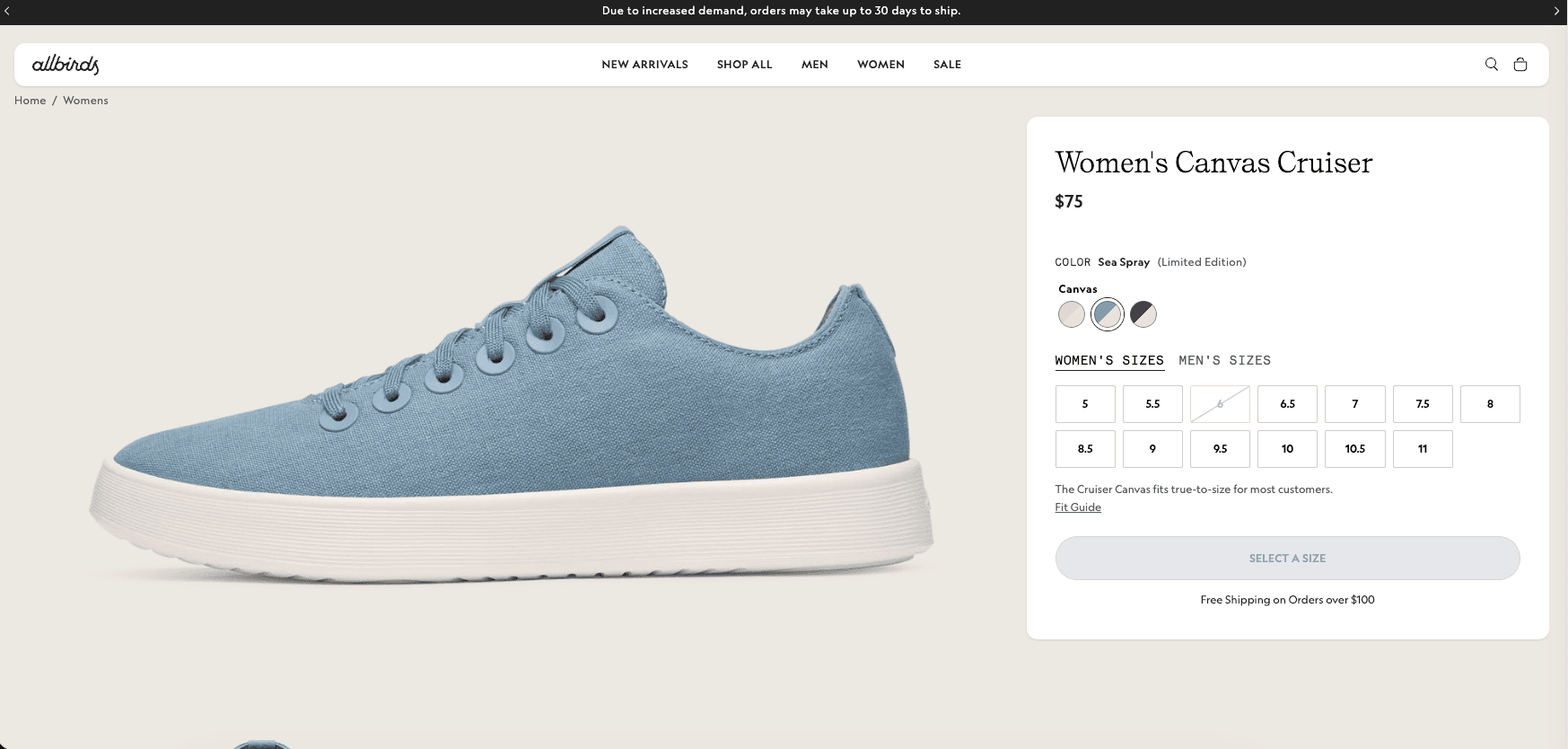
24. Allbirds

Allbirds product page highlighting natural materials and product benefits

Allbirds shows how a recognizable material story can organize product marketing across a larger catalog. Repeating a core message is useful when each page also answers product-specific questions. Establish a clear hierarchy: product type and benefit first, relevant material explanation second, and technical or impact details where interested shoppers can verify them.

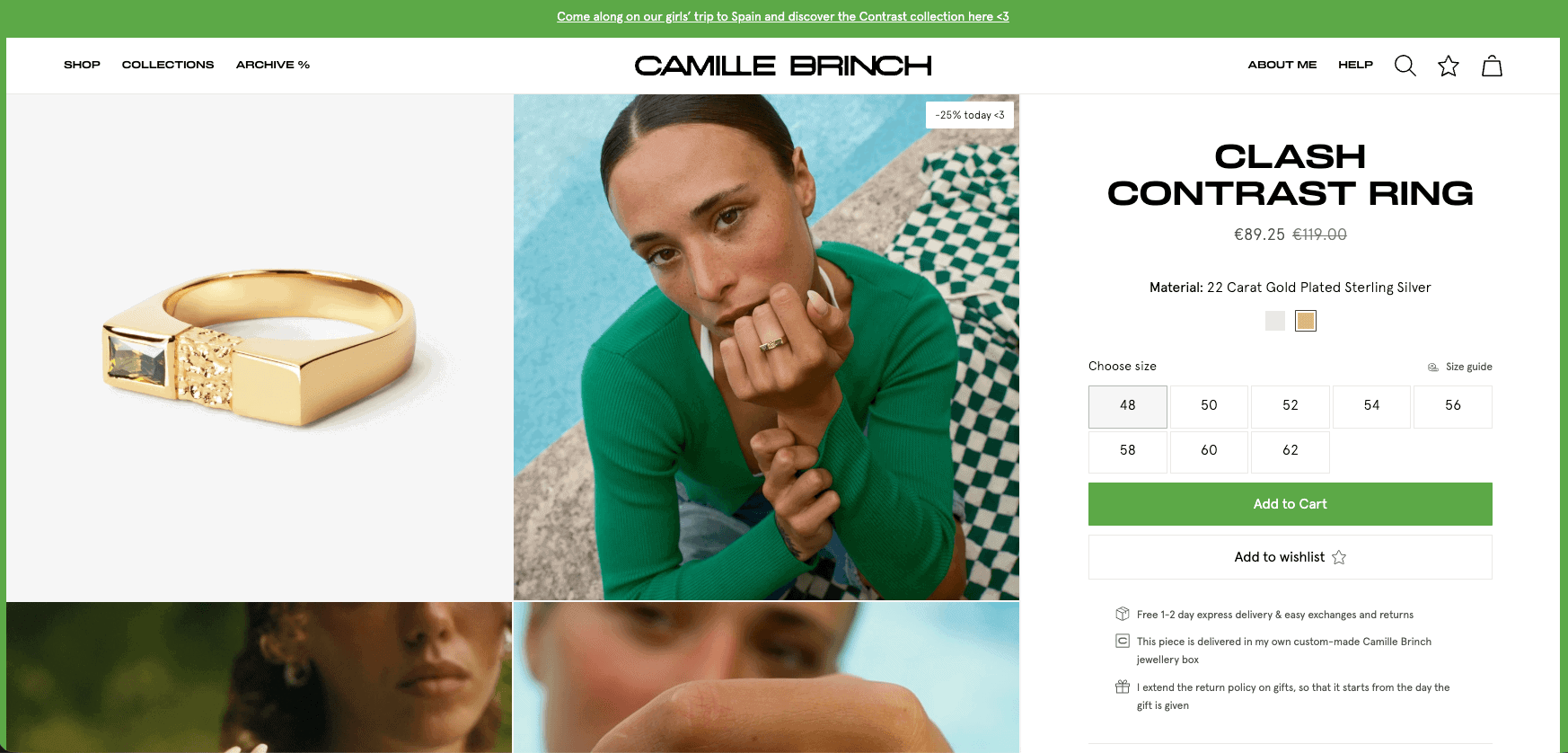
25. Camille Brinch

Camille Brinch jewelry store showing close-up and on-body product photography

Camille Brinch presents jewelry with strong personal branding and visual consistency. Small products need careful photography to communicate scale, finish, and styling. Include close detail, on-body context, dimensions, material information, and care instructions. A founder-led identity can deepen connection, but the product information must remain easy to scan.

Patterns the Best Shopify Stores Share

They make the offer clear

A visitor should not need to decode an artistic headline before learning what the business sells. Strong stores combine a concise message with a useful visual and a direct route to products. Personality can follow clarity; it should not replace it.

They use photography as information

To apply this lesson to your own store, follow my Shopify product-photography guide for a beginner setup, practical shot list, consistent editing workflow, gallery planning, and Shopify image optimization.

Product images should reduce uncertainty. Show the item alone, in use, at scale, from important angles, and with meaningful details. Consistent lighting and cropping help customers compare products and help the whole catalog feel intentional.

Stores selling downloads should use helpful previews, mockups, sample pages, interface screenshots, or demonstrations instead of conventional physical-product photos. My Shopify digital-products guide explains how those visuals fit into the complete product-page and delivery process.

They answer objections near the decision

Do not force a customer to search several pages for sizing, materials, delivery, compatibility, warranty, or returns. Summarize decision-critical information on the product page and link to the full policy or guide when more detail is needed.

They build recognizable systems

Strong branding is a system of repeated choices. A limited type scale, color palette, photo style, icon approach, and voice can create more coherence than adding isolated decorative effects. The system should also make future products easier to launch.

They guide the next action

Every major page should have a logical next step: browse a collection, compare options, choose a variant, read a guide, join a waitlist, or add to cart. A page with many competing calls to action often leaves the visitor unsure which one matters.

How to Apply These Ideas to Your Shopify Store

Use successful stores for principles rather than copying their products. If you still need an offer to evaluate, my Shopify product-ideas guide presents 30 possibilities and explains how to test customer fit, differentiation, margin, sourcing, and fulfillment.

  1. Write a one-sentence positioning statement. Define what you sell, who it helps, and the main reason to consider it.
  2. Choose three reference stores. Pick one for navigation, one for product-page information, and one for visual direction. Record the principle you want to adapt.
  3. Plan the customer path. Map the route from homepage or landing page to collection, product, cart, and checkout.
  4. Create a product-content template. Use the same checklist for benefits, features, specifications, images, options, shipping, returns, and questions.
  5. Build a small visual system. Define type sizes, colors, button styles, spacing, image ratios, and voice guidelines before adding effects.
  6. Test on a real phone. Check text size, menus, filters, option selectors, forms, cart behavior, and checkout using both slow and fast connections.
  7. Watch customers use it. Ask several people in the target audience to complete a task without coaching, then fix repeated points of confusion.

Before publishing your design, work through my Shopify mistakes to avoid guide to catch unclear messaging, weak product information, unnecessary apps, mobile problems, checkout issues, and fulfillment gaps.

Shopify’s AI tools can help establish an initial layout, but they still need human editing, accurate product details, and customer testing. Read the Shopify AI Store Builder review before deciding how much of the first draft to automate.

Once you have chosen the principles that fit your products and customers, create your Shopify store and turn the plan into a testable draft before spending money on advanced design work.

Do Not Copy a Shopify Store

Use these stores to identify principles, not to reproduce their copy, photography, illustrations, layouts, code, or brand identity. Direct copying can create legal and ethical problems, make your business look interchangeable, and produce a design that does not fit your products.

A better process is to write down the problem an element solves. For example, a comparison chart might reduce product-choice uncertainty, while a sticky add-to-cart button might keep the next step available on a long mobile page. Design your own solution using your brand, evidence, and customer needs.

How Much Does It Cost to Build a Store Like These?

There is no single budget because the visible storefront is only part of the work. Costs can include a Shopify subscription, domain, theme, apps, photography, writing, product samples, design, development, marketing, and ongoing operations. A small store can start with a supported theme and improve after learning what customers need.

Before budgeting, review the current Shopify pricing guide. Confirm all fees and plan details on Shopify’s own pricing and billing pages before purchasing because offers and terms can change.

Before creating an account, read the Shopify free trial guide to understand the current offer, what you can build during the trial, and what happens after it ends.

How to Help Customers Find Your Store

A beautiful site does not create its own audience. Product-market fit, search visibility, useful content, partnerships, email, social media, referrals, paid campaigns, and repeat customers can all contribute. Start with channels that fit the product and that you can measure consistently.

For a practical launch and customer-acquisition plan, follow my guide to getting your first sale on Shopify to clarify your offer, build an initial audience, begin outreach, and improve the store using funnel data.

For an organic-search foundation, use the beginner’s Shopify SEO guide to improve products, collections, site structure, content, and Search Console tracking.

After using these stores for design inspiration, use my Shopify Black Friday checklist to turn the storefront into a tested holiday campaign with accurate offers and realistic fulfillment.

If Pinterest matches your products and audience, follow my Shopify Pinterest guide to connect your catalog, improve Product Pins, and track visits and sales from the channel.

Frequently Asked Questions

What is the best Shopify store?

There is no universal best store. The right benchmark depends on the product, customer, catalog size, buying decision, and business model. The best store for a specific company is one that communicates clearly, earns trust, works well on mobile, and helps qualified customers purchase.

Can beginners build a professional Shopify store?

Yes. A beginner can build a credible store using a supported theme, consistent product information, original images, clear policies, careful mobile testing, and a focused catalog. Advanced customization is optional, not proof that the business is ready.

Do I need a paid Shopify theme?

Not always. Start with the theme that meets your essential merchandising and accessibility needs. A paid theme may be worthwhile when its built-in features, support, and layout options reduce the need for several apps or custom development.

How many products should a new store launch with?

There is no required number. A focused catalog with enough choice to solve a clear customer need can be stronger than a large, inconsistent catalog. Make sure every launched product has accurate information, useful images, inventory, pricing, and an operational fulfillment plan.

If you plan to use a made-to-order business model, my Shopify print-on-demand guide covers provider selection, product samples, pricing, fulfillment, and launching the store.

What pages should every Shopify store have?

Most stores need a homepage, product and collection pages, contact information, an about page, and clear policies covering shipping, returns, privacy, and terms. Exact requirements depend on the products, location, sales regions, and applicable laws.

How can I make my Shopify store look trustworthy?

Use original product information, consistent images, accessible contact options, accurate policies, secure checkout, honest reviews, realistic claims, clear delivery expectations, and error-free pages. Trust comes from evidence and reliable operations more than decorative badges.

Should I copy the layout of a successful store?

No. Study the problem a layout solves, then create an original implementation for your products and audience. Do not reuse another business’s copy, photos, illustrations, code, or identity without permission.

Is Shopify worth using for an online store?

Shopify can be a strong option for sellers who want hosted ecommerce tools, product management, checkout, and an app ecosystem in one platform. The right choice depends on budget, features, customization, payment needs, and operating preferences. The full Shopify review explains the major advantages and tradeoffs.

If you are also considering WordPress for the website, read my Shopify vs WordPress comparison to evaluate their different approaches to ecommerce, content, customization, costs, and maintenance.

If a self-hosted WordPress store is also under consideration, read my Shopify vs WooCommerce comparison to compare their costs, design flexibility, selling tools, checkout, SEO, ownership, and maintenance requirements.

If you are deciding between an independent storefront and an established marketplace, the Shopify vs. Etsy comparison explains the differences in costs, traffic, branding, and control.

If you are using these examples to plan a supplier-fulfilled store, read my Shopify dropshipping guide for the practical steps behind product selection, suppliers, pricing, product pages, fulfillment, and marketing.

Final Verdict

The best Shopify store examples are valuable because they reveal repeatable principles: clarify the offer, organize the catalog around customers, use images as information, answer objections, establish a consistent identity, and make the next step obvious. A smaller business does not need the same budget or feature set to apply those ideas.

Choose a few relevant examples, identify the customer problem each useful element solves, and build an original version you can test. Before publishing that design, use the complete Shopify store launch checklist to verify products, policies, checkout, mobile behavior, fulfillment, and support.

Start Shopify’s free trial when you are ready to turn your product plan into a working draft, and keep the store unpublished until products, policies, checkout, and mobile behavior have been reviewed.

If you prefer a tightly focused storefront, my one-product Shopify store guide shows how to turn one flagship offer into a complete homepage, product page, customer journey, and conversion funnel.

Shopify vs Etsy: Which Is Better for Selling in 2026?

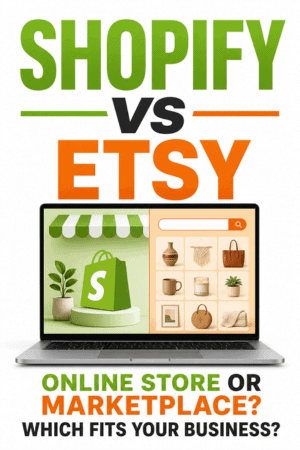
Shopify and Etsy can both help you sell products online, but they solve different problems. Shopify gives you a complete ecommerce website under your own brand. Etsy places your products inside an established marketplace where shoppers already search for items that are made, designed, handpicked, or sourced by sellers.

Etsy is usually the easier place to test eligible handmade, vintage, craft-supply, personalized, or seller-designed products without committing to a monthly ecommerce subscription. Shopify is the stronger long-term choice when you want control over your domain, design, customer journey, product range, marketing, and growth.

For many creative businesses, the best answer is not Shopify or Etsy. It is Etsy for marketplace discovery and Shopify for the independent brand—provided every Etsy sale and customer interaction follows Etsy’s policies.

If you are still planning the business itself—not just choosing between these two platforms—follow my step-by-step guide on how to start an online store, including product validation, startup costs, store setup, testing, and launch.

Key Takeaways

  • Choose Etsy when you sell eligible creative products and want access to an existing marketplace audience.
  • Choose Shopify when you want an independent branded store, broader product flexibility, stronger customization, and more room to scale.
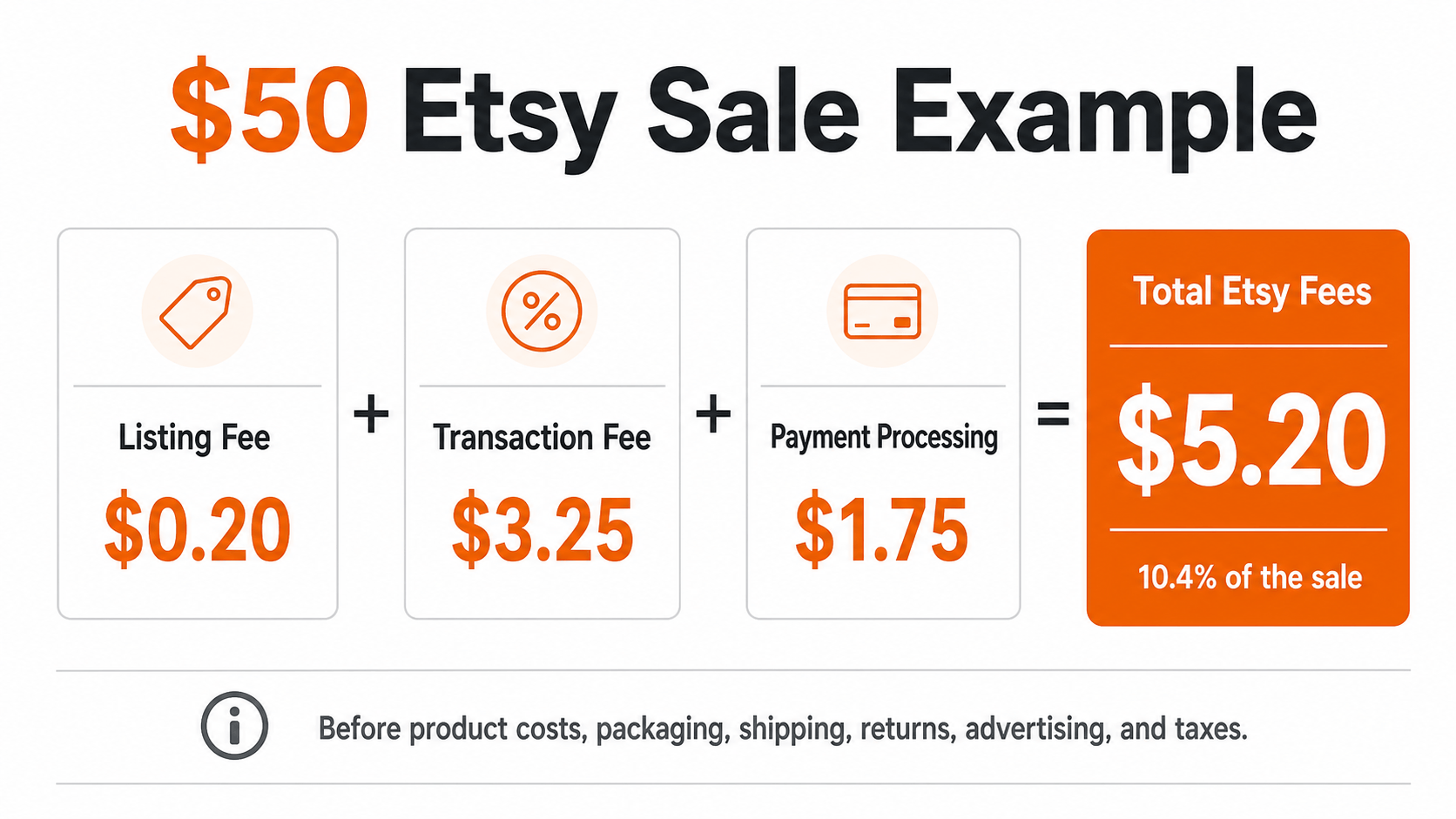
  • Etsy has no required monthly marketplace subscription, but it charges listing, transaction, payment-processing, and possible advertising fees.
  • Shopify Basic costs $39 per month with monthly billing or $29 per month with annual billing, plus payment processing and optional expenses.
  • Etsy can help a new seller get discovered, but the marketplace controls the shopping environment and seller policies.
  • Shopify does not provide an automatic audience; you must generate traffic through SEO, content, email, social media, ads, partnerships, or other channels.

Prices, fees, and policies verified October 14, 2026, for U.S. sellers. Both companies can change their terms. Review Etsy’s official Fees and Payments Policy and Shopify’s current terms before opening a store.

Shopify vs Etsy at a Glance

Category Shopify Etsy
Platform type Hosted ecommerce platform Creative-goods marketplace
Built-in audience No automatic audience Existing marketplace shoppers
Core cost Basic: $39 monthly or $29/month billed yearly Possible setup fee plus listing and selling fees
Listing fee No per-product listing fee $0.20 per listing or renewal
Transaction fee No added third-party fee with eligible Shopify Payments orders; processing still applies 6.5% of order amount, plus payment processing
Brand control High Limited by marketplace layout
Product eligibility Broad, subject to Shopify and payment-provider rules Items must meet Etsy’s creativity and marketplace standards
Customization Strong themes, apps, code, and AI tools Shop profile and listing customization within Etsy
Best for Independent brands and scalable ecommerce Creative sellers seeking marketplace discovery
Shopify ecommerce website compared with the Etsy marketplace

Shopify also includes an AI Store Builder that can generate personalized storefront designs from a short business description. Read my Shopify AI Store Builder review to see how the tool works, what it creates, its limitations, and whether AI-assisted store design gives Shopify an additional advantage over Etsy’s fixed marketplace layout.

The Biggest Difference: Website vs Marketplace

Shopify is software for building your own store. Customers visit your domain, see your design, browse your navigation, join your email list, and complete the purchase through your branded storefront. Shopify supplies the commerce infrastructure, but you are responsible for bringing people to it.

Etsy is a marketplace. Shoppers can discover your products while searching Etsy, browsing categories, viewing recommendations, clicking advertisements, or visiting your shop page. Your products benefit from Etsy’s shopping destination, but they appear alongside competing listings and within Etsy’s interface.

This difference affects nearly every other decision. Shopify requires more work to build demand, but gives you more control over how the brand looks and grows. Etsy reduces the need to build a complete website at the beginning, but the seller remains dependent on marketplace policies, fees, search visibility, and competition.

What Can You Sell on Shopify and Etsy?

If you have not selected an offer yet, my 30 product ideas to sell on Shopify compares physical products, handmade goods, print-on-demand items, digital downloads, subscriptions, and services while explaining how to validate each idea.

Shopify product flexibility

Shopify supports a broad range of physical products, digital products, services, subscriptions, bookings, dropshipping models, print-on-demand products, wholesale, and in-person sales. The exact setup may require an app, and every seller must comply with Shopify’s acceptable-use rules, payment-provider requirements, and applicable laws.

This flexibility makes Shopify useful when a business expands beyond one creative category. A merchant can build collections, manage variants, sell across channels, connect fulfillment services, and create a storefront around the brand rather than around a marketplace category.

Etsy product eligibility

Etsy states that items must be made, designed, handpicked, or sourced by the seller. Sellers must accurately explain how and where an item was made, disclose relevant production partners, use their own photographs or permitted images, and disclose AI use when required. General dropshipping and reselling are not allowed except for specific permitted categories such as qualifying craft supplies.

Print on demand can be appropriate on Etsy when the seller creates the original design and properly discloses the production partner. Uploading generic products that the seller did not make or design can violate Etsy’s rules even if a fulfillment company ships them.

Etsy’s narrower focus is a strength for shoppers seeking creative products, but it means Etsy is not a universal ecommerce platform. Review the current seller and creativity standards before building inventory around the marketplace.

If you want to sell downloads through an independent storefront, follow my Shopify digital-products guide to prepare the product, configure delivery, create previews, establish licensing terms, test fulfillment, and launch.

Shopify vs Etsy Fees

Shopify fees

Shopify charges a recurring subscription for a full online store. Basic currently costs $39 per month with monthly billing or $29 per month when billed yearly in the United States. Grow costs $105 monthly or $79 with annual billing, and Advanced costs $399 monthly or $299 with annual billing.

Payment-processing fees apply to sales. If you use Shopify Payments for eligible orders, Shopify does not add its separate third-party transaction fee. If you use an outside provider, Shopify currently lists an added fee of 2% on Basic, 1% on Grow, and 0.6% on Advanced. Apps, themes, domains, POS tools, and marketing can increase the total.

Etsy fees

Etsy can charge a one-time, nonrefundable shop setup fee when applicable; the amount is shown during onboarding. Its standard U.S. marketplace fees include:

  • $0.20 for each listing or renewal
  • Listings expire after four months unless renewed
  • 6.5% transaction fee on the displayed item price plus charged shipping and gift wrapping
  • 3% plus $0.25 Etsy Payments processing fee for U.S. bank accounts
  • Optional Etsy Ads spending
  • Possible Offsite Ads fee of 15% or 12% on attributed orders
  • Possible currency-conversion, regulatory, deposit, shipping-label, subscription, and tax-related charges
Etsy listing and transaction fees for online sellers

A $50 Etsy sale example

On a simple $50 U.S. sale with no separate shipping charge, tax, or advertising attribution, the standard $0.20 listing fee, $3.25 transaction fee, and $1.75 payment-processing fee total approximately $5.20. That equals 10.4% of the $50 sale before product cost, packaging, shipping, returns, income tax, or optional advertising.

If the same order is attributed to a 15% Offsite Ad, another $7.50 can apply, bringing the example platform and payment charges to about $12.70. Sellers who have made at least $10,000 on Etsy during an applicable 365-day period receive the 12% Offsite Ads rate and are required to participate for the lifetime of the shop under Etsy’s current policy.

Etsy fees calculated on a 50 dollar sale

The cheaper platform depends on volume and margins. Etsy has less fixed monthly commitment but can take a larger percentage of each sale. Shopify has a recurring subscription but does not charge a per-product listing fee and can become more economical as sales volume grows, depending on payment rates and other expenses.

Review the full Shopify pricing guide when comparing realistic monthly costs.

Audience and Traffic

Etsy’s built-in shopping audience is its most important advantage. A well-optimized listing can be discovered by someone who has never heard of the seller. Product photos, titles, tags, category choices, pricing, shipping, reviews, conversion history, and customer service can all affect marketplace performance.

That audience is not guaranteed. Etsy search is competitive, popular categories can contain many similar products, and visibility can change. A seller who relies on one marketplace also accepts the risk that policy enforcement, fees, search changes, or account problems can affect the business.

Shopify begins with no marketplace traffic. The seller must build visibility through Google, Pinterest, YouTube, social media, email, paid advertising, partnerships, local promotion, or another strategy. The work is harder at the beginning, but the resulting audience is more directly connected to the seller’s brand and domain.

Branding and Store Customization

Whichever platform you choose, original and consistent product images help communicate quality and strengthen the brand. My Shopify product-photography guide provides a practical workflow for planning, shooting, editing, and optimizing ecommerce images.

Shopify provides substantially more design control. You can use a custom domain, choose a theme, change sections and colors, create navigation, publish landing pages and blog posts, install apps, edit code, and shape the full path from homepage to checkout.

Customizing an independent branded Shopify store

To see how that design control works in practice, explore the 25 best Shopify store examples for ideas about homepage structure, product photography, navigation, product pages, trust, and conversions. Study the principles behind each example instead of copying another store’s design or branding.

Etsy lets you customize shop information, a banner, logo, announcement, policies, featured products, listing photos, descriptions, and related shop elements. However, the broader shopping experience remains recognizably Etsy. This consistency builds buyer familiarity but makes it harder for one shop to create a completely unique experience.

For a side project or early product test, Etsy’s structure can save time. For a business that wants wholesale relationships, press coverage, email campaigns, content marketing, custom landing pages, or a stronger brand asset, Shopify provides a better foundation.

Selling Tools and Inventory Management

Shopify has the advantage for operational depth. It supports products, variants, collections, inventory locations, orders, customers, discounts, gift cards, shipping, returns, analytics, point of sale, and many sales channels. Its app ecosystem can add subscriptions, loyalty programs, advanced bundles, wholesale functions, print on demand, and specialized fulfillment.

Etsy provides listing, order, shipping, messaging, advertising, statistics, and shop-management tools designed for marketplace sellers. These are enough for many creative businesses, especially at the beginning. Etsy becomes more limiting when a seller needs a highly customized storefront, sophisticated product organization, broader integrations, or control over the entire customer journey.
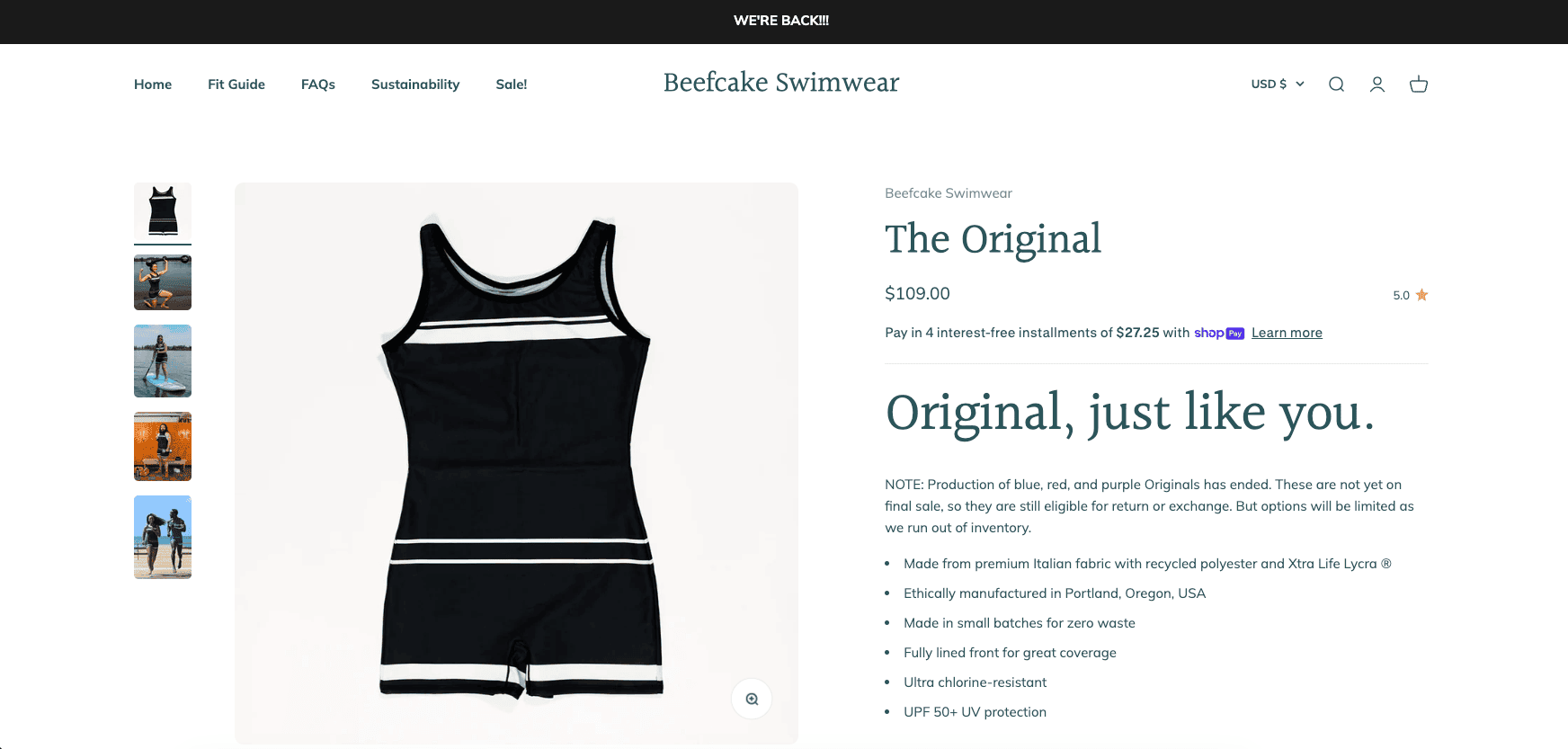
Payments, Shipping, and Taxes

Both platforms centralize major selling tasks, but they approach them differently. Shopify lets eligible merchants use Shopify Payments or connect supported outside providers. Sellers configure shipping profiles, rates, locations, pickup, delivery, taxes, and supported fulfillment integrations within the store.

Etsy Payments processes supported marketplace payments and deducts applicable fees before deposit. Etsy can calculate, collect, and remit U.S. marketplace sales tax where required. Sellers remain responsible for business records, income taxes, product compliance, and any obligations Etsy does not handle.

Neither platform eliminates the need to understand profit. Calculate material or wholesale cost, labor, packaging, shipping, platform fees, processing, returns, damaged orders, advertising, and taxes for each product before choosing a price.

SEO and Marketing

Etsy SEO focuses on matching marketplace searches. The seller optimizes listings for the phrases Etsy shoppers use while improving photos, price, shipping, reviews, and conversion. Etsy can also promote products through Etsy Ads and Offsite Ads.

Shopify SEO focuses on building visibility for the seller’s own domain. Shopify provides editable titles, meta descriptions, URLs, redirects, image alt text, mobile-ready themes, blogging, and a sitemap. The seller has more freedom to create collection guides, comparison content, tutorials, gift guides, and other resources that attract search and Pinterest traffic.

For the complete independent-store process, follow my Shopify SEO guide for beginners to organize keywords, products, collections, supporting content, internal links, and Search Console tracking.

Shopify also gives the business more control over email capture, landing pages, retargeting, discounts, automation, customer segments, and brand content. That control is valuable, but it creates more marketing responsibility.

Customer Relationships and Platform Risk

With Shopify, the buyer purchases from your storefront. You can build an email list and customer experience under your brand, subject to privacy, consent, anti-spam, and other applicable laws.

On Etsy, the transaction occurs within Etsy’s marketplace and rules. Etsy prohibits moving an Etsy-initiated transaction off the platform. Sellers should never use messages, packaging, QR codes, discounts, or other tactics to avoid Etsy fees or redirect an active Etsy purchase in a way that violates policy.

Using more than one legitimate channel can reduce dependence on a single source of traffic. The safe approach is to market the Shopify store independently while fulfilling every Etsy transaction on Etsy and respecting the marketplace’s communication and off-platform rules.

Can You Use Shopify and Etsy Together?

Yes. A creative seller can use Etsy to reach marketplace shoppers and Shopify to build an independent ecommerce brand. Inventory or order workflows may be connected through supported apps, but compatibility, pricing, permissions, and synchronization should be tested before depending on an integration.

A practical growth sequence is:

  1. Validate a small group of eligible products on Etsy.
  2. Track which products, photos, keywords, and price points convert.
  3. Build a Shopify store under the brand’s own domain.
  4. Create independent traffic through content, email, social media, Pinterest, YouTube, partnerships, or advertising.
  5. Keep Etsy orders on Etsy and follow both platforms’ policies.

When you are ready to build the independent store, use the Shopify store setup guide to complete the process in the correct order.

Before removing your storefront password, use the complete Shopify store launch checklist to test the buying, payment, shipping, fulfillment, and support process.

Build Your Shopify Store for Free

Choosing Shopify, Etsy, or both for selling products online

Which Platform Should You Choose?

Choose Shopify if:

  • You want an independent store on your own domain
  • You plan to build a recognizable long-term brand
  • You sell products that do not fit Etsy’s marketplace standards
  • You need stronger customization, content, apps, analytics, or inventory tools
  • You want to sell through online, social, marketplace, international, and physical channels
  • You are prepared to generate your own traffic

Choose Etsy if:

  • Your products clearly meet Etsy’s creative-goods standards
  • You want to test products with a lower fixed monthly commitment
  • Access to an established marketplace is more important than complete brand control
  • You prefer a simpler shop setup over building a full website
  • You understand Etsy’s listing, transaction, processing, advertising, and policy requirements

Use both if:

  • You have validated eligible products and want additional sales channels
  • You can manage inventory and orders accurately across platforms
  • You want Etsy discovery without making the marketplace your only business asset
  • You will market Shopify independently and keep Etsy transactions on Etsy

If you choose Shopify, read my Shopify mistakes to avoid guide before launching so preventable product, pricing, shipping, checkout, and marketing problems do not undermine your independent store.

If you choose Shopify for seasonal selling, use my Shopify Black Friday checklist to prepare the offer, storefront, inventory, checkout, marketing, and fulfillment plan.

Shopify vs Etsy Frequently Asked Questions

Is Shopify or Etsy better for beginners?

Etsy is easier for a beginner who has eligible creative products and wants to test marketplace demand. Shopify is better for a beginner who wants to build an independent store and is prepared to learn marketing, store design, shipping, and ecommerce operations.

If your decision also includes building a content-focused or multipurpose website, read my Shopify vs WordPress comparison to see which platform better matches the website’s primary purpose.

Is it cheaper to sell on Etsy or Shopify?

Etsy usually has a lower fixed commitment but charges listing, transaction, processing, and possible advertising fees per sale. Shopify has a monthly subscription and processing costs but no standard per-product listing fee. The cheaper option depends on sales volume, order value, margins, apps, and advertising.

Does Etsy charge a monthly fee?

Etsy does not require a monthly subscription for the standard marketplace shop, although a setup fee may apply and optional subscriptions or services can have recurring charges. Standard listing and selling fees still apply.

Does Shopify bring customers to your store?

Shopify provides sales channels and marketing tools, but opening a Shopify store does not create automatic traffic. The seller must attract customers through search, content, email, social media, ads, partnerships, or other promotion.

If you choose Shopify and need help creating that initial promotion strategy, follow my guide to getting your first sale on Shopify for audience research, outreach, traffic planning, funnel measurement, and a 30-day action plan.

Can I dropship on Etsy?

General dropshipping and reselling are not allowed on Etsy except for specific permitted cases such as qualifying craft supplies. Print on demand can be allowed when the seller creates the original design and properly discloses the production partner.

Can I sell the same products on Shopify and Etsy?

Yes, if the products meet each platform’s rules and inventory is managed accurately. Etsy-initiated transactions must remain on Etsy, and sellers should not redirect active Etsy buyers off the marketplace to avoid fees.

Which is better for print on demand?

Shopify offers greater flexibility and branding for print-on-demand businesses. Etsy provides marketplace discovery but requires the seller to create the design, disclose the production partner, and follow its creativity standards.

For the complete setup process, follow my Shopify print-on-demand guide, which covers providers, app connections, product creation, pricing, samples, fulfillment, and launch.

Should I start on Etsy and move to Shopify later?

That can be a practical path for an eligible creative business. Use Etsy to validate products, then build Shopify as an independent channel. You do not need to close Etsy; many sellers can benefit from keeping both channels while following both platforms’ policies.

Shopify versus Etsy comparison showing which platform is better for selling online

If you plan to sell supplier-fulfilled products through your own storefront, my Shopify dropshipping guide covers supplier selection, pricing, store setup, fulfillment, marketing, and cash flow.

Final Verdict: Shopify or Etsy?

Etsy wins for faster marketplace entry and access to shoppers looking for creative goods. Shopify wins for brand ownership, product flexibility, store customization, marketing control, multichannel operations, and long-term growth.

If your decision is between a hosted Shopify store and a self-managed WordPress store, read my Shopify vs WooCommerce comparison before choosing your ecommerce platform.

If you have not validated an eligible creative product, Etsy can be the lower-commitment test. If you already know you want to create a serious ecommerce brand, building on Shopify from the beginning prevents your entire business from depending on one marketplace.

Read the complete Shopify review for 2026 for a deeper look at its features and limitations. When you are ready, start Shopify’s free trial and compare the store-building workflow with your current marketplace setup.

If you choose Shopify and intend to focus on one flagship item, follow my one-product Shopify store guide to validate the offer, calculate profit, structure the storefront, and test the complete buying experience.

Shopify Pricing: Plans, Fees, and Costs Explained (2026)

Shopify pricing for a complete online store starts at $39 per month for Basic when you pay monthly. Most beginners should choose Basic. It costs $29 per month when billed yearly and includes hosting, SSL, unlimited products, Shopify’s checkout, inventory tools, and the core features needed to launch an ecommerce website.

However, the subscription is only one part of the cost. Payment processing, third-party transaction fees, apps, themes, a custom domain, and optional point-of-sale tools can all affect what you actually spend.

In this guide, I’ll break down every major Shopify plan and fee so you can choose the right option without paying for features you don’t need.

Shopify Pricing Explained (2026) 🔥 - Plans, Fees & Actual Cost

Key Takeaways

  • Shopify Basic costs $39 with monthly billing or $29 per month with annual billing and is the best plan for most beginners.
  • Annual billing saves $120 on Basic, $312 on Grow, or $1,200 on Advanced compared with paying the standard monthly rate for a full year.
  • Grow and Advanced cost more but provide additional staff accounts, lower payment rates, and features for larger or more complex businesses.
  • Shopify includes ecommerce hosting, SSL, unlimited products, inventory tools, checkout, and core selling features with its full online-store plans.
  • Payment processing, third-party transaction fees, apps, premium themes, a custom domain, and POS Pro can increase your total cost.
  • New users can currently start with a three-day free trial and then pay $1 per month for three months on eligible plans.
  • Start with Basic and upgrade only when added features or lower fees produce a measurable benefit for your business.

Pricing verified October 14, 2026, for U.S. merchants. Shopify prices, promotions, and payment rates can vary by country and may change. Always confirm the final amount on Shopify’s official pricing page before subscribing.

Shopify Pricing Overview

Shopify Basic, Grow, Advanced, and Plus pricing in 2026

Plan Monthly Billing Yearly Billing Best For
Basic $39/month $29/month New and solo ecommerce businesses
Grow $105/month $79/month Growing stores with a small team
Advanced $399/month $299/month High-volume or international stores
Plus From $2,300/month Contract-based Large and complex businesses

Basic is Shopify’s lowest-priced standard plan for building a complete online store. Grow and Advanced keep the same core ecommerce foundation while adding more staff access, lower payment rates, and tools for larger or more complex businesses. Plus is designed for enterprise operations that need advanced checkout, B2B, support, and scaling capabilities.

After testing Shopify while creating store-building tutorials, what I found is that the plan names can make the decision seem more complicated than it is. Most new sellers do not need to compare every advanced feature. The practical choice is usually Basic unless you already know that you need employee accounts, lower processing rates, or advanced international and shipping tools.

New users can currently try Shopify free for three days and then pay $1 per month for the first three months on eligible plans. The complete Shopify free trial guide explains how the current promotion works and what happens after the trial ends.

What Is Included With Every Full Shopify Plan?

Basic, Grow, Advanced, and Plus all provide the foundation required to run a complete ecommerce store. The higher plans mainly add capacity, team access, lower fees, and advanced business tools rather than changing Shopify’s core purpose.

Every full plan also provides Shopify’s basic search foundation, but the store owner must complete the optimization work. My Shopify SEO guide for beginners explains how to research keywords, improve important pages, build internal links, complete technical checks, and measure organic performance.

  • Secure ecommerce hosting and unlimited bandwidth
  • A free TLS/SSL certificate for connected domains
  • A customizable online store with free and paid themes
  • Unlimited products and inventory management
  • Shopify’s secure checkout and Shopify Payments eligibility
  • Sales through social media, marketplaces, in-person channels, and AI shopping experiences
  • Discount codes, gift cards, customer accounts, and abandoned checkout recovery
  • Reports, marketing tools, and access to Shopify apps
  • Shopify’s AI website builder and Sidekick commerce assistant
  • 24/7 support, with the support level varying by plan

To see what Shopify’s built-in AI tools can create before choosing a plan, read my Shopify AI Store Builder review. It explains how the prompt-based builder works, what it generates, how much customization is available, its limitations, and whether it provides a useful starting point for a real online store.

One thing I noticed while building a test store is that many features beginners assume require paid apps are already included. Before installing an app, check the Shopify dashboard and plan features first. Keeping the app list small makes the store easier to manage and prevents unnecessary monthly charges.

Monthly vs. Yearly Shopify Pricing

Shopify monthly versus yearly plan pricing comparison

Shopify lets you pay monthly or commit to annual billing. Paying monthly costs more, but it gives a new business greater flexibility. Annual billing lowers the effective monthly price but requires a larger payment upfront.

Plan Cost Paid Monthly Cost Paid Yearly Annual Savings
Basic $468/year $348/year $120
Grow $1,260/year $948/year $312
Advanced $4,788/year $3,588/year $1,200

In my experience, starting with monthly billing is the safer option when you are still validating your products or business idea. Once your store is making consistent sales and you know you want to continue, switching to annual billing can reduce your long-term cost.

Shopify Basic: $39 Monthly or $29 With Annual Billing

Shopify Basic is the best plan for most beginners. It includes a complete online store without charging for the team access and advanced features many new businesses do not yet need.

Important Basic features include:

  • A customizable online store
  • Unlimited products
  • Secure ecommerce hosting and SSL
  • Shopify’s checkout
  • Inventory management across up to 10 locations
  • Discount codes and gift cards
  • Abandoned checkout recovery
  • Sales through social platforms and marketplaces
  • Built-in reports and analytics
  • Shopify’s AI website builder and Sidekick assistant

For U.S. online transactions, Shopify currently lists a standard card rate starting at 2.9% plus 30 cents. If you use an outside payment provider instead of Shopify Payments, a 2% third-party transaction fee can also apply.

The main limitation is that Basic does not include additional staff accounts. Third-party calculated shipping is also unavailable as a standard feature. Solo store owners and very small businesses may not need either feature at the beginning.

When Basic Is the Right Starting Point

Basic is usually the right choice when one owner is building a first complete store and does not need separate staff logins. It provides the storefront, checkout, product management, inventory, discounts, reports, hosting, and security required to begin selling. The practical reason to upgrade is not simply that a store is growing; it is that a higher plan’s staff access, lower fees, shipping tools, or international features now save enough time or money to justify the price difference.

Shopify Grow: $105 Monthly or $79 With Annual Billing

Grow is intended for businesses that have moved beyond the solo stage. It includes everything in Basic while adding five staff accounts, broader data access for custom apps, and lower payment and third-party transaction fees.

Choose Grow when:

  • Employees need their own Shopify logins
  • Your monthly sales make the lower fees meaningful
  • You need third-party calculated shipping as an add-on
  • Your business needs fuller custom-app data access

Shopify lists online standard card rates starting at 2.7% plus 30 cents and a 1% third-party transaction fee for Grow. When billed yearly, Grow costs $50 more per month than Basic. A 0.2-percentage-point reduction in card processing alone offsets that $50 difference at roughly $25,000 in monthly card sales. The added staff access and other features can make Grow worthwhile sooner.

Shopify Advanced: $399 Monthly or $299 With Annual Billing

Advanced is built for established stores with higher sales volume, larger teams, or more complicated international operations. It includes 15 staff accounts, lower payment rates, third-party calculated shipping, expanded API capacity on select APIs, and regional selling tools.

Advanced is best for:

  • High-volume ecommerce stores
  • Businesses selling across multiple regions
  • Teams that need more than five staff accounts
  • Stores requiring live third-party shipping rates
  • Companies that benefit substantially from lower processing fees

Shopify currently lists standard online card rates starting at 2.5% plus 30 cents and a 0.6% third-party transaction fee. Advanced costs $220 more per month than Grow when both are billed yearly. Based only on the 0.2-percentage-point difference in standard online card rates, a store would need roughly $110,000 in monthly card sales to offset that price difference. Other Advanced features may justify upgrading at a lower volume.

Shopify Plus: Starting at $2,300 per Month

Shopify Plus is the enterprise-level option for large and complex businesses. It adds unlimited staff accounts, extensive checkout customization, priority support, increased API capacity, expansion stores, high-volume checkout capabilities, and more advanced B2B tools.

Most readers starting their first store do not need Plus. Pricing and terms are contract-based, so established companies should speak with Shopify and compare the total platform cost against their technical, B2B, international, and checkout requirements.

Shopify Payment Processing and Transaction Fees

Shopify payment processing and third-party transaction fees by plan

Shopify fees are easier to understand when you separate them into two categories.

Credit card processing fees

These fees cover payment processing when a customer pays by card. Shopify’s current starting U.S. online rates are:

Plan Standard Online Card Rate In-Person Card Rate
Basic 2.9% + 30¢ 2.6% + 10¢
Grow 2.7% + 30¢ 2.5% + 10¢
Advanced 2.5% + 30¢ 2.4% + 10¢

Premium, international, PayPal, manual, cryptocurrency, and other payment types can have different rates. Your final rate can also depend on your country and the payment method.

Third-party transaction fees

Shopify can charge an additional fee when you use a third-party payment provider instead of Shopify Payments. The current listed rates are 2% on Basic, 1% on Grow, 0.6% on Advanced, and 0.2% on Plus.

When Shopify Payments is available and appropriate for your business, using it usually keeps the fee structure simpler because Shopify does not add a separate third-party transaction fee to eligible Shopify Payments orders. Your normal card processing rate still applies.

Shopify Hidden Costs and Additional Fees

Shopify does not charge a setup fee, and hosting and SSL are included. Still, several optional expenses can raise your total monthly or yearly cost.

Custom domain

Every store receives a free myshopify.com address, but most businesses should use a custom domain. You can purchase one through Shopify or connect a domain registered elsewhere. Domain pricing varies by extension and registrar.

Shopify apps

Many apps are free or offer limited free plans, while others charge monthly or based on usage. Reviews, subscriptions, advanced email marketing, upsells, product options, and specialized shipping tools can increase your bill quickly.

What I found while testing Shopify is that it is easy to install apps while experimenting and forget that several small monthly charges can eventually cost more than the Shopify plan itself. Install an app only when it solves a specific problem, and remove it when it no longer produces a clear benefit.

A digital-product store may also need an app for secure file delivery, download management, licensing, subscriptions, or course access. Read my guide to selling digital products on Shopify before deciding which features and app costs the store actually needs.

Premium themes

Shopify offers free themes that are more than capable of launching a professional store. Premium themes are an optional one-time purchase. Start free and upgrade only if a paid theme provides a feature or layout that would otherwise require custom development.

Before purchasing a premium theme, browse the 25 best Shopify store examples to see how effective stores use layout, navigation, product photography, product pages, branding, and trust. Focus on the features that improve the customer experience instead of assuming a paid theme will automatically create a better store.

POS Pro

Basic in-person selling is included with the main plans. Retail businesses that need advanced staff permissions, inventory tools, exchanges, pickup, and delivery features can add POS Pro for $89 per month per location. Shopify Plus includes a limited number of POS Pro locations under its current plan structure.

Email, marketing, and professional services

Your business may also spend money on email, advertising, product photography, design, development, bookkeeping, or outside help. These are not required Shopify subscription fees, but they belong in a realistic ecommerce budget.

A Realistic Shopify Budget for Beginners

Your product choice affects far more than the Shopify subscription: inventory, samples, packaging, shipping, returns, photography, and marketing can change the real startup budget. Use my Shopify product-ideas guide to compare models and estimate the economics before committing.

Your startup budget may also need to cover product samples, backgrounds, lighting, editing tools, or professional photography. My Shopify product-photography guide shows how beginners can create effective store images without starting with an expensive studio.

A lean beginner can launch with Shopify Basic, a free theme, a custom domain, and no paid apps. That keeps the fixed platform cost close to the Basic subscription plus the domain. Payment processing is then charged as sales occur.

A practical first-year budget might include:

  • Shopify Basic: $348 per year with annual billing
  • Custom domain: variable yearly cost
  • Theme: $0 by using a free theme
  • Apps: $0 initially, adding only what produces a clear benefit
  • Payment processing: charged as a percentage of each sale

The expensive part of ecommerce is often not the platform. Inventory, packaging, shipping, returns, and customer acquisition can cost far more. Keep the technology simple until your products begin generating consistent revenue.

My Shopify first-sale guide explains how to use a lean 30-day launch plan, test customer-acquisition methods, measure the buying funnel, and avoid increasing advertising expenses before the offer is proven.

Avoid turning an affordable Shopify plan into an expensive and complicated setup by reviewing these Shopify mistakes to avoid before purchasing apps, themes, or unnecessary services.

If you plan to sell made-to-order products, the Shopify print-on-demand guide explains how provider charges, shipping, app expenses, replacement allowances, and marketing costs affect each order.

Before You Pay for a Full Year

Build as much of your store as possible during the trial. Before removing your storefront password, use the complete Shopify store launch checklist to verify that the full customer and fulfillment experience works. Add products, customize a free theme, create your essential pages, configure shipping, and test the checkout. If you are still validating the business, choose monthly billing first. Move to annual billing after you know Shopify fits your needs.

To plan the complete business—not only the Shopify subscription—follow my step-by-step guide on how to start an online store. It covers product validation, startup costs, profit margins, Shopify setup, fulfillment, testing, launch, and marketing.

Choosing the best Shopify plan for an online store

Which Shopify Plan Is Best?

Your Situation Recommended Plan Why
You are building your first full store Basic Best balance of cost and ecommerce features
You need employee accounts Grow Includes up to five staff accounts
You have high sales or complex international needs Advanced Lower fees and stronger regional tools
You operate a large or complex company Plus Enterprise checkout, B2B, support, and scalability

For most WP Cupid Blog readers, I recommend Basic. Upgrade based on real needs rather than choosing a more expensive plan because you hope the business will eventually grow into it.

Who Is Shopify Best For?

Shopify is best for individuals and businesses that want to sell products without assembling hosting, security, checkout software, inventory tools, and store management features from different providers.

Shopify is a strong choice for:

  • Beginners launching their first ecommerce store
  • Creators selling physical or digital products
  • Print-on-demand and dropshipping businesses
  • Retailers selling online and in person
  • Businesses that value ease of use and an integrated checkout
  • Growing brands that want to scale without migrating platforms

Shopify may not be the best choice if:

  • You only need a blog or informational website
  • You want complete control over your hosting environment and source code
  • You sell very infrequently and cannot justify a recurring subscription
  • You need highly specialized functionality that would require several expensive apps
  • You prefer managing a self-hosted ecommerce system such as WooCommerce

After testing both hosted website builders and self-hosted WordPress setups, Shopify’s biggest advantage is convenience. The tradeoff is that you pay a recurring fee and work within Shopify’s platform. For a beginner who wants to focus on products and customers instead of website maintenance, that tradeoff is often worthwhile.

For a broader evaluation beyond price, read my complete Shopify review covering its features, ease of use, strengths, limitations, and overall value.

Shopify Pricing Pros and Cons

Pros

  • Hosting and SSL are included
  • No setup fee
  • Free themes can keep startup costs low
  • Plans support businesses from beginner to enterprise
  • Annual billing offers meaningful savings
  • Shopify Payments avoids eligible third-party transaction fees

Cons

  • The subscription continues even during slow months
  • Paid apps can increase costs quickly
  • Third-party payment providers can trigger added fees
  • Staff accounts require Grow or higher
  • A custom domain is a separate expense
  • Annual plans require more money upfront

How to Save Money on Shopify

  1. Use the trial first. Build your store before paying full price.
  2. Begin with Basic. Avoid Grow or Advanced until specific features or fee savings justify the upgrade.
  3. Choose a free theme. Shopify’s free themes are sufficient for most new businesses.
  4. Limit paid apps. Review every app charge and remove tools you no longer use.
  5. Consider Shopify Payments. When available and suitable, it can prevent additional third-party transaction fees on eligible orders.
  6. Switch to annual billing later. Make the longer commitment after validating your store.

If you are ready to build your store, follow my step-by-step Shopify store tutorial. It walks through products, themes, payments, shipping, pages, navigation, SEO, and launch preparation.

Before paying for additional traffic tools, determine whether a visual channel fits your products. My Shopify Pinterest guide covers the store connection, Product Pins, tracking, and performance measurement.

Shopify Alternatives to Consider

Shopify is not the only way to sell online. The right alternative depends on whether you prioritize control, simplicity, marketplace traffic, or a lower fixed cost.

If WordPress is one of the options you are evaluating, read my Shopify vs WordPress comparison for a broader look at costs, ecommerce, publishing, design, SEO, ownership, and maintenance.

  • WooCommerce: Best for people who want a self-hosted WordPress store and greater control over hosting and customization.
  • Wix: A beginner-friendly website builder for smaller stores that want drag-and-drop design tools.
  • Squarespace: A strong option for visual brands, portfolios, and smaller product catalogs.
  • Etsy: A marketplace rather than a standalone store builder, making it useful for reaching shoppers who already search Etsy for products.

Shopify is usually the strongest choice when your goal is to build an independent ecommerce brand with room to grow. Etsy can complement a Shopify store, while WooCommerce may be better for someone comfortable managing WordPress and web hosting.

Read my complete Shopify vs WooCommerce comparison to compare the total costs, setup requirements, payment and checkout systems, customization, security, maintenance, and long-term scalability.

For a closer look at the cost, selling fees, marketplace traffic, and business-model differences, read my Shopify vs Etsy comparison.

Shopify pricing and plans comparison for 2026

After budgeting for the platform, use my Shopify Black Friday checklist to calculate promotion economics and prepare inventory, marketing, checkout, shipping, and fulfillment.

Frequently Asked Questions

How much does Shopify cost per month?

In the United States, Shopify currently costs $39 per month for Basic, $105 for Grow, and $399 for Advanced when billed monthly. Annual billing reduces the effective monthly prices to $29 for Basic, $79 for Grow, and $299 for Advanced. Shopify Plus starts at $2,300 per month and uses different terms.

What is the cheapest Shopify plan?

Basic is the cheapest standard Shopify plan for building a complete, customizable online store. It costs $39 with monthly billing or the equivalent of $29 per month when the full year is billed upfront.

Does Shopify charge a setup fee?

No. Shopify states that it does not charge setup fees on its plans. You still need to budget for the subscription, payment processing, a custom domain, and any optional apps, themes, or services.

Does Shopify include hosting?

Yes. Shopify plans include ecommerce hosting, unlimited bandwidth, and SSL security. You do not need to purchase a separate web hosting plan.

Does Shopify give you a free domain?

Shopify gives every store a free myshopify.com address. A custom domain such as yourstore.com must be purchased through Shopify or another domain registrar.

Does Shopify take a percentage of every sale?

Shopify charges payment processing fees when you accept card payments. It can also charge a third-party transaction fee when you use an outside payment provider. The exact percentage depends on your plan, country, and payment method.

Can I use Shopify without Shopify Payments?

Yes. Shopify supports third-party payment providers, but the payment provider can charge its own fees and Shopify may add a third-party transaction fee based on your plan.

Can I change my Shopify plan later?

Yes. You can upgrade or downgrade as your business changes. Review the effective date and billing impact in your Shopify admin before confirming a plan change.

Is Shopify Basic enough for beginners?

Yes. Basic includes the core storefront, product, checkout, payment, inventory, marketing, reporting, hosting, and security features most beginners need. Upgrade when you need staff accounts, lower fees, or advanced shipping and international tools.

Is Shopify worth the cost?

Shopify is worth the cost for businesses that want an all-in-one ecommerce platform and prefer not to manage hosting, security, software updates, and checkout technology separately. It may be less cost-effective if you only need a basic website or rarely sell products.

Dropshipping expenses extend beyond the Shopify subscription. Use my Shopify dropshipping guide to account for supplier charges, shipping, apps, payment processing, returns, replacements, advertising, and cash-flow timing.

Final Verdict: Which Shopify Plan Should You Choose?

Shopify Basic is the best starting point for most new ecommerce businesses. It gives you a complete store without the higher price of features designed for teams and high-volume sellers. Grow becomes more attractive when you need employee accounts or the lower fees create meaningful savings. Advanced is best reserved for established stores with high sales, international requirements, or more complicated shipping needs.

Start Shopify’s free trial to build and test your store before committing. Keep your theme and app costs low, choose monthly billing while validating the idea, and upgrade only when the numbers support it.

If you plan to launch with one flagship product, use my one-product Shopify store guide to calculate the full economics, choose a focused setup, build the key pages, and test the customer journey.
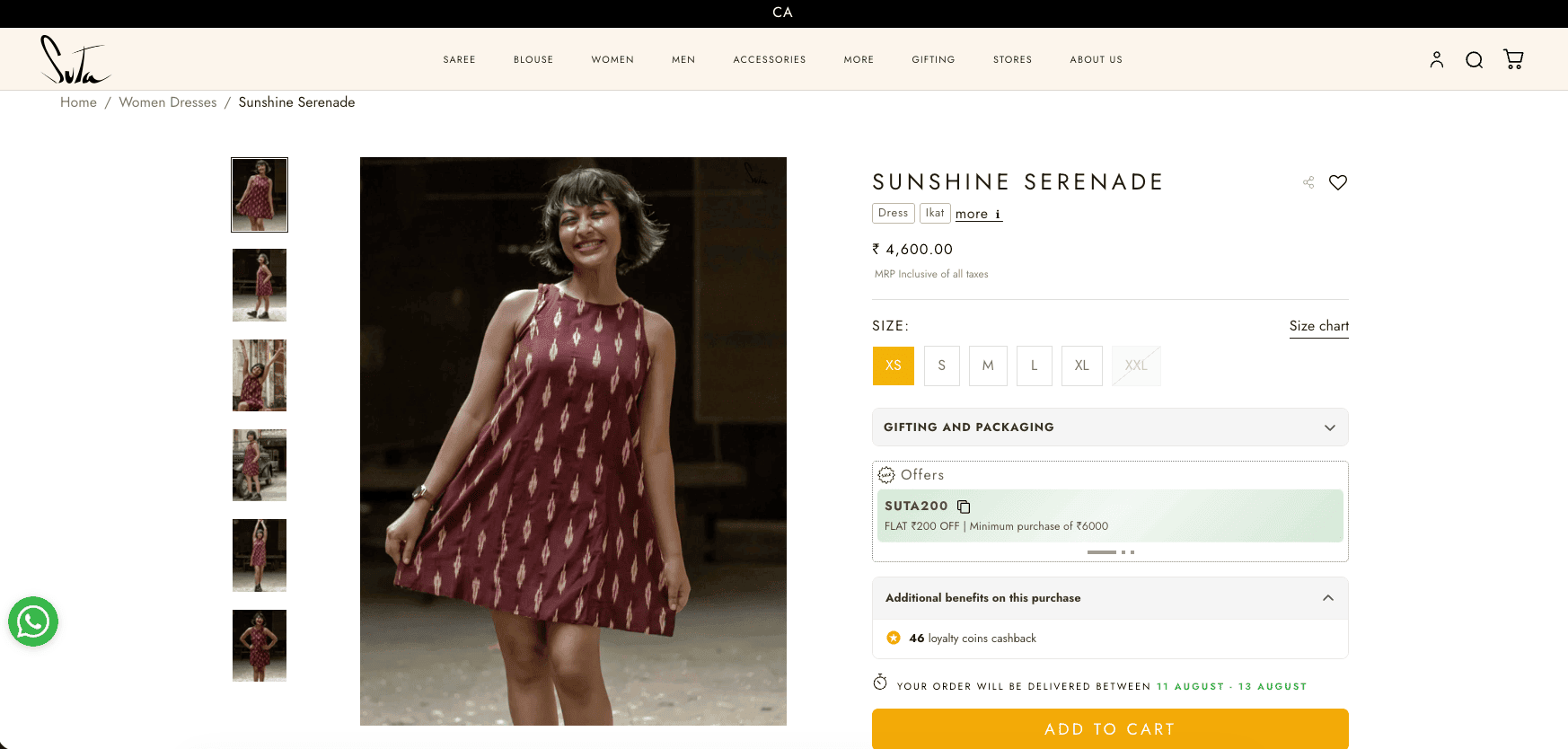
How to Start a Shopify Store: The Complete Beginner’s Guide

Starting an online store can feel overwhelming when you’re new to ecommerce. There are products to choose, payments to set up, shipping to configure, and a website to build. The good news is that Shopify simplifies almost all of those tasks, making it possible for beginners to launch a professional online store without learning to code. Whether you want to sell your own products, start a print-on-demand business, launch a dropshipping store, or build a long-term ecommerce brand, Shopify provides nearly everything you need in one place. I’ve spent a considerable amount of time testing Shopify while creating tutorials and reviewing its features. One thing I’ve consistently found is that Shopify removes much of the technical complexity that often prevents people from starting an online business. Instead of worrying about hosting, software updates, security, or checkout functionality, you can spend your time building your products, improving your website, and finding customers. In this guide, I’ll walk you through every step of creating your first Shopify store—from signing up for your account to launching a professional ecommerce website that’s ready to accept orders. By the end of this article, you’ll know how to:
  • Create a Shopify account
  • Choose the right Shopify plan
  • Customize your online store
  • Add products and collections
  • Configure payments and shipping
  • Optimize your store for search engines
  • Launch your website with confidence
  • Begin attracting your first customers
If you’re following along for the first time, I recommend opening Shopify in another browser tab so you can complete each step as you read.

Key Takeaways

  • Shopify is one of the easiest ecommerce platforms for beginners.
  • You can build your store during the free trial before selecting a paid plan.
  • Start with a free theme and keep your design simple.
  • Focus on writing unique product descriptions and using high-quality images.
  • Configure payments, shipping, taxes, and your domain before launching.
  • Invest in SEO and content marketing to attract long-term traffic.
  • Launch once your store is ready, then continue improving it based on customer feedback and performance data.
How To Start an Online Store with Shopify 2026 🔥 (Step-by-Step Tutorial)

What Is Shopify?

shopify-homepage
Quick Answer: Shopify is an all-in-one ecommerce platform that lets you create an online store, sell products, process payments, manage inventory, and grow your business without needing technical experience. Unlike a traditional website where you have to purchase hosting, install software, configure security, and maintain updates yourself, Shopify combines everything into one platform. With Shopify, you can:
  • Sell physical products
  • Sell digital downloads
  • Launch a dropshipping business
  • Create a print-on-demand store
  • Accept online payments
  • Manage inventory
  • Track orders
  • Offer discount codes
  • Sell through social media and online marketplaces
  • Manage your business from desktop or mobile
Because everything is integrated, Shopify allows beginners to focus on building a business rather than managing the technical side of running a website.

Is Shopify Right for You?

Before creating an account, it’s worth asking whether Shopify is the right ecommerce platform for your goals. In my experience, Shopify is one of the easiest platforms for beginners while still offering enough advanced features to support long-term growth.

Shopify is a great choice if you want to:

  • Launch your first online business
  • Sell physical products
  • Start a print-on-demand business
  • Create a dropshipping store
  • Build a recognizable ecommerce brand
  • Sell internationally
  • Scale your business over time

Shopify may not be the best choice if you:

  • Only need a personal blog
  • Don’t plan to sell products
  • Want complete control over your website’s code
  • Prefer managing your own hosting environment
If your primary goal is selling products online, Shopify is one of the strongest options available. Here’s a quick overview of Shopify’s biggest advantages and potential drawbacks.
Pros Cons
Beginner-friendly interface Monthly subscription required after the trial
Hosting and security included Premium themes and apps can increase costs
Fast setup process Some advanced customization requires coding knowledge
Excellent app ecosystem Transaction fees may apply with certain payment providers
Scales as your business grows
Overall, I believe the advantages far outweigh the disadvantages for most first-time store owners. If you are choosing between Shopify and a general-purpose WordPress website, read my Shopify vs WordPress comparison before creating your store. For a deeper look at the platform before building your store, read my complete Shopify review covering its features, ease of use, pricing, advantages, and limitations.

How Much Does Shopify Cost?

Shopify offers several plans designed for businesses at different stages of growth.
Plan Best For
Basic New ecommerce businesses
Grow Businesses with increasing sales
Advanced Established online stores
Plus Large enterprise businesses
If you’re launching your first store, the Basic plan typically includes everything you need, including:
  • Unlimited products
  • Secure checkout
  • Inventory management
  • Discount codes
  • SSL certificate
  • Website hosting
  • Customer accounts
  • Sales reports
  • Multiple sales channels
The good news is that you don’t have to commit to a paid plan immediately. For a complete breakdown of every plan, including monthly and annual costs, transaction fees, and additional expenses, read my Shopify pricing guide.

Start with the Shopify Free Trial

shopify-free-trial-signup-page
One of the biggest advantages of Shopify’s free trial is that new users can build their store before committing to a paid plan. Promotional offers may also include discounted introductory pricing for eligible new customers after the Shopify free trial ends. I always recommend using the trial period to build as much of your store as possible before upgrading. During your trial, you can:
  • Learn the dashboard
  • Upload products
  • Design your homepage
  • Connect a domain
  • Configure shipping
  • Set up payment methods
  • Test your store
By the time you’re ready to choose a paid plan, much of the hard work is already complete.

What You’ll Need Before You Start

One mistake many beginners make is believing they need every detail figured out before creating a Shopify store. That’s simply not true. You can always refine your website after launch. However, having a few basics prepared will make the setup process much smoother.

A Business Name

Choose a name that’s:
  • Easy to remember
  • Easy to spell
  • Relevant to your brand
  • Available as a domain name if possible
Don’t spend weeks trying to find the perfect name. I’ve seen many successful businesses launch with simple names and refine their branding later.

Products

If you are still deciding what belongs in your catalog, review my Shopify product-ideas guide for 30 beginner-friendly options, business-model comparisons, sourcing choices, margin considerations, and a simple product-validation process.

Know what you plan to sell. Whether it’s handmade products, clothing, digital downloads, or print-on-demand merchandise, having a clear direction will make the setup process much easier.

Product Photos

For a complete beginner workflow, follow my Shopify product-photography guide to plan your shot list, build a simple setup, photograph important details, edit consistently, and optimize images before uploading them.

Product images have a significant impact on conversions. Aim for photos that are:
  • Bright
  • High resolution
  • Consistent
  • Taken from multiple angles
If you’re using a smartphone, natural lighting near a window often produces excellent results.

Logo (Optional)

Don’t delay your launch because you don’t have a professional logo. A clean text-based logo is perfectly acceptable when you’re starting. Your branding can always evolve as your business grows. This tutorial focuses on building the store with Shopify. If you also need help validating products, estimating startup costs, calculating profit margins, planning fulfillment, and marketing the business, follow my complete guide on how to start an online store.

Step 1: Create Your Shopify Account

creating-a-shopify-account
Visit Shopify to start your free trial, then follow along with each step in this guide as you build your store. You’ll be asked to create an account using your email address or another supported sign-in method. Shopify then walks you through a short onboarding process designed to personalize your experience. Some of the questions include:
  • Are you already selling?
  • What products do you plan to sell?
  • Where do you want to sell?
  • What’s your primary business goal?
These questions simply customize your dashboard and can be updated later.

Pro Tip

I recommend using a business email address rather than your personal email whenever possible. It keeps customer communication, order notifications, and business messages organized as your store grows.

Step 2: Choose Your Store Name

choosing-a-shopify-store-name
During setup, Shopify asks you to create a store name. This doesn’t have to be permanent, so don’t let it become a roadblock. A few best practices include:
  • Keep it short.
  • Avoid unusual spellings.
  • Make it easy to pronounce.
  • Check domain availability.
  • Avoid trademarked names.
Remember that your brand becomes valuable because of the reputation you build—not because you found the “perfect” name on day one.

Step 3: Explore Your Shopify Dashboard

shopify-dashboard-overview
After completing the setup process, you’ll arrive at your Shopify admin dashboard. At first glance, there are quite a few options available, but the interface is organized logically and becomes familiar very quickly. The sections you’ll use most often include:
Section Purpose
Home Setup tasks and store overview
Orders Customer orders
Products Products and collections
Customers Customer management
Content Pages and blog posts
Discounts Promotions and coupon codes
Analytics Store performance
Settings Payments, shipping, taxes, domains and more
One thing I noticed while testing Shopify is that spending just a few minutes clicking through each menu makes the rest of the setup process much easier because you already know where everything is located. Before moving on, take a moment to familiarize yourself with the dashboard. It’ll save you time as you continue building your store.

Step 4: Choose a Shopify Theme

shopify-theme-store
Now it’s time to make your store look like a real business. Your Shopify theme controls your store’s design, including its layout, typography, colors, product pages, navigation, and overall customer experience. One of the biggest misconceptions I see is that beginners think they need to purchase a premium theme before launching. In my experience, that’s rarely necessary. Shopify’s free themes are professionally designed, mobile responsive, and fast enough for the vast majority of new ecommerce stores. You can always upgrade to a premium theme later if your business outgrows the features included with a free one. Shopify also offers a built-in AI Store Builder that can generate personalized storefront designs from a short business description. Before choosing a theme manually, read my Shopify AI Store Builder review to see how the tool works, what it creates, how the generated designs can be customized, and which parts of the store still require manual setup.

How to Choose a Theme

From your Shopify dashboard:
  1. Click Online Store → Themes.
  2. Browse Shopify’s Theme Store.
  3. Preview several themes before making a decision.
  4. Click Add Theme.
  5. Select Customize to begin editing.
When comparing themes, look for:
  • Mobile-friendly design
  • Fast loading speed
  • Easy navigation
  • Product filtering
  • Search functionality
  • Flexible homepage sections
  • Good product page layouts
Don’t choose a theme simply because it has flashy animations or dozens of customization options. A clean, easy-to-use website almost always performs better than one that’s overloaded with design elements.

Step 5: Customize Your Store

shopify-theme-editor
After selecting your theme, click Customize to open Shopify’s visual editor. This is where you’ll build the look and feel of your website without writing a single line of code. The editor allows you to customize nearly every part of your storefront, including:
  • Homepage banner
  • Logo
  • Colors
  • Fonts
  • Buttons
  • Featured collections
  • Featured products
  • Announcement bar
  • Footer
  • Navigation
As you make changes, you’ll see a live preview of your store.

Upload Your Logo

If you already have a logo, upload it now. If you don’t, don’t let that delay your launch. A simple text-based logo looks far more professional than rushing to create an overly complicated design.

Choose Brand Colors

Limit yourself to two or three primary colors. Too many colors can make a website feel cluttered and distract visitors from your products. Consistency is far more important than complexity.

Build an Effective Homepage

Your homepage should answer three questions within a few seconds:
  • What do you sell?
  • Why should customers buy from you?
  • What should they do next?
A simple homepage structure that works well for most Shopify stores looks like this:
  1. Hero image with headline
  2. Shop Now button
  3. Featured collection
  4. Best-selling products
  5. Customer testimonials
  6. Benefits or guarantees
  7. Newsletter signup
  8. Footer
One thing I found while reviewing successful Shopify stores is that they don’t overwhelm visitors with dozens of sections. Instead, they focus on making it easy for shoppers to discover products and complete a purchase. For additional design inspiration, explore the 25 best Shopify store examples to see how different stores approach homepage structure, branding, product photography, navigation, product pages, trust, and conversions. Identify the principles that fit your customers instead of copying another store’s design.

Step 6: Add Your Products

adding-a-product-in-shopify
Products are the foundation of your Shopify store. To add your first product:
  1. Go to Products.
  2. Click Add Product.
You’ll now complete the product information.

Product Title

Choose a title that’s both descriptive and easy to understand. For example, instead of: Coffee Mug Use: 16 oz Insulated Stainless Steel Travel Coffee Mug A more descriptive title helps customers understand what they’re buying and gives search engines additional context.

Product Description

Your product description should explain more than just features. Instead of listing specifications, explain how the product benefits the customer. For example: Feature: Waterproof fabric Benefit: Stay dry during unexpected rain while keeping your belongings protected. Descriptions that focus on solving problems often convert better than descriptions that simply list technical details.

Upload Product Images

Product images can make or break a sale. Whenever possible, include:
  • Front view
  • Back view
  • Side view
  • Close-up details
  • Lifestyle photos showing the product in use
Use consistent lighting and backgrounds across all of your products to create a more professional shopping experience.
uploading-shopify-images-in-shopify

Set Pricing

Enter your selling price. If you’re running a promotion, you can also use Shopify’s Compare-at Price feature to display the original price alongside the discounted price. Just make sure any discounts you advertise are genuine and accurately represent the product’s previous pricing.

Track Inventory

Enable inventory tracking so Shopify automatically updates stock levels after each purchase. This helps prevent overselling and keeps customers informed about product availability.

Step 7: Organize Products into Collections

creating-shopify-collections
As your inventory grows, collections help customers find products more quickly. Think of collections as categories within your store. Examples include:
  • New Arrivals
  • Best Sellers
  • Men’s Clothing
  • Women’s Clothing
  • Accessories
  • Home Decor
  • Gifts
  • Sale Items
To create one:
  1. Go to Products → Collections.
  2. Click Create Collection.

Manual Collections

You choose exactly which products appear. These work well for:
  • Holiday promotions
  • Featured products
  • Seasonal collections

Automated Collections

Shopify automatically adds products based on rules you create. For example:
  • Product tag equals “Summer”
  • Price greater than $50
  • Product type equals “Shoes”
In my experience, automated collections save a tremendous amount of time once your store begins growing because new products are categorized automatically.

Step 8: Create Your Essential Pages

creating-pages-in-shopify
A professional Shopify store needs more than product pages. Customers expect to find information about your business, how to contact you, and what happens after they place an order. I recommend creating these pages before launching.

About Us

Share your story. Explain:
  • Why you started your business
  • Your mission
  • What makes your products unique
People enjoy buying from businesses they connect with, so don’t be afraid to make this page personal.

Contact Page

Include:
  • Contact form
  • Email address
  • Business hours (if applicable)
  • Links to your social media profiles
A visible contact page reassures customers that a real business stands behind the website.

FAQ Page

Answer common questions about:
  • Shipping
  • Returns
  • Product information
  • Payment methods
  • Order tracking
A good FAQ page can reduce support requests while helping customers make purchasing decisions.

Store Policies

Go to Settings → Policies. Shopify provides templates for:
  • Privacy Policy
  • Refund Policy
  • Shipping Policy
  • Terms of Service
Review each template carefully and customize it to reflect your business practices before publishing.

Step 9: Set Up Your Navigation

editing-shopify-navigation
Good navigation helps visitors find products quickly and improves the overall shopping experience. To edit your menus: Go to Content → Menus (or Online Store → Navigation, depending on your Shopify version). For most new stores, keep your primary navigation simple. A typical menu includes:
  • Home
  • Shop
  • About
  • Contact
  • FAQ
Avoid creating large, cluttered menus with dozens of links. The easier your website is to navigate, the easier it is for visitors to become customers.

Step 10: Configure Payments, Shipping, Taxes, and Your Domain

Before launching, you’ll need to configure a few important settings that allow customers to complete purchases successfully.

Set Up Payments

Navigate to: Settings → Payments If Shopify Payments is available in your country, it’s usually the easiest option to configure because it’s fully integrated with Shopify. It also supports popular payment methods such as:
  • Major credit cards
  • Shop Pay
  • Apple Pay
  • Google Pay
If Shopify Payments isn’t available where you operate, Shopify supports numerous third-party payment gateways.
shopify-payment-settings

Configure Shipping

Go to: Settings → Shipping and Delivery Create shipping zones based on where you plan to sell. Common shipping options include:
  • Free shipping
  • Flat-rate shipping
  • Carrier-calculated shipping
  • Local pickup
  • Local delivery
When you’re first starting, simple shipping rules are often easier to manage than highly customized shipping rates.
shopify-shipping-settings

Review Tax Settings

Go to: Settings → Taxes and Duties Shopify automatically calculates taxes in many regions, but it’s still important to review your settings carefully. If you’re unsure about your tax obligations, consult a qualified tax professional to ensure everything is configured correctly.

Connect a Custom Domain

While Shopify provides a temporary store URL during setup, you’ll want a custom domain before launching your business. A domain such as: yourstore.com looks significantly more professional and is much easier for customers to remember. You can either:
  • Purchase a domain directly through Shopify, or
  • Connect a domain you already own.
After testing both options, I found Shopify’s built-in domain setup to be the simplest for beginners, although connecting an existing domain is also straightforward if you’ve already registered one elsewhere. At this point, your store is fully built and nearly ready to launch. In the next section, we’ll optimize it for search engines, install the most useful apps, prepare for launch, attract your first customers, avoid common beginner mistakes, and answer the most frequently asked Shopify questions.
connecting-a-custom-domain-in-shopify

Step 11: Optimize Your Shopify Store for SEO

editing-shopify-seo-settings
Launching your store is exciting, but it won’t generate sales if people can’t find it. Search engine optimization (SEO) helps your products appear in Google when people search for what you’re selling. While SEO takes time, setting your store up correctly from the beginning gives you a significant advantage. One thing I found after reviewing successful Shopify stores is that many of them receive consistent traffic because they invested in SEO early rather than relying entirely on paid advertising. For the complete process, follow my Shopify SEO guide for beginners, which covers keyword research, products, collections, internal linking, technical SEO, content, and performance measurement.

Edit Your SEO Titles and Meta Descriptions

Every important page should have a unique SEO title and meta description. To edit them:
  1. Open a product, collection, or page.
  2. Scroll to the Search engine listing section.
  3. Click Edit website SEO.
A good SEO title should:
  • Include your primary keyword naturally.
  • Clearly describe the page.
  • Stay around 50–60 characters.
Your meta description should briefly explain what visitors will find and encourage them to click.

Write Unique Product Descriptions

Avoid copying product descriptions from manufacturers or suppliers. Duplicate content makes it more difficult for search engines to understand why your page deserves to rank. Instead, write descriptions that answer questions such as:
  • Who is this product for?
  • What problem does it solve?
  • Why is it better than similar products?
  • How should customers use it?
Helpful product descriptions improve both SEO and conversions.

Optimize Product Images

Before uploading product images:
  • Compress large files.
  • Use descriptive filenames.
  • Add meaningful alt text.
For example: Filename black-leather-wallet.webp Alt Text Black leather RFID wallet with multiple card slots This improves accessibility while giving search engines additional information about your products.

Start a Shopify Blog

One of Shopify’s most underrated features is its built-in blog. Publishing helpful articles can attract visitors before they’re ready to buy. For example, if you sell fitness equipment, you could write articles like:
  • Home Gym Setup Guide
  • Adjustable Dumbbells vs Fixed Dumbbells
  • Best Workout Equipment for Small Spaces
These articles build trust, target informational keywords, and create opportunities to link naturally to your products. If you want long-term organic traffic, blogging is one of the best investments you can make.

Step 12: Install Only the Apps You Need

shopify-app-store
Shopify’s App Store includes thousands of apps, but installing too many can make managing your store more complicated and increase your monthly costs. When I first started exploring Shopify, I found it tempting to install apps for every possible feature. After testing different setups, I realized that simpler stores are often easier to manage and provide a better experience for both the owner and the customer. For most beginners, I recommend starting with only a few essentials.
App Purpose
Shopify Email Email marketing
Shopify Inbox Customer chat
Judge.me Product reviews
DSers Dropshipping (optional)
As your business grows, you’ll have a better idea of which additional tools are worth adding.

Step 13: Test Your Store Before Launching

testing-shopify-checkout
Before announcing your website to the world, go through the entire shopping experience as if you were a customer. Check each of the following:
  • Homepage loads correctly.
  • Navigation works.
  • Products display properly.
  • Images load quickly.
  • Discount codes apply correctly.
  • Shipping rates calculate accurately.
  • Taxes are correct.
  • Checkout functions properly.
  • Order confirmation emails are received.
If possible, place a test order. It’s much better to discover a problem yourself than have your first customer find it. I also recommend testing your store on both desktop and mobile devices. Since many shoppers browse and purchase on their phones, your mobile experience should be just as polished as your desktop version.

Step 14: Launch Your Shopify Store

Once everything has been tested, you’re ready to launch. Before removing your storefront password, use the complete Shopify store launch checklist for a more detailed 25-step review, then confirm the items below.

Shopify Launch Checklist

  • Connect your custom domain.
  • Upload your logo.
  • Complete your homepage.
  • Add all products.
  • Organize collections.
  • Publish your About and Contact pages.
  • Add your store policies.
  • Configure payments.
  • Configure shipping.
  • Review tax settings.
  • Test your checkout.
  • Optimize SEO titles and meta descriptions.
  • Verify your navigation.
If everything looks good, remove your storefront password and officially launch your store. Congratulations—you now have a live ecommerce website.

Step 15: How to Get Your First Customers

Building your store is only the first step. The next challenge is attracting visitors and turning them into customers. Here are a few marketing strategies that work well for new Shopify stores.

Search Engine Optimization

Optimize your products, collections, and blog posts around keywords your customers are already searching for. SEO usually takes time, but it can become one of your most reliable traffic sources.

Pinterest

Pinterest is an excellent platform for many ecommerce businesses because pins can continue driving traffic for months after they’re published. If your products fit categories like home decor, fashion, beauty, recipes, DIY, gifts, or lifestyle, Pinterest is worth considering.

Social Media

Rather than trying to grow every platform at once, focus on one or two where your ideal customers spend time. Post consistently, showcase your products, and interact with your audience.

Email Marketing

Start building an email list from day one. Even if you only have a handful of subscribers, your email list is one marketing asset you fully control. Offer a discount or helpful resource to encourage visitors to subscribe.
how-to-start-a-Shopify-store-step-by-step-Pinterest-infographic
For the complete customer-acquisition process, follow my guide to getting your first sale on Shopify, including offer validation, audience building, outreach, traffic strategies, funnel measurement, and a 30-day action plan.

Common Shopify Mistakes to Avoid

Over the years, I’ve noticed that many new store owners make the same mistakes. Avoiding them can save you a lot of frustration.

Waiting for Perfection

Your store doesn’t need to be perfect before launching. Launch once the fundamentals are complete and continue improving over time.

Buying Too Many Apps

More apps don’t automatically make a better store. Only install tools that solve a specific problem.

Ignoring Mobile Users

Always review your website on a smartphone before publishing changes.

Using Poor Product Photos

Professional-looking images build trust and often influence purchasing decisions more than elaborate website designs.

Forgetting to Test Checkout

A broken checkout can cost you sales immediately. Always place at least one test order before launching. For a more complete review before launch, read my Shopify mistakes to avoid guide covering products, store design, apps, checkout, shipping, SEO, mobile usability, and ongoing maintenance.

Shopify Alternatives

Although Shopify is my recommendation for most beginners, it isn’t the only ecommerce platform available.
Platform Best For
Shopify Most online stores
WooCommerce Existing WordPress websites
Wix Small ecommerce websites
Squarespace Creatives and portfolios
BigCommerce Larger online businesses
If you’re already committed to WordPress and enjoy managing your own website, WooCommerce is a strong alternative. Read my complete Shopify vs WooCommerce comparison to understand the differences in pricing, setup, customization, checkout, SEO, ownership, and ongoing maintenance. However, if your goal is launching an online store as quickly and easily as possible, Shopify remains my preferred recommendation. If Etsy is one of the alternatives you are considering, read my Shopify vs Etsy guide for a detailed comparison of costs, control, marketplace discovery, branding, and long-term growth.

Once your store is built, use my Shopify Black Friday checklist to prepare and test a major holiday promotion without overlooking inventory, shipping, checkout, or fulfillment.

Frequently Asked Questions

Can I start a Shopify store without inventory?

Yes. Many entrepreneurs use dropshipping or print-on-demand services, allowing products to be manufactured or shipped after a customer places an order.

Do I need an LLC to sell on Shopify?

Not necessarily. Many people begin as sole proprietors and form an LLC later. Requirements vary depending on where you live, so research your local regulations or speak with a qualified professional if you’re unsure.

How much money do I need to start a Shopify store?

The amount depends on your business model. If you’re selling your own inventory, you’ll need to budget for products and marketing. If you’re using print-on-demand or dropshipping, startup costs are often much lower because you don’t purchase inventory upfront.

Can I use my own domain?

Yes. You can purchase a domain through Shopify or connect one you’ve already registered with another provider.

Is Shopify good for beginners?

Absolutely. One of Shopify’s biggest strengths is its ease of use. Most beginners can build a professional-looking online store without needing technical skills.

Is Shopify good for SEO?

Yes. Shopify includes built-in SEO features such as customizable title tags, meta descriptions, image alt text, SSL security, mobile-friendly themes, and clean URLs. Like any platform, your results depend on creating high-quality content and providing a great user experience.
finished-shopify-online-store

If your store will use supplier-direct fulfillment, follow my Shopify dropshipping guide to choose suppliers, calculate margins, build product pages, test orders, and prepare the fulfillment process.

If your store will sell downloads, templates, ebooks, courses, or other nonphysical products, use my guide to selling digital products on Shopify for the file, delivery, pricing, licensing, product-page, and testing steps.

Final Verdict

If you’re wondering whether Shopify is the right platform for your first online store, my answer is yes for most people. After testing Shopify and comparing it with other ecommerce platforms, I believe it offers one of the best combinations of simplicity, flexibility, and long-term scalability available today. What I appreciate most is that Shopify removes much of the technical work involved in building an ecommerce website. Instead of spending your time managing hosting, installing software, or troubleshooting security issues, you can focus on what actually grows a business—finding great products, serving your customers, and improving your marketing. Remember, your first store doesn’t need to be perfect. It simply needs to be professional, trustworthy, and ready to accept orders. As your business grows, you can continue improving your design, expanding your product catalog, refining your SEO strategy, and experimenting with new marketing channels. If you’ve been waiting for the right time to start your online business, this is a great opportunity to take the first step.

If you plan to begin with one flagship item instead of a larger catalog, use my one-product Shopify store guide to validate the offer, calculate profit, organize the pages, and test the customer journey.
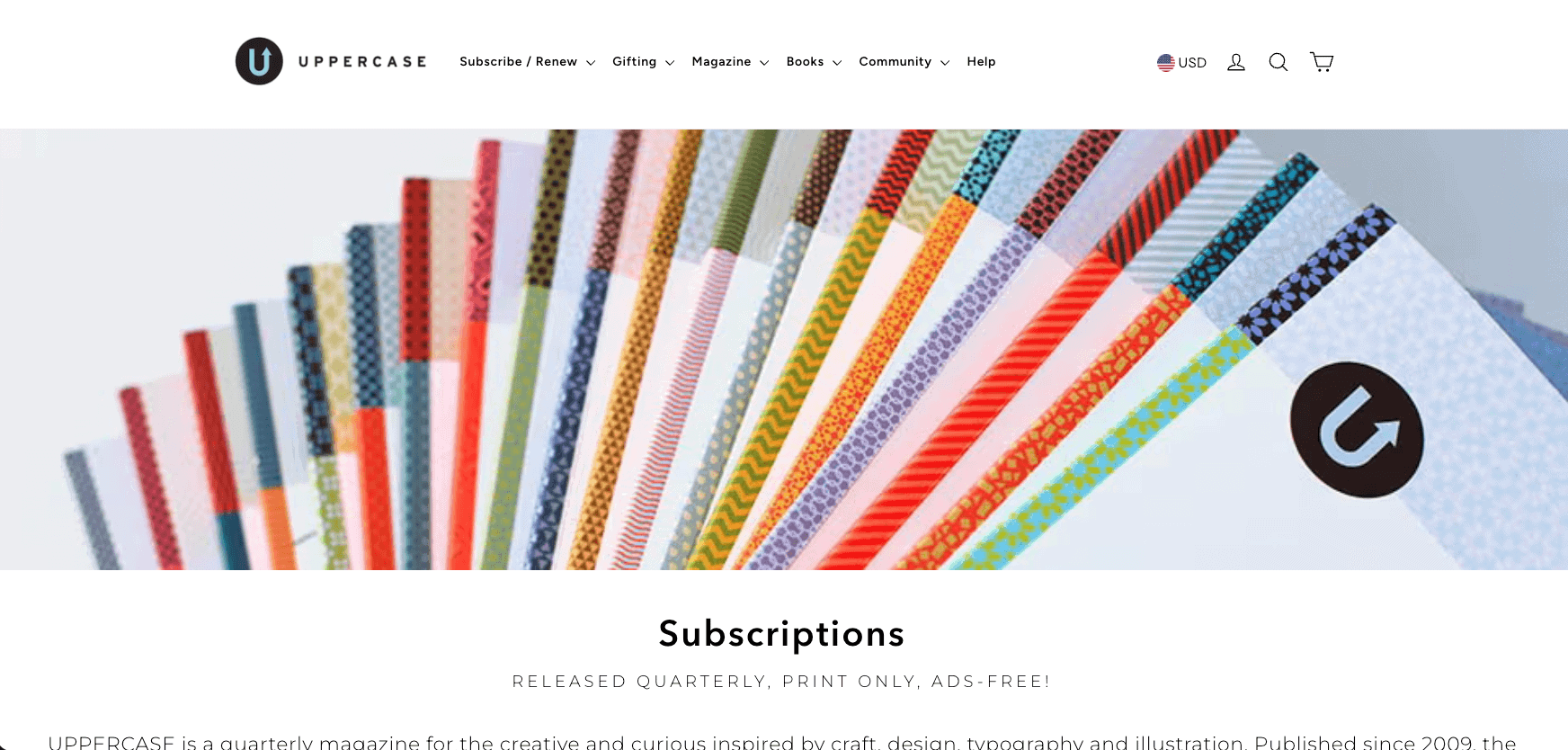
Shopify Free Trial: How to Start Free and Get Shopify for $1/Month

If you’ve been thinking about starting an online store, launching a dropshipping business, selling print-on-demand products, or creating a brand online, Shopify’s current free trial offer is one of the easiest ways to get started.

New Shopify users can start the Shopify free trial and then continue for just $1 per month for the first 3 months on eligible plans. This gives you time to build your store, learn the platform, add products, customize your design, and explore Shopify’s tools before paying the regular subscription price.

I’ve tested Shopify multiple times over the years while reviewing website builders, ecommerce platforms, and online business tools. In my experience, Shopify remains one of the best ecommerce platforms for beginners because it removes many of the technical barriers that prevent people from launching an online store.

Instead of worrying about hosting, software updates, security patches, backups, and server management, Shopify handles those tasks for you. This allows you to focus on what actually matters: building your store and making sales.

In this guide, I’ll show you exactly how to claim the Shopify free trial, what features are included, how pricing works, what I learned while testing Shopify, and whether it’s worth using for your business.

Key Takeaways

  • Shopify offers a free trial for new users.
  • Eligible plans include Shopify for $1/month for the first 3 months after the trial.
  • Shopify includes hosting, security, updates, and ecommerce functionality in one platform.
  • You can create online stores, dropshipping businesses, print-on-demand stores, digital product stores, and more.
  • In my experience, Shopify is one of the easiest ecommerce platforms for beginners.
  • Most users can build a professional-looking store in less than a day.
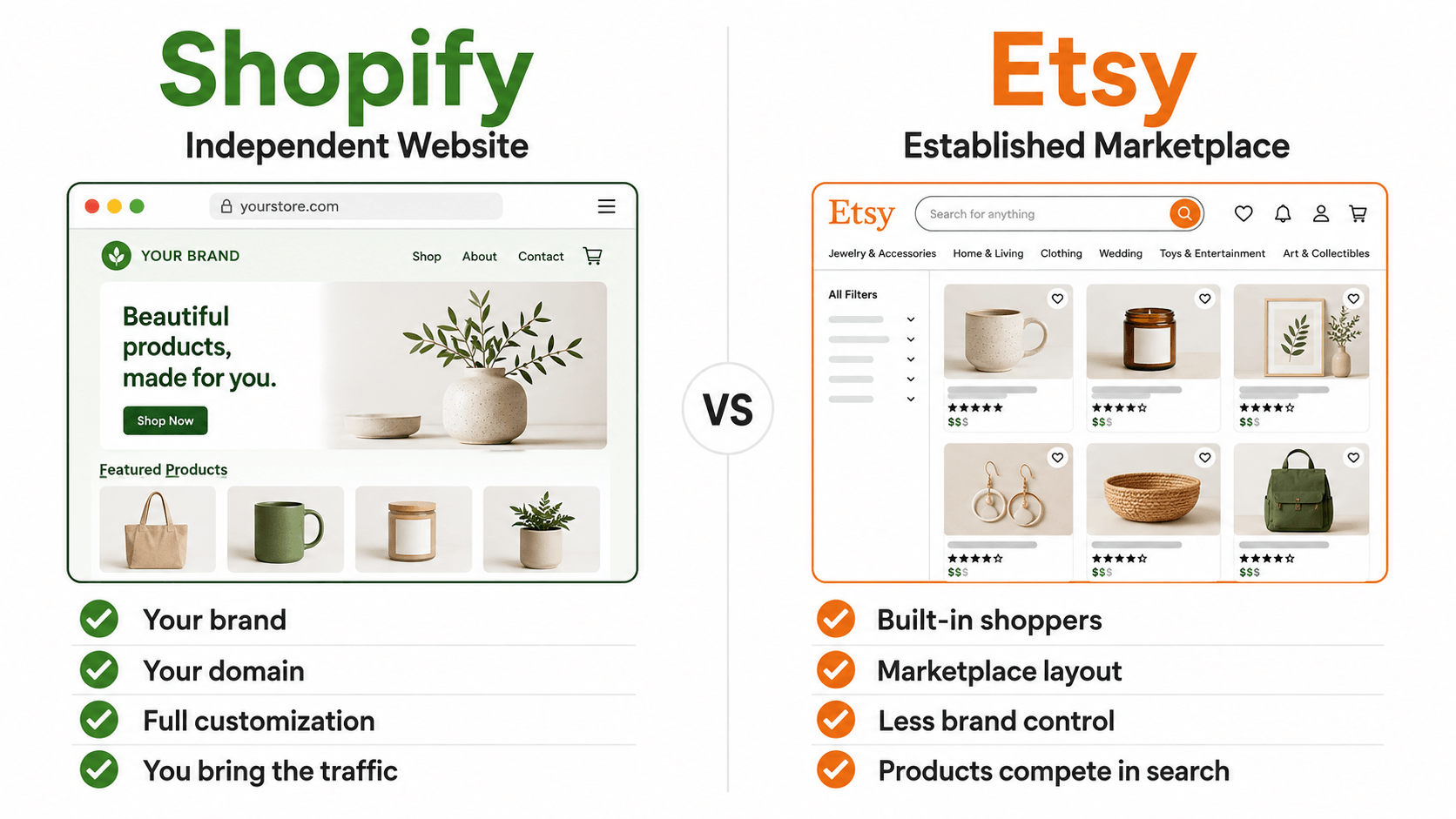
  • Shopify is ideal for entrepreneurs who want to start selling online without dealing with technical setup.
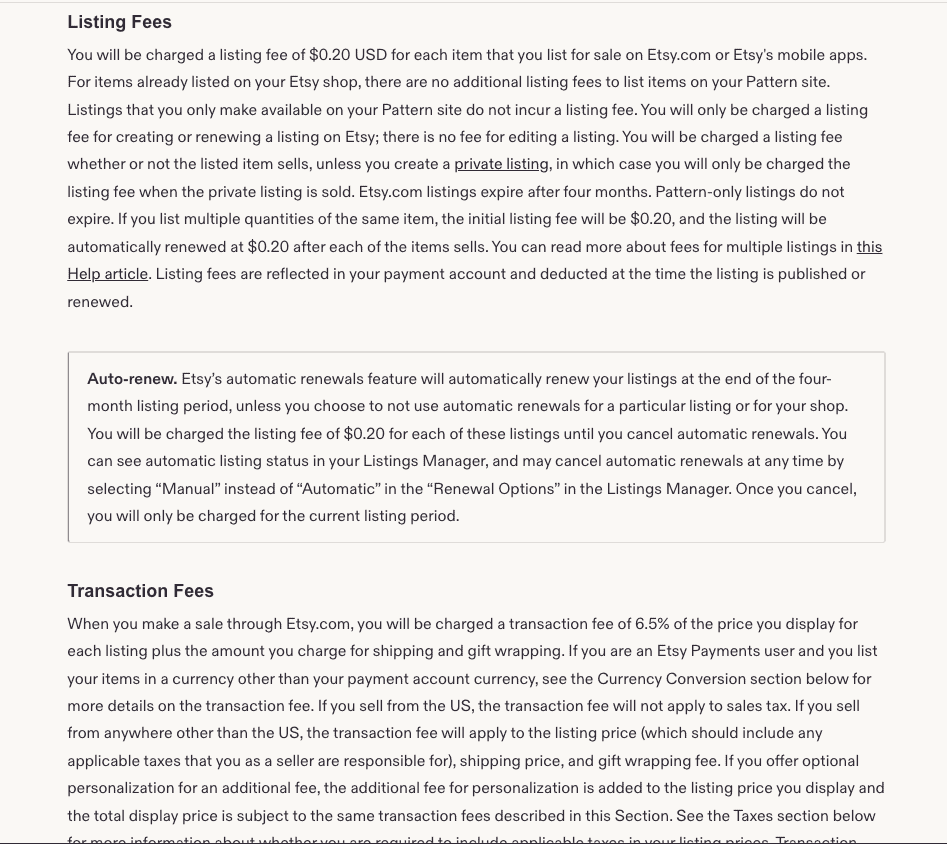
Prefer to watch instead? The video below walks through how to claim the Shopify free trial, explains the current promotion, and shows you how to get started step by step.
Shopify Free Trial 2026 🔥 Start for Free + $1 for 3 Months

What Is the Shopify Free Trial?

shopify-free-trial

The Shopify free trial allows new users to explore the platform before committing to a full-priced subscription.

Rather than paying immediately, you can create an account, build your store, test Shopify’s features, and become familiar with the platform. Once the trial period ends, eligible users can continue using Shopify for just $1 per month for the first 3 months.

For many people, this dramatically lowers the cost of starting an online business.

How Long Is the Shopify Free Trial?

Promotions can change over time, but Shopify’s current offer allows new users to start with a free trial and then continue for $1 per month for 3 months on eligible plans.

Always verify the latest offer details directly through Shopify before signing up.

What Is Included During the Trial?

The Shopify free trial gives you access to many of the platform’s core features, including:

  • Store creation tools
  • Product management
  • Theme customization
  • Shopify dashboard access
  • Marketing tools
  • App integrations
  • Store settings
  • Order management setup

This allows you to properly evaluate whether Shopify is the right platform for your business.

If you’re ready to see how the platform works, you can start your Shopify free trial here.

Shopify powers millions of online stores and has become one of the most recognizable ecommerce platforms in the world.

One reason for its popularity is simplicity.

Many ecommerce platforms require you to manage:

  • Hosting
  • Security
  • Software updates
  • Performance optimization
  • Technical maintenance

Shopify handles those responsibilities for you.

What I found after testing Shopify is that most beginners can focus entirely on building their business rather than troubleshooting technical problems.

Shopify Features

Some of Shopify’s most popular features include:

  • Ecommerce website builder
  • Product management
  • Secure checkout
  • Mobile-responsive themes
  • Inventory management
  • Shipping tools
  • Discount code creation
  • Analytics and reporting
  • Shopify App Store
  • Payment integrations

How to Claim the Shopify Free Trial

Getting started is straightforward.

Step 1: Visit Shopify

Visit Shopify here to claim the current free trial offer.

You’ll be taken directly to Shopify’s signup process.

shopify-free-trial-signup-page

Step 2: Create Your Account

Enter:

  • Your email address
  • Password
  • Store name

Shopify will create your account and begin the onboarding process.

Step 3: Answer Shopify’s Questions

Shopify may ask questions regarding:

  • Business type
  • Selling experience
  • Business goals
  • Products you plan to sell

These questions help personalize your setup experience.

Step 4: Access the Shopify Dashboard

Once your account is created, you’ll gain access to the Shopify dashboard.

This is where you’ll manage:

  • Products
  • Customers
  • Orders
  • Themes
  • Apps
  • Marketing tools
  • Store settings

One thing I noticed is that Shopify’s dashboard is significantly easier for beginners to understand compared to many competing ecommerce platforms.

Step 5: Customize Your Store

You can begin customizing:

  • Homepage sections
  • Navigation menus
  • Colors
  • Fonts
  • Product pages
  • Collection pages

Even Shopify’s free themes look modern and professional.

Before customizing your layout, explore the 25 best Shopify store examples to see how different stores approach homepage design, product photography, navigation, product pages, branding, and trust. Use the examples for inspiration, but keep your first version simple enough to complete and test during the trial.

Step 6: Select Your Plan

When you’re ready, choose an eligible Shopify plan and take advantage of the $1/month for 3 months promotion.

My Shopify Setup Process

After testing Shopify, I found the setup process surprisingly simple.

Creating an account took only a few minutes.

Adding products was straightforward, and Shopify guided me through most of the important setup steps automatically.

What surprised me most was how quickly I could create a professional-looking storefront using only a free theme.

One thing I noticed is that many beginners spend too much time trying to perfect every design detail before launching.

My recommendation is to focus on getting products added, configuring your store, and launching quickly. You can always improve the design later.

shopify-dashboard-overview

If I were starting a brand-new ecommerce business today, I’d simply start with Shopify’s free trial and begin building immediately.

I would use the free trial period to:

  • Build the store
  • Add products
  • Customize the homepage
  • Install essential apps
  • Connect a domain
  • Test checkout
  • Launch

What Can You Build With Shopify?

One of the biggest misconceptions about Shopify is that it’s only for large ecommerce brands. After testing Shopify, I found that the platform is flexible enough for many different business models. You can use Shopify to create:
  • Traditional online stores
  • Dropshipping businesses
  • Print-on-demand stores
  • Subscription businesses
  • Digital product stores
  • Membership websites
  • Wholesale stores
  • Local business stores
  • Branded merchandise stores
For example, a local bakery can use Shopify to accept online orders, while a content creator can sell merchandise, digital downloads, and courses. This flexibility is one of the reasons Shopify has become so popular among entrepreneurs. For most beginners, Shopify provides enough functionality to start small while still offering room to scale as the business grows. If you’re ready to build your first online store, follow my complete guide on How to Start a Shopify Store, where I walk you through every step from creating your account to launching your website.

Shopify Features Included During the Free Trial

shopify-theme-customization
Many people wonder whether Shopify’s free trial is a limited demo version or whether it gives access to real functionality. What I found is that Shopify allows you to experience many of the platform’s core features during the trial. Some of the most useful features include:

Store Builder

Shopify includes an easy-to-use website builder that allows you to create pages, navigation menus, and store layouts without coding. Shopify also includes an AI Store Builder that can generate personalized storefront designs from a short business description. Read my Shopify AI Store Builder review to see how it works, what it creates, its limitations, and whether it is worth using during your free trial.

Product Management

You can add products, create collections, upload images, set pricing, manage inventory, and organize your catalog.

Theme Customization

Shopify offers professionally designed themes that can be customized to match your brand.

Mobile Optimization

All Shopify themes are designed to work on mobile devices, which is critical because a large percentage of ecommerce traffic comes from smartphones.

App Integrations

The Shopify App Store provides access to thousands of integrations for marketing, reviews, subscriptions, shipping, and more.

Analytics

Shopify provides reporting tools that help you understand traffic, orders, customer behavior, and store performance.

If you plan to promote suitable products through Pinterest, use my Shopify Pinterest guide to understand the catalog connection, Product Pins, tracking, and store requirements.

Shopify Free Trial Checklist

If you’re starting the Shopify free trial, here’s the exact checklist I recommend following.

Week 1

  • Create your Shopify account
  • Choose a store name
  • Upload your logo
  • Select a theme
  • Customize your homepage

Week 2

  • Add products
  • Create collections
  • Configure navigation menus
  • Set up product descriptions
  • Upload product images

Week 3

  • Connect your domain
  • Configure payment methods
  • Configure shipping settings
  • Install essential apps
  • Create key pages

Week 4

  • Test checkout
  • Review mobile responsiveness
  • Proofread content
  • Test store functionality
  • Launch your store
Following this checklist helps ensure you make the most of the trial period. Once your store is ready to launch, use my Shopify first-sale guide to prepare your offer, attract qualified visitors, begin outreach, and follow a practical 30-day action plan.

What Does Shopify Cost After the Free Trial?

shopify-pricing-plans
Once the promotional period ends, Shopify transitions to its standard pricing structure. Shopify offers multiple plans designed for different business sizes and needs.

Basic Shopify

Best for:
  • New entrepreneurs
  • Side hustlers
  • Small ecommerce businesses
The Basic plan typically includes everything needed to launch and manage a professional online store.

Grow

Best for:
  • Growing businesses
  • Stores generating consistent sales
This plan generally includes additional features and reporting capabilities.

Advanced Shopify

Best for:
  • Established ecommerce businesses
  • Higher-volume stores
Advanced Shopify includes more robust reporting and operational tools.

Shopify Plus

Best for:
  • Enterprise businesses
  • Large-scale ecommerce operations

Additional Costs to Consider

In addition to your Shopify plan, you may eventually invest in:
  • Premium themes
  • Paid apps
  • Email marketing software
  • Domain registration
In my experience, most beginners should avoid unnecessary expenses early on and focus on validating their business idea first. You can compare the latest plans and start Shopify here. Before selecting a paid plan, compare the current monthly and annual costs, transaction fees, and included features in my complete Shopify pricing guide. Before removing the storefront password, use the complete Shopify store launch checklist to verify that the store is ready for customers.

Shopify Pros and Cons

Pros Cons
Easy setup process Monthly subscription required
Hosting included Premium apps may add costs
Excellent performance Less flexibility than open-source platforms
Secure platform Some advanced customization requires developers
Beginner-friendly dashboard Premium themes cost extra
Large app marketplace Transaction fees may apply
For a deeper evaluation of the platform before committing, read my complete Shopify review covering its features, pricing, advantages, and limitations.

Shopify vs WooCommerce

One of the most common questions people ask is whether Shopify or WooCommerce is the better choice.

Quick Comparison

Feature Shopify WooCommerce
Beginner Friendly Yes Moderate
Hosting Included Yes No
Security Included Yes No
Updates Included Yes No
Setup Difficulty Easy Moderate
Customization High Very High
Maintenance Minimal User Managed

Shopify Advantages

Shopify is easier to set up and manage. You don’t need to worry about:
  • Hosting
  • Security
  • Updates
  • Backups
  • Technical maintenance
For beginners, this simplicity is often worth the monthly subscription cost.

WooCommerce Advantages

WooCommerce offers greater flexibility and customization because it’s open source and runs on WordPress. Advanced users often prefer WooCommerce because of the additional control it provides.

My Recommendation

After testing both platforms, I generally recommend Shopify for beginners. If your goal is to launch quickly and focus on sales, Shopify is usually the better option. If your goal is maximum flexibility and customization, WooCommerce may be a better fit. For a complete side-by-side breakdown, read my Shopify vs WooCommerce comparison covering costs, setup, design, checkout, SEO, ownership, security, maintenance, and scalability. If you’re a beginner, I’d recommend trying Shopify first before moving to a more advanced platform.

Common Mistakes New Shopify Users Make

After testing Shopify and reviewing countless ecommerce stores over the years, I’ve noticed several mistakes that new users frequently make during their trial period. Avoiding these mistakes can save you time, money, and frustration.

Installing Too Many Apps

One of the biggest mistakes beginners make is installing dozens of apps immediately. While Shopify’s app ecosystem is excellent, too many apps can clutter your dashboard and increase your costs later. My recommendation is to start with only the apps you truly need and add more as your business grows.

Spending Too Much Time Perfecting Design

Many store owners spend weeks tweaking colors, fonts, and layouts before they ever launch. What I found is that getting products listed and making your store functional is far more important than obsessing over minor design details. A simple store that is live and generating sales is better than a perfect store that never launches.

Writing Weak Product Descriptions

Product descriptions play a major role in both conversions and SEO. Use my Shopify SEO guide for beginners to improve product and collection pages, target useful keywords, strengthen internal links, complete technical checks, and track results in Google Search Console. Instead of copying manufacturer descriptions, create unique content that explains:
  • Benefits
  • Features
  • Use cases
  • Frequently asked questions

Ignoring Mobile Users

A large percentage of ecommerce traffic comes from mobile devices. Always test your store on:
  • Smartphones
  • Tablets
  • Desktop computers
before launching.

Skipping Checkout Testing

Before sending traffic to your store, place test orders and review the entire purchasing process. One thing I always recommend is walking through your store as if you were a customer. This often reveals issues that would otherwise go unnoticed. Before publishing your store or sending traffic to it, work through my complete Shopify mistakes to avoid guide to catch additional product, design, app, checkout, shipping, SEO, and mobile problems.

Who Shopify Is Best For

New Ecommerce Entrepreneurs

If you’re launching your first online store, Shopify is one of the easiest ways to get started. The platform handles much of the technical work for you, allowing you to focus on products and marketing.

Dropshippers

Shopify integrates with many popular dropshipping platforms. This makes it easy to source products and automate fulfillment.

Print-on-Demand Sellers

Shopify works extremely well with print-on-demand services such as:
  • Printful
  • Printify
  • Gelato
These integrations allow you to sell custom products without carrying inventory.

Small Business Owners

Local businesses can use Shopify to expand online and reach customers beyond their local market.

Content Creators

Creators can sell:
  • Merchandise
  • Digital downloads
  • Memberships
  • Online courses
using Shopify. If you have not chosen where to sell yet, my Shopify or Etsy comparison explains the difference between building an independent online store and selling through an established marketplace.

Who Should Avoid Shopify?

Users Who Want Complete Server Control

If you want full control over your hosting environment, Shopify may feel restrictive.

Advanced Developers

Developers who require extensive backend customization may prefer open-source platforms.

Users Trying to Avoid Subscription Fees

If recurring monthly costs are a concern, WooCommerce may be worth considering.

Tips for Getting the Most Value From Your Shopify Free Trial

adding-products-in-shopify

Decide What You’ll Sell Before Starting

If you have not chosen a product yet, use my 30 product ideas to sell on Shopify to compare physical products, digital downloads, print-on-demand items, subscriptions, services, sourcing methods, and validation steps before using the trial.

Many people sign up for Shopify before they have a clear business idea. You’ll get much more value from the trial if you already know:
  • Your niche
  • Your products
  • Your target audience
If you are still planning the business before beginning your trial, follow my complete guide on how to start an online store. It covers product validation, startup costs, profit margins, fulfillment, Shopify setup, launch testing, and customer acquisition.

Add Products Immediately

As you add products during the trial, prepare clear images that show the item, important details, scale, and real-world use. My Shopify product-photography guide provides a beginner-friendly shot list, setup advice, editing workflow, and optimization steps.

The fastest way to learn Shopify is by using it. Add products as soon as possible and begin building your catalog.

Use a Free Theme First

Shopify’s free themes are surprisingly good. In my experience, most beginners do not need a premium theme during the trial period.

Connect a Domain

A custom domain makes your store appear more professional and trustworthy.

Focus on Launching

Don’t get stuck trying to perfect every detail. Launch your store, learn from customer feedback, and improve over time.

Shopify Alternatives

Although Shopify is one of my favorite ecommerce platforms, it isn’t the only option available.

WooCommerce

WooCommerce is ideal for WordPress users who want complete ownership and flexibility. For a broader comparison that includes blogging, publishing, ecommerce, SEO, costs, customization, and maintenance, read my Shopify vs WordPress guide.

BigCommerce

BigCommerce is often considered Shopify’s closest competitor and includes many built-in ecommerce features.

Wix Ecommerce

Wix provides an easy website-building experience for smaller online stores.

Squarespace Commerce

Squarespace is particularly popular among creatives, photographers, designers, and service-based businesses. Despite these alternatives, Shopify remains my preferred recommendation for most beginners because of its balance of ease of use, scalability, and reliability.

Is the Shopify Free Trial Worth It?

For most people, yes. The reason is simple. Shopify allows you to explore one of the world’s leading ecommerce platforms without making a significant upfront investment. In my experience, the free trial is especially valuable for:
  • First-time entrepreneurs
  • Side hustlers
  • Dropshippers
  • Print-on-demand sellers
  • Small business owners
  • Content creators
What I found is that many people spend months researching ecommerce platforms without actually taking action. The Shopify free trial removes much of that hesitation because you can begin building immediately and learn by doing. Even if you eventually decide Shopify isn’t the right platform for your business, the experience gained during the trial can still be valuable. If you’re serious about starting an online business, I’d recommend starting your Shopify free trial while the current offer is available.
start-your-shopify-free-trial-today

If your Shopify trial overlaps with holiday preparation, use my Shopify Black Friday checklist to organize the offer, storefront, checkout, marketing, and fulfillment work before the sale.

Frequently Asked Questions

Does Shopify Have a Free Trial?

Yes. Shopify offers a free trial for new users.

How Long Is the Shopify Free Trial?

Current promotions typically include a free trial followed by $1 per month for the first 3 months on eligible plans.

Do I Need a Credit Card for the Shopify Free Trial?

Requirements may vary depending on Shopify’s current promotion and your location.

Can I Cancel Shopify During the Trial?

Yes. You can cancel before upgrading if Shopify isn’t the right fit.

Is Shopify Good for Beginners?

Absolutely. In my experience, Shopify is one of the easiest ecommerce platforms available for beginners.

Can I Sell Products During the Trial?

You can build and prepare your store while evaluating Shopify’s features.

Does Shopify Include Hosting?

Yes. Shopify includes hosting as part of the platform.

Can I Use My Own Domain Name?

Yes. Shopify allows you to connect an existing domain or purchase a new one.

Is Shopify Good for Dropshipping?

Yes. Shopify is one of the most popular platforms for dropshipping businesses.

Can I Sell Digital Products on Shopify?

Yes. Shopify supports digital products through built-in functionality and apps.

Follow my Shopify digital-products guide to choose an offer, prepare the downloadable files, connect a delivery app, configure the product, test fulfillment, and launch it correctly.

Can I Sell Print-on-Demand Products on Shopify?

Yes. Shopify integrates with popular print-on-demand providers. Follow my Shopify print-on-demand guide to compare providers, connect an app, create products, calculate pricing, order samples, and prepare your store for launch.

What Happens After the Shopify Trial Ends?

Your account transitions to standard Shopify pricing if you choose to continue.

Is Shopify Better Than WooCommerce?

For beginners, Shopify is often easier. For advanced users wanting complete control, WooCommerce may be preferable.

How Quickly Can I Launch a Shopify Store?

Many users can build a basic store in less than a day.

Is Shopify Worth the Cost?

For many businesses, yes. The convenience, security, hosting, and ease of use justify the cost.

You can use the trial period to test a supplier-fulfilled store before committing. My Shopify dropshipping guide covers products, suppliers, pricing, store setup, fulfillment, marketing, and cash flow.

Final Verdict

The Shopify free trial is one of the best opportunities available for aspiring ecommerce entrepreneurs. In my experience, Shopify strikes an excellent balance between ease of use, professional design, reliability, and scalability. What I found after testing Shopify is that most beginners can launch a store far faster than they expect, even without prior experience.

I Recommend Shopify If:

  • You want to start selling online quickly
  • You’re new to ecommerce
  • You want hosting and security included
  • You don’t want technical headaches
  • You want a low-risk way to test a business idea

I Don’t Recommend Shopify If:

  • You need complete server control
  • You prefer open-source software
  • You enjoy managing your own hosting environment

Ready to Start Your Shopify Free Trial?

If you’re ready to build your online store, take advantage of Shopify’s current offer and start for free. Ready to launch your online store? Eligible users can continue with Shopify for just $1/month for the first 3 months, making it one of the lowest-risk ways to launch an ecommerce business today.

If you want to use the trial to build a focused store around one flagship item, follow my one-product Shopify store guide for the complete validation, setup, positioning, and testing process.

© Copyright 2026 | WP Cupid Blog